1. Introduction
This manual provides comprehensive instructions for the installation, configuration, and operation of your Reolink Home Hub with 2x Lumus 2K Wi-Fi Security Camera System. This system is designed to provide reliable surveillance with advanced features for home security.
Image 1.1: Overview of the Reolink Home Hub with two Lumus cameras and included microSD card.
2. Package Contents
Verify that all items listed below are included in your package:
- 1x Reolink Home Hub
- 2x Reolink Lumus Cameras
- 1x Power Adapter for Home Hub
- 1x Ethernet Cable
- 1x 256GB MicroSD Card (pre-installed in Home Hub)
- 1x Quick Start Guide
- 1x Reset Needle

Image 2.1: The complete Reolink Home Hub system package contents.
3. Setup Guide
Follow these steps to set up your Reolink Home Hub and connect your cameras.
3.1 Initial Setup Video
Video 3.1: A detailed guide on how to unbox, set up the Home Hub, and add Reolink cameras using the Reolink app.
3.2 Cable Connection
Connect the Reolink Home Hub to your router using the provided Ethernet cable and power it on.
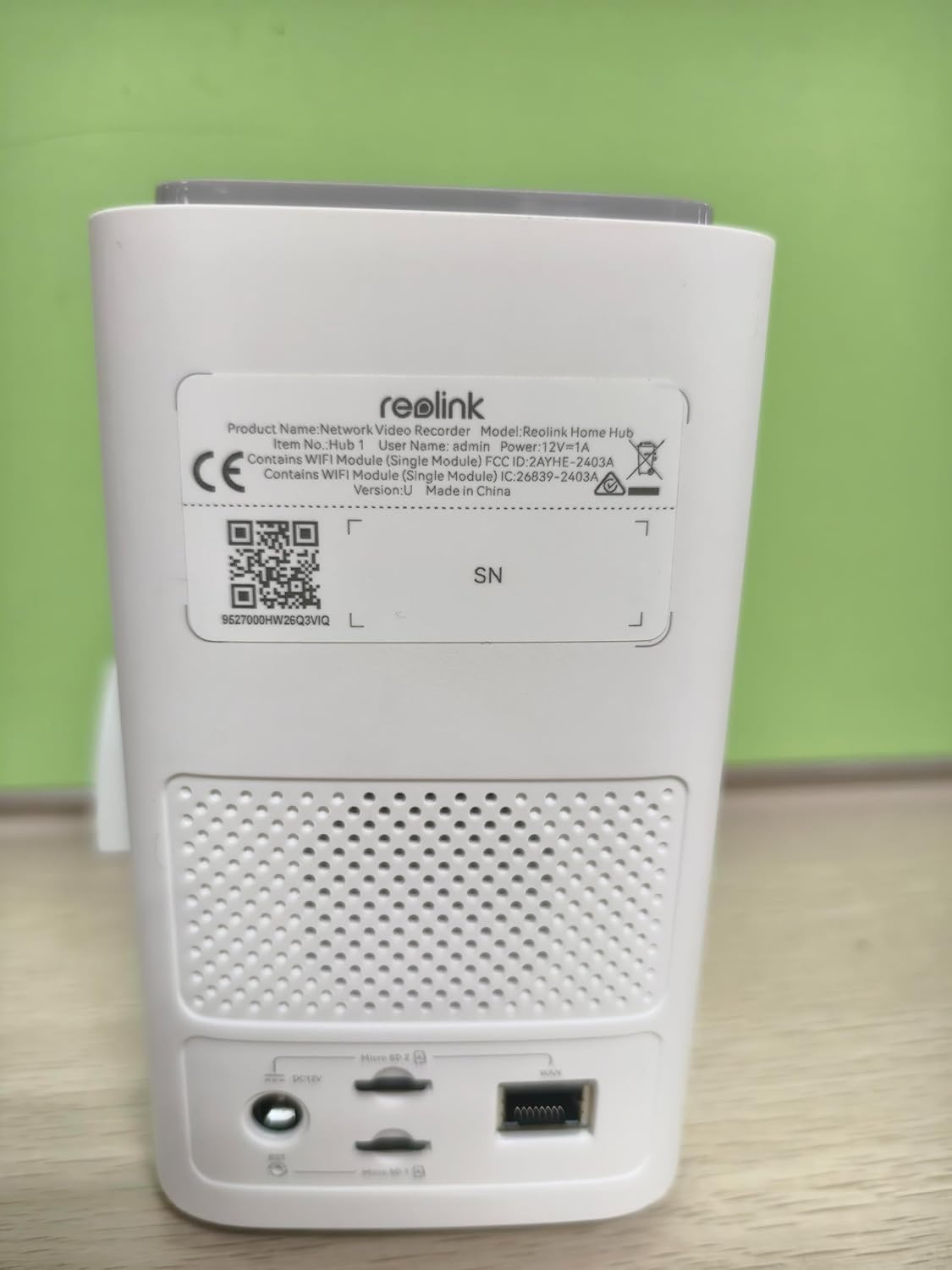
Image 3.2: The rear panel of the Reolink Home Hub, displaying the Ethernet port, power input, and microSD card slots.
3.3 Download Reolink App
Download the latest version of the Reolink App from your mobile device's app store. This app is essential for configuring and managing your security system.
3.4 Add Home Hub to Reolink App
- Open the Reolink App.
- Tap the '+' icon in the top right corner to add a device.
- Scan the QR code located on the bottom of your Reolink Home Hub.
- Follow the on-screen instructions to complete the hub addition process.
3.5 Add Cameras to Home Hub
There are two methods to add cameras, depending on whether they are initialized or uninitialized.
For Uninitialized Cameras:
- Power on the camera.
- Use the Reolink App to scan the QR code on the camera.
- Select "Use with Home Hub" when prompted.
- Follow the on-screen instructions to connect and initialize the camera.

Image 3.3: The rear of a Reolink Lumus camera, highlighting the QR code for device setup.
For Initialized Cameras:
- In the Reolink App, navigate to the Home Hub's settings page.
- Select "Device list" and locate the camera you wish to connect.
- Follow the on-screen instructions to add the camera to the hub.
4. Operating Instructions
4.1 2K QHD Video Quality
The system provides 2K Quad HD resolution for clear and detailed video surveillance, covering a broad 107° field of view.
4.2 Dual-Band Wi-Fi Connectivity
The cameras support both 2.4GHz and 5GHz Wi-Fi bands, offering a stable and faster connection with reduced interference. Ensure your router supports dual-band for optimal performance.

Image 4.1: Visual representation of the cameras utilizing both 2.4GHz for wider coverage and 5GHz for faster speeds.
4.3 Smart Detection and Two-Way Audio
The system features intelligent AI detection to identify people, vehicles, and animals, minimizing false alarms. Two-way audio allows for communication through the camera.

Image 4.2: A person speaking into the camera, demonstrating the two-way audio and smart detection capabilities.
4.4 Integrated Alarm System
When motion is detected, the Home Hub can trigger instant siren alerts. You can customize alert tones or use pre-set options. Notifications can also be sent via push alerts or email.
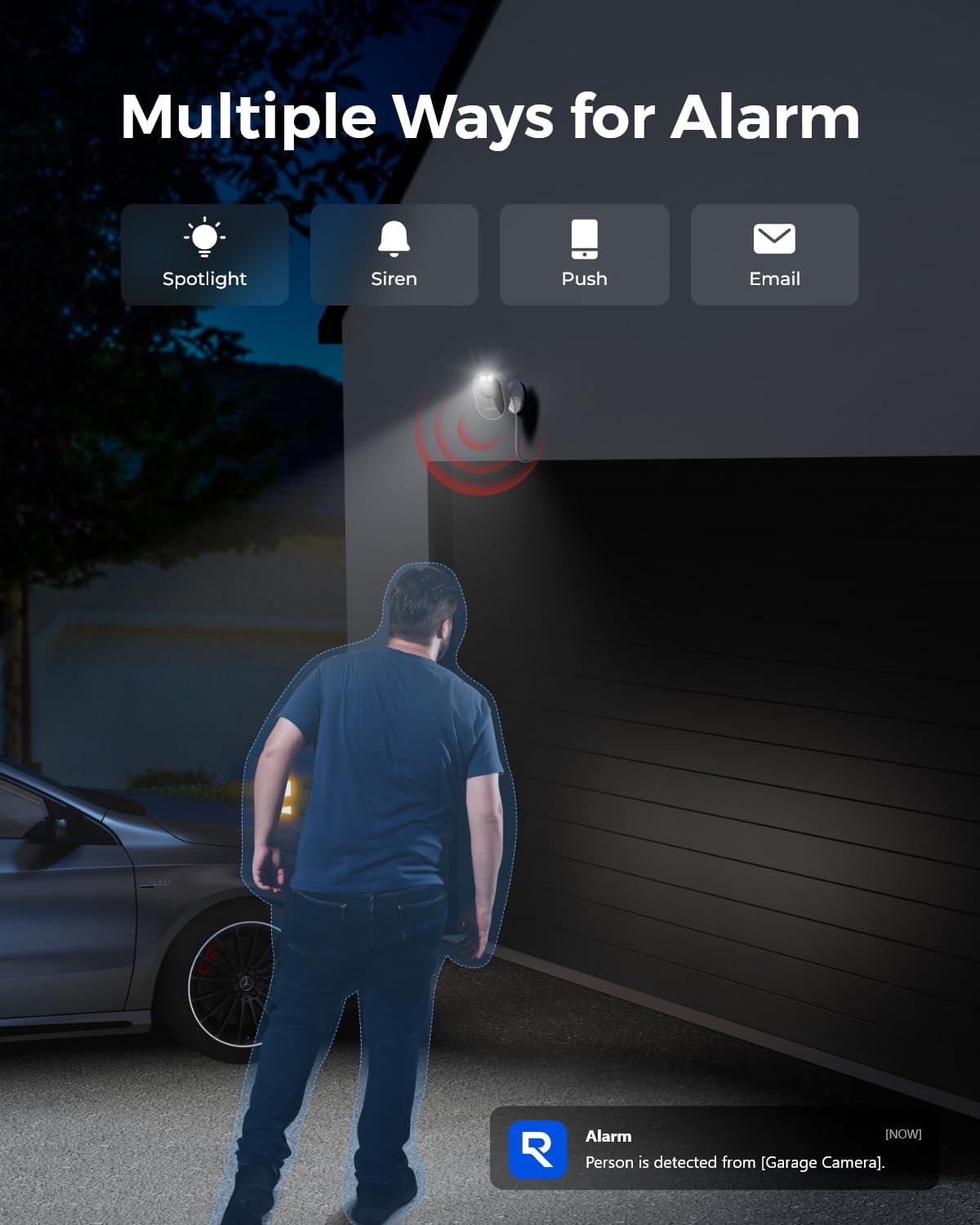
Image 4.3: A visual showing the various alarm methods, including spotlight, siren, push notifications, and email alerts.
4.5 Local Storage and Data Security
The Home Hub includes a 256GB microSD card for local storage, expandable up to 2x 512GB microSD cards. All data is protected with built-in AES-128 encryption and anti-theft algorithms.
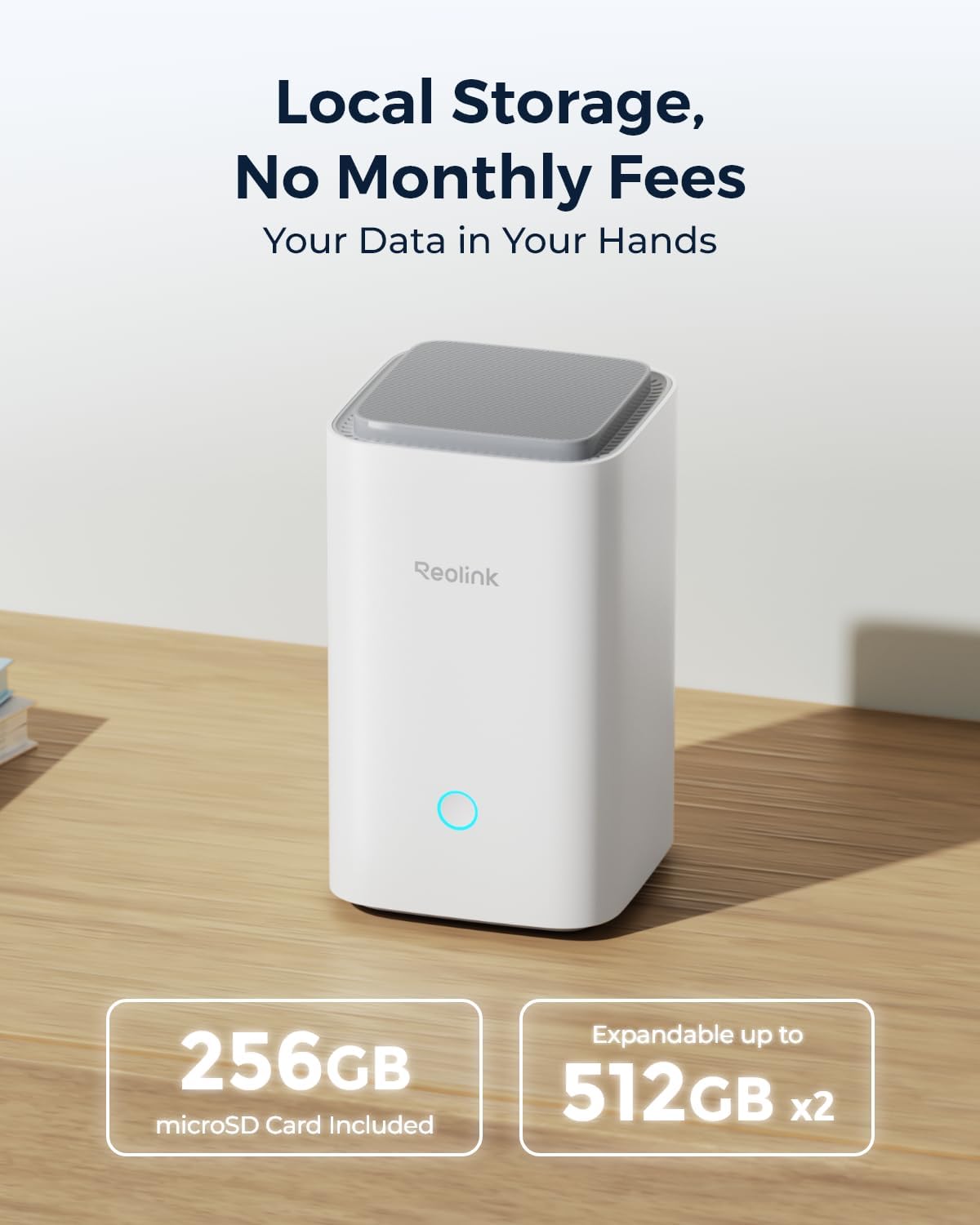
Image 4.4: The Reolink Home Hub highlighting its local storage capacity with an included 256GB microSD card and expandability to 2x 512GB.

Image 4.5: The Reolink Home Hub encased in a digital security shield, symbolizing data protection and encryption.
4.6 24/7 Offline Recording
The system supports continuous 24/7 recording directly to the Home Hub's local storage, ensuring footage is captured even without an internet connection.

Image 4.6: The Reolink Home Hub with a crossed-out Wi-Fi symbol, illustrating its ability to record continuously offline.
4.7 Expandable System
The Reolink Home Hub can support up to 8 Reolink IP cameras (excluding 4G cameras), allowing you to expand your surveillance coverage as needed.

Image 4.7: The Reolink Home Hub acting as a central control unit for multiple compatible Reolink IP cameras.
4.8 Color Night Vision
The Lumus cameras are equipped with spotlights to provide vivid color night vision, enhancing visibility in low-light conditions.
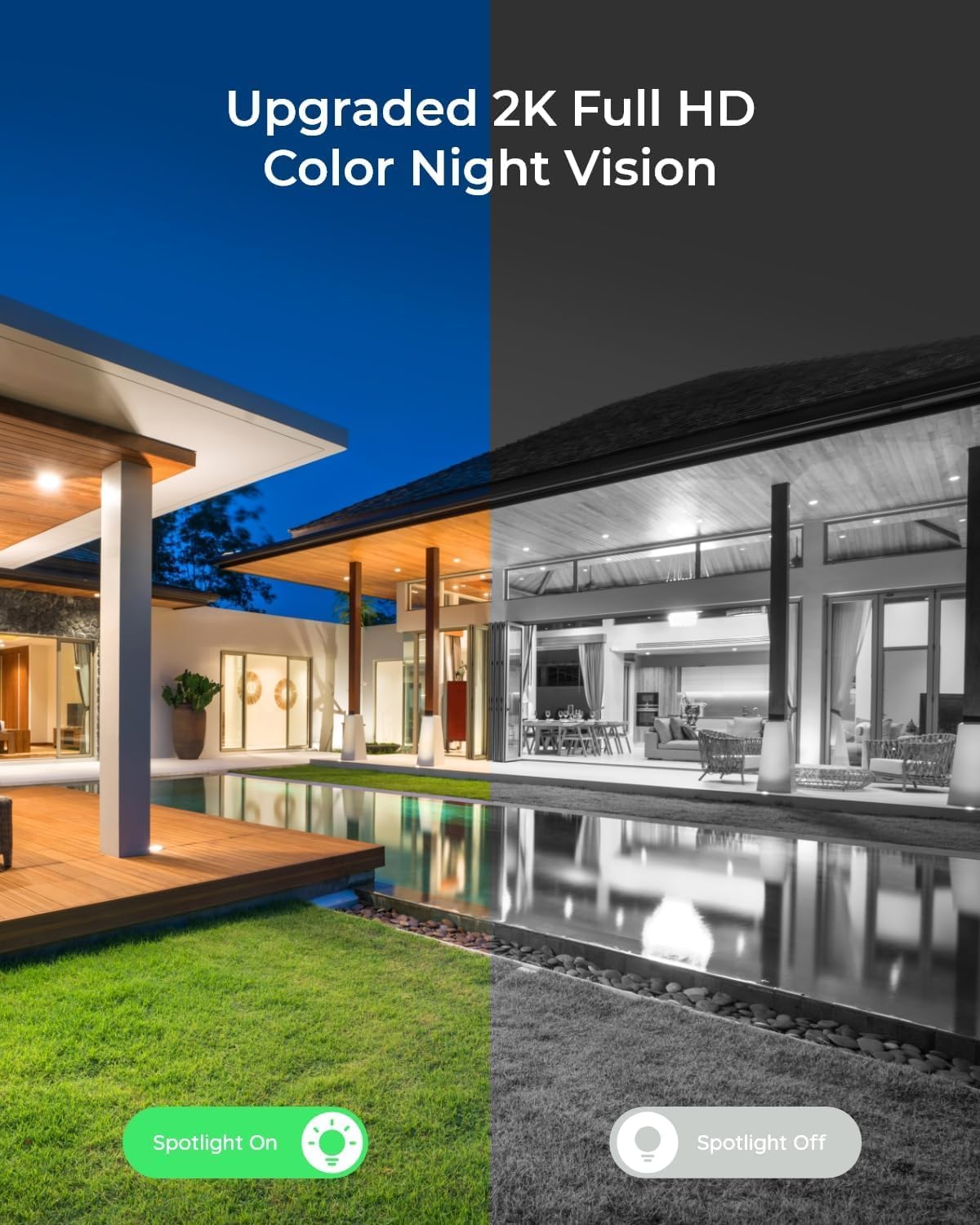
Image 4.8: A split image demonstrating the difference between color night vision (spotlight on) and standard black and white night vision (spotlight off).

Image 4.9: A multi-panel image illustrating the camera's view during day, dusk, night, and dawn, showcasing its continuous monitoring capability.
5. Maintenance
- Regular Cleaning: Periodically clean the camera lenses with a soft, dry cloth to ensure clear image quality. Avoid abrasive cleaners.
- Firmware Updates: Check the Reolink App regularly for firmware updates to ensure optimal performance and security.
- Power Supply: Ensure the cameras and Home Hub receive a stable power supply. Avoid using unapproved power adapters.
- MicroSD Card Management: Regularly review and back up important recordings from the microSD card. The card can be formatted via the app if needed.
- Environmental Considerations: While designed for outdoor use, avoid placing cameras directly in areas prone to extreme weather conditions or direct water jets.

Image 5.1: An outdoor camera operating in light rain, demonstrating its weather resistance.
6. Troubleshooting
- Camera Offline: Check the power connection and Wi-Fi signal strength. Ensure the camera is within range of your router or Home Hub. Restart the camera and Home Hub if necessary.
- Poor Image Quality: Clean the camera lens. Ensure there are no obstructions in the camera's field of view. Check for strong light sources directly facing the camera at night.
- False Alarms: Adjust the motion detection sensitivity settings in the Reolink App. Configure detection zones to exclude areas with frequent irrelevant motion (e.g., busy roads, swaying trees).
- MicroSD Card Not Recording: Ensure the microSD card is correctly inserted and formatted. Check the storage status in the app. If the card is full, back up data and format it, or replace it with a larger capacity card.
- Cannot Connect to App: Verify your phone's internet connection. Ensure the Reolink App is updated to the latest version. Restart your phone, Home Hub, and router.
7. Specifications
| Feature | Specification |
|---|---|
| Brand | REOLINK |
| Model Number | Reolink Home Hub with 2X Lumus |
| Power Source | Corded Electric |
| Video Capture Resolution | 2K |
| Connectivity Technology | Wireless (5G/2.4GHz Dual-band Wi-Fi) |
| Installation Type | Wireless DIY |
| Alert Type | Motion |
| Control Method | App |
| Maximum Range | 100 Feet |
| Included Components | Home Hubx1; Reolink Lumusx2, 256GB MicroSD Cardx1 |
| Special Features | Two-Way Talk; 24/7 Offline Recording |
| Item Dimensions L x W x H | 3.9 x 3.58 x 2.36 inches |
| Item Weight | 3.54 pounds |
8. Warranty and Support
Reolink products typically come with a limited warranty. Please refer to the official Reolink website or your purchase documentation for specific warranty terms and conditions.
For technical support, product inquiries, or further assistance, please visit the official Reolink support page or contact their customer service directly. You can find contact information on the Reolink website: reolink.com/support


