
1. Introduction
Thank you for choosing the Apexcam X80 PRO 4K Action Camera. This manual provides essential information for setting up, operating, and maintaining your camera. Please read it thoroughly before use to ensure optimal performance and longevity of your device.
2. Package Contents
Verify that all items listed below are included in your package. If any items are missing or damaged, please contact customer support.
- Apexcam X80 PRO Action Camera
- Waterproof Case
- 2 x 1350mAh Rechargeable Batteries
- Battery Charger
- 2.4G Wireless Remote Control (with LR44 battery)
- USB-C Cable
- Various Mounting Accessories (e.g., helmet mounts, bicycle mount, adhesive pads)
- User Manual


3. Product Overview
The Apexcam X80 PRO features a dual-screen design for versatile shooting and a robust build for action-packed environments.

3.1 Camera Components
- Front Screen: 1.4-inch color display for framing selfies and vlogs.
- Rear Screen: 2.0-inch touch screen for intuitive menu navigation and playback.
- Lens: 170° wide-angle lens.
- Power/Mode Button: Used to power on/off and switch between modes.
- Shutter/OK Button: Used to start/stop recording or take photos.
- Up/Down Buttons: For navigation in menus and digital zoom.
- MicroSD Card Slot: For external storage.
- USB-C Port: For charging and data transfer.
4. Getting Started (Setup)
4.1 Charging the Batteries
- Insert the two 1350mAh batteries into the provided battery charger.
- Connect the charger to a USB power source using the USB-C cable.
- The indicator light on the charger will show charging status (e.g., red for charging, green for fully charged).
4.2 Inserting a MicroSD Card
A high-speed MicroSD card (Class 10 or U3 recommended, up to 128GB) is required for recording. The camera does not have significant internal storage for user files.
- Locate the MicroSD card slot on the side of the camera.
- Insert the MicroSD card with the contacts facing the front of the camera until it clicks into place.
- To remove, gently push the card in until it springs out.
4.3 Using the Waterproof Case
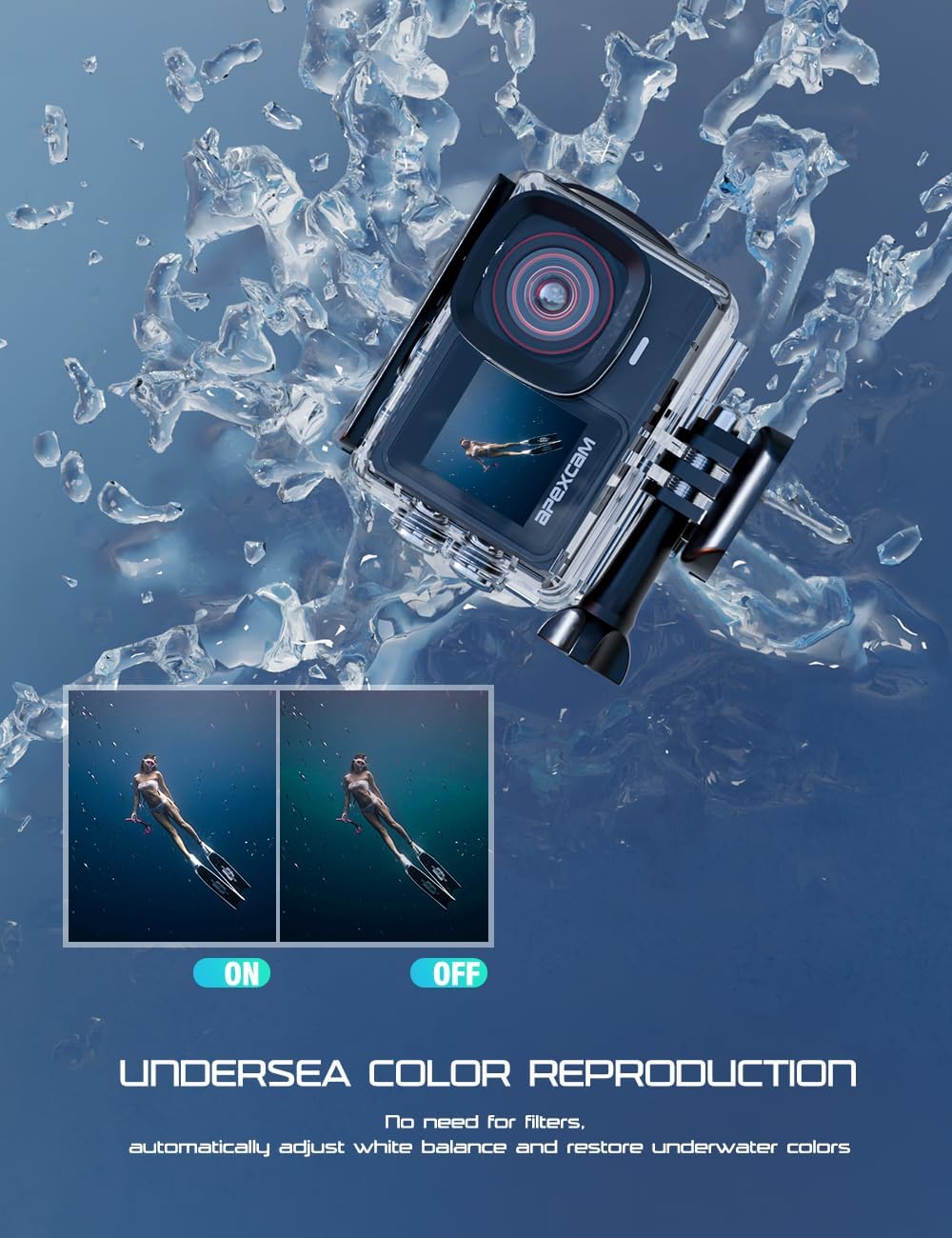
The included waterproof case allows the camera to be used up to 40 meters underwater, protecting it from water, dust, and impacts.
- Ensure the camera is dry and clean before placing it inside the case.
- Open the waterproof case latch and carefully insert the camera.
- Close the latch securely, ensuring a tight seal.
- Before first use underwater, perform a leak test with the case empty.
5. Operating Instructions
5.1 Power On/Off
- Power On: Press and hold the Power/Mode button for 3 seconds.
- Power Off: Press and hold the Power/Mode button for 3 seconds.
5.2 Mode Switching
Press the Power/Mode button repeatedly to cycle through Video, Photo, and Playback modes.
5.3 Recording Video
- In Video mode, press the Shutter/OK button to start recording.
- Press the Shutter/OK button again to stop recording.
- The camera supports 4K resolution at 60 frames per second (4K/60FPS).
5.4 Taking Photos
- In Photo mode, press the Shutter/OK button to take a photo.
- The camera captures photos at 48 Megapixels (48MP).

5.5 Using Dual Screens
The X80 PRO features both a front and rear screen. The rear screen is touch-enabled for easy navigation.
- To switch between the front (1.4-inch) and rear (2.0-inch touch) screens, press and hold the Down button for a few seconds while in video or photo mode.
- The front screen is ideal for framing yourself during vlogs or selfies.

5.6 Wi-Fi Connectivity
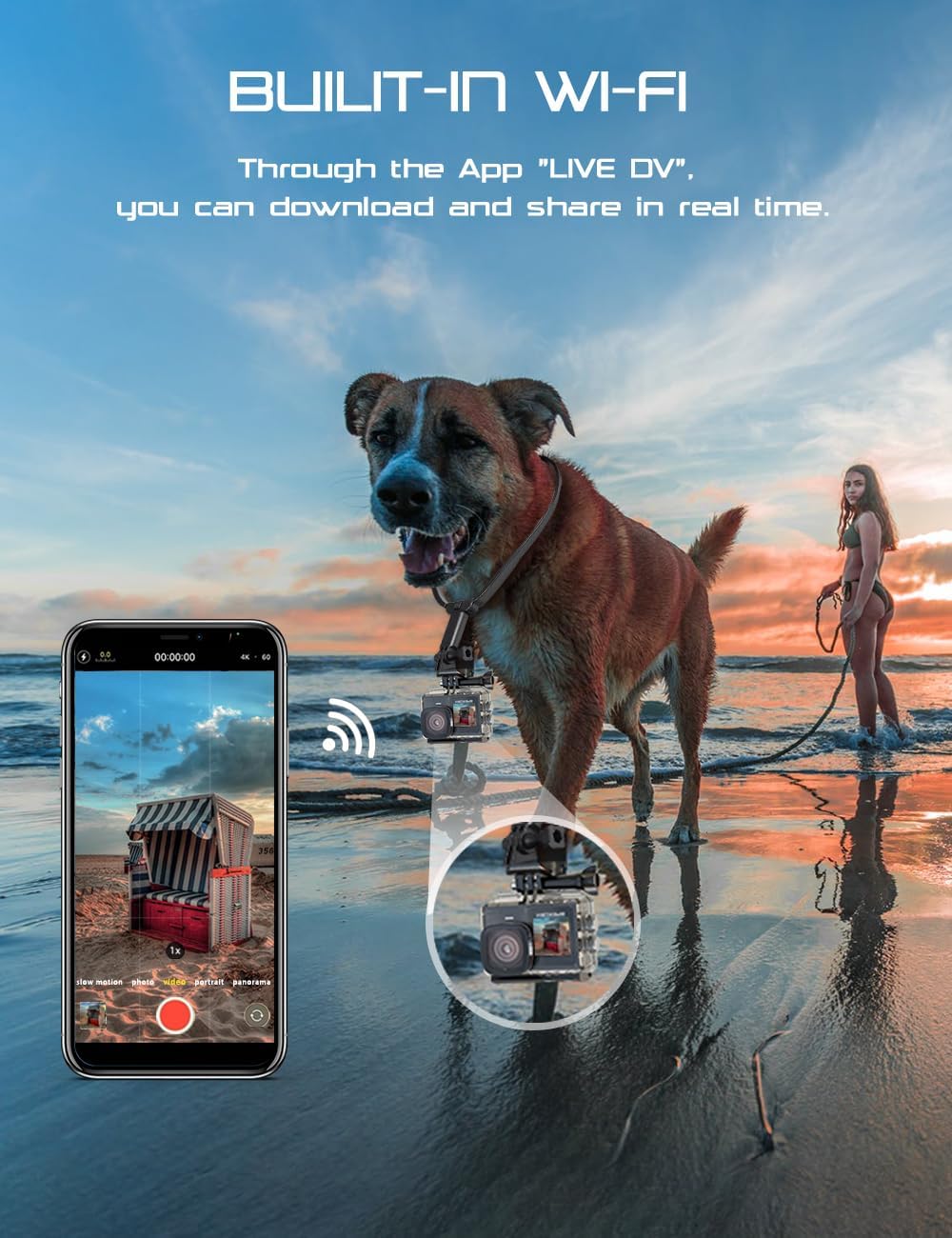
Connect your camera to the "LIVE DV" app on your smartphone for remote control, live preview, and easy sharing.
- Download the "LIVE DV" app from your smartphone's app store.
- On the camera, enable Wi-Fi through the settings menu.
- On your smartphone, connect to the camera's Wi-Fi network (SSID and password displayed on camera screen).
- Open the "LIVE DV" app to control the camera remotely.
5.7 Using the 2.4G Remote Control
The included remote control allows for convenient operation from a distance.
- Ensure the remote control battery (LR44) is installed correctly.
- Pair the remote control with the camera (refer to camera settings for pairing instructions).
- Use the remote to start/stop video recording or take photos without touching the camera.
6. Advanced Features
6.1 Electronic Image Stabilization (EIS)
The camera features Electronic Image Stabilization (EIS) for smoother video footage, especially useful during activities like skiing, skydiving, or cycling. EIS is available for certain recording resolutions.
6.2 Pre-recording Function
The pre-recording function captures 5 seconds of video before you press the shutter button, ensuring you don't miss unexpected moments.

6.3 Loop Recording
When enabled, loop recording allows the camera to continuously record by overwriting the oldest files when the memory card is full. This is useful for dashcam functionality.
6.4 Time-Lapse
Capture stunning time-lapse videos by setting the camera to take photos at specified intervals and stitching them together.

6.5 Slow Motion
Record videos in slow motion to highlight fast-paced actions and capture details not visible at normal speed.

6.6 Burst Photo Mode
Capture a rapid sequence of photos with burst mode, perfect for fast-moving subjects or action sequences.

6.7 170° Wide-Angle Lens
The 170° wide-angle lens captures a broader perspective, ideal for landscapes, group shots, and immersive action footage.

7. Maintenance
- Cleaning the Camera: Use a soft, dry cloth to clean the camera body. For the lens, use a lens cleaning cloth and solution. Avoid harsh chemicals.
- Battery Care: Store batteries in a cool, dry place. Do not expose them to extreme temperatures. Fully charge batteries before extended storage and recharge every few months to maintain their health.
- Waterproof Case: After underwater use, rinse the case with fresh water and allow it to air dry. Inspect the O-ring seal regularly for dirt or damage.
- Storage: When not in use, store the camera and accessories in a protective case to prevent damage.
8. Troubleshooting
- Camera not turning on: Ensure batteries are fully charged and correctly inserted. Try a different battery.
- Recording issues (freezing, choppy video): Use a high-speed MicroSD card (Class 10 or U3). Format the MicroSD card in the camera.
- Wi-Fi connection problems: Ensure Wi-Fi is enabled on the camera and your smartphone. Restart both devices. Check the app for updates.
- Overheating: Prolonged 4K recording can cause the camera to warm up. If it overheats excessively, it may shut down automatically. Allow it to cool down.
- Remote control not working: Check the LR44 battery in the remote. Ensure the remote is paired with the camera.
9. Specifications
| Feature | Specification |
|---|---|
| Model Number | X80 PRO |
| Video Resolution | Up to 4K/60FPS |
| Photo Resolution | Up to 48MP |
| Lens Angle | 170° Wide Angle |
| Front Screen Size | 1.4 Inches |
| Rear Screen Size | 2.0 Inches (Touch Screen) |
| Waterproof Depth | Up to 40 meters (with waterproof case) |
| Battery Capacity | 2 x 1350mAh (Rechargeable) |
| Remote Control Battery | LR44 (Included) |
| Connectivity | Wi-Fi, USB-C |
| Video Format | MOV |
| Audio Format | AAC, MP3 |
| Storage | Supports external MicroSD card (Class 10/U3, up to 128GB) |
| Dimensions | 6.33 x 4.2 x 3.08 cm |
| Weight | 510 g |
10. Warranty & Support
Apexcam is committed to providing quality products and customer satisfaction.
- 30-Day Return Policy: Enjoy a 30-day return period for your purchase.
- 2-Year After-Sales Service: The product is covered by a 2-year after-sales service period.
- Lifetime Support: Apexcam offers lifetime technical support for its products.
- 24-Hour Customer Service: Dedicated customer service is available to assist you with any inquiries or issues.

For further assistance, please refer to the contact information provided with your product or visit the official Apexcam website.


