
MageGee SKY98
MageGee SKY98 Mechanical Gaming Keyboard User Manual
Model: SKY98 | Brand: MageGee
Introduction
Welcome to the user manual for your new MageGee SKY98 Mechanical Gaming Keyboard. This 96% layout keyboard features a gasket-mounted structure, 5-layer sound dampening, hot-swappable switches, and vibrant RGB backlighting, designed for an enhanced typing and gaming experience on both Windows and Mac systems. This manual provides detailed instructions on setup, operation, maintenance, and troubleshooting to help you get the most out of your keyboard.

Figure 1: Overview of the MageGee SKY98 Mechanical Gaming Keyboard. This image displays the full keyboard layout, highlighting its compact 96% design with a dedicated numeric keypad, function row, and navigation keys. The keycaps are a combination of Prussian Blue and darker blue, with visible RGB backlighting.
Setup Guide
Follow these steps to set up your MageGee SKY98 keyboard for the first time.
1. Wired Connection
- Locate the detachable USB Type-C cable included in the package.
- Connect the Type-C end of the cable to the USB-C port on the back or side of the SKY98 keyboard.
- Connect the USB-A end of the cable to an available USB port on your computer (desktop PC or laptop).
- The keyboard is plug-and-play and should be recognized automatically by your operating system.

Figure 2: Connecting the detachable USB Type-C cable to the keyboard. This image shows the USB-C port on the keyboard and the cable being inserted, illustrating the wired connection method.
2. System Compatibility (Windows/Mac)
The SKY98 keyboard supports both Windows and Mac operating systems.
- To switch between Windows and Mac modes, press FN + Home.
- The keyboard will adjust its key mappings to optimize for the selected operating system.
Operating Instructions
1. Keyboard Layout and N-Key Rollover
The SKY98 features a 96% layout with 99 keys, providing a compact design while retaining essential keys including a numeric keypad. It supports 100% anti-ghosting with N-Key Rollover (NKRO), ensuring every keystroke is registered accurately, even during rapid, simultaneous key presses.
Figure 3: The 96% layout of the SKY98 keyboard, illustrating its compact form factor that includes a full numeric pad and function keys, designed to save desktop space.
2. RGB Backlighting Control
The keyboard features stunning RGB backlighting with various modes and customization options.
- Switch On/Off: Use the dedicated switch on the left side of the keyboard to quickly turn the backlight on or off.
- Change Modes: Press FN + DEL to cycle through 18 built-in backlight modes.
- Adjust Brightness: Press FN + ↑ (Up Arrow) to increase brightness, and FN + ↓ (Down Arrow) to decrease brightness.
- Adjust Speed: Press FN + ← (Left Arrow) to decrease animation speed, and FN + → (Right Arrow) to increase animation speed.
- Gaming Backlight Effects: Access 6 sets of default gaming backlight effects by pressing FN + 1 through FN + 6.
- Custom Backlight: To record a customized light effect, press FN + Back. Follow the keyboard's indicators to set your preferred lighting.

Figure 4: Detail of the backlight switch located on the side of the keyboard, allowing for quick control of the RGB lighting.
3. Hot-Swappable Switches
The SKY98 keyboard features hot-swappable sockets, allowing you to easily change switches without soldering. It is compatible with most 3-pin or 5-pin mechanical switches.
- Included Switches: The keyboard comes with pre-lubed MageGee Blue Whale Switches, known for their responsive and creamy typing feel.
- Switch Removal: Use the included switch puller tool to gently grip the switch and pull it straight up from the PCB.
- Switch Installation: Align the pins of the new switch with the holes on the PCB. Gently push the switch down until it clicks into place. Ensure pins are not bent.
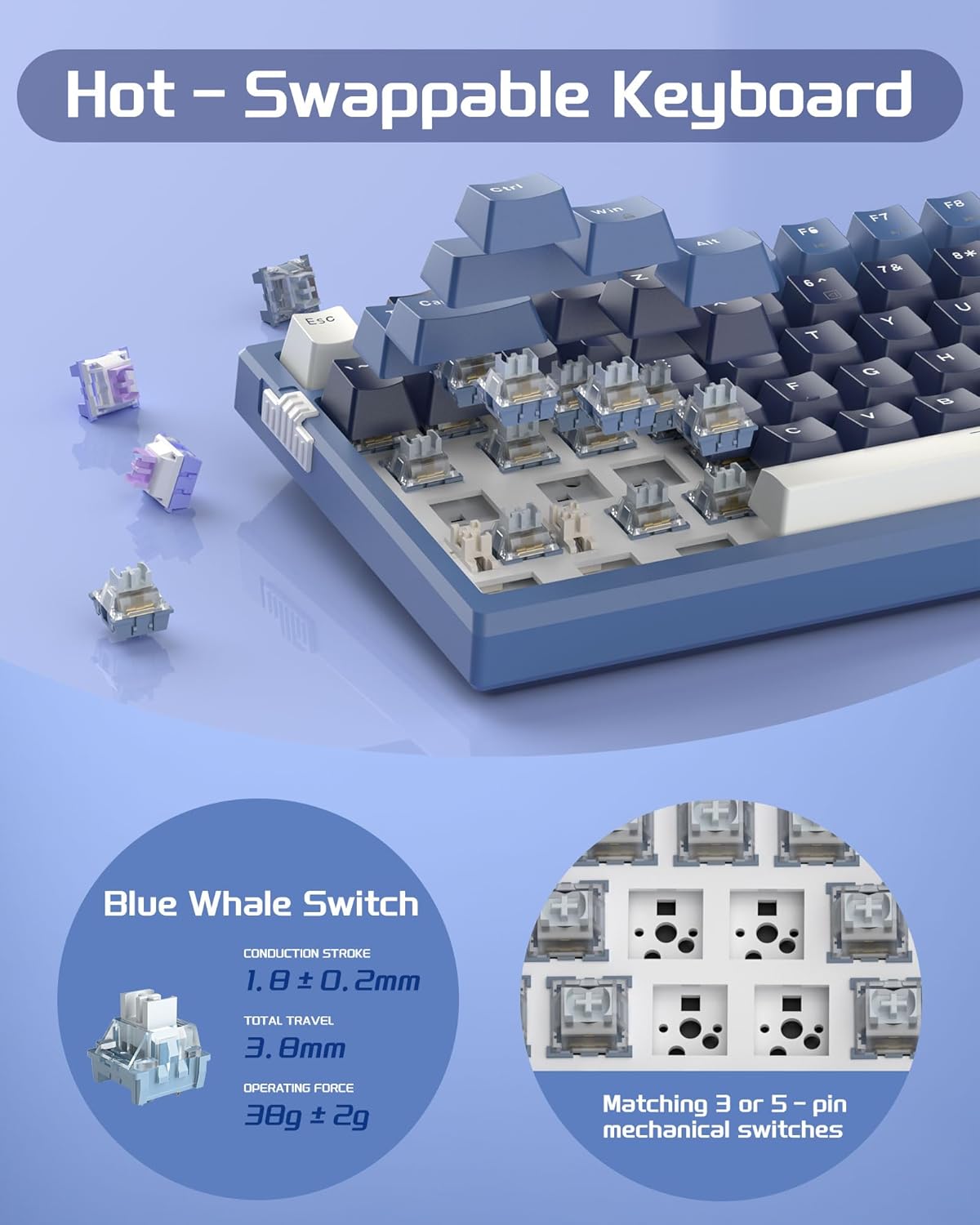
Figure 5: Illustration of the hot-swappable switch design. This image shows the keyboard with some keycaps and switches removed, revealing the sockets where switches can be easily inserted or extracted. Details of the Blue Whale Switch are also provided.
4. Gasket-Mounted Structure and Sound Dampening
The SKY98 employs a gasket-mounted design and a 5-layer sound-absorbing filling system to provide a soft, elastic typing feel and pure sound.
- Gasket Mount: The positioning plate is suspended between the upper and lower shells with gaskets, reducing direct contact and absorbing typing vibrations and noise.
- 5-Layer Filling: Internal layers include IXPE foam pad, PORON foam, diaphragm, EVA soundproofing foam, and a silicone absorbing pad. These layers minimize hollow sounds and enhance typing comfort.

Figure 6: Exploded view diagram of the keyboard's internal structure, detailing the gasket mount and the five sound-dampening layers: positioning plate, IXPE foam pad, PORON foam, diaphragm, PCB board, EVA soundproofing foam, and silicone pad.
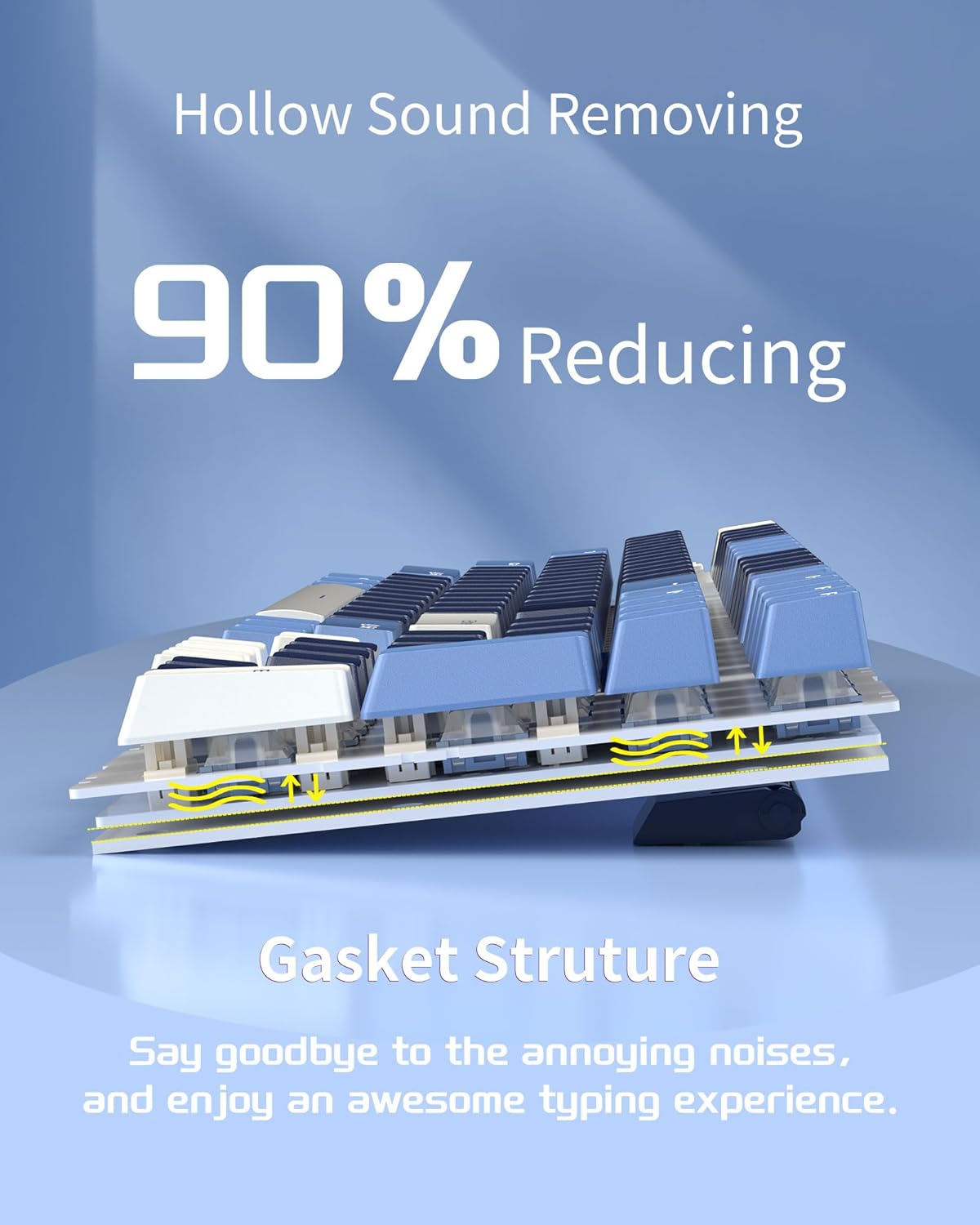
Figure 7: Visual representation of how the gasket structure reduces hollow sounds by cushioning the typing impact, leading to a quieter and more pleasant typing experience.
5. Adjustable Foot Pads
The keyboard features 2-stage adjustable foot pads on the underside, allowing you to set the typing angle to your preference for ergonomic comfort.
Figure 8: Detail showing the 2-stage adjustable foot pads, which can be extended to provide different typing angles for improved ergonomics.
Maintenance
Proper maintenance ensures the longevity and optimal performance of your keyboard.
1. Cleaning
- General Cleaning: Use a soft, dry cloth to wipe down the keycaps and keyboard frame regularly.
- Deep Cleaning: For dust and debris under the keycaps, use a keycap puller (not included, but often comes with switch puller) to remove keycaps. Use compressed air to blow out debris. Wipe the exposed plate with a slightly damp cloth (ensure it's not dripping wet) and dry thoroughly before replacing keycaps.
- Avoid Liquids: Do not spray cleaning solutions directly onto the keyboard. If necessary, apply a small amount of cleaner to a cloth first.
2. Switch and Keycap Replacement
Thanks to the hot-swappable design, individual switches and keycaps can be replaced if damaged or for customization. Refer to the "Hot-Swappable Switches" section under Operating Instructions for detailed steps on switch replacement.
Troubleshooting
If you encounter issues with your MageGee SKY98 keyboard, refer to the following common solutions.
| Problem | Possible Cause | Solution |
|---|---|---|
| Keyboard not responding / Not detected by computer | Loose USB connection, faulty USB port, driver issue. |
|
| RGB Backlighting not working or stuck | Backlight switch off, software glitch, specific key issue. |
|
| Certain keys not registering or double-typing | Dust/debris under keycap, faulty switch, bent switch pin. |
|
| Keyboard feels "hollow" or noisy | Not a common issue for this model due to design, but could be perceived. |
|
Specifications
| Feature | Detail |
|---|---|
| Model | SKY98 |
| Brand | MageGee |
| Layout | 96% (99 keys) |
| Connectivity | Wired USB Type-C (detachable cable) |
| Switch Type | MageGee Blue Whale Switch (Pre-lubed, Linear) |
| Hot-Swappable | Yes (Compatible with 3-pin/5-pin switches) |
| Mounting Style | Gasket Mount |
| Sound Dampening | 5-Layer (IXPE, PORON, Diaphragm, EVA, Silicone) |
| Backlighting | RGB (18 modes, 6 gaming effects, customizable) |
| N-Key Rollover | 100% Anti-ghosting |
| Compatible OS | Windows, Mac |
| Dimensions | 16.18 x 7.24 x 2.01 inches |
| Item Weight | 2.48 pounds |
| Material | IXPE, PORON, EVA, Silicone (internal layers) |
Warranty and Support
For warranty information and technical support, please contact MageGee customer service.
- Manufacturer: MageGee
- Please refer to the product packaging or the official MageGee website for the most up-to-date warranty terms and contact information.
Related documentsSKY98


Ask a question about this manual
Ask about setup, troubleshooting, compatibility, parts, safety, or missing instructions. Manuals+ will review the question and use this page’s manual context to help answer it.