
BoxWave ClearTouch ImpactShield
BoxWave ClearTouch ImpactShield Screen Protector User Manual
For Hyper Tough HT300 Scan Tool
1. Introduction
This user manual provides comprehensive instructions for the installation, use, and maintenance of your BoxWave ClearTouch ImpactShield Screen Protector. Designed specifically for the Hyper Tough HT300 Scan Tool, this screen protector offers advanced protection against scratches, impacts, and daily wear, ensuring the longevity and clarity of your device's display. Please read this manual thoroughly before installation to ensure optimal performance and protection.
2. Product Overview
The BoxWave ClearTouch ImpactShield is a high-quality, flexible screen protector engineered to provide superior defense for your Hyper Tough HT300 Scan Tool. It features a 9H hardness rating for scratch resistance and a unique TPU layer for shock absorption. The material is designed to be shatterproof, offering robust protection without compromising screen clarity or touch sensitivity. Each package includes two screen protectors.

Figure 2.1: BoxWave ClearTouch ImpactShield Screen Protector alongside the Hyper Tough HT300 Scan Tool.
3. Key Features
- 9H Hardness Rating: Provides impenetrable protection against scratches, bumps, and accidental drops, similar to the strength of glass but without being brittle.
- Shock Absorption: Infused with a thin TPU layer to absorb shock and vibration, further protecting the device's screen.
- Ultimate Protection: Made with next-generation flexible material that guards against scratches or cracks more effectively than traditional glass protectors.
- Crystal Clear Visibility: Offers 99% transparency, ensuring no distortion or loss of resolution, maintaining the original display quality.
- Perfect Design: Precisely cut to fit the Hyper Tough HT300 Scan Tool, ensuring full accessibility to all ports and buttons.
- Reusable: Designed with installation forgiveness, allowing for reuse and reinstallation if needed.

Figure 3.1: Packaging details showcasing the key attributes of the ClearTouch ImpactShield.

Figure 3.2: Visual representation of the 9H ultimate protection against common hazards.
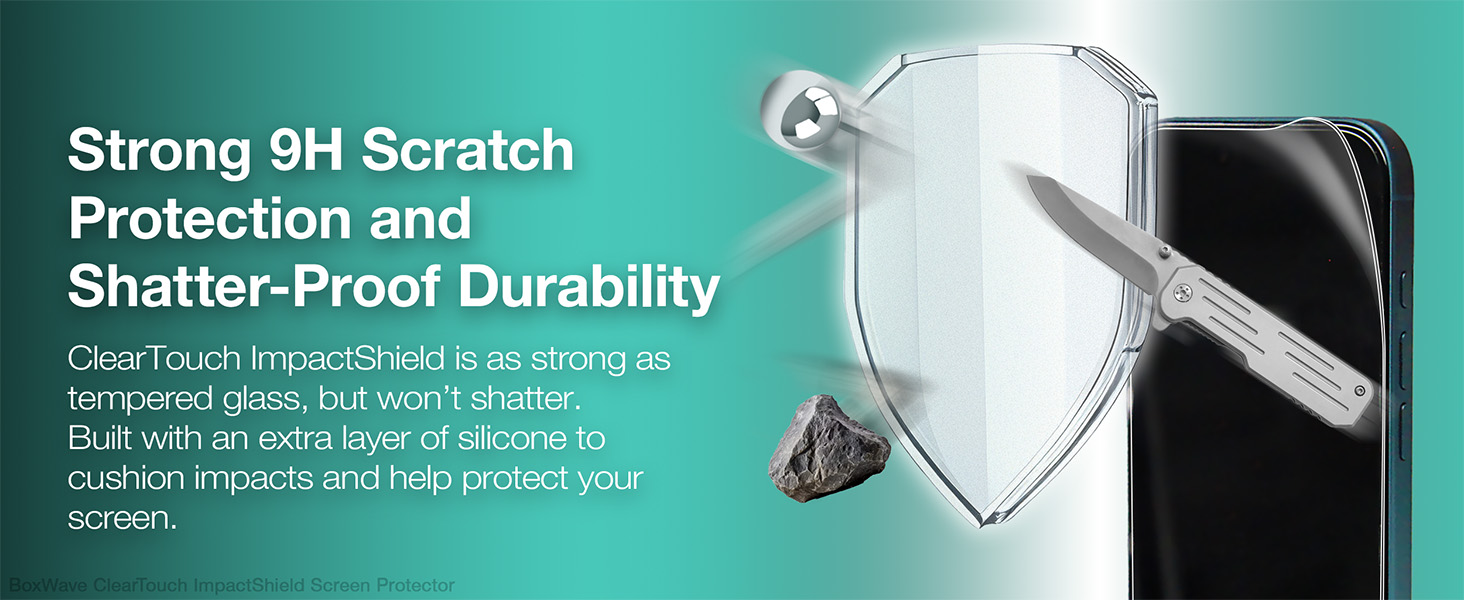
Figure 3.3: Overview of key features including 9H hardness, clarity, and package contents.
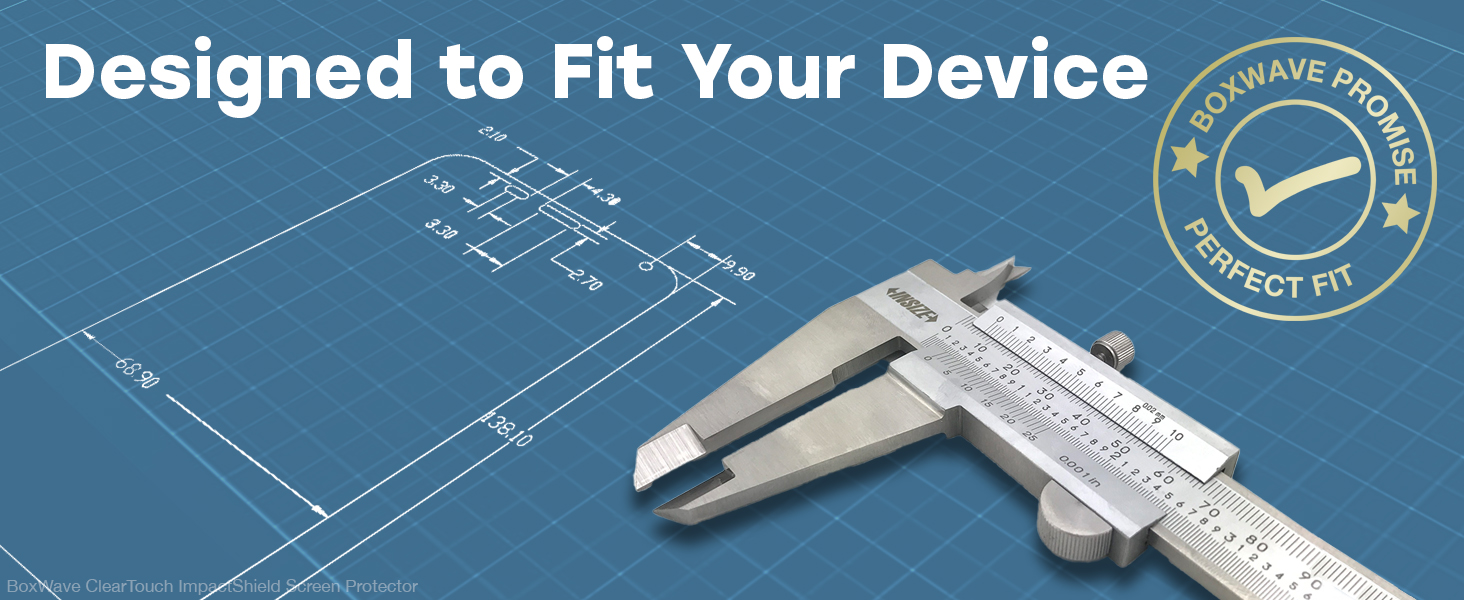
Figure 3.4: Visual demonstration of the screen protector's robust scratch and shatter resistance.
4. Installation Guide (Setup)
Follow these steps carefully for a bubble-free installation. Ensure you are in a clean, dust-free environment.
- Clean the Screen: Use a microfiber cloth to thoroughly clean the screen of your Hyper Tough HT300 Scan Tool. Ensure all dust, fingerprints, and smudges are removed. For stubborn marks, a screen cleaning solution can be used sparingly.
- Remove Dust: Use a dust-removal sticker (if provided) or a piece of tape to lift any remaining dust particles from the screen.
- Align the Protector: Carefully peel back a small portion of the protective film from the adhesive side of the ClearTouch ImpactShield. Align the protector with the edges of your device's screen, paying close attention to cutouts for sensors or cameras.
- Apply Gradually: Once aligned, slowly lower the screen protector onto the screen, allowing the adhesive to adhere. Use a squeegee card (if provided) or a soft cloth to gently push out any air bubbles towards the edges as you apply.
- Remove Remaining Film: Once the protector is fully applied, carefully peel off the top protective film (if applicable).
- Final Touches: Gently wipe the installed screen protector with a clean microfiber cloth to remove any smudges and ensure a perfect finish.

Figure 4.1: Illustration of the screen protector application process.
5. Usage (Operating)
Once installed, the BoxWave ClearTouch ImpactShield operates seamlessly with your Hyper Tough HT300 Scan Tool.
- Touch Sensitivity: The protector is designed to maintain the original touch sensitivity of your device's screen, allowing for smooth and accurate interactions.
- Display Clarity: Enjoy the full clarity and vibrancy of your Hyper Tough HT300 Scan Tool's display without any visual distortion.
- Durability: The flexible and shatterproof nature of the ImpactShield ensures that your device's screen is protected during daily use, even in demanding environments.

Figure 5.1: Demonstration of the screen protector's shatterproof qualities.

Figure 5.2: The flexible nature of the ClearTouch ImpactShield.
6. Care and Maintenance
To ensure the longevity and optimal performance of your ClearTouch ImpactShield, follow these simple care guidelines:
- Cleaning: Use a soft, lint-free cloth, preferably microfiber, to gently wipe the screen protector. For smudges or fingerprints, lightly dampen the cloth with water or a screen-safe cleaning solution. Avoid harsh chemicals or abrasive materials.
- Avoid Sharp Objects: While the protector offers significant resistance, avoid direct contact with extremely sharp objects to prevent potential damage.
- Reinstallation: If the protector becomes misaligned or accumulates dust underneath, it can be carefully peeled off, cleaned, and reapplied due to its reusable design.

Figure 6.1: The crystal clarity maintained by the screen protector.

Figure 6.2: The high definition clarity provided by the ClearTouch ImpactShield.
7. Troubleshooting
If you encounter any issues during or after installation, refer to the following common troubleshooting tips:
| Problem | Possible Cause | Solution |
|---|---|---|
| Bubbles under the protector | Dust particles or trapped air during installation. | Gently lift the nearest edge of the protector and use a squeegee or soft cloth to push the bubble towards the edge. For dust, carefully lift the protector, remove the dust with tape, and reapply. |
| Protector not adhering properly | Screen not clean enough, or protector misaligned. | Ensure the screen is completely clean and dry. Realign the protector carefully, applying even pressure from one end to the other. |
| Reduced touch sensitivity | Improper installation or air gaps. | Ensure the protector is fully adhered without any air pockets. If issues persist, try reinstalling the protector after a thorough screen cleaning. |
8. Specifications
| Attribute | Detail |
|---|---|
| Product Name | ClearTouch ImpactShield Screen Protector |
| Compatibility | Hyper Tough HT300 Scan Tool |
| Material | Flexible TPU/PET blend |
| Hardness Rating | 9H |
| Transparency | 99% |
| Features | Shock Absorption, Shatterproof, Reusable, Precision Cut |
| Package Contents | 2 x ClearTouch ImpactShield Screen Protectors |
| Item Weight | 0.7 ounces |
| Manufacturer | BoxWave |

Figure 8.1: Precision manufacturing ensures a perfect fit for your device.
9. Warranty and Support
BoxWave stands behind the quality of its products. For any questions, concerns, or support needs regarding your ClearTouch ImpactShield Screen Protector, please contact BoxWave customer service.
Please refer to the official BoxWave website or product packaging for specific warranty details and contact information.
Ask a question about this manual
Ask about setup, troubleshooting, compatibility, parts, safety, or missing instructions. Manuals+ will review the question and use this page’s manual context to help answer it.