
Amazon Fire TV Soundbar Plus
Amazon Fire TV Soundbar Plus User Manual
Model: Fire TV Soundbar Plus (ASIN: B0D1ZSC62P)
Introduction
The Amazon Fire TV Soundbar Plus is a 3.1 channel all-in-one soundbar designed to enhance your home audio experience. It features integrated bass, clear dialogue, and supports advanced audio formats like Dolby Atmos and DTS:X, providing immersive sound for movies, music, and more. This manual provides detailed instructions for setting up, operating, maintaining, and troubleshooting your Fire TV Soundbar Plus.

Figure 1: Front view of the Fire TV Soundbar Plus, highlighting its key audio technologies.
Setup
Package Contents
Before you begin, ensure all items are present in the box:
- Fire TV Soundbar Plus
- Remote control
- HDMI 2.0 cable
- AC power cable
- 2 AAA batteries
- Wall mount kit
- Quick Start Guide

Figure 2: Contents included in the Fire TV Soundbar Plus package and product dimensions.
Physical Placement
The soundbar measures approximately 6.4 cm (height) x 94 cm (width) x 13.2 cm (depth) and weighs 4 kg. For optimal audio performance, place the soundbar centrally in front of your television. Ensure there are no obstructions in front of the soundbar. The included wall mount kit allows for wall installation if preferred.
Connecting the Soundbar
Follow these steps to connect your Fire TV Soundbar Plus to your television:
- HDMI (eARC/ARC) Connection: Connect one end of the included HDMI 2.0 cable to the HDMI (eARC/ARC) port on the back of the soundbar. Connect the other end to the HDMI eARC/ARC port on your television. This connection ensures optimal audio quality and allows your TV remote to control the soundbar's volume.
- Power Connection: Connect the AC power cable to the Power port on the soundbar and then plug it into a wall outlet.
- Optical Connection (Optional): If your TV does not have an HDMI eARC/ARC port, you can use an optical cable (not included) to connect the soundbar to your TV's optical audio output.
- USB-A Port: The USB-A port is typically used for service or firmware updates and is not for general user connection.

Figure 3: Rear view of the soundbar displaying available connection ports.
Initial Power On
Once connected, the soundbar will typically power on automatically with your TV if using the HDMI eARC/ARC connection. If not, press the Power button on the included remote control.
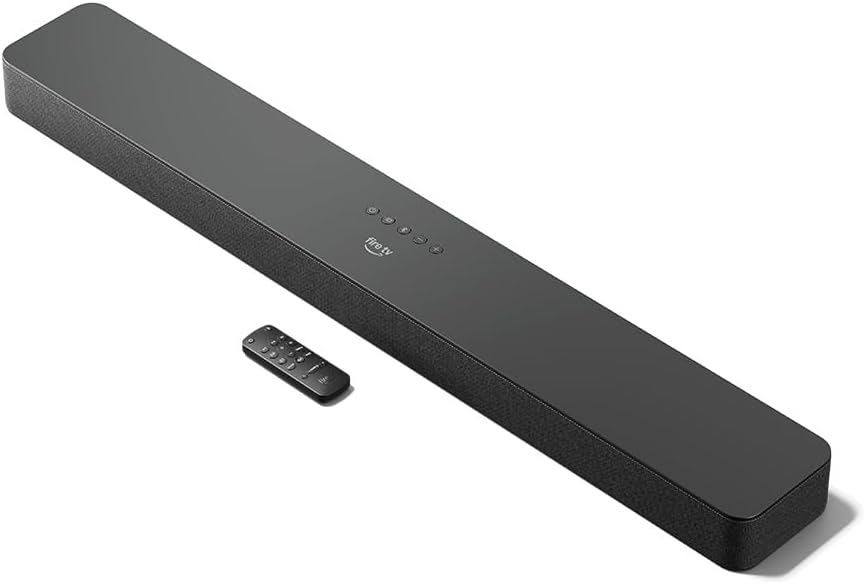
Figure 4: The Fire TV Soundbar Plus and its compact remote control.
Operating the Soundbar
Basic Controls
Use the included remote control to manage your soundbar's functions:
- Power Button: Turns the soundbar on or off.
- Volume Up/Down: Adjusts the master volume level.
- Mute Button: Mutes or unmutes the sound.
- Input Selection: Switches between HDMI, Optical, and Bluetooth inputs.
- Sound Modes: Cycles through optimized audio presets.
Sound Modes
The Fire TV Soundbar Plus offers several equalizer modes to optimize audio for different content types:
- Movie Mode: Enhances cinematic soundscapes with dynamic range and surround effects.
- Music Mode: Provides balanced audio for music playback, emphasizing clarity and bass.
- Sport Mode: Optimizes audio for sports broadcasts, often enhancing commentary and crowd noise.
- Night Mode: Reduces dynamic range to prevent sudden loud sounds, ideal for late-night viewing.
The soundbar features a dedicated central channel for dialogue, ensuring clear conversations in all modes, especially beneficial for movies and TV shows.

Figure 5: Internal components illustrating the integrated speakers, tweeters, and subwoofer for rich sound.

Figure 6: The soundbar delivering immersive audio with Dolby Atmos and DTS:X in a home environment.
Bluetooth Streaming
You can stream audio from your phone or tablet to the Fire TV Soundbar Plus via Bluetooth. To connect:
- Press the Bluetooth button on the remote control or select Bluetooth input.
- On your mobile device, go to Bluetooth settings and select "Fire TV Soundbar Plus" from the list of available devices.
- Once paired, audio from your device will play through the soundbar.

Figure 7: Connecting a mobile device via Bluetooth to stream music or podcasts.
Fire TV Integration
For seamless integration with Fire TV devices (sold separately), you can control both your TV and the soundbar with a single remote. Audio settings can be customized directly within the Fire TV interface on selected models.
Maintenance
To ensure the longevity and optimal performance of your Fire TV Soundbar Plus, follow these maintenance guidelines:
- Cleaning: Use a soft, dry cloth to clean the surface of the soundbar. Do not use liquid cleaners or abrasive materials, as they may damage the finish.
- Ventilation: Ensure the soundbar's vents are not blocked to prevent overheating.
- Software Updates: Periodically check for firmware updates to ensure your soundbar has the latest features and performance improvements. Updates are typically delivered automatically when connected to a Fire TV device or can be performed via USB if available.
Troubleshooting
If you encounter issues with your Fire TV Soundbar Plus, refer to the following common problems and solutions:
| Problem | Possible Cause | Solution |
|---|---|---|
| No sound from soundbar. |
|
|
| Sound is distorted or unclear. |
|
|
| Remote control not working. |
|
|
| Bluetooth pairing issues. |
|
|
Specifications
| Feature | Detail |
|---|---|
| Soundbar Dimensions (LxWxH) | 94 cm x 13.2 cm x 6.4 cm |
| Soundbar Weight | 4 kg (Actual dimensions and weight may vary based on configuration and manufacturing process) |
| Speaker Channels | 3.1 (integrated subwoofer) |
| Equalizer Modes | Movie, Music, Sport, Night |
| Surround Sound Support | Dolby Atmos, DTS:X |
| Ports | HDMI (eARC/ARC), Optical, AC Power, USB-A |
| Bluetooth Support | Yes |
| Compatibility | Smart TVs and TVs with streaming media players |
| Included in the Box | Fire TV Soundbar Plus, remote control, HDMI 2.0 cable, 1 AC power cable, 2 AAA batteries, wall mount kit, Quick Start Guide |
Warranty and Support
The Fire TV Soundbar Plus comes with a one-year limited warranty provided by the manufacturer. This limited warranty is in addition to, and does not compromise, consumer rights. Consumers may have additional rights provided by law even after the limited warranty expires. Use of the Fire TV Soundbar Plus is subject to the terms indicated by Amazon.
For further assistance, please refer to the official Amazon support channels or the Quick Start Guide included with your product.
Related documentsFire TV Soundbar Plus


Ask a question about this manual
Ask about setup, troubleshooting, compatibility, parts, safety, or missing instructions. Manuals+ will review the question and use this page’s manual context to help answer it.