
1. Setup
This section guides you through the initial setup of your HP ZBook Firefly G11 Mobile Workstation.
1.1 Unboxing and Initial Inspection
Carefully remove all components from the packaging. Ensure the following items are present:
- HP ZBook Firefly G11 Mobile Workstation
- Power Adapter and Power Cord
- Documentation (Quick Start Guide, Safety Information)
Inspect the laptop for any visible damage. If any components are missing or damaged, contact your vendor or HP support immediately.
1.2 Connecting the Power Adapter
Connect the power adapter to the power connector on your workstation and then plug the power cord into a grounded electrical outlet. The battery will begin charging automatically.
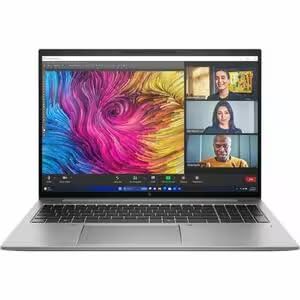
Image: HP ZBook Firefly G11 Mobile Workstation with its power adapter connected. This illustrates the primary connection point for charging the device.
1.3 Initial Power On and Operating System Setup
Press the power button to turn on the workstation. The first time you power on the device, you will be guided through the Windows 11 Pro setup process. Follow the on-screen instructions to configure your language, region, network connection, and user account settings.
It is recommended to connect to a stable internet connection during the initial setup to ensure all necessary updates are downloaded.
2. Operating Your Workstation
This section provides information on the basic operation of your HP ZBook Firefly G11.
2.1 Power Management
- Power On: Press the power button.
- Sleep Mode: Close the lid or select "Sleep" from the Windows Start menu.
- Shut Down: Select "Shut down" from the Windows Start menu.
- Restart: Select "Restart" from the Windows Start menu.
Adjust power settings in Windows to optimize battery life or performance.
2.2 Keyboard and Touchpad
The workstation features a full-size, spill-resistant keyboard. Familiarize yourself with the function keys (F1-F12) which often have secondary actions indicated by icons (e.g., volume control, screen brightness).
The integrated touchpad supports multi-touch gestures for navigation. You can customize touchpad settings via Windows settings.
2.3 Display
Your workstation is equipped with a 16-inch IPS display with a native resolution of 1920 x 1200 pixels and a 60Hz refresh rate. Adjust display brightness using the dedicated function keys or through Windows display settings.
2.4 Connectivity
The HP ZBook Firefly G11 offers various connectivity options:
- Wi-Fi: Supports 802.11ax for wireless network connections.
- USB Ports: Two total USB ports for connecting peripherals.
- Video Output: HDMI and DisplayPort for connecting external monitors.
Ensure drivers are up-to-date for optimal performance of all connected devices.
2.5 Audio and Webcam
The workstation includes integrated speakers for audio output and a microphone for input. A built-in webcam is available for video conferencing and other applications. Adjust audio settings and webcam privacy settings through Windows.
3. Maintenance
Proper maintenance ensures the longevity and optimal performance of your workstation.
3.1 Cleaning Your Workstation
- Screen: Use a soft, lint-free cloth lightly dampened with water or a screen cleaner. Avoid harsh chemicals.
- Keyboard and Chassis: Use a soft, dry cloth. For stubborn dirt, a slightly damp cloth can be used. Ensure no liquid enters the device.
- Vents: Periodically clean dust from the ventilation openings using compressed air to prevent overheating.
Always power off and unplug the workstation before cleaning.
3.2 Software Updates
Regularly check for and install updates for Windows 11 Pro and HP drivers. These updates often include security patches, performance improvements, and new features. Access Windows updates via "Settings > Windows Update".
3.3 Battery Care
To maximize battery lifespan:
- Avoid extreme temperatures.
- Do not fully discharge the battery frequently.
- If storing the laptop for an extended period, charge the battery to about 50-70%.
3.4 Storage Management
Your workstation has a 512 GB PCIe SSD. Regularly manage your storage by deleting unnecessary files, uninstalling unused applications, and utilizing cloud storage if needed. This helps maintain system performance.
4. Troubleshooting
This section addresses common issues you might encounter with your HP ZBook Firefly G11.
4.1 No Power or System Not Starting
- Ensure the power adapter is securely connected to both the workstation and a working electrical outlet.
- Verify the power outlet is functional by plugging in another device.
- If the battery is completely drained, allow it to charge for at least 15-30 minutes before attempting to power on.
- Perform a hard reset: Disconnect the power adapter, press and hold the power button for 15 seconds, then reconnect power and try to start.
4.2 Display Issues
- Blank Screen: Connect an external monitor to check if the issue is with the laptop's display or the graphics card. Press Fn + F4 (or the appropriate function key with a display icon) to cycle through display modes.
- Dim Screen: Adjust brightness using the function keys or Windows display settings.
- Incorrect Resolution: Adjust display resolution in Windows settings.
4.3 Connectivity Problems (Wi-Fi, USB)
- Wi-Fi: Ensure Wi-Fi is enabled (check airplane mode). Restart your router and the workstation. Update Wi-Fi drivers.
- USB Devices Not Recognized: Try connecting the device to a different USB port. Restart the workstation. Update USB drivers.
4.4 System Performance Issues
- Close unnecessary applications running in the background.
- Check for and install all available Windows and driver updates.
- Run a disk cleanup and defragmentation (for HDD, though less critical for SSD).
- Scan for malware or viruses.
If issues persist, consider performing a system restore or contacting HP support.
5. Specifications
Detailed technical specifications for the HP ZBook Firefly G11 Mobile Workstation (Model: A1RD4UT#ABA).
| Feature | Specification |
|---|---|
| Brand | HP |
| Model Name | ZBook Firefly G11 |
| Model Number | A1RD4UT#ABA |
| Screen Size | 16 Inches |
| Display Resolution | 1920 x 1200 pixels (IPS) |
| Refresh Rate | 60 Hz |
| Processor | Intel Core Ultra 7 155U (1.7 GHz, 12 Cores) |
| RAM Memory | 32 GB DDR4 SDRAM |
| Storage | 512 GB PCIe SSD |
| Graphics | Integrated Intel Graphics |
| Operating System | Windows 11 Pro |
| Connectivity | USB (2 ports), Wi-Fi (802.11ax), HDMI, DisplayPort |
| Special Features | Spill-resistant Keyboard, Webcam |
| Color | Silver |
| GTIN / UPC | 198122841264 |
6. Warranty and Support
Your HP ZBook Firefly G11 Mobile Workstation comes with a limited warranty. Please refer to the warranty documentation included with your product for specific terms and conditions.
For technical support, driver downloads, and additional product information, please visit the official HP support website. You will need your product's model number (A1RD4UT#ABA) and serial number (if applicable) when contacting support.
HP's official website is the primary resource for up-to-date support information and service options.


