
Introduction
The WD My Passport portable hard drive provides high-capacity storage for your digital files. Designed for on-the-go use, it offers seamless USB connectivity and includes software for data backup, ransomware defense, and password protection with hardware encryption.
Key features include:
- Up to 6TB capacity for photos, videos, music, and documents.
- Slim and durable design for portability.
- Included software for device management and scheduled backups.
- Password protection and 256-bit AES hardware encryption for data security.
What's in the Box
Verify that all items are present in the product packaging:
- My Passport portable hard drive
- SuperSpeed USB-A cable (5Gbps)
- Quick Start Guide
- Software for device management and backup with password protection (pre-loaded on drive)
Setup
Follow these steps to set up your WD My Passport drive:
- Connect the Drive: Plug the SuperSpeed USB-A cable into the My Passport drive and then into an available USB-A port on your computer.
- Initial Recognition: Your computer should automatically detect the drive. For Windows users, the drive is pre-formatted and ready for use.
- Software Installation (Optional but Recommended): The drive contains software for backup and security features. Locate and run the installer from the drive. Follow the on-screen instructions to install "Acronis True Image for Western Digital" and other utilities.
- Formatting for Mac/Linux: If you are using a Mac or Linux system, you may need to reformat the drive to a native file system (e.g., HFS+ for Mac, ext4 for Linux) for optimal performance and full compatibility. Refer to your operating system's documentation for formatting instructions.
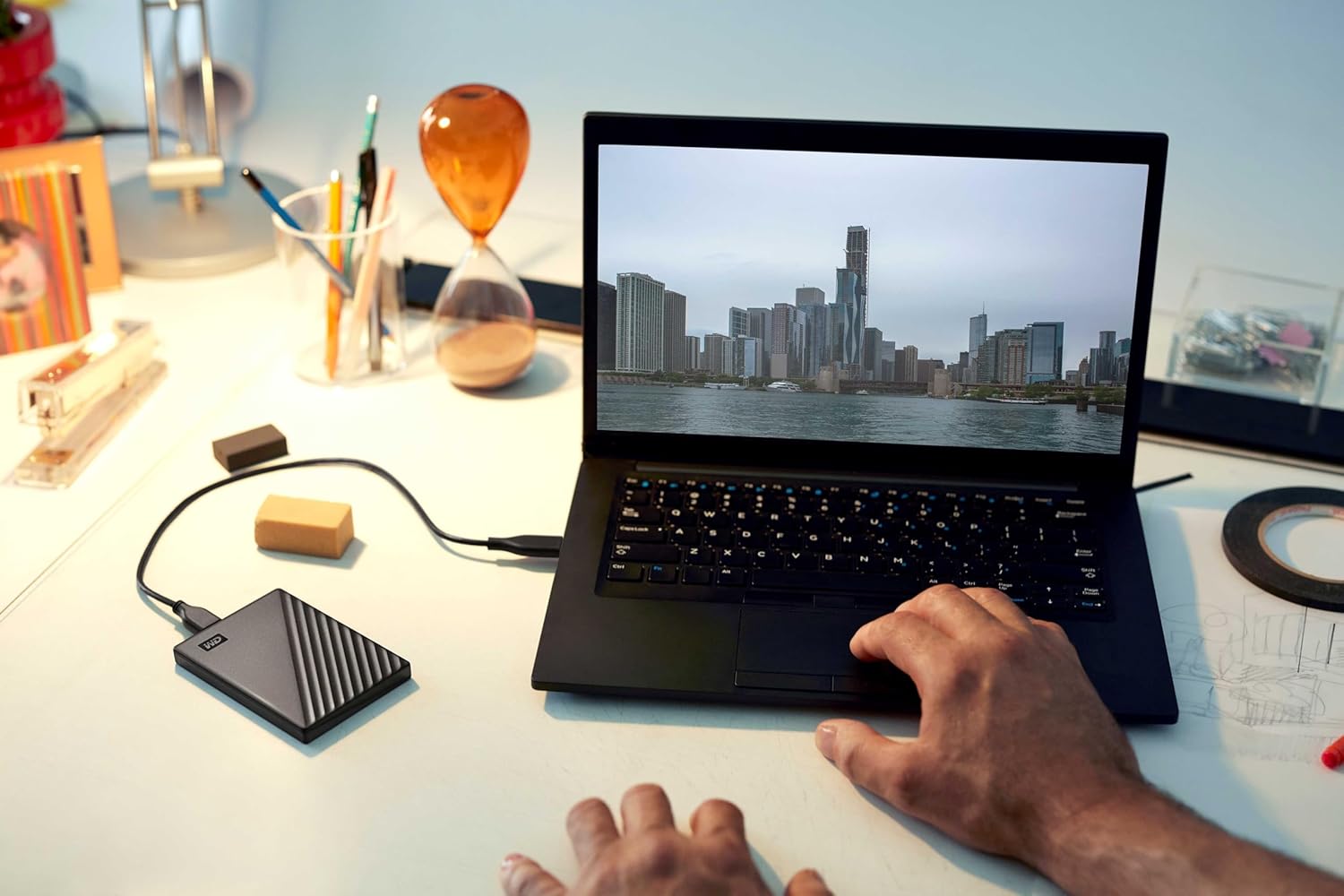
Image: The WD My Passport portable hard drive connected to a laptop, ready for use.
Product Overview Video
Video: A brief overview of the WD My Passport portable hard drive, demonstrating its physical features and basic connectivity.
Operating Instructions
Data Transfer
To transfer files, simply drag and drop them to and from the My Passport drive in your computer's file explorer (Windows) or Finder (Mac). For larger or automated backups, use the included backup software.
Backup Software
The included Acronis True Image for Western Digital software allows you to schedule automatic backups of your important files. This software also provides defense against ransomware. Refer to the software's help documentation for detailed instructions on configuring backup plans.

Image: The backup software interface, highlighting the ability to set automatic backup schedules.
Password Protection and Hardware Encryption
Utilize the WD Security software (part of the included software suite) to enable password protection and 256-bit AES hardware encryption for your drive. This feature helps secure your data from unauthorized access. Remember your password, as WD cannot recover it if lost.

Image: Visual representation of the drive's password protection and hardware encryption features.
Features & Usage Video
Video: A detailed guide on the features and usage of the WD My Passport External HDD, including software functionalities.
Maintenance
- Safe Ejection: Always safely eject the drive from your computer before disconnecting the USB cable to prevent data corruption.
- Physical Care: Keep the drive in a clean, dry environment. Avoid extreme temperatures, direct sunlight, and physical shocks.
- Software Updates: Periodically check the Western Digital support website for updates to the drive's firmware and included software to ensure optimal performance and security.
Troubleshooting
Drive Not Detected
- Check Cable Connection: Ensure the USB cable is securely connected to both the drive and your computer. Try a different USB port or cable if available.
- Power Cycle: Disconnect and reconnect the drive. Restart your computer.
- Driver Installation: On Windows, check Device Manager to ensure the drive is recognized and drivers are installed correctly.
- Formatting: If the drive is new and not appearing, it might need to be initialized and formatted. For Mac/Linux, ensure it's formatted to a compatible file system.
Slow Performance
- USB Port: Ensure the drive is connected to a SuperSpeed USB 3.0 or 3.1 port for optimal transfer speeds. Connecting to a USB 2.0 port will result in slower performance.
- Background Processes: Close any unnecessary applications that might be consuming system resources.
- Drive Health: Run diagnostic tools (available through WD software) to check the drive's health.

Image: The drive connected via USB, illustrating its SuperSpeed USB compatibility.
Forgotten Password
If you forget your password for the encrypted drive, you will lose access to your data. WD cannot recover lost passwords. It is crucial to keep a record of your password in a secure location.
Specifications
| Feature | Detail |
|---|---|
| Model Number | WDBR9S0060BBK-WESN |
| Digital Storage Capacity | 6 TB |
| Hard Disk Interface | USB 2.0/3.0 |
| Connectivity Technology | USB |
| Special Features | Hardware Encryption, Portable |
| Hard Disk Form Factor | 2.5 inches |
| Hard Disk Description | Mechanical Hard Disk |
| Compatible Devices | Desktop, Laptop, Tablet |
| Color | Black |
| Read Speed | 110 MB/s |
| Data Transfer Rate | 5 Gbps |
| Item Weight | 7.36 ounces |
| Material | Aluminum |

Image: The physical dimensions of the WD My Passport drive, highlighting its compact and slim design.
Warranty Information
The WD My Passport Portable External Hard Drive comes with a 3-year manufacturer's limited warranty. For detailed terms and conditions, please refer to the warranty documentation included with your product or visit the official Western Digital support website.

Image: Visual confirmation of the 3-year limited warranty for the product.
Support
For further assistance, technical support, or to download the latest software and drivers, please visit the official Western Digital support website:
You can also find FAQs and community forums on their website.


