
PEMP PP-5663
PEMP Ultra-Thin 12.3" Android Screen User Manual
Model: PP-5663 | Brand: PEMP
1. Introduction
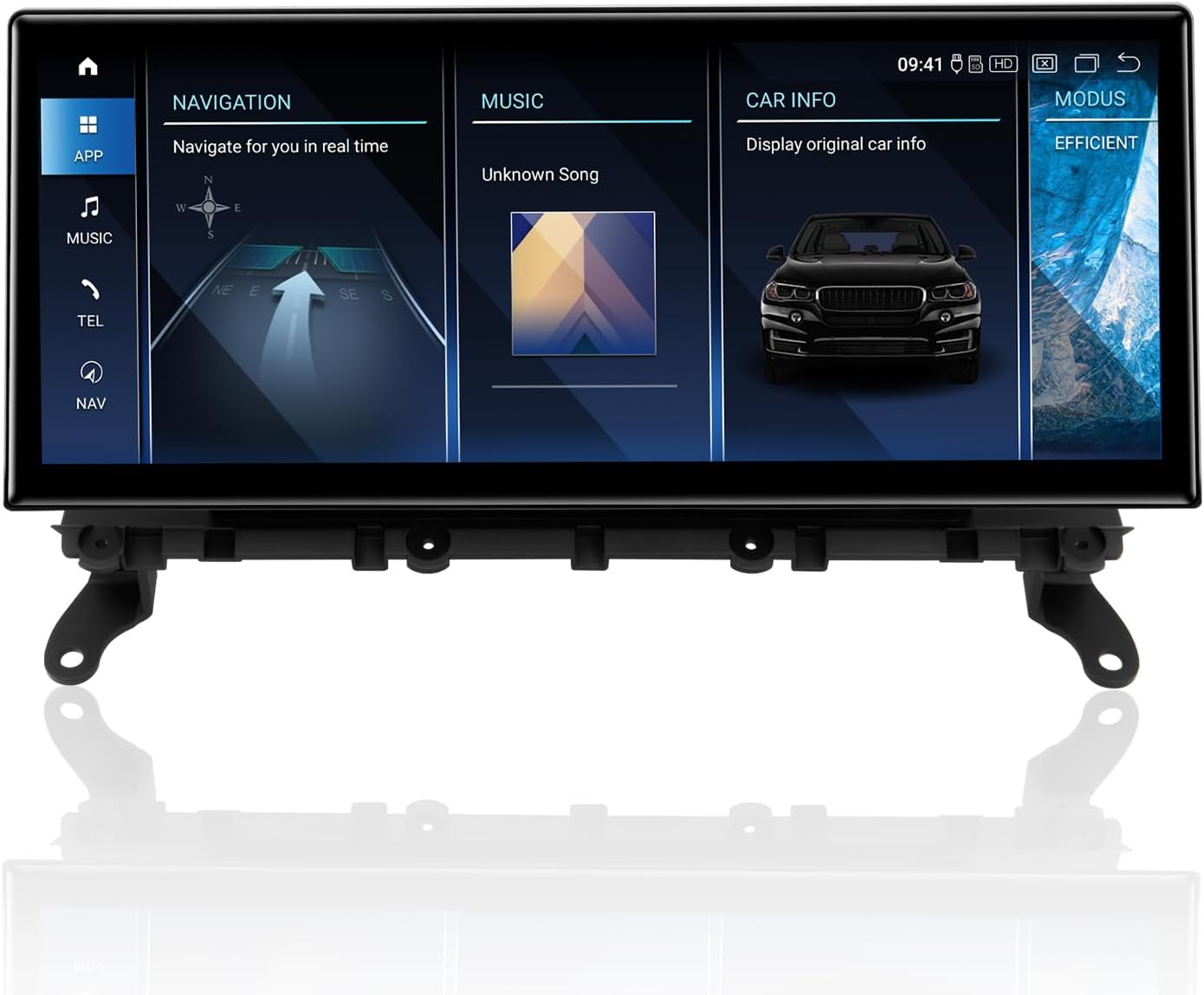
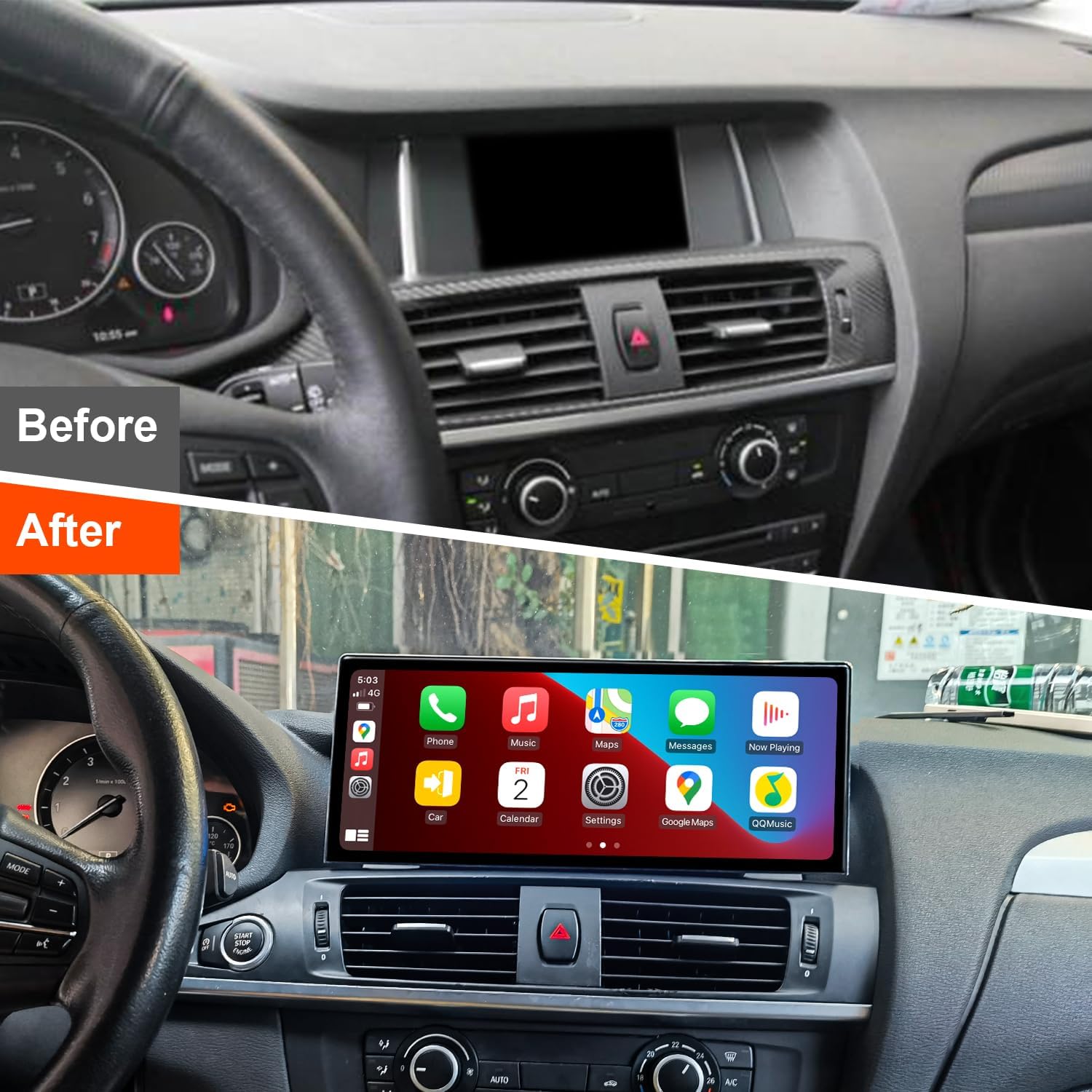
This user manual provides comprehensive instructions for the installation, operation, and maintenance of your PEMP Ultra-Thin 12.3" Android Screen. Designed for BMW X3 F25 NBT systems, this advanced display enhances your in-car experience with modern features like wireless CarPlay and Android Auto, powered by a Qualcomm Snapdragon 680 processor.
2. Product Features
- Ultra-Thin Design: Features an 82.3% screen-to-body ratio and a 12.3" large Android display with a metal material shell and Non-Airgap process for realistic picture quality.
- Seamless Smartphone Integration: Supports wireless and wired CarPlay and Android Auto. Utilizes the original car microphone for clear calls without echo.
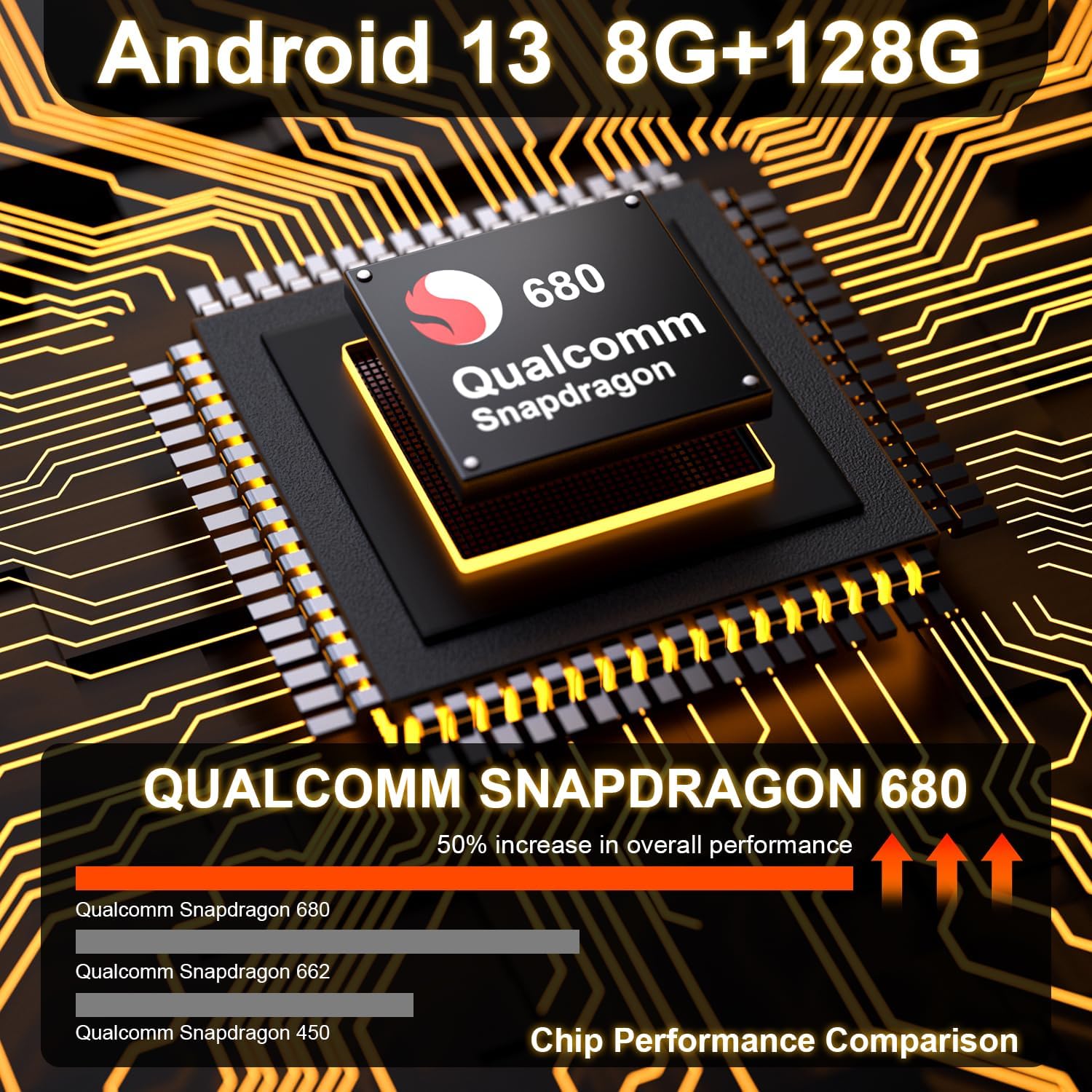
- High Performance: Powered by a Qualcomm Snapdragon 680 chip (6nm process, 8-core processor) running Android 13. Equipped with 8GB RAM and 128GB ROM (DDR4 Emmc UFS 2.2) for fast multitasking.
- Camera Support: Compatible with the OEM camera and PEMP AHD Reversing Camera (Asin: B08YWL8CND) & front camera, providing clear reversing images.
- Advanced Connectivity: Features a mobile phone-style SIM card holder for immediate 4G high-speed network access, along with 2.4G and 5.0G dual-band WiFi.



3. Package Contents
Verify that all items listed below are included in your package:
- PEMP Ultra-Thin 12.3" Android Screen Device
- Power Cable
- User Manual
- OEM Camera (compatible)
- PEMP AHD Reversing Camera (compatible)
- ISO Wiring Harness
- LVDS Adapter Cable
- RCA Cable
- 4G Antenna
- GPS Antenna
- USB Cable
- Audio Cable
- Installation Manual

4. Setup and Installation Guide
Professional installation is recommended. Ensure the vehicle's power is off before beginning installation. Refer to the included Installation Manual for detailed, step-by-step instructions specific to your BMW X3 F25 NBT model.
4.1. Microphone Setup
To ensure high-quality calls using the OEM microphone with CarPlay and Android Auto, follow these steps:
- Connect the MIC-IN male connector on the ISO harness to the MIC-IN female connector on the USB harness.
- Go to "Settings" > "Factory Settings" and enter the password "070305".
- Select "Vehicle" > "Switching between external and internal microphones" > "External microphone".


4.2. Optical Fiber Cable Connection
When connecting to the original car's main unit, take out the 2Pin green optical fiber cable from the original CD wire and connect it to the Android harness.

4.3. AUX Audio Connection
For some models where the AUX directly enters the audio amplifier, you must plug the audio cable (included in the package) into the AUX interface in the armrest box to get the Android sound.

4.4. Gear Selection Setting
After installation, navigate to "Settings" > "Factory Settings" > "Vehicle" > "Gear Selection" and select the appropriate gear type for your vehicle.

4.5. Product Process Characteristics Video
5. Operating Instructions
Once installed, your PEMP Android Screen operates similarly to a standard Android tablet, with added automotive functionalities.
5.1. Basic Navigation
The touchscreen interface allows for intuitive navigation. Swipe left or right to access different home screens, and tap on app icons to launch them. The system supports various navigation apps available on the Google Play Store.
5.2. CarPlay and Android Auto
Connect your iPhone or Android phone via Bluetooth for wireless CarPlay or Android Auto. Alternatively, use a USB cable for a wired connection. Once connected, your phone's compatible apps will appear on the screen, allowing for navigation, music, calls, and messages.
5.3. 4G and WiFi Connectivity
Insert a SIM card into the dedicated slot for 4G mobile data access. Connect to available WiFi networks through the system settings for internet access and app updates.
5.4. Media Playback
Play music and videos from various sources, including internal storage, USB drives, or streaming services via internet connection. The system supports multiple audio and video formats.
6. Care and Maintenance
To ensure the longevity and optimal performance of your PEMP Android Screen, follow these maintenance guidelines:
- Cleaning: Use a soft, lint-free cloth to clean the screen. For stubborn smudges, slightly dampen the cloth with water or a screen-safe cleaner. Avoid abrasive materials or harsh chemicals.
- Temperature: Avoid exposing the device to extreme temperatures, both hot and cold, for extended periods.
- Power: Always turn off the vehicle's ignition before disconnecting any cables or performing maintenance.
- Software Updates: Periodically check for and install software updates to ensure the system runs efficiently and securely.
7. Troubleshooting Common Issues
If you encounter issues with your device, refer to the following common troubleshooting steps:
| Problem | Possible Cause | Solution |
|---|---|---|
| No power/Screen blank | Loose power connection, blown fuse, vehicle power issue. | Check all power cable connections. Verify vehicle's fuse box. Consult a professional installer. |
| No sound from Android system | Incorrect AUX connection, volume too low, system audio settings. | Ensure AUX cable is correctly plugged into the armrest box (if applicable). Check system volume and audio output settings. |
| CarPlay/Android Auto not connecting | Bluetooth/USB connection issue, phone settings, app compatibility. | Ensure Bluetooth is on and paired. Try a different USB cable. Restart phone and device. Check phone's CarPlay/Android Auto settings. |
| Poor microphone quality | Incorrect microphone setting, loose connection. | Verify microphone settings in Factory Settings (Section 4.1). Check MIC-IN cable connection. |
| GPS signal weak/lost | GPS antenna placement, environmental interference. | Ensure GPS antenna is placed in an unobstructed location. Try moving the vehicle to an open area. |
If the problem persists after attempting these solutions, please contact customer support for further assistance.
8. Technical Specifications
| Specification | Detail |
|---|---|
| Model Number | PP-5663 |
| Display Size | 12.3 Inches |
| Operating System | Android 13 |
| Processor | Qualcomm Snapdragon 680 (8-core, 6nm process) |
| RAM | 8GB |
| ROM | 128GB (DDR4 Emmc UFS 2.2) |
| Connectivity | 4G, 2.4G/5.0G WiFi, Bluetooth |
| Special Features | Touchscreen, Android Auto, Bluetooth, CarPlay |
| Compatible Devices | Smartphone |
| Control Method | Touch |
| Product Dimensions | 12.2 x 2 x 5.1 inches |
| Item Weight | 5.98 pounds |
| Country of Origin | China |
9. Warranty and Customer Support
Your PEMP Ultra-Thin 12.3" Android Screen comes with a manufacturer's warranty. Please refer to the warranty card included in your package for specific terms and conditions, including warranty duration and coverage details.
For technical support, troubleshooting assistance, or warranty claims, please contact PEMP customer service through the contact information provided on the product packaging or the official PEMP website. When contacting support, please have your product model number (PP-5663) and purchase details ready.
Related documentsPP-5663

Ask a question about this manual
Ask about setup, troubleshooting, compatibility, parts, safety, or missing instructions. Manuals+ will review the question and use this page’s manual context to help answer it.