
1. Introduction
The ECOWITT WS3802 is a comprehensive weather station system designed for home use, providing accurate and real-time weather data. This system includes a 7.5-inch LCD display console (WS3800_C), a WS85 wireless outdoor multi-sensor, and a WN32 outdoor temperature and humidity sensor. This manual will guide you through the setup, operation, and maintenance of your weather station.
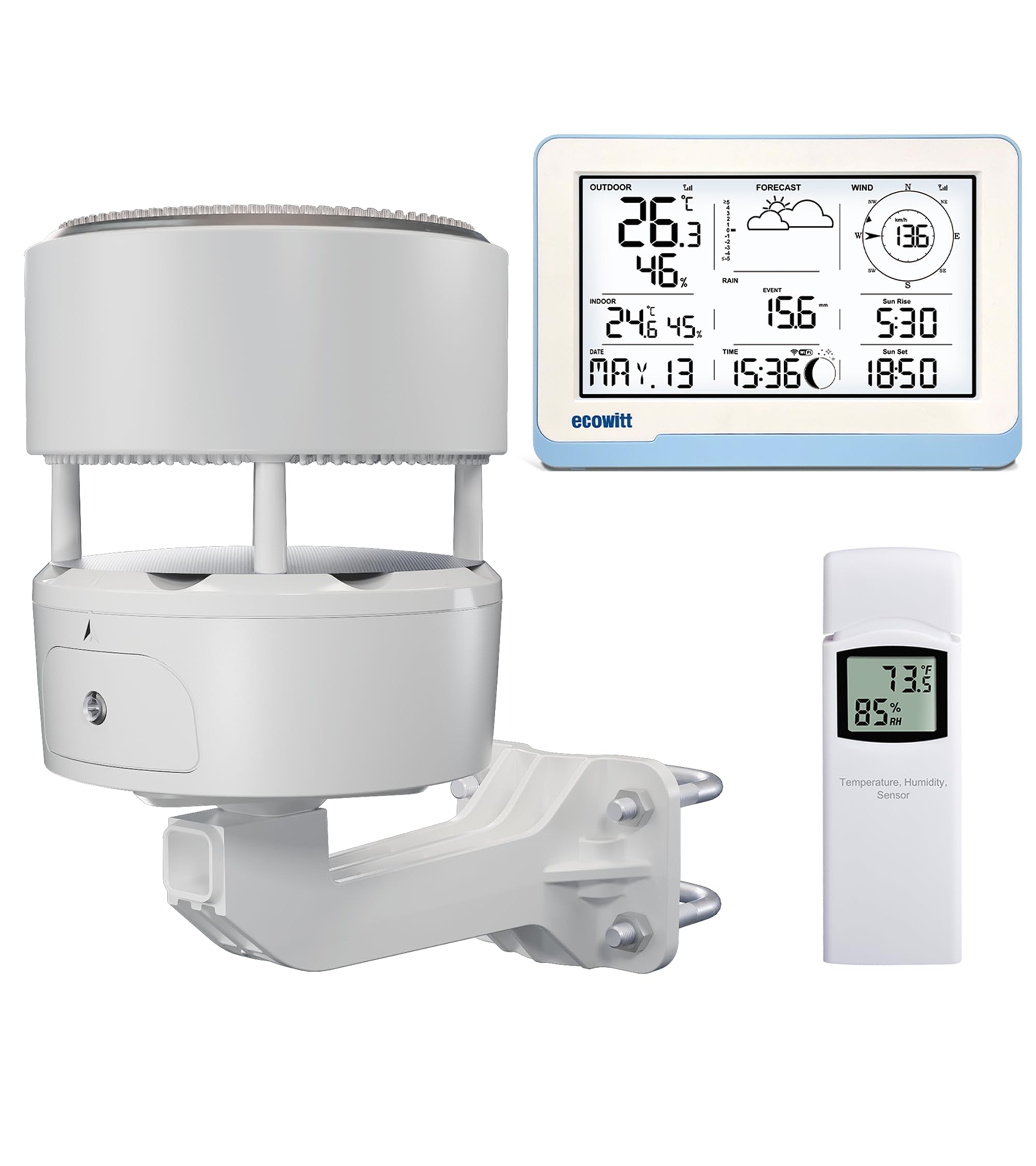
Figure 1: The complete ECOWITT WS3802 weather station system.
Key Features:
- WS85 Outdoor Sensor: Compact design integrating a solar panel, haptic rain sensor, and ultrasonic wind sensor for wind speed and direction. Operates at 868 MHz frequency.
- Easy Installation: The WS85 sensor can be mounted on poles with a 1 to 1.5-inch diameter using the included bolts. The WS85 primarily detects wind speed, wind direction, and precipitation.
- 7.5-inch LCD Console (WS3800_C): Connects with the WS85 sensor and integrates with a WN32 outdoor temperature and humidity sensor to form a complete weather station. Features Wi-Fi connectivity for data upload to the Ecowitt App, Ecowitt/Wunderground cloud, or custom servers. Powered by DC or 3 AA batteries (not included).
- Comprehensive Display: The console features 8 physical buttons and integrated sensors for temperature, humidity, and barometric pressure. It displays wind speed, wind direction, rainfall, UV radiation, solar radiation, dew point, CO2, PM1.0, PM2.5, PM10, and AQI data. Data from the WS85 (rain, wind speed, wind direction) takes priority over other external sensors.
- Weather Forecast & Alerts: Provides weather forecasts (Sunny, Partly Cloudy, Cloudy, Rainy, Stormy, Snowy, Storm) and alarm notifications via the Ecowitt App. The console's backlight adjusts under DC power. It also functions as a Wi-Fi gateway to receive data from other compatible sensors (e.g., WN31, WH45, WH46) viewable via a webpage.
2. Package Contents
Please ensure all components are present before proceeding with the installation:
- WS3802 Display Console (WS3800_C)
- WS85 Outdoor Multi-Sensor
- WN32 Outdoor Temperature and Humidity Sensor
- Mounting bolts and bracket for WS85
- Power adapter for console
- User Manual (this document)
Note: AA batteries for both the console and WS85 sensor are not included and must be purchased separately.
3. Safety Information
- Read all instructions carefully before operating the device.
- Do not expose the console to extreme temperatures, direct sunlight, or moisture.
- Ensure the outdoor sensor is mounted securely to prevent damage from wind or other environmental factors.
- Use only specified power adapters and battery types.
- Keep out of reach of children.
4. Setup
4.1 WS85 Outdoor Sensor Installation
The WS85 outdoor sensor is designed for easy installation and should be placed in an open area for accurate readings.
- Power the Sensor: Insert 2 AA batteries (not included) into the battery compartment of the WS85 sensor. The integrated solar panel will help extend battery life.
- Choose a Location: Select an outdoor location that is clear of obstructions for wind and rain, and where the solar panel can receive ample sunlight.
- Mount the Sensor: Use the provided mounting bolts and bracket to secure the WS85 sensor to a pole with a diameter of 1 to 1.5 inches (25.4-38.1mm). Ensure the sensor is level for accurate rainfall measurements.

Figure 2: WS85 Outdoor Sensor Components.

Figure 3: Examples of WS85 Outdoor Sensor Installation.
4.2 WN32 Indoor Temperature and Humidity Sensor Placement
Place the WN32 sensor indoors in a central location, away from direct sunlight, heat sources, or drafts, to ensure accurate indoor temperature and humidity readings.
4.3 WS3802 Console Setup
- Power the Console: Connect the provided DC power adapter to the console, or insert 3 AA batteries (not included) into the battery compartment.
- Initial Power-On: The console will power on automatically and begin searching for the WS85 and WN32 sensors. This may take a few minutes.
- Wi-Fi Connection: Follow the on-screen prompts or refer to the Ecowitt App instructions to connect the console to your home Wi-Fi network. This enables data upload to Ecowitt.net, Weather Underground, or custom servers.

Figure 4: System Connectivity Diagram.

Figure 5: Transmission Range and Power Requirements.
5. Operation
5.1 Understanding the Display
The 7.5-inch LCD display provides a clear overview of current weather conditions and historical data. Key areas of the display include:
- Outdoor Temperature & Humidity: Readings from the WN32 sensor.
- Indoor Temperature & Humidity: Readings from the console's integrated sensor.
- Wind Speed & Direction: Data from the WS85 ultrasonic wind sensor.
- Rainfall: Precipitation data from the WS85 haptic rain sensor.
- Barometric Pressure: Measured by the console's integrated sensor.
- Sunrise & Sunset: Calculated based on location settings.
- Date & Time: Current date and time.
- Weather Forecast: Icons indicating predicted weather conditions.
- Additional Data: UV radiation, solar radiation, dew point, CO2, PM1.0, PM2.5, PM10, and AQI data (if compatible external sensors are connected).

Figure 6: WS3802 Console Display Layout.
5.2 Button Functions
The console features 8 physical buttons for navigation and settings:
- SET: Enters setup mode or confirms selections.
- TEMP: Toggles temperature display units or views temperature history.
- RAIN: Toggles rainfall display units or views rainfall history.
- PRE: Toggles pressure display units or views pressure history.
- WIND: Toggles wind speed display units or views wind history.
- +: Increases values or navigates forward in menus.
- -: Decreases values or navigates backward in menus.
- LIGHT: Adjusts backlight brightness.
5.3 Weather Forecast
The console provides a visual weather forecast using the following icons:
- Sunny
- Partly Cloudy
- Cloudy
- Rainy
- Stormy
- Snowy
- Storm

Figure 7: Weather Forecast Icons on Display.
6. Maintenance
6.1 Battery Replacement
- WS85 Outdoor Sensor: Replace the 2 AA batteries when the low battery indicator appears on the console. Ensure proper polarity.
- WS3802 Console: If using battery power, replace the 3 AA batteries when the low battery indicator appears.
6.2 Cleaning
- Outdoor Sensors: Periodically clean the WS85 sensor, especially the haptic rain sensor and ultrasonic wind sensor, to remove dirt, debris, or insects that may affect accuracy. Use a soft, damp cloth. Do not use abrasive cleaners.
- Console Display: Wipe the LCD screen with a soft, lint-free cloth.
6.3 Firmware Updates
The WS85 outdoor sensor includes a USB port for firmware updates. Check the ECOWITT website for available updates and follow the provided instructions for installation.
7. Troubleshooting
- No data from outdoor sensor:
- Check if the WS85 sensor has fresh batteries and is powered on.
- Ensure the console and sensor are within the 100m (328ft) transmission range and there are no major obstructions.
- Re-sync the sensor with the console by restarting both devices.
- Incorrect rainfall readings:
- Verify the WS85 sensor is mounted perfectly level.
- Clean the haptic rain sensor to ensure no debris is interfering with its operation.
- Wi-Fi connection issues:
- Ensure your Wi-Fi network is 2.4GHz (5GHz is not supported).
- Check your Wi-Fi password and network stability.
- Restart your router and the weather station console.
- Display not showing all data (e.g., UV, Solar Radiation):
- Confirm that any required external sensors for these parameters are correctly installed and connected to the system.
- Some data fields may require specific external sensors (e.g., WS90, WS69, WS80, WS68, WN31, WH45, WH46) to be present and transmitting data.
8. Specifications
| Feature | Value |
|---|---|
| Manufacturer | ECOWITT |
| Model Reference | WS3802 |
| Package Dimensions | 24 x 17.7 x 16 cm; 1.52 kg |
| ASIN | B0D1Y87BP9 |
| Brand | ECOWITT |
| Power Source | DC |
| Special Features | Solar panel, Ultrasonic wind detection, Haptic rain detection, Wireless |
| Connectivity Technology | 868 MHz |
| Style | WS3802: WS85+7.5-inch console |
| Color | Black |
| Batteries Included | No |
| Sensor Technology | Ultrasonic |
| Upper Temperature Limit | 85 Degrees Celsius |
9. Warranty and Support
ECOWITT products are designed for reliability and performance. This product comes with a standard manufacturer's warranty against defects in materials and workmanship. For specific warranty details, please refer to the warranty card included with your product or visit the official ECOWITT website.
Customer Support:
If you encounter any issues or have questions regarding your ECOWITT WS3802 Weather Station, please contact ECOWITT customer support through their official website or the contact information provided in your product packaging. Please have your model number (WS3802) and purchase details ready when contacting support.


