
Introduction
Thank you for choosing the TAG Gamerz WM800 RGB Wireless USB Gaming Mouse. This manual provides essential information for setting up, operating, maintaining, and troubleshooting your new gaming mouse. Please read it thoroughly to ensure optimal performance and longevity of your device.
Product Overview
The TAG Gamerz WM800 is a high-performance wireless gaming mouse designed for precision and comfort. It features adjustable DPI, customizable RGB lighting, and a reliable 2.4GHz wireless connection.
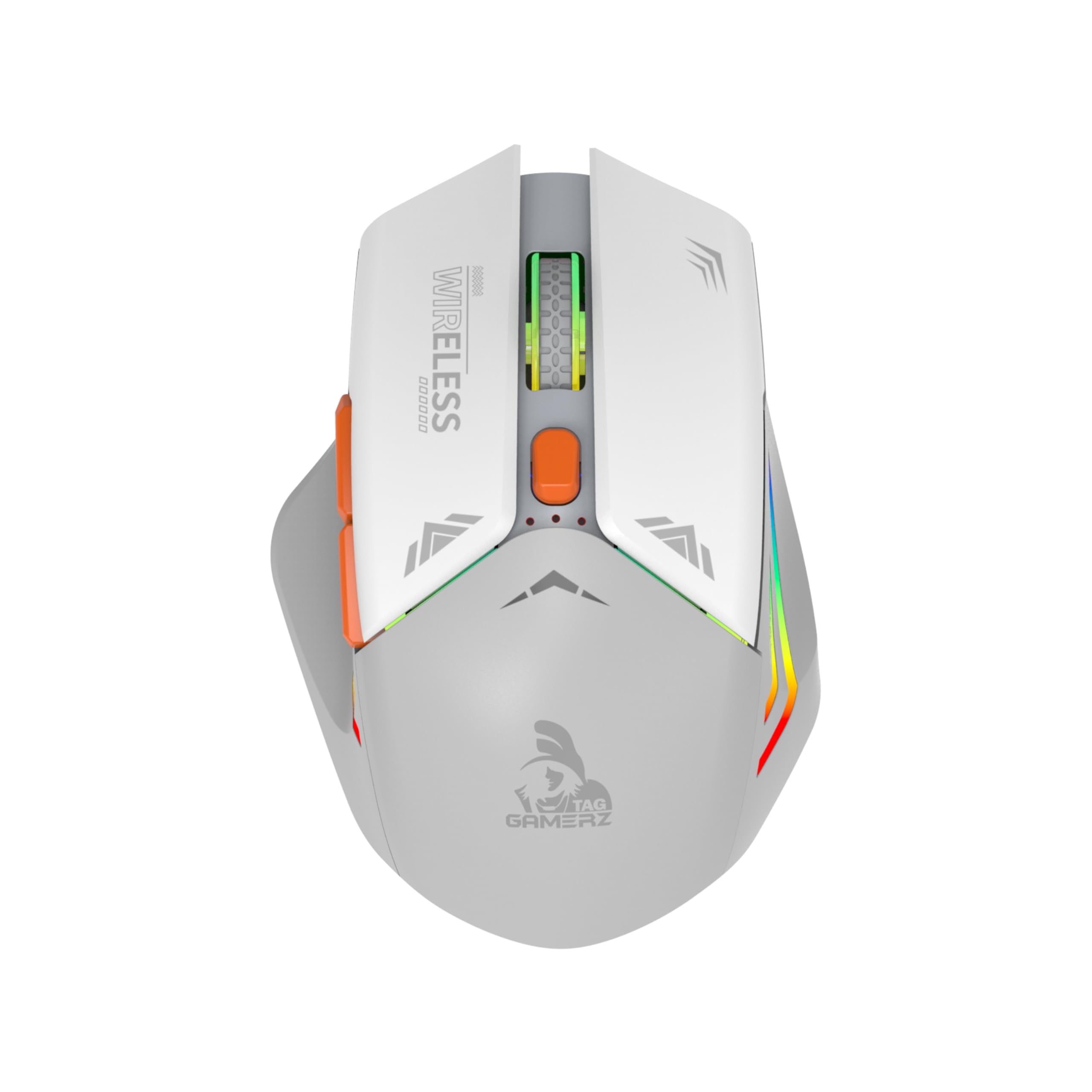
Image: The TAG Gamerz WM800 RGB Wireless Gaming Mouse in white, showcasing its ergonomic design and RGB elements.
Package Contents:
- TAG Gamerz WM800 Wireless Mouse
- USB Nano Receiver
- User Manual
Key Features:
- Wireless Freedom: 2.4GHz USB Nano receiver for a stable connection up to 10 meters.
- Adjustable DPI: 1000/1200/1600 DPI settings for precise control.
- Rechargeable Battery: Built-in rechargeable battery with Type-C charging port.
- Power Efficiency: Automatic power-saving mode and on/off switch.
- Plug and Play: No driver installation required.
- Wide Compatibility: Supports Windows, Mac OS, and Linux.
- 6 Functional Buttons: For enhanced control and customization.
- RGB Lighting: Dynamic RGB lighting for an immersive gaming experience.
Setup Guide
- Charge the Mouse: Before first use, connect the mouse to a USB power source using a Type-C charging cable (not included in box contents, but required for charging). The RGB lighting may indicate charging status.
- Locate the USB Receiver: The USB Nano receiver is typically stored in a compartment on the underside of the mouse. Remove it carefully.
- Connect the Receiver: Plug the USB Nano receiver into an available USB port on your computer (PC, laptop, gaming console).
- Power On the Mouse: Locate the power switch on the underside of the mouse and slide it to the "ON" position.
- Automatic Connection: The mouse should automatically connect to your computer. No additional drivers are required for basic functionality.
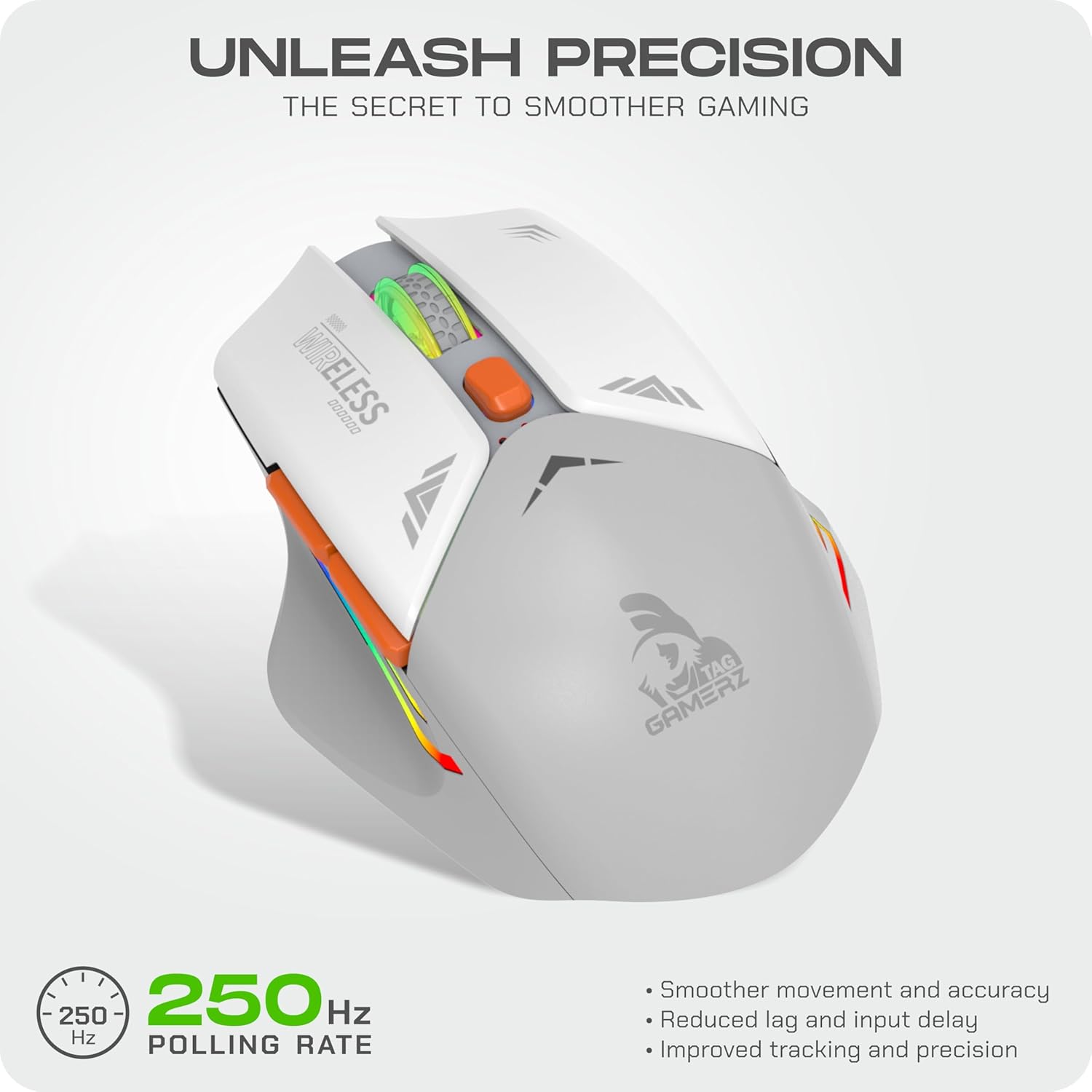
Image: The TAG Gamerz WM800 mouse shown alongside its compact USB Nano receiver, ready for connection.
Operating Instructions
The WM800 mouse features 6 functional buttons for various tasks and gaming actions.

Image: A detailed view of the TAG Gamerz WM800 mouse, indicating the positions of the DPI adjustment button, scroll wheel, and the forward/backward side buttons.
- Left Click Button: Primary function, typically for selection and activation.
- Right Click Button: Secondary function, usually for context menus.
- Scroll Wheel: For scrolling through documents and web pages. Can also function as a middle click button.
- DPI Adjustment Button: Located behind the scroll wheel. Press to cycle through DPI settings.
- Forward Button: (Side button) Navigates forward in web browsers or file explorers.
- Backward Button: (Side button) Navigates backward in web browsers or file explorers.
DPI Adjustment:
The WM800 mouse offers three adjustable DPI (Dots Per Inch) settings: 1000, 1200, and 1600. To change the DPI, press the DPI adjustment button located behind the scroll wheel. Each press will cycle to the next DPI setting, allowing you to tailor sensitivity for different tasks or games.

Image: The TAG Gamerz WM800 mouse illustrating the range of adjustable DPI settings (1000-1600) for customized precision.
Charging and Power Management
Charging the Mouse:
The WM800 mouse is equipped with a built-in rechargeable battery. To charge, connect a Type-C cable to the charging port on the front of the mouse and the other end to a USB power source (e.g., computer USB port, USB wall adapter). The RGB lighting may change or indicate charging status.

Image: The front view of the TAG Gamerz WM800 mouse, clearly showing the Type-C charging port.
Power Saving Mode:
To conserve battery life, the mouse features an automatic power-saving mode. If the mouse is inactive for an extended period, it will enter a sleep state. To wake it up, simply move the mouse or click any button.
On/Off Switch:
For complete power control and to further conserve battery during long periods of non-use or transport, use the on/off switch located on the underside of the mouse.
Maintenance
- Cleaning: Use a soft, dry cloth to clean the mouse. For stubborn dirt, a slightly damp cloth can be used, but ensure no moisture enters the device. Do not use harsh chemicals or abrasive cleaners.
- Storage: When not in use for extended periods, turn off the mouse using the power switch and store it in a dry, cool place.
- Battery Care: Avoid fully discharging the battery frequently. Charge the mouse regularly to maintain battery health.
Troubleshooting
| Problem | Possible Solution |
|---|---|
| Mouse not responding |
|
| Lag or intermittent connection |
|
| Mouse cursor moves erratically |
|
| RGB lighting not working |
|
Specifications
| Feature | Detail |
|---|---|
| Model Name | WM800 |
| Connectivity | 2.4GHz Wireless (USB Nano Receiver) |
| Wireless Range | Up to 10 meters |
| DPI Settings | 1000 / 1200 / 1600 DPI |
| Buttons | 6 (Left, Right, Scroll Click, DPI, Forward, Backward) |
| Charging Port | Type-C |
| Battery | Rechargeable Inbuilt Battery |
| Compatibility | Windows XP/Vista/7/8/8.1/10/11, Mac OS, Linux |
| Dimensions (L x W x Th) | 11.7 x 8.2 x 5 Centimeters |
| Weight | 200 Grams |
| Material | Plastic |
| Color | White |
Warranty Information
The TAG Gamerz WM800 RGB Wireless USB Gaming Mouse comes with a 1 Year Manufacturer Warranty from the date of purchase. This warranty covers manufacturing defects. Please retain your proof of purchase for warranty claims. The warranty does not cover damage caused by misuse, accidents, unauthorized modifications, or normal wear and tear.
Customer Support
Should you encounter any issues or require assistance with your TAG Gamerz WM800 mouse, please contact our customer support team:
- Phone: +91 98201 63040
- Email: support@technologyandgadgets.com
- Operating Hours: Monday to Saturday, 11:00 AM to 7:00 PM (IST)
For more information, you can visit the official TAG website or your local service center.

Image: Contact details for TAG customer support, including phone number, email, and operating hours.
