
1. Product Overview
This litillbuly Android 13 Car Radio is a 10.4-inch HD 1080P capacitive touchscreen unit designed for select Dodge Ram models. It features 4GB RAM and 64GB ROM, providing a responsive and capable in-car entertainment and navigation system. The unit integrates seamlessly with your vehicle's existing systems, offering enhanced connectivity and multimedia options.
2. Compatibility
This car radio is compatible with Dodge Ram 1500, 2500, and 3500 models manufactured between 2013 and 2018. It includes all necessary cables and a frame for installation. Please verify your vehicle's model year before purchase.
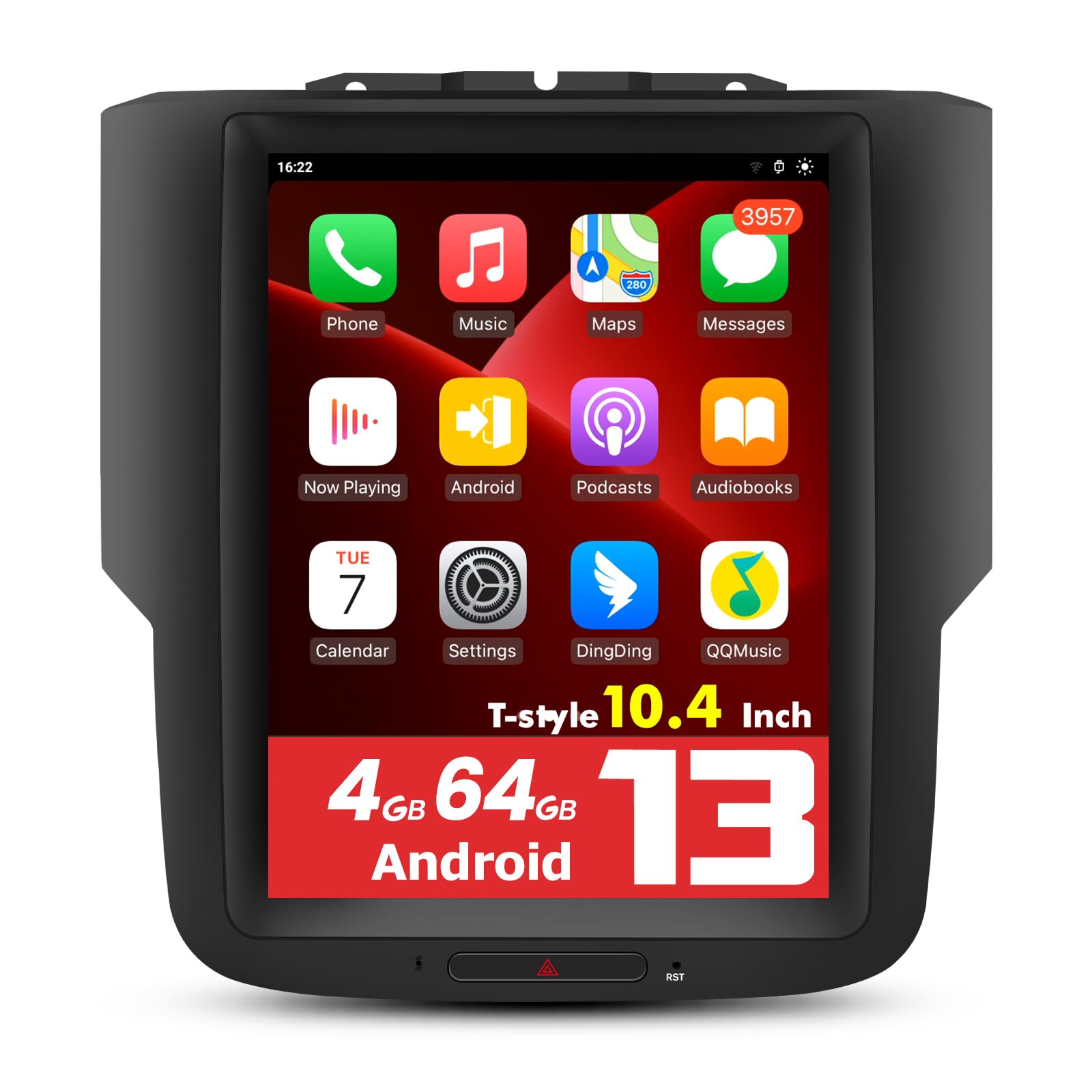
Image: The car radio is designed for specific Dodge Ram models from 2013-2018.
3. Key Features
- Android 13 System: Equipped with 4GB RAM and 64GB ROM for smooth operation and ample storage.
- Wireless CarPlay & Android Auto: Connect your smartphone wirelessly for navigation, calls, messages, and music.
- Bluetooth Hands-Free & Steering Wheel Controls (SWC): Make calls and control media safely using Bluetooth and your vehicle's steering wheel controls. An external microphone is included for improved call quality.
- Multiple Media Playback Methods: Enjoy high-quality digital stereo (RDS) FM/AM tuner, and play multimedia via network or offline. Features EQ settings (jazz, rock, pop, classic).
- Online & Offline Maps: Pre-loaded with North American maps. Connect the GPS antenna to use coordinates, postal codes, or addresses for route planning. Online map apps can be downloaded for real-time traffic.
- Other Functions: Reversing assistance (supports rear camera), video output to headrest, Mirror Link (Android/iOS compatible), and WiFi/WLAN internet support for app downloads (e.g., YouTube, Gmail).

Image: The car radio supports wireless CarPlay and Android Auto for seamless smartphone integration.

Image: Bluetooth connectivity for hands-free calls and music, along with steering wheel control integration.

Image: The unit provides online and offline GPS navigation capabilities.

Image: The system supports reversing assistance with a rear camera for safer parking.
4. What's in the Box
The package includes the following components:
- Android 13 Car Radio Unit
- Power Wiring Harness
- CAN-BUS Decoder
- AC Control Cable
- RCA Audio Output Cables
- Radio Antenna Cable
- External Microphone
- GPS Antenna
- WiFi Antenna
- USB Cables (x2)
- Crowbar (for trim removal)
- Screwdriver

Image: All accessories included with the litillbuly Android 13 Car Radio.
5. Setup and Installation
Installation of the litillbuly Android 13 Car Radio involves removing the factory radio and bezel, connecting the new unit with the provided harnesses, and securing it in place. While the unit is designed for a specific vehicle fit, professional installation is recommended if you are not familiar with car audio wiring or dashboard disassembly.
Installation Steps Overview:
- Prepare Vehicle: Disconnect the vehicle's battery.
- Remove Factory Components: Carefully remove the existing radio bezel and factory head unit. Use the provided crowbar tool to prevent damage to interior trim.
- Connect Wiring: Connect the provided power harness, CAN-BUS decoder, AC control cable, and other necessary cables to the new head unit and the vehicle's wiring. Ensure all connections are secure and match the appropriate interfaces for your vehicle model.
- Install Antennas: Connect the GPS antenna and WiFi antenna. Position them for optimal signal reception.
- Test Functionality: Before fully reassembling, reconnect the battery and power on the unit to test all functions (radio, GPS, Bluetooth, CarPlay/Android Auto, steering wheel controls, HVAC controls, and camera inputs).
- Secure Unit: Mount the new head unit into the dashboard opening and reattach the bezel.
Detailed Installation Video:
Video: A detailed installation guide for the litillbuly Car Stereo in a Dodge Ram. This video demonstrates the process of connecting the various interfaces and components.
6. Operating Instructions
Basic Operation:
- Power On/Off: Press and hold the power button (if available) or turn on your vehicle's ignition.
- Touchscreen Navigation: Tap icons to open applications. Swipe to navigate between screens.
- Volume Control: Adjust volume using the on-screen controls or your vehicle's steering wheel controls.
Wireless CarPlay & Android Auto:
- Ensure Bluetooth is enabled on your smartphone and the car radio.
- On the car radio, navigate to the CarPlay or Android Auto application.
- Follow the on-screen prompts to pair your phone. Once paired, your phone's interface will appear on the radio display.
Bluetooth Hands-Free:
- Go to the Bluetooth settings on the car radio.
- Enable Bluetooth on your phone and search for available devices.
- Select the car radio from your phone's list and confirm the pairing code.
- Once connected, you can make and receive calls, and stream audio.
GPS Navigation:
- Tap the 'Navigation' or 'Maps' icon.
- Enter your destination using the on-screen keyboard.
- Select your preferred route and start navigation.
- For real-time traffic, ensure the unit is connected to the internet via WiFi and an online map application is installed.
Radio (FM/AM):
- Tap the 'Radio' icon.
- Use the scan function to automatically search for stations or manually tune to a frequency.
- Save your favorite stations to presets.
HVAC Controls:
- The unit integrates with your vehicle's HVAC system. Controls will appear on the bottom portion of the screen or when the HVAC status bar is pressed.
- If your vehicle has manual HVAC controls, you may need to configure this setting in the unit's system settings for proper functionality.
7. Maintenance
- Screen Cleaning: Use a soft, lint-free cloth to clean the touchscreen. For stubborn smudges, lightly dampen the cloth with water or a screen-safe cleaner. Avoid harsh chemicals.
- Software Updates: Periodically check for software updates through the unit's settings menu to ensure optimal performance and access to new features.
- Environmental Conditions: Avoid exposing the unit to extreme temperatures or direct sunlight for prolonged periods.
8. Troubleshooting
If you encounter issues with your litillbuly Android 13 Car Radio, refer to the following common problems and solutions:
| Problem | Possible Cause / Solution |
|---|---|
| Unit does not power on. | Check power connections and vehicle's fuse box. Ensure the battery is properly connected. |
| Wireless CarPlay/Android Auto disconnects frequently. | Ensure your phone's Bluetooth and Wi-Fi are stable. Try re-pairing the device. Check for software updates on the head unit. |
| GPS signal is weak or navigation is sluggish. | Ensure the GPS antenna is properly connected and positioned with a clear view of the sky. Allow sufficient time for initial GPS fix. |
| HVAC controls are not functioning correctly. | Verify the AC control cable is correctly installed. Check the unit's settings to ensure it is configured for your vehicle's specific HVAC system (manual vs. automatic). |
| Steering Wheel Controls (SWC) are unresponsive. | Ensure the CAN-BUS decoder is correctly connected. Some units may require a minute or two after startup to fully recognize SWC inputs. |
| Screen glare makes display hard to see. | Adjust screen brightness and contrast settings. Consider using an anti-glare screen protector if available. |
| 4G LTE data remains active after disabling. | This may be a software behavior. If persistent, contact customer support for potential firmware updates or workarounds. |
| Unit requires frequent reboots. | Ensure all connections are secure. Try a factory reset (note: this will erase all user data). If the issue persists, contact customer support. |
If these solutions do not resolve your issue, please contact litillbuly customer support for further assistance.
9. Specifications
| Feature | Detail |
|---|---|
| Brand | litillbuly |
| Model Name | Android 13 Car Radio |
| Operating System | Android 13 |
| RAM | 4GB |
| Memory Storage Capacity | 64GB |
| Screen Size | 10.4 Inches |
| Display Type | LCD |
| Touch Screen Type | Capacitive |
| Resolution | 1920 x 1080 |
| Connectivity Technology | Bluetooth, Wi-Fi |
| Connectivity Protocol | Bluetooth, Wi-Fi |
| Supported Satellite Navigation System | GPS |
| Audio Output Mode | Stereo |
| Compatible Vehicle Type | Car (Dodge Ram 2013-2018) |
| Item Weight | 2.68 Kilograms |
| UPC | 759973188719 |
| ASIN | B0D1XY13C4 |
10. Warranty and Support
This litillbuly product comes with a limited warranty. For specific warranty details and duration, please refer to the documentation included with your purchase or contact the seller directly. For technical support, troubleshooting assistance, or any questions regarding your car radio, please reach out to the litillbuly customer service team or the seller from whom you purchased the product.