
1. Introduction
This manual provides detailed instructions for the setup, operation, and maintenance of your HP H300 Wireless Headset. Please read this guide thoroughly to ensure optimal performance and longevity of your device. The HP H300 headset offers a high-quality audio experience with wireless connectivity, designed for various uses including entertainment, fitness, and travel.
2. Package Contents
Verify that all items are present in the package:
- HP H300 Wireless Headset
- USB Type-C Charging Cable
- User Manual (this document)
3. Product Overview
Familiarize yourself with the components and controls of your HP H300 Wireless Headset.

Image 3.1: Front view of the HP H300 Wireless Headset, showcasing its over-ear design and adjustable headband.
Controls and Ports
The main controls are located on the earcups for easy access.

Image 3.2: Close-up view of the earcup controls, including power on/off, volume adjustment, and call answer buttons.
- Power Button: Used to turn the headset on or off.
- Volume Controls: Buttons for increasing or decreasing audio volume.
- Multi-function Button: For answering/ending calls and controlling music playback (play/pause, next/previous track).
- Type-C Charging Port: For connecting the charging cable.
- LED Indicator: Displays power status, charging status, and Bluetooth pairing status.
- Microphone: Built-in mic with Digital Signal Processor for clear calls.
4. Setup
4.1 Charging the Headset
Before initial use, fully charge your HP H300 Wireless Headset.
- Connect the provided USB Type-C charging cable to the charging port on the headset.
- Connect the other end of the cable to a USB power source (e.g., computer USB port, wall adapter).
- The LED indicator will show the charging status. A full charge typically takes approximately 3 hours.
- Once fully charged, the LED indicator will change (refer to the LED status section in the full manual for specific indications). The headset provides up to 60 hours of playtime on a full charge.
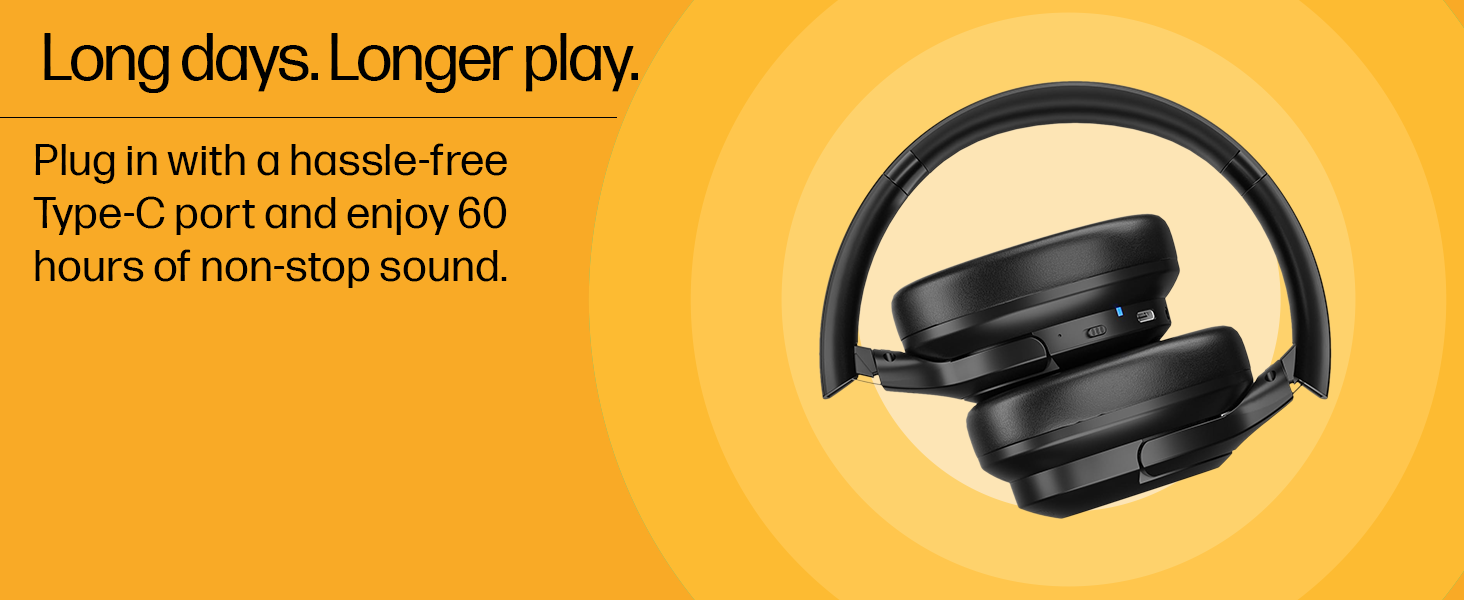
Image 4.1: Illustration of the Type-C charging port on the HP H300 Wireless Headset, highlighting its long battery life.
4.2 Bluetooth Pairing
Pair your headset with a Bluetooth-enabled device (smartphone, laptop, tablet, desktop).
- Ensure the headset is charged and turned off.
- Press and hold the Power button until the LED indicator flashes, indicating pairing mode.
- On your device, enable Bluetooth and search for available devices.
- Select "HP H300" from the list of found devices.
- Once connected, the LED indicator will show a steady light (refer to the LED status section for specific indications).
- The headset uses Bluetooth 5.3 for a stable connection up to 10 meters.
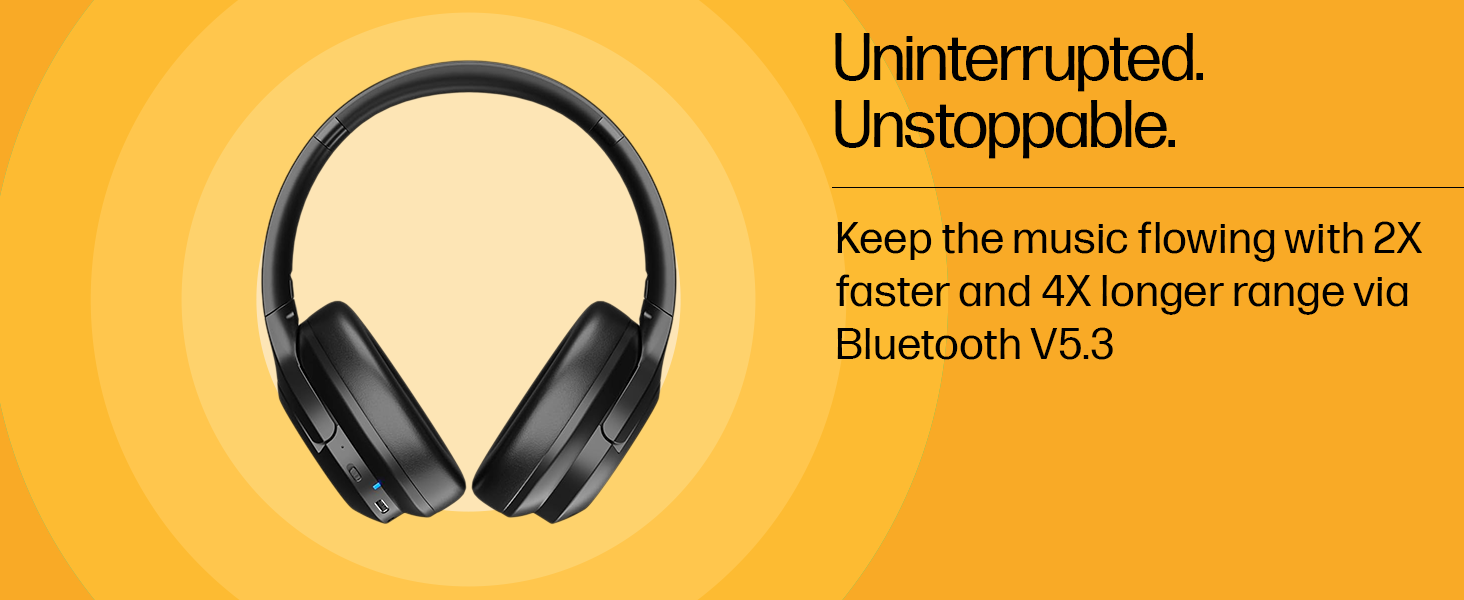
Image 4.2: Diagram illustrating the Bluetooth 5.3 connectivity of the HP H300 Wireless Headset.
5. Operating Instructions
5.1 Power On/Off
- To Power On: Press and hold the Power button for approximately 3 seconds until the LED indicator lights up.
- To Power Off: Press and hold the Power button for approximately 5 seconds until the LED indicator turns off.
5.2 Call Management
- Answer/End Call: Press the Multi-function button once.
- Reject Call: Press and hold the Multi-function button for 2 seconds.
- The built-in microphone with Digital Signal Processor helps reduce background noise for clearer conversations.
5.3 Volume Control
- Increase Volume: Press the Volume Up button.
- Decrease Volume: Press the Volume Down button.
5.4 Music Playback
- Play/Pause: Press the Multi-function button once.
- Next Track: Double-press the Multi-function button.
- Previous Track: Triple-press the Multi-function button.
6. Maintenance
6.1 Cleaning
- Wipe the headset with a soft, dry, lint-free cloth.
- Do not use abrasive cleaners, solvents, or aerosol sprays.
- Keep the charging port free from dust and debris.
6.2 Water Resistance
The HP H300 headset features a water-resistant design, making it suitable for use during workouts or in light rain. However, it is not waterproof. Avoid submerging the headset in water or exposing it to heavy downpours.
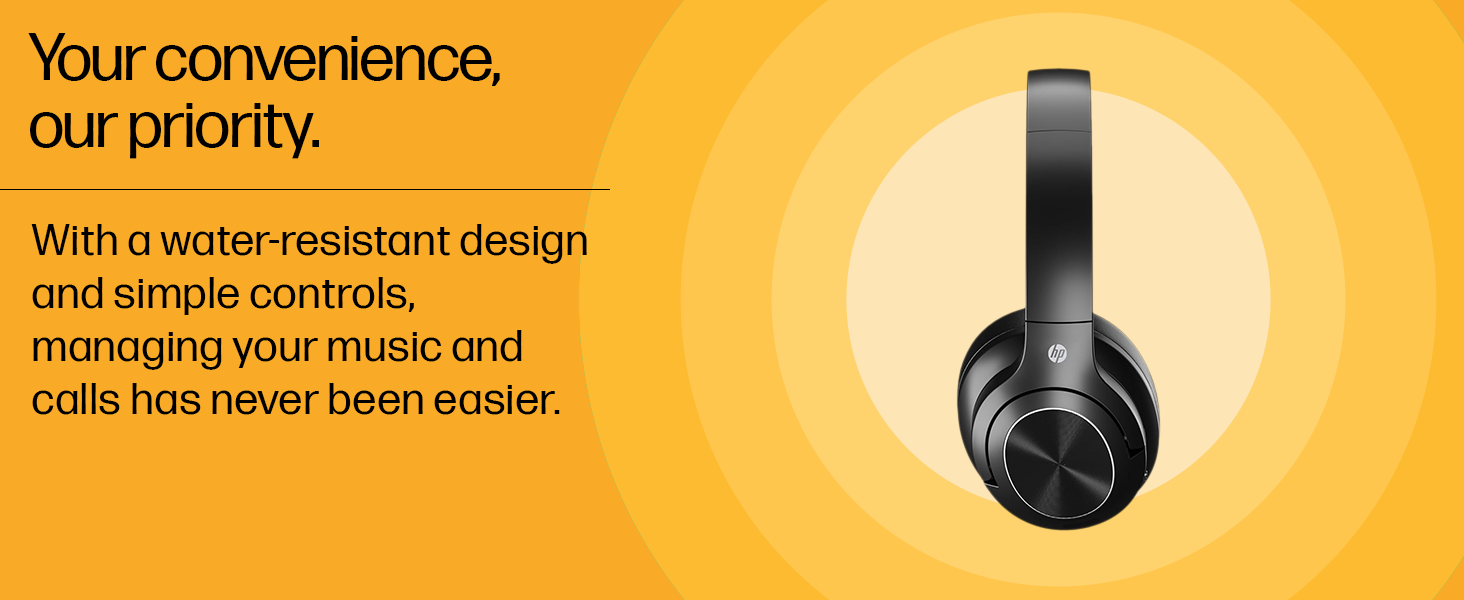
Image 6.1: Visual representation of the water-resistant design of the HP H300 Wireless Headset.
6.3 Storage
Store the headset in a cool, dry place away from direct sunlight and extreme temperatures. Avoid placing heavy objects on the headset.
7. Troubleshooting
| Problem | Possible Cause | Solution |
|---|---|---|
| Headset does not power on. | Low battery. | Charge the headset for at least 30 minutes. |
| Cannot pair with device. | Headset not in pairing mode; Bluetooth off on device; device too far. | Ensure headset is in pairing mode (flashing LED). Turn on Bluetooth on your device. Move headset closer to the device (within 10 meters). |
| No sound or low volume. | Volume too low on headset or device; headset not connected. | Increase volume on both headset and connected device. Re-establish Bluetooth connection. |
| Poor call quality. | Weak signal; microphone obstruction. | Move closer to the connected device. Ensure the microphone is not covered. |
8. Specifications
| Model Name | H300 |
| Brand | HP |
| Color | Black |
| Ear Placement | Over Ear |
| Impedance | 32 Ohms |
| Bluetooth Version | 5.3 |
| Bluetooth Range | Up to 10 meters (33 feet) |
| Battery Life (Playback) | Up to 60 hours |
| Battery Charge Time | Approximately 3 hours |
| Charging Port | USB Type-C |
| Noise Control | Passive Noise Cancellation |
| Frequency Range | 20 Hz - 20 kHz |
| Microphone | Built-in with Digital Signal Processor |
| Water Resistance | Water Resistant (not waterproof) |
| Weight | 0.23 Kilograms |
| Compatible Devices | Smartphones, Laptops, Tablets, Desktops |
| Materials | Faux Leather, Plastic |
9. Warranty and Support
9.1 Manufacturer's Warranty
The HP H300 Wireless Headset comes with a 1-year manufacturer's warranty from the date of purchase. This warranty covers defects in materials and workmanship under normal use. It does not cover damage caused by misuse, accidents, unauthorized modifications, or normal wear and tear.
Please retain your proof of purchase for warranty claims.
9.2 Customer Support
For technical assistance, warranty claims, or product inquiries, please contact HP customer support through their official website or the contact information provided with your product packaging. You can also visit the official HP Store on Amazon for more information.
Manufacturer: Dongguan Suoai Electronics Co. Ltd, No.3, Huayu Street, Changlong Village, Huangjiang Town, Dongguan City, Guangdong, 523766, China, HP
Importer: HP India Sales Private Limited, No. 24, Kothari Arena, Hosur Main Road, Adugodi, Bangalore, Karnataka, India, 560030


