
RockJam RJ490MG
RockJam 49 Key USB Keyboard Piano
User Manual
Introduction
This manual provides comprehensive instructions for the setup, operation, and maintenance of your RockJam 49 Key USB Keyboard Piano. Designed for both beginners and experienced musicians, this compact digital piano offers a wide range of features to enhance your musical journey.
Key features include:
- 49 velocity-sensitive keys for expressive play.
- 200 built-in tones and 200 rhythms for diverse musical styles.
- 50 demo songs for learning and inspiration.
- Record and playback functionality to capture your performances.
- Integrated stereo speakers for clear audio output.
- Headphone output for private practice.
- Auxiliary input for playing along with external audio sources.
- Microphone input for vocal accompaniment.
- USB connectivity for computer integration.
Setup
Follow these steps to set up your RockJam 49 Key USB Keyboard Piano for the first time.
1. Unboxing and Inspection
Carefully remove all components from the packaging. Verify that all items listed in the packing contents are present and undamaged. Retain the packaging for future transport or storage.
2. Powering the Keyboard
The keyboard can be powered using either batteries or a USB power adapter (not included).
- Battery Power: Locate the battery compartment on the underside of the keyboard. Insert 6 x AA batteries, ensuring correct polarity. Close the battery compartment cover securely.
- USB Power: Connect a standard USB power adapter (DC 5V-2A) to the USB port on the back of the keyboard. Plug the adapter into a wall outlet.

Image: Close-up view of the power button and volume knob located on the top panel of the keyboard.

Image: Rear view of the keyboard displaying the DC 5V-2A USB power input, headphone output, auxiliary input, and microphone input ports.
3. Connecting Peripherals
- Headphones: For private practice, connect standard 3.5mm headphones to the "PHONES" jack on the rear panel.
- Auxiliary Input: To play along with external audio devices (e.g., smartphone, MP3 player), connect them to the "AUX IN" jack using a 3.5mm audio cable.
- Microphone Input: Connect a microphone to the "MIC" jack for vocal accompaniment.
Operating Instructions
This section details the various functions and controls of your RockJam keyboard.
1. Basic Operation
- Power On/Off: Press the POWER button to turn the keyboard on or off.
- Volume Control: Rotate the VOLUME knob to adjust the overall sound level.

Image: Overhead view of the RockJam 49 Key USB Keyboard Piano, showing the full layout of keys and control panel.
2. Tones and Rhythms
The keyboard features 200 tones and 200 rhythms. Refer to the tone and rhythm lists printed on the keyboard's panel.
- Selecting Tones: Press the TONE button, then use the number buttons (0-9) to enter the desired two-digit tone number.
- Selecting Rhythms: Press the RHYTHM button, then use the number buttons (0-9) to enter the desired two-digit rhythm number.

Image: Detailed view of the tone and rhythm categories and their corresponding numerical codes printed on the keyboard's surface.

Image: Close-up of the keyboard's control panel, highlighting the numerical input buttons and function buttons such as TONE, RHYTHM, SUSTAIN, and VIBRATO.
3. Recording and Playback
- Record: Press the REC button to start recording your performance. The keyboard will record the notes you play.
- Playback: Press the PLAY button to listen to your recorded performance.
4. Demo Songs
The keyboard includes 50 demo songs. Press the DEMO button to cycle through and play the pre-loaded demonstration tracks.
5. Tempo and Sync
- Tempo: Use the TEMPO +/- buttons to adjust the speed of rhythms and demo songs.
- Sync: The SYNC function allows the rhythm to start automatically when you play a key.
- Start/Stop: Use the START/STOP button to begin or end rhythms and demo songs.
- Metronome: Press the METRONOME button to activate a click track for timing practice.
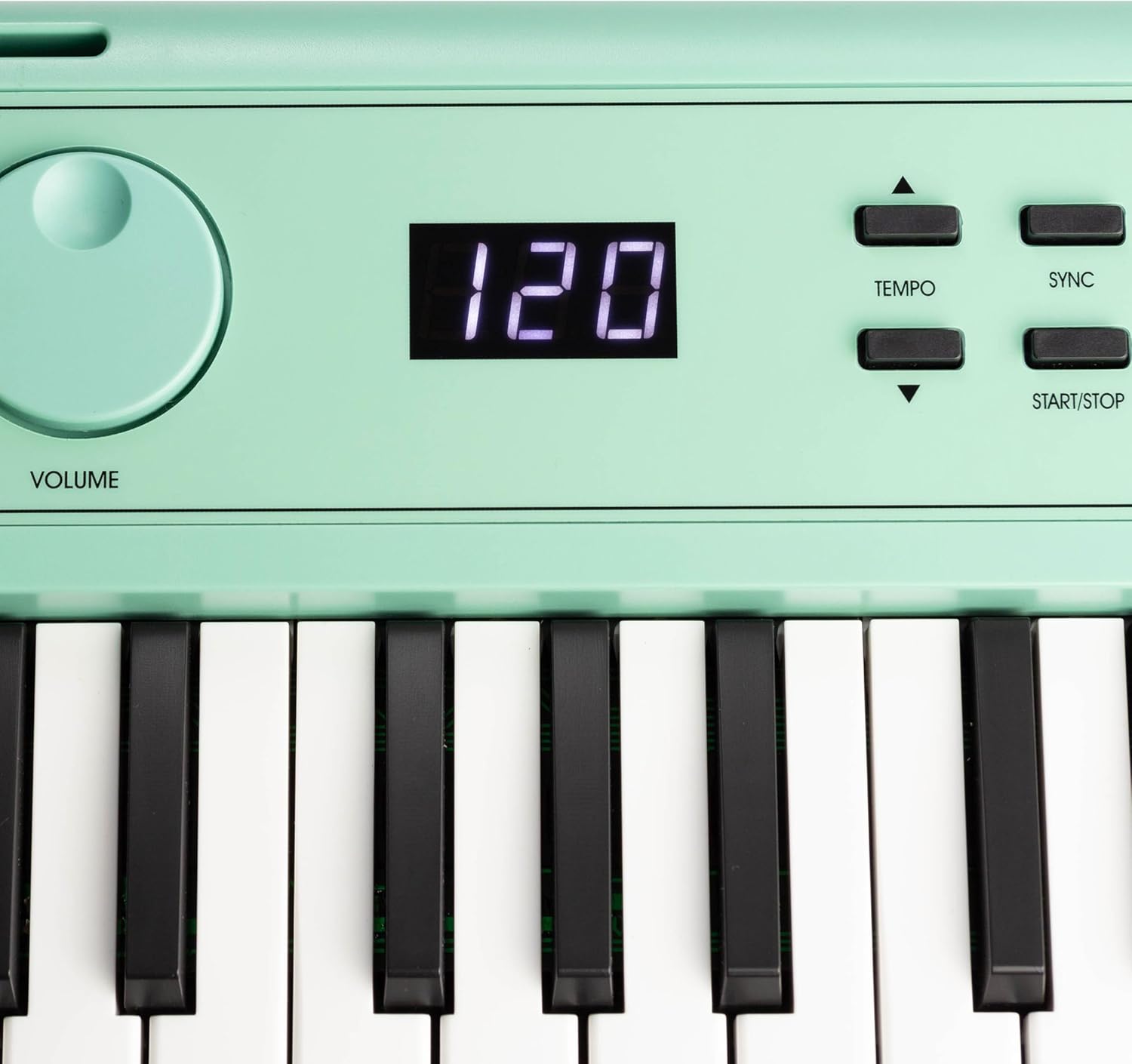
Image: Close-up of the keyboard's digital display showing the tempo setting, along with the TEMPO, SYNC, and START/STOP control buttons.
6. Effects
- Sustain: Press the SUSTAIN button to add a lingering effect to notes.
- Vibrato: Press the VIBRATO button to add a slight pitch modulation effect to notes.
7. Learning with Simply Piano
Your RockJam keyboard is designed to integrate with the Simply Piano application, providing an interactive learning experience. You will receive exclusive content access with your purchase.
- Download the Simply Piano app on your iOS or Android device.
- Connect your device to the keyboard via a compatible USB cable (not included) or use your device's microphone to detect the notes played.
- Follow the in-app instructions to learn songs and fundamental piano techniques.

Image: The official logo icon for the Simply Piano application.

Image: Two individuals engaged in learning piano using the RockJam keyboard in conjunction with the Simply Piano application displayed on a tablet.
Additionally, piano note stickers are included to assist with learning key positions.

Image: Close-up view of the piano keys with note stickers affixed, indicating musical notes for learning assistance.
Maintenance
Proper care will ensure the longevity and optimal performance of your keyboard.
- Cleaning: Use a soft, dry cloth to wipe the surface of the keyboard. For stubborn dirt, a slightly damp cloth can be used, followed by a dry cloth. Avoid abrasive cleaners or solvents.
- Storage: When not in use, store the keyboard in a cool, dry place away from direct sunlight, extreme temperatures, and high humidity.
- Battery Care: If the keyboard will not be used for an extended period, remove the batteries to prevent leakage and damage.
- Handling: Avoid dropping the keyboard or subjecting it to strong impacts. Do not place heavy objects on top of it.
Troubleshooting
If you encounter issues with your keyboard, refer to the following common problems and solutions.
| Problem | Possible Cause | Solution |
|---|---|---|
| No sound from speakers/headphones. |
|
|
| Keyboard does not power on. |
|
|
| Rhythm/Demo not playing. |
|
|
If the problem persists after trying these solutions, please contact customer support.
Specifications
| Feature | Detail |
|---|---|
| Model Name | RockJam 49 Key USB Keyboard Piano Mint Green |
| Model Number | RJ490MG |
| Number of Keys | 49 |
| Tones | 200 |
| Rhythms | 200 |
| Demo Tracks | 50 |
| Connectivity | USB, 3.5mm Jack (Headphones, Aux In, Mic In) |
| Power Source | Battery Powered (6 x AA), DC 5V-2A USB |
| Item Weight | 4.4 pounds (2 Kilograms) |
| Product Dimensions | 7.28 x 30.71 x 2.36 inches |
| Manufacturer | PDT UK Ltd |
| Supported Software | Simply Piano |
| Special Features | Built-In Speaker, Compact, Headphone Jack, Lightweight, Recording |
Warranty and Support
This product is manufactured by PDT UK Ltd. For warranty information or technical support, please refer to the contact details provided with your purchase documentation or visit the official RockJam website. Keep your proof of purchase for warranty claims.
For additional resources and learning tools, visit the RockJam Store on Amazon.
Related documentsRJ490MG


Ask a question about this manual
Ask about setup, troubleshooting, compatibility, parts, safety, or missing instructions. Manuals+ will review the question and use this page’s manual context to help answer it.