
EZVIZ H9c
EZVIZ H9c 3K Dual-Lens Camera User Manual
Model: H9c
1. Introduction
Thank you for choosing the EZVIZ H9c 3K Dual-Lens Camera. This advanced outdoor security camera features unique dual-lens technology, combining a wide-angle lens with a pan-tilt-zoom lens for comprehensive surveillance. Designed for robust outdoor use, the H9c provides intelligent tracking, 3K resolution, and enhanced night vision capabilities to ensure your property is protected.
This manual provides detailed instructions for the installation, operation, and maintenance of your H9c camera. Please read it carefully before use and retain it for future reference.
2. Package Contents
Please check that all components are present and in good condition upon opening the package. If any items are missing or damaged, contact your retailer or EZVIZ customer support.
- EZVIZ H9c 3K Dual-Lens Camera
- Power Adapter
- Mounting Template
- Screw Kit (screws and wall plugs)
- Waterproof Kit
- Quick Start Guide
3. Product Overview
Familiarize yourself with the various parts of your EZVIZ H9c camera.
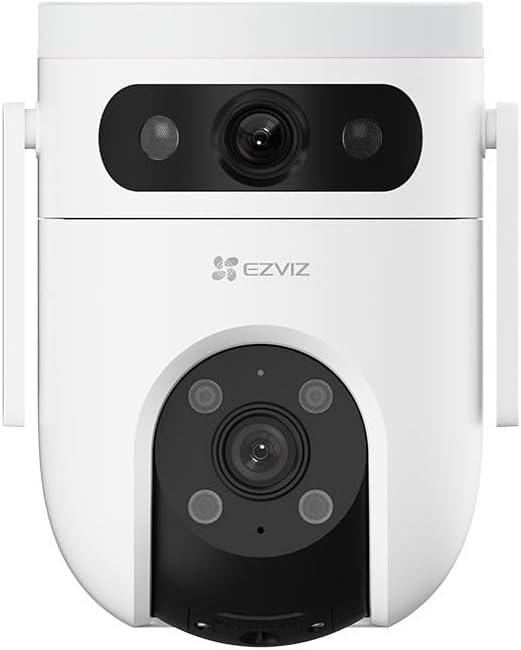
Figure 3.1: Front View - Shows the upper wide-angle lens, lower pan-tilt-zoom lens, and EZVIZ logo. The upper lens includes IR lights for night vision, and the lower lens has additional IR/spotlights.

Figure 3.2: Side View - Illustrates the mounting bracket and the sleek profile of the camera, highlighting its outdoor-ready design.
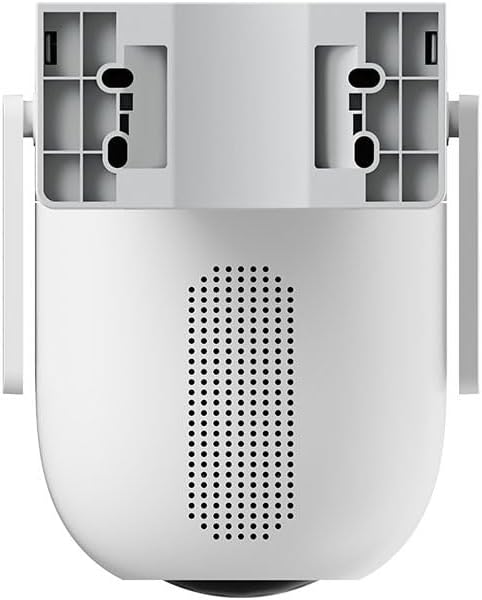
Figure 3.3: Back View - Displays the speaker grille for two-way audio and ventilation openings.

Figure 3.4: Bottom View - Reveals the MicroSD card slot, protected by a cover, for local storage of recordings.
Key Components:
- Upper Wide-Angle Lens: Provides a broad overview of the monitored area.
- Lower Pan-Tilt-Zoom (PTZ) Lens: Offers detailed views and can track subjects with 5x optical zoom and 360-degree field of view.
- Infrared (IR) Lights: For clear night vision.
- Microphone: For audio input.
- Speaker: For two-way audio communication and siren.
- MicroSD Card Slot: For local video storage (card not included).
- Reset Button: Used for factory reset (typically located near the SD card slot).
- Power Port: For connecting the power adapter.
4. Setup and Installation
4.1 Initial Setup
- Download the EZVIZ App: Search for "EZVIZ" in the App Store (iOS) or Google Play Store (Android) and download the official app.
- Create an EZVIZ Account: Open the app and follow the on-screen instructions to register a new account or log in if you already have one.
- Power On the Camera: Connect the power adapter to the camera's power port and plug it into a power outlet. Wait for the indicator light to flash blue, indicating it's ready for setup.
- Add Camera to App: In the EZVIZ app, tap the "+" icon on the home screen to add a new device. Scan the QR code located on the camera or its packaging. Follow the in-app prompts to connect the camera to your Wi-Fi network. Ensure your Wi-Fi network is 2.4 GHz.
- Insert MicroSD Card (Optional): If you wish to store recordings locally, gently insert a MicroSD card (Class 10 or higher, up to 512GB) into the designated slot on the camera (refer to Figure 3.4). Ensure the camera is powered off before inserting or removing the card.
4.2 Mounting the Camera
The H9c camera is designed for outdoor installation. Choose a location that provides the desired viewing angle, has a stable Wi-Fi signal, and is within reach of a power outlet.
- Choose a Location: Select a sturdy surface (wall or ceiling) that can support the camera's weight. Ensure there are no obstructions to the camera's field of view.
- Use Mounting Template: Place the mounting template (included in the package) on the desired installation surface and mark the screw holes.
- Drill Holes: Drill pilot holes at the marked positions. Insert wall plugs if mounting on masonry or concrete.
- Secure the Camera: Align the camera's mounting base with the drilled holes and secure it using the provided screws.
- Waterproof the Connections: Use the waterproof kit to protect the power cable connection from moisture, especially for outdoor installations.
- Adjust Angle: Once mounted, adjust the camera's angle in the EZVIZ app to ensure optimal coverage.
5. Operating the Camera
The EZVIZ H9c camera offers a range of features accessible through the EZVIZ mobile application.
5.1 Dual-Lens Functionality
The H9c utilizes two lenses for enhanced surveillance:
- Wide-Angle Lens: Provides a static, broad view of the area, ideal for general monitoring.
- Pan-Tilt-Zoom (PTZ) Lens: This lens can be remotely controlled via the app to pan horizontally (360 degrees), tilt vertically, and zoom in (5x optical zoom) for detailed inspection.
- Intelligent Tracking: If the wide-angle lens detects a person, the PTZ lens can automatically rotate to track the person's movement, ensuring continuous coverage of the activity. This allows for simultaneous monitoring of a wide area and detailed tracking of specific events.
5.2 Motion Detection and Alerts
- Customizable Detection Zones: Set specific areas within the camera's view where you want motion detection to be active.
- Human Shape Detection: The camera can intelligently distinguish human shapes from other moving objects, reducing false alarms.
- Instant Notifications: Receive real-time alerts on your smartphone when motion is detected.
- Active Defense: Upon detection, the camera can activate a siren and strobe lights to deter intruders.
5.3 Night Vision
The H9c provides clear surveillance even in low-light conditions:
- Infrared Night Vision: Automatically switches to black and white infrared mode in the dark.
- Color Night Vision: With built-in spotlights, the camera can provide full-color night vision when sufficient ambient light is available or when spotlights are activated.
5.4 Two-Way Audio
Communicate with visitors or deter intruders using the built-in microphone and speaker. Access this feature through the live view in the EZVIZ app.
5.5 Video Recording and Storage
- Local Storage: Supports MicroSD card storage (up to 512GB) for continuous or event-based recording.
- Cloud Storage: Optional EZVIZ CloudPlay subscription service for secure cloud storage.
- Playback: View recorded footage directly from the EZVIZ app.
6. Maintenance
Regular maintenance ensures optimal performance and longevity of your camera.
- Cleaning: Gently wipe the camera lens and body with a soft, damp cloth. Do not use harsh chemicals or abrasive cleaners. Ensure the camera is powered off before cleaning.
- Firmware Updates: Regularly check for and install firmware updates via the EZVIZ app. Updates often include performance improvements, new features, and security enhancements.
- MicroSD Card Management: If using a MicroSD card, periodically check its status in the app. Format the card regularly (e.g., monthly) to maintain optimal recording performance. Back up important footage before formatting.
- Power Supply: Ensure the power adapter and cable are free from damage. Replace if any wear or tear is observed.
- Environmental Conditions: While designed for outdoor use, avoid exposing the camera to extreme temperatures outside its operating range or direct, prolonged water submersion.
7. Troubleshooting
If you encounter issues with your EZVIZ H9c camera, refer to the following common problems and solutions.
7.1 Camera Offline / Cannot Connect
- Check Power: Ensure the camera is properly connected to a power source and the adapter is working.
- Wi-Fi Signal: Verify that your Wi-Fi router is working and the camera is within range. Try moving the camera closer to the router or using a Wi-Fi extender.
- Router Settings: Confirm your Wi-Fi network is 2.4 GHz. Ensure there are no MAC address filters or other network restrictions preventing the camera from connecting.
- Restart Devices: Power cycle both the camera and your Wi-Fi router.
- Reset Camera: If the issue persists, press and hold the reset button on the camera for 5-10 seconds until the indicator light flashes, then re-add the camera through the EZVIZ app.
7.2 Poor Image Quality
- Clean Lens: Ensure the camera lens is clean and free from dust, dirt, or smudges.
- Network Bandwidth: A weak Wi-Fi signal can affect video quality. Check your network speed and camera's signal strength in the app.
- Lighting Conditions: Ensure adequate lighting for optimal color vision. In very low light, the camera will switch to black and white night vision.
7.3 Motion Detection Not Working / Too Many False Alarms
- Check Settings: Verify that motion detection is enabled in the EZVIZ app and detection sensitivity is appropriately set.
- Detection Zones: Adjust detection zones to focus on critical areas and exclude irrelevant ones (e.g., moving trees, busy roads).
- Human Shape Detection: Ensure human shape detection is enabled to filter out non-human movements.
8. Specifications
| Model Name | H9c |
| Brand | EZVIZ |
| Resolution | 3K (50 MP Photosensor Resolution) |
| Connectivity Technology | Wireless (Wi-Fi) |
| Special Features | Night Vision, Dual-Lens, Pan-Tilt-Zoom, Intelligent Tracking, Two-Way Audio |
| Usage Environment | Outdoor |
| Optical Zoom | 5x |
| Field of View | 360 Degrees (PTZ lens) |
| Water Resistance Level | Water Resistant |
| Material | Plastic |
| Weight | 200 Grams |
| Included Components | Camera and two 3K-lenses |
| Upper Temperature Range | 100 Degrees Celsius |
| Video Recording Format | AVI |
9. Warranty and Support
For detailed warranty information, please refer to the warranty card included with your product or visit the official EZVIZ website. EZVIZ provides technical support and customer service to assist with any questions or issues you may encounter.
Official EZVIZ Website: www.ezviz.com
You can find FAQs, troubleshooting guides, and contact information for customer support on their website.
Related documentsH9c


Ask a question about this manual
Ask about setup, troubleshooting, compatibility, parts, safety, or missing instructions. Manuals+ will review the question and use this page’s manual context to help answer it.