
1. Product Overview
This manual provides instructions for the Loddery Android 13 Car Stereo, designed specifically for Hyundai IX45 Santa FE models from 2013 to 2018. This unit features a 9-inch touch screen, Android 13 operating system, wireless Carplay and Android Auto, Bluetooth, GPS navigation, Wi-Fi, FM radio, Steering Wheel Control (SWC) support, and backup camera compatibility.
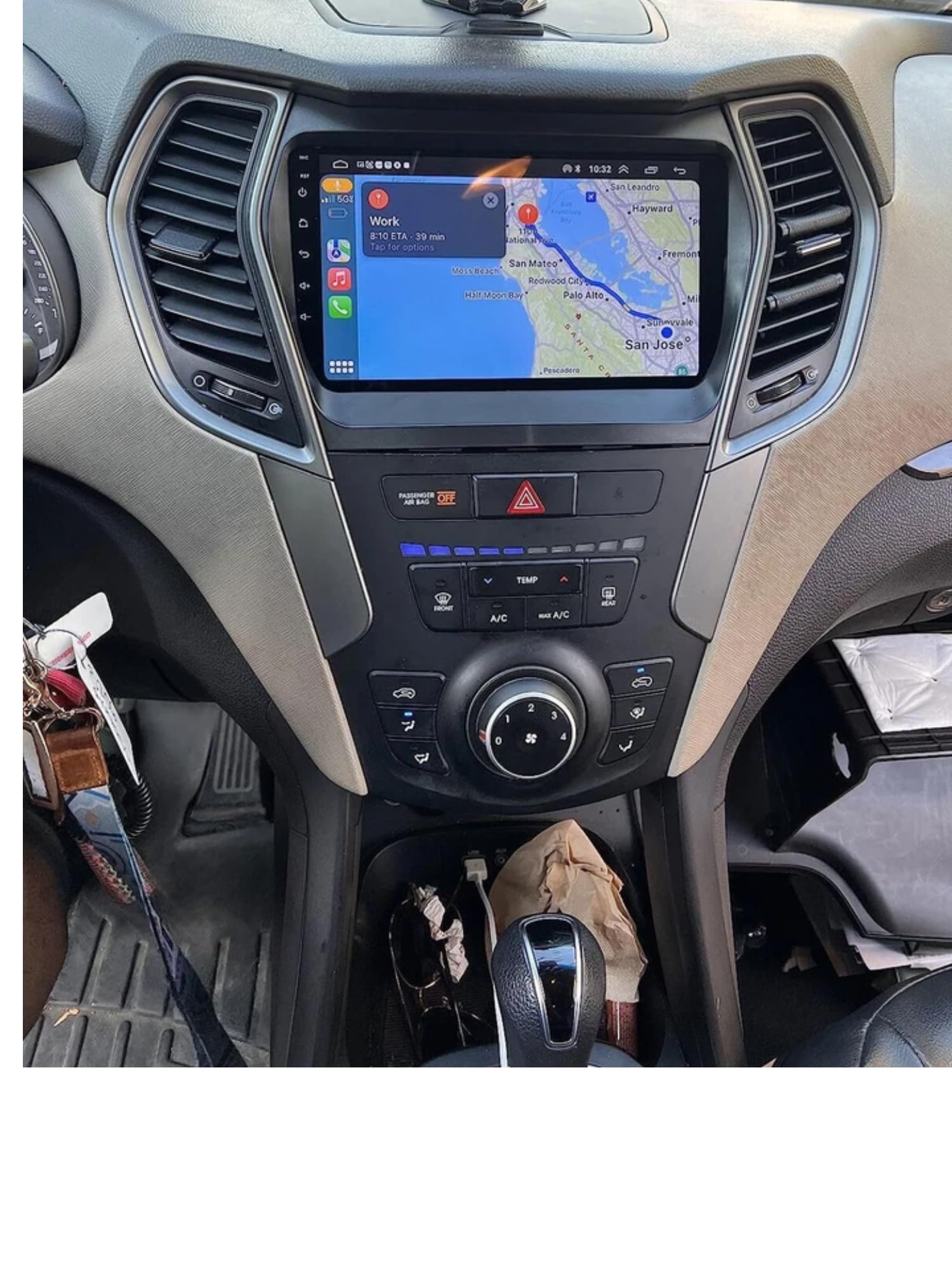
Image 1.1: Loddery Android 13 Car Stereo main unit.
2. Package Contents
Verify that all components are present in the package before proceeding with installation:
- 1x 9-inch Android Stereo Unit
- 1x Power Cable
- 1x RCA Cable
- 2x USB Cables
- 1x GPS Antenna
- 1x Camera Input Cable
- 1x Instruction Manual (this document)
- Installation tools (plastic pry tools, screws)

Image 2.1: Included components: stereo unit, power cable, RCA cable, USB cables, GPS antenna, camera input cable, and installation tools.
3. Setup and Installation
This section provides general guidance for installing the car stereo. Professional installation is recommended.
3.1 Compatibility Check
Ensure your vehicle is a Hyundai IX45 Santa FE manufactured between 2013 and 2018. The unit is designed to fit the dashboard of these specific models.
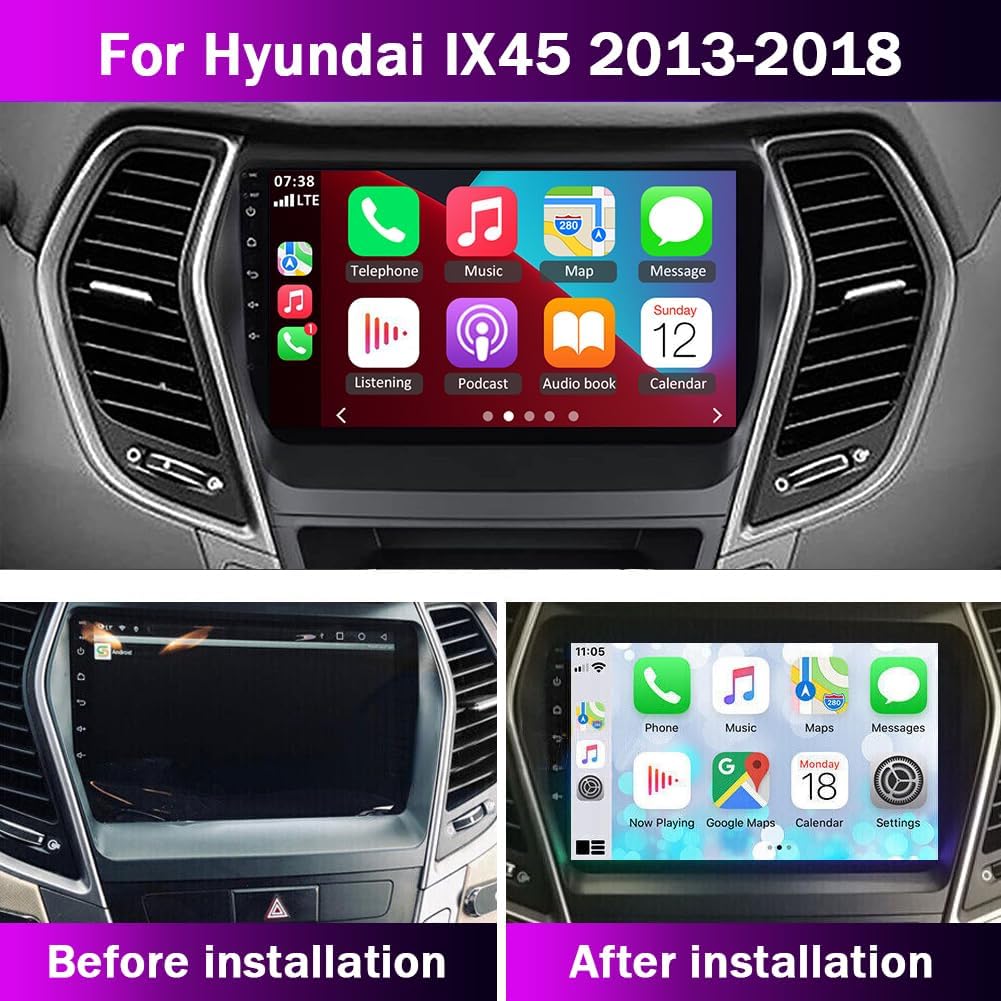
Image 3.1: Comparison of the dashboard before and after installing the Loddery Android 13 Car Stereo.
3.2 Wiring Connections
Carefully connect the provided cables to the corresponding ports on the car stereo and your vehicle's wiring harness. Refer to the wiring diagram below.
- Power Cable: Connect to the vehicle's power supply.
- RCA Cable: For audio/video input/output connections (e.g., external amplifier, headrest monitors).
- USB Cables: For connecting USB devices, Carplay/Android Auto (wired), or charging.
- GPS Antenna: Mount in a location with a clear view of the sky for optimal GPS signal reception.
- Camera Input Cable: Connect to the backup camera for automatic display when reversing.

Image 3.2: Wiring diagram showing connections for power, RCA, USB, GPS, and camera input.

Image 3.3: Rear view of the stereo unit with labeled connection ports.
3.3 Backup Camera Connection
For the backup camera functionality:
- Connect the reversing detection cable (H) to the reversing signal input (I) of the stereo.
- Connect the camera's positive power lead (J) to the positive pole of the vehicle's backup lamp (BUL).
- Connect the camera's ground lead (L) to a suitable grounding point or leave unconnected if not required by the camera model.
4. Operating Instructions
4.1 Power On/Off
Press and hold the power button on the unit or use the vehicle's ignition to turn the stereo on or off.
4.2 Wireless Carplay & Android Auto
Connect your smartphone for seamless integration of navigation, music, and communication apps.
- For iOS (Carplay): Connect via Bluetooth. Open the "Car Link" app on the stereo and follow the on-screen prompts. Wired connection is also supported via USB.
- For Android (Android Auto): Connect via Bluetooth. Open the "Car Link" app on the stereo and follow the on-screen prompts. Wired connection is also supported via USB.
Voice control is available by saying "Hey Siri" or "OK Google" to access functions hands-free.

Image 4.1: Steps for connecting to Wireless Carplay (iOS) and Android Auto (Android system).
4.3 Bluetooth Hands-free & Music
Pair your phone via Bluetooth for hands-free calling and audio streaming.
- Go to the Bluetooth settings on the stereo and enable Bluetooth.
- Search for the stereo's Bluetooth name on your phone and pair.
- Once connected, you can make/receive calls and play music through the car speakers. An external microphone can be connected for clearer call quality.
4.4 GPS Navigation
The unit supports both online and offline GPS navigation. Download offline maps as needed for navigation without an internet connection.
4.5 Mirror Link
Use the "Phonelink" app to mirror your smartphone screen onto the stereo display. Android phones support two-way control, while iOS phones support one-way control.
4.6 Steering Wheel Control (SWC)
The unit supports your vehicle's existing steering wheel controls. This allows you to adjust volume, change tracks, and answer calls without taking your hands off the wheel.

Image 4.2: Example of steering wheel controls used to operate the car stereo.
4.7 FM Radio
Access the FM radio function to listen to local stations. The unit provides 18 preset stations for quick access.
4.8 DSP Function
The Digital Sound Processor (DSP) function enhances audio quality, providing a high-fidelity sound experience.
4.9 Split Screen Function
Utilize the split-screen feature to run two applications simultaneously, such as navigation and music playback.
5. Maintenance
To ensure the longevity and optimal performance of your Loddery Android 13 Car Stereo, follow these maintenance guidelines:
- Screen Cleaning: Use a soft, lint-free cloth to gently wipe the touch screen. Avoid abrasive cleaners or harsh chemicals that could damage the display.
- Software Updates: Periodically check for available software updates to ensure the system runs efficiently and has the latest features and security patches. Connect to Wi-Fi to download updates.
- Environmental Conditions: Avoid exposing the unit to extreme temperatures, direct sunlight for prolonged periods, or excessive moisture.
- Cable Connections: Ensure all cables are securely connected. Loose connections can lead to intermittent functionality.
6. Troubleshooting
If you encounter issues with your car stereo, refer to the following common problems and solutions:
6.1 No Power
- Check Power Connections: Ensure the power cable is securely connected to both the stereo and the vehicle's power source.
- Check Fuses: Inspect the vehicle's fuse box and the stereo's inline fuse for any blown fuses. Replace if necessary.
- Ignition Status: Confirm the vehicle's ignition is on or in accessory mode.
6.2 Screen Frozen or Unresponsive
- Restart the Unit: Turn off the vehicle's ignition, wait a few seconds, and then restart.
- Factory Reset: If restarting does not resolve the issue, perform a factory reset through the system settings (note: this will erase all user data and settings).
- Software Glitch: Ensure the software is up to date.
6.3 No Sound
- Volume Level: Check that the volume is not muted or set too low.
- Speaker Connections: Verify that all speaker wires are correctly connected to the stereo and are not short-circuited.
- Audio Source: Ensure the correct audio source (e.g., FM, Bluetooth, Carplay) is selected.
6.4 GPS Signal Issues
- Antenna Placement: Ensure the GPS antenna is mounted in a location with a clear, unobstructed view of the sky.
- Antenna Connection: Check that the GPS antenna cable is securely connected to the unit.
- Map Data: Verify that map data is downloaded and up to date for offline navigation.
6.5 Carplay/Android Auto Not Connecting
- Bluetooth Pairing: Ensure your phone is correctly paired via Bluetooth.
- USB Cable: If using a wired connection, try a different USB cable. Ensure it is a data-transfer cable, not just a charging cable.
- App Permissions: Check phone settings to ensure Carplay/Android Auto has necessary permissions.
- Phone Compatibility: Confirm your smartphone model and operating system version are compatible.
7. Specifications
| Brand | Loddery |
| Model Name | For Hyundai IX45 Santa FE 2013-2018 |
| Screen Size | 9 Inches |
| Operating System | Android 13 |
| Memory Storage Capacity | 32 GB |
| Resolution | 1280x720 (supports 1080P video playback) |
| Connectivity Technology | Bluetooth, Wi-Fi |
| Supported Navigation System | GPS (online and offline maps) |
| Human-Interface Input | Microphone, Touchscreen |
| Control Method | Voice, Steering Wheel Control (SWC) |
| Audio Output Mode | Stereo |
| Mounting Type | Dashboard Mount |
8. Warranty and Support
This product comes with a manufacturer's warranty. For any questions, technical assistance, or warranty claims, please contact Loddery customer service. Refer to your purchase documentation for specific contact details or visit the official Loddery website.
For immediate assistance, please reach out to the seller through the platform where the purchase was made.