
EPEVER EPEVER-WiFi-2.4G-RJ45-D
EPEVER WiFi Adapter Instruction Manual
Model: EPEVER-WiFi-2.4G-RJ45-D
Brand: EPEVER
1. Introduction
The EPEVER WiFi Adapter (EPEVER-WiFi-2.4G-RJ45-D) is designed for real-time data transmission from EPEVER solar charge controllers, inverters, and hybrid inverter chargers equipped with an RJ45 port. This accessory enables wireless monitoring and parameter setting of your solar system via mobile applications or large screens, offering both local offline mode and remote online monitoring capabilities.

Image: EPEVER WiFi Adapter (EPEVER-WiFi-2.4G-RJ45-D)
2. Key Features
- 2.4G WiFi Networking Communication: Utilizes standard 2.4G WiFi for reliable data transfer.
- Compatibility: Works with EPEVER controllers, inverters, and inverter chargers featuring an RJ45 port.
- Plug-and-Play: Easy and convenient operation; directly powered by the communication port, requiring no external power.
- Communication Distance: Supports up to 20 meters in offline local mode.
- Two Working Modes: Offers both Offline Local Monitoring and Online Monitoring (via cloud server).
- Remote Monitoring: Monitor your solar system from anywhere with internet access (Online Mode).
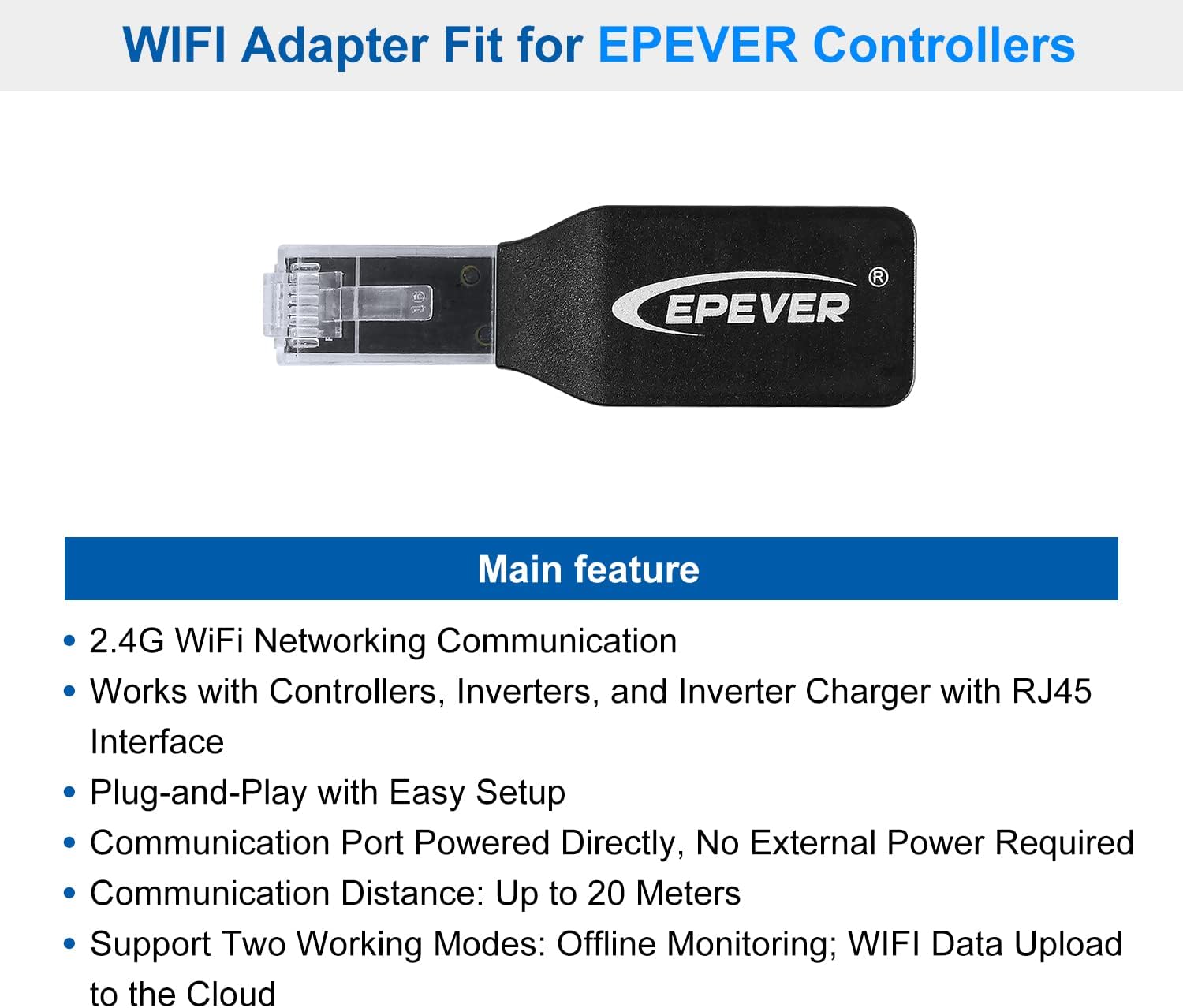
Image: Main features of the EPEVER WiFi Adapter.
3. Compatibility
This WiFi adapter is specifically designed for use with EPEVER brand controllers, inverters, or inverter/chargers that feature an RJ45 communication port. Compatible series include, but are not limited to, Tracer-AN, Triron-N, Tracer-BN, and XTRA-N series MPPT solar charge controllers.

Image: EPEVER WiFi Adapter compatible with various EPEVER controllers like Tracer-AN, XTRA, TRIRON-N, VS-BN, Tracer-BP, Tracer-BN, and iTracer.
4. Technical Specifications
| Parameter | EPEVER WiFi 2.4G RJ45 D |
|---|---|
| Working voltage | 5V±0.5V (Powered by RS485 com. port) |
| Power consumption | Peak emission: 150mA; Idle: 310uA |
| Communication protocol | EPEVER communication protocol V1.1 |
| Communication para | 115200Bps, 8N1 |
| Communication method | RS485 |
| Interface standard | EPEVER general communication standardV1-1.0 |
| Working frequency | 2.4 ~ 2.4835GHz |
| Environment temperature | -40℃ ~ 85℃ |
| Enclosure | IP54 |
| Dimension | 63* 19* 10mm |
| Net weight | 7.7g |
Image: Technical specifications for the EPEVER WiFi 2.4G RJ45 D adapter.
Note: The WiFi adapter working voltage is 4.5V~5.5V and peak emission is 150mA, which is only suitable for devices that meet this requirement.
5. Setup and Connection
5.1. App Download
Download the "Solar Guardian" application from your device's app store. This app is available for both Android and iOS systems.

Image: QR codes for downloading Solar Guardian App from Apple App Store and Google Play.
5.2. WiFi Online Mode Setup
This mode allows remote monitoring from anywhere with internet access. The connection process can be complex; please follow the steps carefully.
- Download and install the "SOLAR GUARDIAN" APP.
- Login to the APP. For first-time login, you need to register your account.
- Click "Add" to create a new site. Fill in site description, user name, phone number, and company details.
- Select "One Click Add". Click "Access Method" and select "EPEVER WIFI 2.4G RJ45D". Scan the QR code on the back of the EPEVER WiFi 2.4G RJ45D adapter for "Gateway SN". Ensure "Location" box is checked. Fill in "Communication ID Number" according to prompts. Select the corresponding product series for your controller.
- Enter your home Wi-Fi code and click "Next Step".
- Click "WIFI Settings", select the Wi-Fi corresponding to "HN-EP*****" for network configuration, and the configuration is successful. Click "Next".
- Switch to your Home Wi-Fi. You can click "Network Switch" to switch to Home Wi-Fi.
- The display of "Online" indicates a successful connection.
Video: Detailed guide on setting up the EPEVER WiFi Adapter for online monitoring with the Solar Guardian App.

Image: Visual steps for logging in, adding a site, and scanning the gateway SN for online mode setup.

Image: Visual steps for entering Wi-Fi details and confirming successful online connection.
5.3. WiFi Local Mode Setup
Local mode allows monitoring within a 20-meter range without internet access.
- Login to the APP and click "My > Collect Data". Select all products and click "Synchronize data" to download data.
- After all data is downloaded, return to the APP. Click the "Home > Offline".
- Select the module type (WIFI).
- Turn on your phone's Wi-Fi and connect to the gateway Wi-Fi (HN_EPSN: xxxxxx, password: 12345678).
- Return to the APP and click "Equipment>Add equipment". Click "Confirm" to add the device.
- On the "Device List" page, click the gateway SN to enter the device's real-time monitoring page.
Video: Step-by-step instructions for setting up the EPEVER WiFi Adapter in offline local mode.
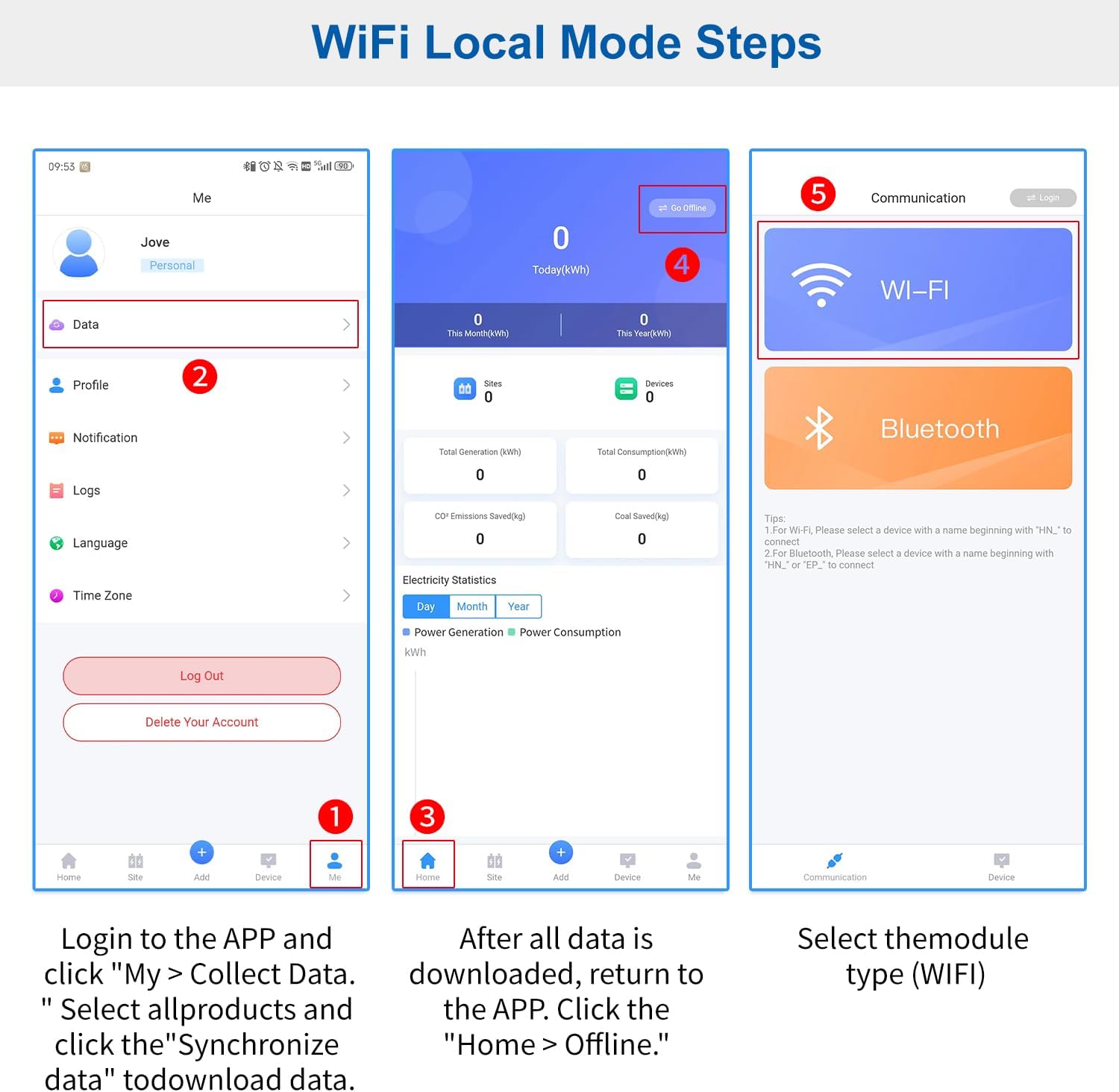
Image: Visual steps for accessing offline mode and selecting the module type.
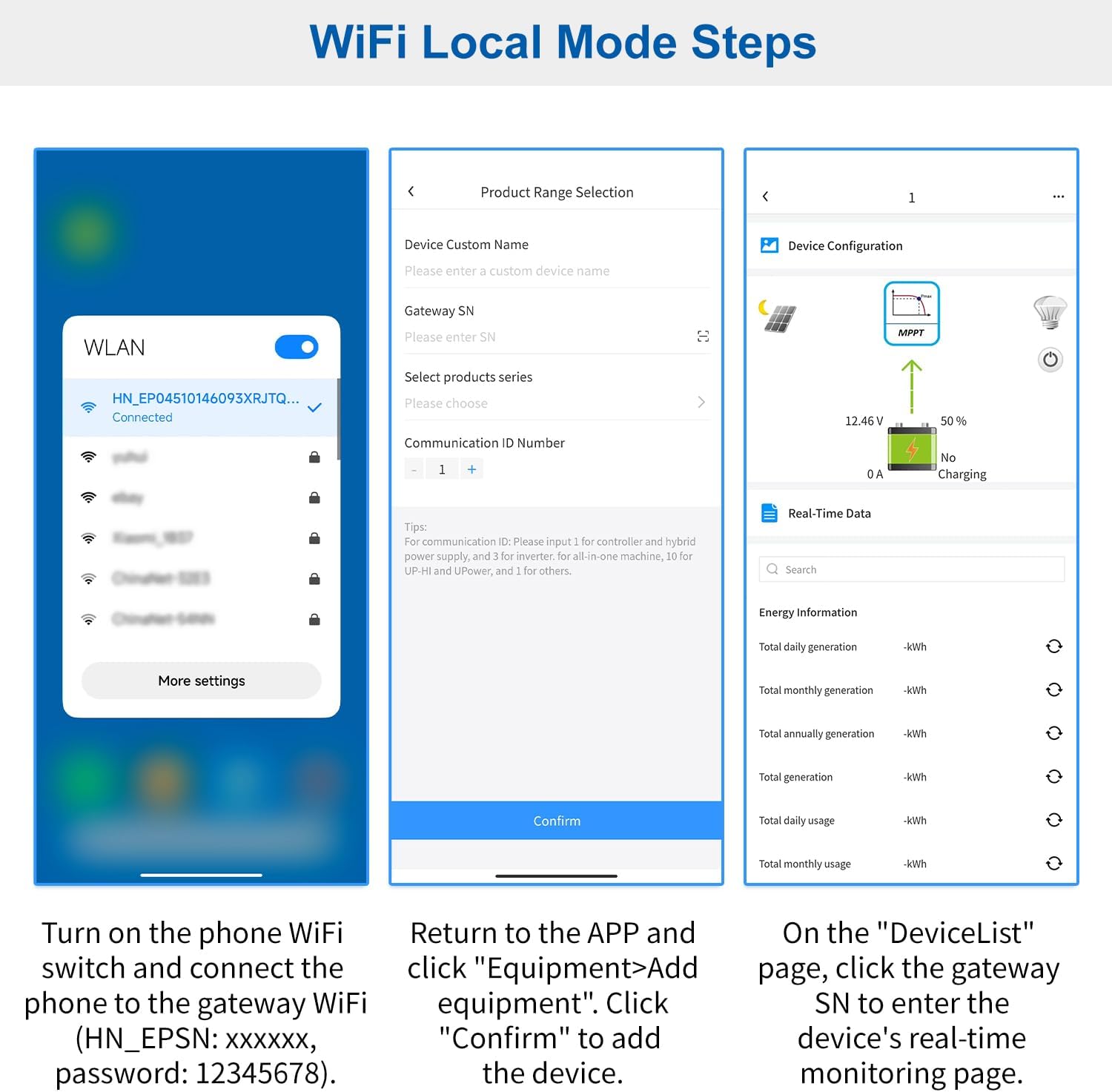
Image: Visual steps for connecting to the gateway Wi-Fi and adding the device in local mode.
6. Operating the Solar Guardian App
6.1. Real-Time Data Monitoring
After a successful connection (either online or local), the parameters of your solar system will be read automatically and displayed in real-time. This includes PV voltage, current, power, battery voltage, current, temperature, SOC, and load information.
Video: Demonstrates real-time data monitoring and parameter settings within the Solar Guardian App.
6.2. Parameter Settings
The app allows you to view and modify various system parameters. Always consult your battery manufacturer's guidelines before making changes.
- Battery Parameter Settings: The system automatically reads parameters. You can manually enter or modify battery capacity, temperature compensation, and Li-ion battery protection settings. Click "Read" to get current parameters and "Apply" or "Send" to save changes.
- Battery Control Parameter: The system automatically reads this data. Note that the system parameter is default value when "Rated voltage" is "Auto" and cannot be modified. If you need to modify parameters, select "Rated voltage" as 12V/24V, and "Battery Type" as "User". Click "Reset" to restore default parameters.
- Load Configuration: We recommend selecting "Manual control" for load control mode. You can manually turn the load ON/OFF.
- Timing Control: Set specific times for load operation (Light On, Light On+Timer).
- Device Parameter Settings: Automatic system reading of device-specific parameters.
- Basic Parameter Settings: Includes load switch control (ON/OFF), return to default settings, and clear accumulated energy data.
7. Maintenance
The EPEVER WiFi Adapter requires minimal maintenance. Ensure the device is kept in a clean, dry environment. Regularly check the RJ45 connection for secure fit. Keep the app updated to the latest version for optimal performance and security.
8. Troubleshooting
- App Not Opening/Crashing: Ensure your device's operating system is up to date. Try reinstalling the Solar Guardian app.
- Connection Drops (Online Mode): Verify a stable 2.4G Wi-Fi network connection. If issues persist, try unplugging and replugging the adapter to reset it. Consider the distance to your Wi-Fi router (max 20 meters for local mode, but online mode relies on your home network's range).
- Unable to Modify Parameters: In online mode, ensure the "Rated voltage" is set to 12V/24V/36V/48V and "Battery Type" is set to "User" to enable manual parameter modification. Otherwise, the system parameters are default and cannot be changed.
- No Data Displayed: Check if the adapter is securely connected to the controller's RJ45 port. Ensure the app is connected to the correct gateway (for online mode) or the adapter's Wi-Fi hotspot (for local mode).
9. Warranty and Support
EPEVER products typically come with a manufacturer's warranty. For specific warranty details, please refer to the documentation included with your product or visit the official EPEVER website. For technical support, troubleshooting assistance, or any inquiries regarding your EPEVER WiFi Adapter, you may contact the authorized sales agent, Goland Century. They offer free technical support and have service centers in various regions.
Manufacturer: EPEVER
Authorized Sales Agent: Goland Century
For support, please refer to the contact information provided on your product packaging or the seller's official channels.

Image: Manufacturer and Importer details for the EPEVER WiFi Adapter.
Related documentsEPEVER-WiFi-2.4G-RJ45-D


Ask a question about this manual
Ask about setup, troubleshooting, compatibility, parts, safety, or missing instructions. Manuals+ will review the question and use this page’s manual context to help answer it.