
1. Product Overview
The Western Digital Ultrastar DC HA340 WUS721208BLE6L4 is an 8TB internal 3.5-inch hard drive designed for data center environments. It features a SATA 6Gb/s interface, operates at 7200 RPM, and includes a 256 MB buffer to optimize performance for demanding workloads. This drive is engineered for reliability and efficiency in enterprise-grade storage systems.
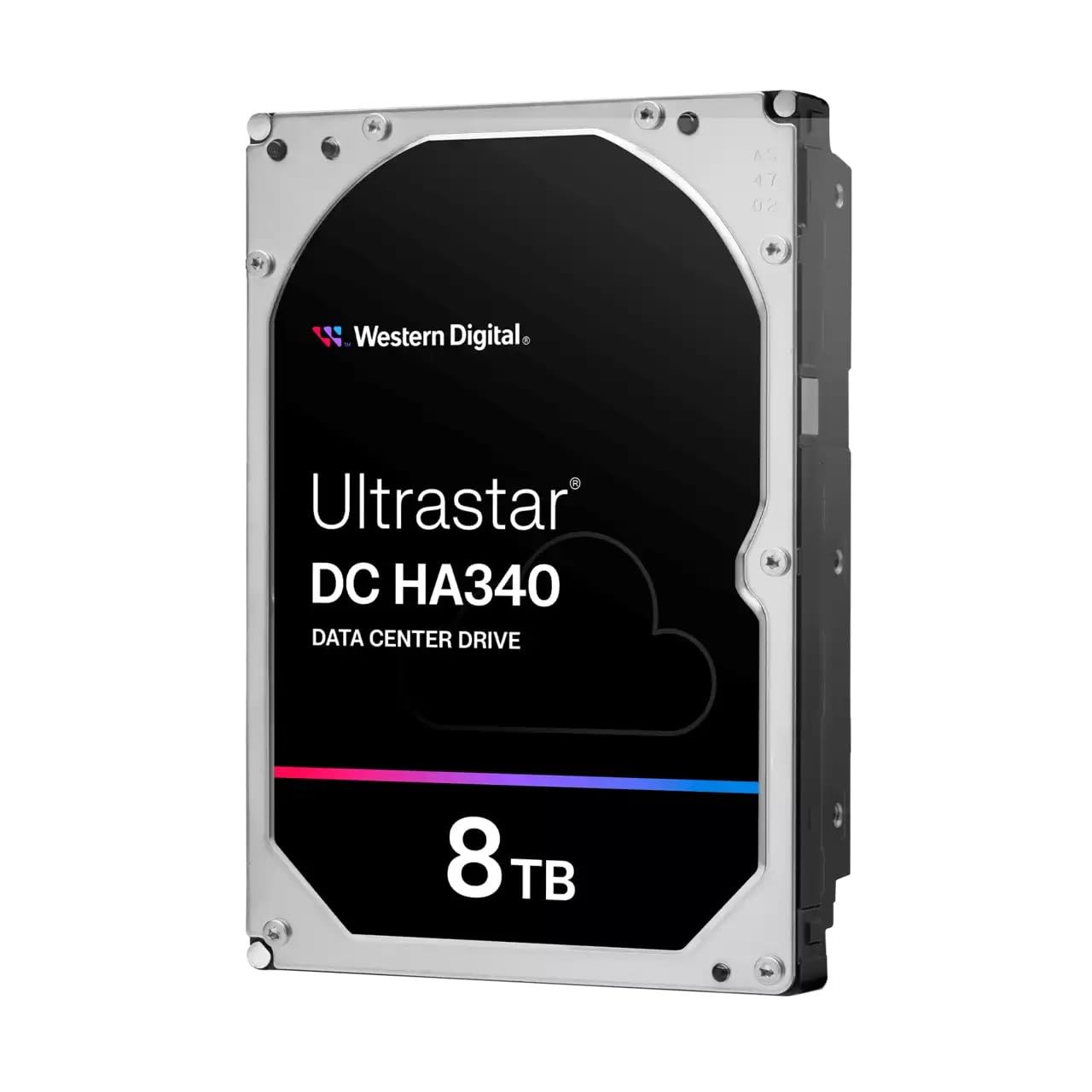
Image 1: Front view of the Western Digital Ultrastar DC HA340 8TB Data Center Hard Drive, showing the label with 'Ultrastar DC HA340 DATA CENTER DRIVE' and '8TB'.
2. Safety Information
- Electrostatic Discharge (ESD) Precautions: Always handle the hard drive by its edges and avoid touching the circuit board or connector pins. Use an anti-static wrist strap or ensure you are properly grounded before handling the drive to prevent damage from static electricity.
- Physical Handling: Hard drives are delicate. Avoid dropping, jarring, or exposing the drive to excessive vibration. Do not apply pressure to the top cover.
- Power Connection: Ensure the power supply is turned off before connecting or disconnecting the drive's power cable. Use only compatible power connectors.
- Environmental Conditions: Operate the drive within specified temperature and humidity ranges. Avoid extreme temperatures or direct sunlight.
3. Package Contents
Verify that your package contains the following item:
- Western Digital Ultrastar DC HA340 Hard Drive
Note: SATA data cables, power cables, and mounting screws are typically sold separately and are not included with the drive.
4. Setup and Installation
This section outlines the general steps for installing your Ultrastar DC HA340 hard drive into a compatible system.
4.1 Physical Installation
- Prepare the System: Power off your computer or server and disconnect the power cord. Open the computer case to access the drive bays.
- Mount the Drive: Slide the 3.5-inch hard drive into an available drive bay. Secure the drive using appropriate screws on both sides of the drive bay. Ensure the drive is firmly seated to prevent vibration.
- Connect Data Cable: Connect one end of a SATA data cable to the SATA port on the hard drive and the other end to an available SATA port on your motherboard or RAID controller.
- Connect Power Cable: Connect a SATA power cable from your power supply unit (PSU) to the power connector on the hard drive.
- Close System: Close the computer case and reconnect the power cord.

Image 2: Side view of the Western Digital Ultrastar DC HA340 Hard Drive, showing the SATA data and power connectors.
4.2 Initial System Setup
- BIOS/UEFI Configuration: Power on your system and enter the BIOS/UEFI setup. Verify that the newly installed hard drive is detected. Ensure the SATA controller mode (e.g., AHCI, RAID) is configured appropriately for your operating system and intended use.
- Operating System Detection: Boot into your operating system. For Windows, open Disk Management. For Linux, use tools like
fdiskorlsblk. The drive should appear as unallocated space. - Initialize and Format: Initialize the drive (GPT for 8TB drives) and create new partitions. Format the partitions with a suitable file system (e.g., NTFS for Windows, ext4 for Linux).
5. Operating Instructions
Once installed and formatted, the Ultrastar DC HA340 operates like any standard storage device within your system. It is optimized for continuous operation in data center environments.
- Data Storage: Use the drive for storing large volumes of data, including databases, virtual machine images, and archival data.
- Performance: The 7200 RPM rotational speed and 256 MB buffer contribute to efficient data access and transfer rates, suitable for demanding data center applications.
- RAID Configurations: For enhanced performance, redundancy, or both, the drive can be integrated into various RAID arrays managed by a hardware or software RAID controller. Consult your RAID controller's documentation for specific setup instructions.
6. Maintenance
Proper maintenance ensures the longevity and reliability of your hard drive.
- Firmware Updates: Periodically check the Western Digital support website for any available firmware updates for your drive model. Firmware updates can improve performance, stability, and compatibility.
- Monitor Drive Health: Utilize SMART (Self-Monitoring, Analysis and Reporting Technology) tools to monitor the health status of your drive. Many operating systems and third-party utilities provide access to SMART data.
- Data Backup: Regularly back up critical data to another storage device or system. No storage device is infallible, and backups are essential for data protection.
- Environmental Control: Maintain a stable operating environment with adequate airflow to prevent overheating. Ensure the system's cooling fans are functioning correctly.
7. Troubleshooting
If you encounter issues with your Ultrastar DC HA340 hard drive, consider the following troubleshooting steps:
- Drive Not Detected:
- Check all SATA data and power cable connections. Ensure they are securely seated.
- Verify that the SATA port on the motherboard/controller is enabled in BIOS/UEFI.
- Test the drive in a different SATA port or with different cables if available.
- Ensure your power supply unit (PSU) has sufficient wattage and available SATA power connectors.
- Performance Issues:
- Check for high CPU or RAM usage that might be impacting drive performance.
- Ensure the drive is not excessively fragmented (though less critical for modern file systems).
- Monitor drive temperature; overheating can lead to performance throttling.
- Verify that the SATA controller drivers are up to date.
- Unusual Noises:
- Clicking, grinding, or repetitive noises often indicate a mechanical failure. Immediately back up any accessible data and consider replacing the drive.
- A slight hum or whirring is normal during operation.
- Data Corruption:
- Run disk check utilities (e.g.,
chkdskon Windows,fsckon Linux) to identify and repair file system errors. - Check SMART data for any pending sector reallocations or uncorrectable errors.
- Run disk check utilities (e.g.,
If these steps do not resolve the issue, contact Western Digital technical support for further assistance.
8. Specifications
Key technical specifications for the Western Digital Ultrastar DC HA340 WUS721208BLE6L4 hard drive:
| Feature | Specification |
|---|---|
| Model Number | 0B47078 |
| Digital Storage Capacity | 8 TB |
| Hard Disk Form Factor | 3.5 Inches |
| Hard Disk Interface | Serial ATA-600 (SATA 6Gb/s) |
| Hard Drive Rotational Speed | 7200 RPM |
| Buffer Size | 256 MB |
| Installation Type | Internal Hard Drive |
| Compatible Devices | Desktop, Laptop (primarily data center servers) |
| Item Weight | 1.74 pounds (approx. 0.79 kg) |
| Package Dimensions | 8.03 x 6.38 x 3.86 inches |
9. Warranty and Support
Western Digital products are backed by a limited warranty. For specific warranty terms and conditions, please refer to the warranty information included with your purchase or visit the official Western Digital website.
For technical support, product registration, and access to drivers and firmware updates, please visit the Western Digital support portal:
Western Digital Support: https://support.wdc.com
When contacting support, please have your drive's model number (0B47078) and serial number ready.