
1. Introduction
This manual provides detailed instructions for the setup, operation, and maintenance of your SHARE SUNSHINE Wireless Ergonomic Vertical Mouse. Designed for comfort and efficiency, this mouse aims to reduce wrist strain and promote a natural hand position during extended computer use.

Image: A visual comparison illustrating how a vertical ergonomic mouse alleviates wrist pressure compared to a traditional mouse.
2. Product Overview
The SHARE SUNSHINE Wireless Ergonomic Vertical Mouse features an adjustable angle design, RGB breathing light, a removable palm rest, and multiple DPI settings for precise control. It connects wirelessly via a USB receiver, offering convenience and a clutter-free workspace.

Image: The SHARE SUNSHINE Wireless Ergonomic Vertical Mouse, showcasing its unique upright design and RGB lighting.
3. Package Contents
- 1 x SHARE SUNSHINE Wireless Ergonomic Vertical Mouse
- 1 x USB Receiver (typically stored in the mouse's battery compartment)
- 1 x Type-C Charging Cable
- 1 x Removable Palm Rest
- 1 x User Manual (this document)
4. Setup Instructions
- Charge the Mouse: Before first use, connect the mouse to a USB power source using the provided Type-C charging cable. The RGB light may indicate charging status.
- Locate the USB Receiver: The USB receiver is typically stored in a compartment on the underside of the mouse. Carefully remove it.
- Connect the Receiver: Insert the USB receiver into an available USB port on your computer (PC, Laptop, MacBook).
- Power On: Turn on the mouse using the power switch, usually located on the underside.
- Automatic Connection: The mouse should automatically connect to your computer. No additional drivers or software are typically required for basic functionality.
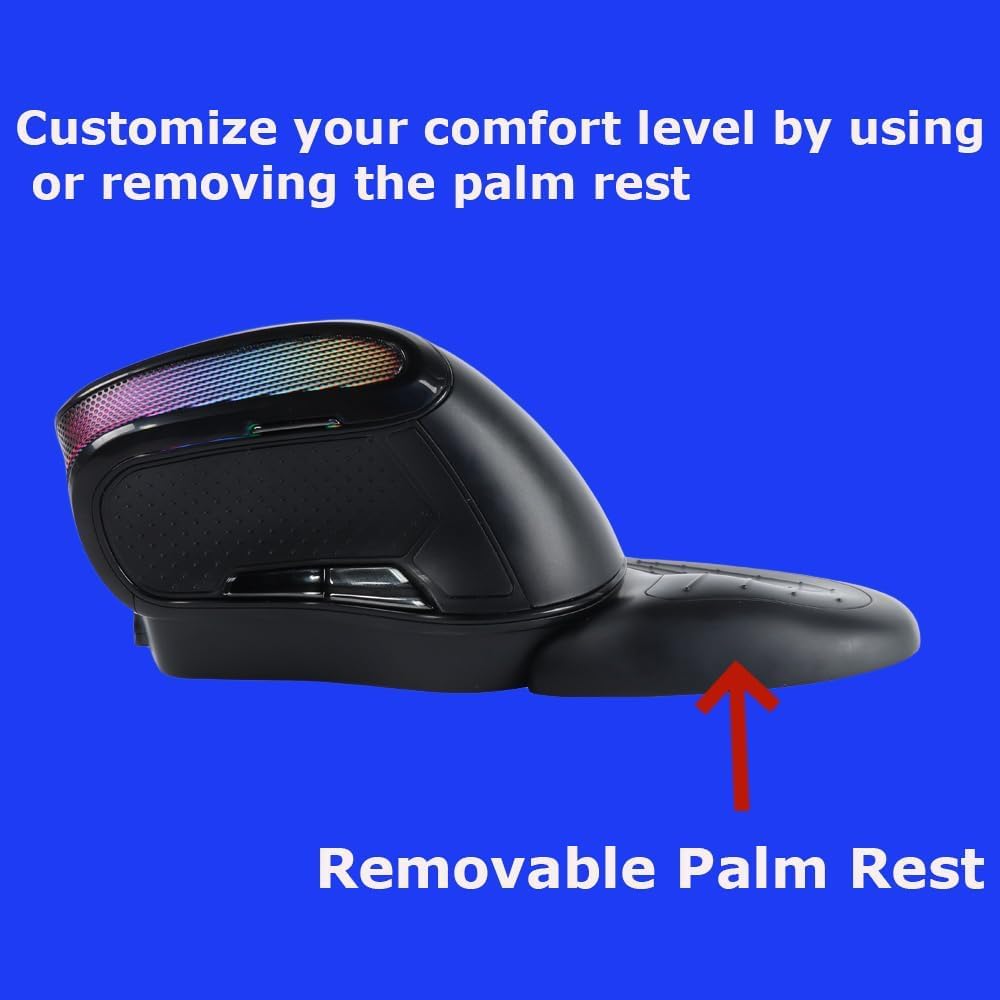
Image: Illustration of the USB receiver, which plugs into your computer for wireless connectivity.
5. Operating Instructions
5.1 Basic Functions
- Left Click: Standard selection and activation.
- Right Click: Accesses contextual menus.
- Scroll Wheel: Scrolls through documents and web pages.
- Forward/Back Buttons: Located on the side, these buttons facilitate navigation in web browsers and file explorers.
5.2 DPI Adjustment
The mouse features adjustable DPI (Dots Per Inch) settings, allowing you to change cursor sensitivity. This is useful for different tasks, such as precise graphic design work or faster navigation. The available DPI settings are 1000, 1600, 2000, 2400, and 3600.
- To Adjust DPI: Press the DPI button, usually located near the scroll wheel or on the top-left side of the mouse. Each press cycles through the available DPI settings.
5.3 Adjustable Angle Gradient
The mouse features an adjustable angle gradient, allowing you to customize the tilt for optimal comfort and to find the perfect hand position that suits your wrist.

Image: The ergonomic mouse depicted at different adjustable angles, demonstrating its customizable design.
5.4 RGB Lighting
The mouse includes an RGB "breathing" light feature that adds a dynamic visual element. This lighting can enhance your workspace aesthetics.
- The RGB lighting automatically cycles through colors. There is no specific button mentioned for changing modes or turning it off, implying it's an automatic feature.

Image: The mouse displaying its vibrant RGB lighting effect.
5.5 Removable Palm Rest
The included palm rest provides additional support and comfort, helping to reduce wrist pain during prolonged use. It is magnetically attached and can be easily removed or reattached based on your preference.
- To Attach: Align the palm rest with the base of the mouse and allow the magnets to secure it in place.
- To Remove: Gently pull the palm rest away from the mouse.

Image: The ergonomic mouse with its removable palm rest attached, highlighting the support it provides.
6. Charging the Mouse
The mouse is rechargeable via a Type-C port. When the battery is low, the mouse's performance may degrade, or the indicator light may change. Connect the provided Type-C cable to the mouse and a USB power source (e.g., computer USB port, wall adapter).
- A full charge typically takes a few hours.
- The mouse can often be used while charging.

Image: Close-up of the Type-C charging interface on the mouse.
7. Maintenance
- Cleaning: Use a soft, dry cloth to clean the mouse. For stubborn dirt, slightly dampen the cloth with water or a mild cleaning solution. Avoid harsh chemicals.
- Storage: When not in use for extended periods, turn off the mouse to conserve battery life. Store it in a clean, dry place.
- USB Receiver: Keep the USB receiver in a safe place, preferably in the mouse's storage compartment, to prevent loss.
8. Troubleshooting
- Mouse not responding:
- Ensure the mouse is powered on.
- Check if the USB receiver is securely plugged into a working USB port.
- Verify the mouse battery is charged.
- Try plugging the USB receiver into a different USB port.
- Restart your computer.
- Intermittent connection or lag:
- Ensure the mouse is within the wireless range (up to 33 feet).
- Remove any obstructions between the mouse and the receiver.
- Avoid using the mouse near strong electromagnetic interference sources (e.g., other wireless devices, large metal objects).
- Ensure the battery is sufficiently charged.
- Cursor movement is erratic or imprecise:
- Clean the optical sensor on the underside of the mouse.
- Try using the mouse on a different surface or a mouse pad.
- Adjust the DPI setting to a lower value if the cursor is too fast.
- RGB light not working:
- Ensure the mouse is powered on and has sufficient battery charge.
- The RGB light is an automatic breathing effect; it does not have manual controls for activation or deactivation.
9. Specifications
| Model Number | ergo mouse wireless |
| Connectivity | 2.4G Wireless (USB Receiver) |
| DPI Settings | 1000 / 1600 / 2000 / 2400 / 3600 |
| Movement Detection | Optical |
| Special Features | Adjustable Angle Gradient, Removable Palm Rest, RGB Breathing Light, Type-C Charging |
| Battery Type | Rechargeable (Internal) |
| Item Weight | 9 ounces (approx. 255 grams) |
| Dimensions | 6.61 x 4.09 x 3.5 inches (Package Dimensions) |
| Compatibility | Windows, macOS, Linux |
Note: The product description and included charging cable indicate a rechargeable internal battery. The specification "2 AA batteries required" may be a general placeholder or refer to a different product variant. This manual assumes a rechargeable internal battery.
10. Warranty
Your SHARE SUNSHINE Wireless Ergonomic Vertical Mouse comes with a one-year worry-free warranty from the date of purchase. This warranty covers manufacturing defects and ensures product reliability. Please retain your proof of purchase for warranty claims.

Image: A badge indicating a 1-year warranty.
11. Support
For further assistance, technical support, or warranty inquiries, please contact SHARE SUNSHINE customer service through the retailer where the product was purchased or visit the official SHARE SUNSHINE store page.
SHARE SUNSHINE Store: Visit Store