Introduction
This manual provides detailed instructions for the setup, operation, and maintenance of your Turtle Beach Vulcan II TKL Pro Magnetic Mechanical RGB Gaming Keyboard. This keyboard is designed for high-performance gaming and offers extensive customization options through its analog Hall-Effect switches and accompanying software.
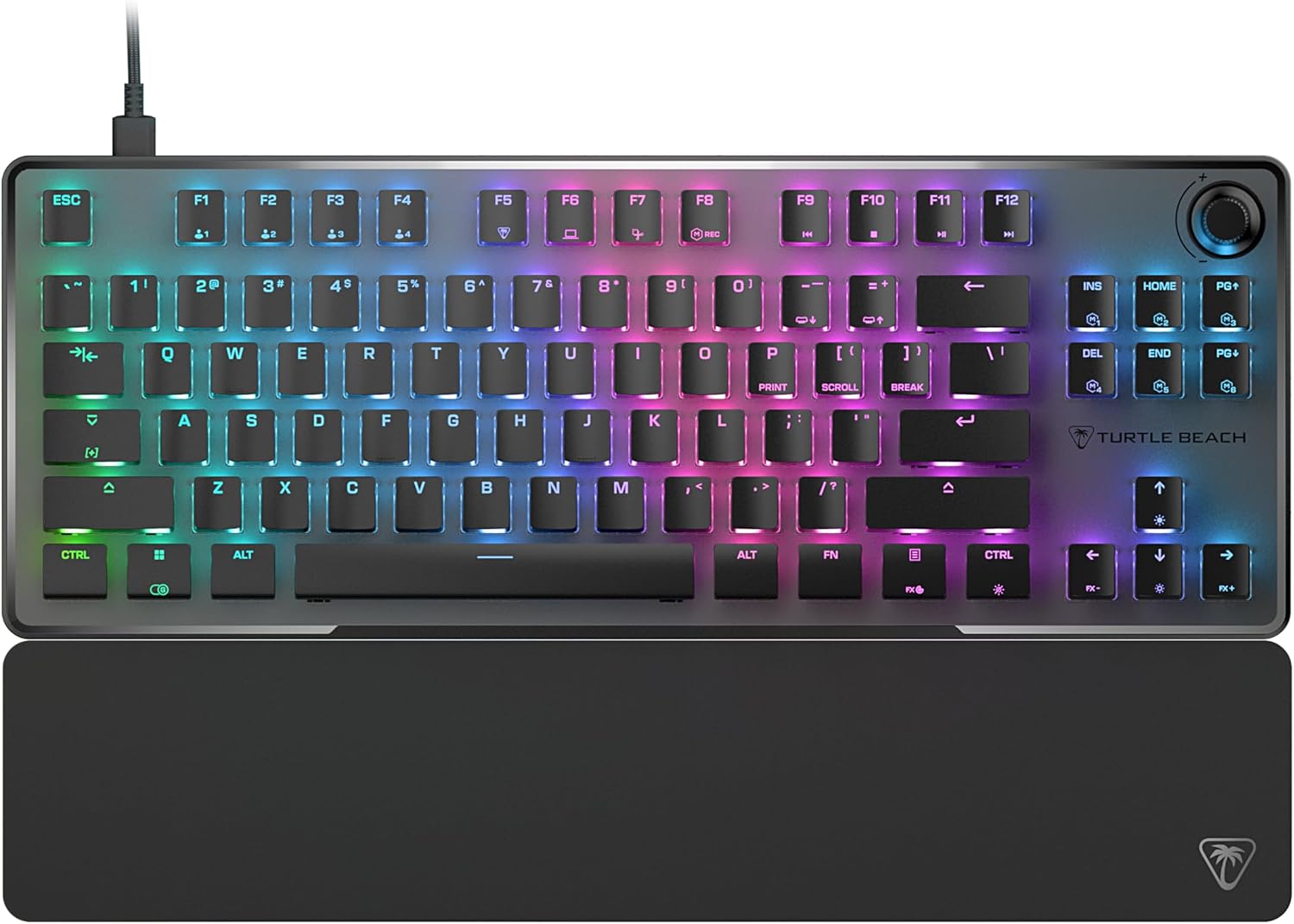
Image: The Turtle Beach Vulcan II TKL Pro keyboard, showcasing its tenkeyless design, RGB lighting, and included palm rest.
Key Features and Operation
Analog Hall-Effect Magnetic Switches
The Vulcan II TKL Pro features ultra-responsive magnetic switches, pre-lubed for smooth key presses and rated for a 150 million click lifecycle. This Hall-Effect technology enables advanced features such as Rapid Trigger and adjustable multi-point actuation.

Image: A cutaway diagram of the Analog Hall-Effect Magnetic Switch, showing the magnetic sensor and the mechanism that allows for precise actuation detection.
Rapid Trigger Performance
The Rapid Trigger setting eliminates downtime between key presses, allowing for continuous and repeated key actuation with minimal finger lifting. This feature enhances movement control, responsiveness, and aiming speed in games.

Image: A comparison diagram showing how Rapid Trigger allows for dynamic active/reset points (0.1mm to 4.0mm) on the Vulcan II TKL Pro, unlike regular keyboards with fixed points, enabling faster repeated inputs.
Per Key Sensitivity Adjustment
Adjust the actuation point of each key individually or globally, from 0.1mm to 4mm. Shorter travel provides faster response for quick actions, while longer travel allows for more deliberate and precise control. Each key supports 40 preset heights and up to three inputs per key, configurable via the keyboard or Swarm II software.

Image: A detailed diagram illustrating the adjustable actuation range of the key switches, from 0.1mm to 4.0mm, allowing for customized sensitivity.
AIMO Intelligent RGB Lighting
AIMO lighting technology provides smooth and vibrant RGB lighting effects with double the refresh rate of standard gaming keyboards. It can sync with other compatible AIMO-enabled products. Per-key RGB customization is available, and five on-board profiles allow saving custom lighting effects and key reassignments.

Image: The Vulcan II TKL Pro keyboard and a compatible gaming mouse displaying synchronized, vibrant AIMO Intelligent RGB lighting effects.
Advanced Customization with Swarm II Software
The Swarm II desktop software is essential for unlocking the full potential of your keyboard. It allows for comprehensive adjustments including RGB lighting, assigning up to three different inputs per key, adjusting key actuation points, enabling Rapid Trigger, and recording/assigning macro functions. It also supports controller emulator features for analog stick and trigger control in games.

Image: A monitor displaying the Turtle Beach Swarm II software interface, demonstrating the extensive customization options available for the Vulcan II TKL Pro keyboard.
Easy-Shift [+] Button Duplicator
This technology adds a secondary function to compatible keys. By holding down a designated modifier key, you can instantly access a second layer of commands, which is fully customizable within the Swarm II software.
![Keyboard key highlighted to show Easy-Shift [+] functionality.](https://m.media-amazon.com/images/I/81aet-2BRfL._AC_SL1500_.jpg)
Image: A close-up of the keyboard with a key highlighted, illustrating the Easy-Shift [+] feature that allows for a secondary function on compatible keys.
Advanced Anti-Ghosting
Optimized for gamers, the advanced anti-ghosting technology ensures that every keystroke is reliably registered, even when multiple keys are pressed simultaneously, preventing missed inputs during intense gaming sessions.
3rd Party Keycap Compatible
The Vulcan II TKL Pro comes with T-shaped ABS keycaps and is designed to be fully compatible with third-party keycaps, allowing users to further customize their keyboard's aesthetic and feel.
Tenkeyless Form Factor
The compact tenkeyless (TKL) design removes the numeric keypad, providing more desk space for mouse movement and allowing for a more natural and comfortable playing position, which can improve aiming accuracy in games.
Push-to-Mute Volume Wheel
A built-in dial allows for convenient on-the-fly control of master volume. Simply push the dial to quickly mute or unmute audio.
Durable Design
The keyboard features a sand-blasted anodized aluminum top plate for structural integrity and resistance to wear and tear. The double kickstand design provides stable positioning, and the included soft palm rest ensures comfort during extended use.


