
Introduction
This manual provides detailed instructions for the installation, operation, and maintenance of your Yoidesu 6.86-inch Touchscreen Car Multimedia Player. Please read this manual thoroughly before using the device to ensure proper functionality and safety.
Package Contents
Verify that all items are present in the package:
- 1 x Suction Mount Bracket
- 1 x Suction Mount Bracket Fixing Clip
- 1 x Cigarette Lighter Power Cord
- 1 x Rearview Video Cable
- 1 x Type C to USB Adapter Cable
- 1 x User Manual

Image: Contents of the Yoidesu Car Multimedia Player package, showing the main unit, suction mount, various cables, and the user manual.
Product Overview
The Yoidesu 6.86-inch Touchscreen Car Multimedia Player is designed to enhance your in-car experience with features such as smartphone integration, Bluetooth connectivity, and multimedia playback.

Image: The Yoidesu 6.86-inch Car Multimedia Player showing its touchscreen interface with various application icons, mounted on a suction cup stand.

Image: The multimedia player screen displaying music playback information, with an inset showing the location of the built-in 1W speaker.
Setup and Installation
Mounting the Device
- Attach the suction mount bracket to a clean, smooth surface on your dashboard or windshield.
- Secure the device to the suction mount bracket using the fixing clip.
- Adjust the viewing angle for optimal visibility without obstructing your view of the road.
Note: Ensure the device is securely mounted to prevent movement during driving.

Image: The Yoidesu Car Multimedia Player installed on a car dashboard, positioned for easy viewing by the driver, with a clear view of the road ahead.
Power Connection
- Connect the cigarette lighter power cord to the device's power input.
- Insert the other end of the power cord into your vehicle's 12V cigarette lighter socket.
Rearview Camera (Optional)
If you are installing a rearview camera, connect the rearview video cable to the designated input on the multimedia player and follow the camera's specific installation instructions.
Operating Instructions
Initial Power On
Once connected to power, the device will automatically power on when the vehicle's ignition is turned on. The touchscreen interface will display the main menu.
Smartphone Integration (CarPlay / Android Auto)
The device supports both wireless and wired connections for Apple CarPlay and Android Auto.
- Wireless Connection: Enable Bluetooth and Wi-Fi on your smartphone. On the multimedia player, select the CarPlay or Android Auto icon and follow the on-screen prompts to pair your device.
- Wired Connection: Connect your smartphone to the device using a USB cable (Type C to USB adapter cable included if needed). The system will automatically detect and launch CarPlay or Android Auto.

Image: The Yoidesu Car Multimedia Player screen showing the Apple CarPlay interface, allowing access to phone functions, music, maps, and other applications.
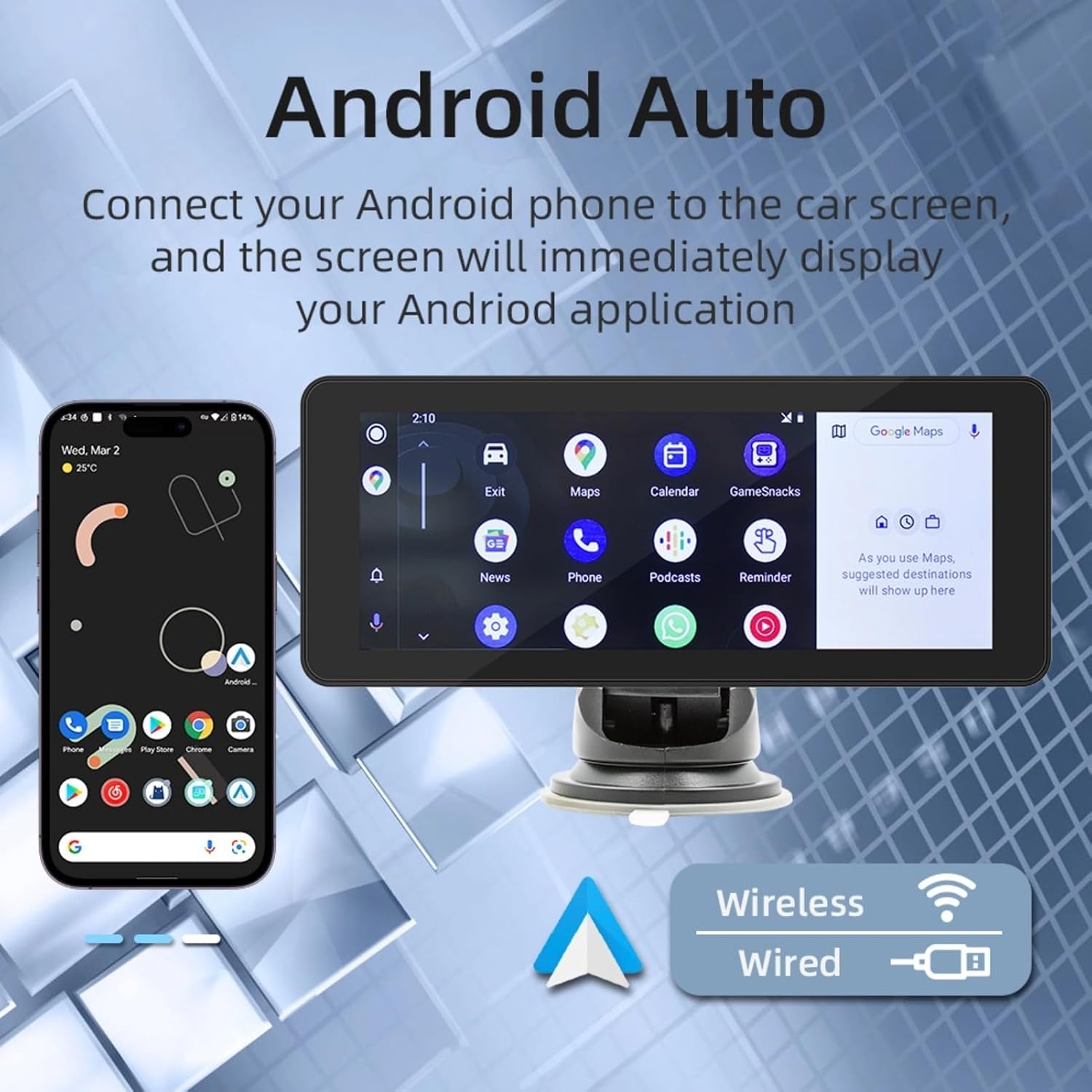
Image: The Yoidesu Car Multimedia Player screen showing the Android Auto interface, providing access to navigation, calls, messages, and other Android applications.
Bluetooth Functionality
To pair your phone via Bluetooth for hands-free calling and audio streaming:
- On the multimedia player, select the "Bluetooth" icon.
- Enable Bluetooth on your smartphone and search for available devices.
- Select "Yoidesu Car Player" (or similar name) from the list on your phone and confirm the pairing.
- Once paired, you can make/receive calls and stream audio wirelessly.
Audio Output Methods
The device offers two primary audio output options:
- Built-in Speaker: Audio will be played directly through the integrated 1W speaker.
- FM Transmitter: Transmit audio to your car's FM radio. Select an unused FM frequency on the multimedia player and tune your car's radio to the same frequency.

Image: A visual representation of the two audio output options: sound from the built-in speaker and audio transmission via FM signal to the car's radio.
Mirrorlink (Screen Projection)
Mirrorlink allows you to project your smartphone screen onto the multimedia player. This feature is compatible with both Android and iPhone devices.
- iPhone: Connect your iPhone using a data cable. The screen will be cast directly.
- Android: Install the appropriate screen projection application on your Android phone. Connect via USB, and you can control the phone screen from the multimedia player's touchscreen.

Image: A graphic demonstrating the Mirrorlink function, where a smartphone's display is projected onto the larger screen of the Yoidesu Car Multimedia Player.
Maintenance
- Keep the screen clean using a soft, lint-free cloth. Avoid abrasive cleaners.
- Ensure all cables are securely connected.
- Avoid exposing the device to extreme temperatures or direct sunlight for prolonged periods.
Troubleshooting
| Problem | Possible Cause | Solution |
|---|---|---|
| Device does not power on. | No power connection or faulty power cord. | Check if the cigarette lighter power cord is securely connected to both the device and the vehicle's 12V socket. Ensure the vehicle's ignition is on. |
| CarPlay/Android Auto not connecting. | Incorrect pairing, disabled Bluetooth/Wi-Fi, or faulty USB cable. | Ensure Bluetooth and Wi-Fi are enabled on your phone for wireless connection. For wired connection, try a different USB cable. Re-attempt pairing process. |
| No audio output. | Volume too low, incorrect audio output setting, or FM transmitter not tuned correctly. | Increase volume on both the device and your car stereo. Check if the audio output is set to built-in speaker or if the FM transmitter frequency matches your car radio. |
| Touchscreen unresponsive. | Temporary software glitch. | Restart the device by disconnecting and reconnecting the power. If the issue persists, contact customer support. |
Specifications
- Screen Size: 6.86 inches
- Connectivity: Bluetooth, USB
- Controller Type: Android (for Android Auto)
- Special Feature: Touchscreen
- Compatible Devices: Smartphone, Speaker
- Audio Output Mode: Speaker, Stereo
- Output Power: 1 Watts (built-in speaker)
- Number of Channels: 4
- Supported Internet Services: Maps (via smartphone integration)
- Item Weight: 1.15 pounds
- Package Dimensions: 8.66 x 4.33 x 3.94 inches
- Model Number: Yoidesutng3fruvqx
- Manufacturer: Yoidesu

Image: A diagram illustrating the physical dimensions of the Yoidesu Car Multimedia Player, including its length, height, and installation size.
Warranty and Support
For warranty information or technical support, please refer to the contact details provided with your purchase documentation or visit the official Yoidesu website. Keep your purchase receipt as proof of purchase.
Manufacturer: Yoidesu
Date First Available: April 13, 2024