
CHUWI CHUWI GemiBook Plus (HEROBOOK)
CHUWI GemiBook Plus Laptop User Manual
Model: CHUWI GemiBook Plus (HEROBOOK)
15.6 inch Laptop Computer, 8GB LPDDR5 256GB SSD, Intel N100, Windows 11
1. Introduction
This manual provides essential information for the proper setup, operation, maintenance, and troubleshooting of your CHUWI GemiBook Plus laptop. Please read this manual thoroughly before using your device to ensure optimal performance and longevity.

Image 1.1: Front view of the CHUWI GemiBook Plus laptop, showcasing its 15.6-inch display with system specifications like 8GB DDR5 RAM, 256GB SSD, Intel N100 processor, and Windows 11 Home operating system.
2. What's in the Box
Verify that all items are present in the package:
- CHUWI GemiBook Plus Laptop
- Charger set (Power Adapter and Cable)
- Multilingual manual
- Certificate of conformity
3. Product Overview
3.1 Key Features
- Processor: 12th Gen Intel Alder Lake N100 CPU (up to 3.4GHz)
- Memory: 8GB LPDDR5 RAM (4800 MHz)
- Storage: 256GB SSD (expandable up to 1TB via M.2 2280 SSD slot)
- Display: 15.6-inch FHD IPS screen (1920 × 1080p, 16:9 aspect ratio)
- Graphics: Intel UHD Graphics for 12th Gen Intel Processors
- Operating System: Windows 11 Home
- Connectivity: Wi-Fi 6, Bluetooth 5.2, HDMI, USB 3.0, Type-C, RJ45 Ethernet
- Battery: 38Wh for 6 to 8 hours of usage
- Design: Lightweight (1.74kg) and thin (19mm) with 180° opening hinge
- Security: Physical camera switch for privacy

Image 3.1: An overview of the CHUWI GemiBook Plus's key features, including its 15.6-inch IPS screen, 12th Gen Intel Alder Lake-N100 processor, 38Wh Li-ion battery, FHD resolution, 12th Gen Intel UHD Graphics, 8GB LPDDR5 RAM, 256GB M.2 SSD, and WiFi6+BT5.2 connectivity.
3.2 Ports and Connectors
Familiarize yourself with the various ports and connectors on your laptop:

Image 3.2: Diagram illustrating the various ports on the CHUWI GemiBook Plus laptop. On one side, it shows the charging port, HDMI port, USB-A 3.0 port, Type-C port, and Audio Jack. On the other side, it displays another Type-C port, USB-A 2.0 port, USB-A 3.0 port, RJ45 LAN Port, and a lock slot.
- Charging Port: Connect the power adapter here.
- HDMI Port: For connecting to external displays.
- USB-A 3.0 Ports: For high-speed data transfer with compatible devices.
- USB-A 2.0 Port: For standard USB devices.
- Type-C Ports: Versatile ports for data, display, and power delivery (check specific functionality).
- Audio Jack: For headphones or external speakers.
- RJ45 LAN Port: For wired network connection.
- Lock Slot: For security cable locks.
4. Getting Started (Setup)
4.1 Initial Power On
- Connect the charger to the laptop's charging port and a power outlet.
- Open the laptop lid.
- Press the power button, usually located on the keyboard deck.
- Follow the on-screen instructions to complete the Windows 11 setup process, including language selection, network connection, and user account creation.
4.2 Connecting to Wi-Fi
- During Windows setup, you will be prompted to connect to a network. Select your Wi-Fi network from the list.
- Enter the Wi-Fi password if required.
- If setting up later, click the Wi-Fi icon in the taskbar, select your network, and connect.
5. Operating Instructions
5.1 Keyboard and Touchpad
The GemiBook Plus features a full-size keyboard and a large touchpad for comfortable interaction.

Image 5.1: A close-up view of the CHUWI GemiBook Plus laptop's full-size keyboard and large touchpad, highlighting its ergonomic design for comfortable typing.
- Keyboard: Use for typing and system commands. Function keys (Fn) combined with F1-F12 keys provide additional shortcuts (e.g., volume, brightness).
- Touchpad: Supports multi-touch gestures for navigation, scrolling, and zooming.
5.2 Display
The 15.6-inch FHD IPS screen offers vibrant visuals. The laptop supports a 180° opening angle for flexible viewing.
5.3 Webcam and Privacy
The laptop includes a webcam for video calls and conferencing. A physical camera switch is provided to block the camera lens, ensuring privacy when not in use.
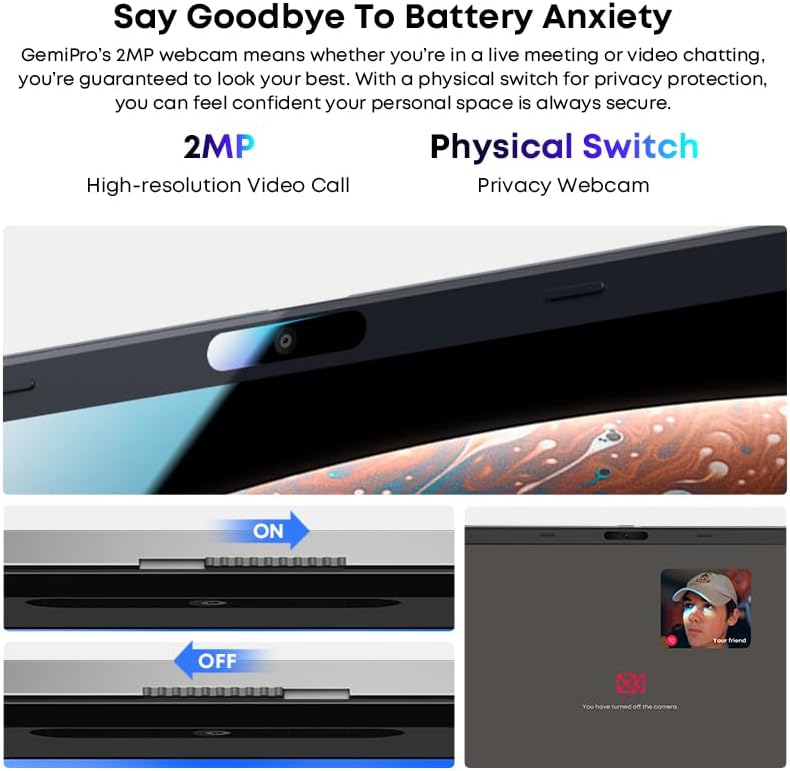
Image 5.2: Close-up of the CHUWI GemiBook Plus webcam with a physical privacy switch. The image shows the switch in both 'ON' (camera exposed) and 'OFF' (camera covered) positions, demonstrating how to physically block the camera lens for enhanced privacy.
5.4 Wireless Connectivity
The GemiBook Plus supports Wi-Fi 6 and Bluetooth 5.2 for fast and stable wireless connections.

Image 5.3: A visual representation of the CHUWI GemiBook Plus's seamless wireless experience, highlighting Wi-Fi 6, Bluetooth 5.2, Ethernet RJ45, and HD Camera features. A user is shown participating in a video call on the laptop.
- Wi-Fi 6: Provides faster internet speeds and improved network efficiency compared to previous Wi-Fi standards.
- Bluetooth 5.2: For connecting wireless peripherals such as headphones, mice, and keyboards.
6. Battery Management
The laptop is equipped with a 38Wh battery, providing approximately 6 to 8 hours of usage on a full charge. A full recharge typically takes about 3 hours.
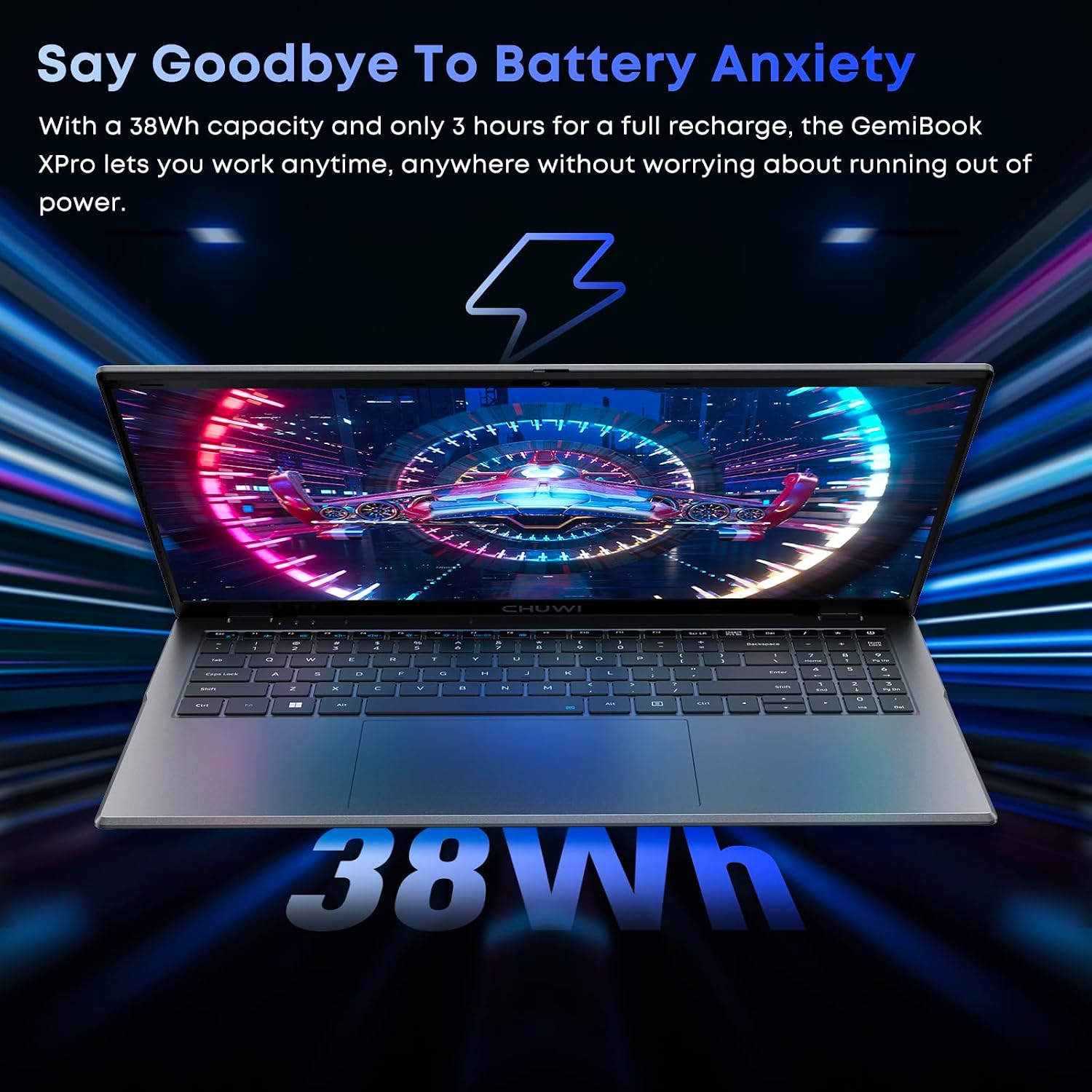
Image 6.1: The CHUWI GemiBook Plus laptop displayed with a visual representation of its 38Wh battery capacity, emphasizing its ability to provide extended usage without frequent recharging.
- Charging: Connect the provided charger to the laptop and a power outlet. The charging indicator light will typically show the charging status.
- Battery Care: To prolong battery life, avoid fully discharging the battery frequently. Store the laptop in a cool, dry place when not in use for extended periods.
7. Maintenance and Care
- Cleaning: Use a soft, lint-free cloth to clean the screen and exterior. For stubborn marks, slightly dampen the cloth with water or a screen cleaner. Avoid harsh chemicals.
- Storage: When not in use, store the laptop in a protective sleeve or bag to prevent scratches and dust accumulation.
- Temperature: Operate the laptop within recommended temperature ranges. Avoid exposing it to extreme heat or cold.
- Ventilation: Ensure the ventilation openings are not blocked to prevent overheating.
8. Troubleshooting
8.1 Common Issues and Solutions
| Issue | Possible Solution |
|---|---|
| Laptop does not power on | Ensure the power adapter is securely connected and the outlet is working. Try a different power outlet. If the battery is completely drained, it may take a few minutes to respond after connecting the charger. |
| No Wi-Fi connection | Check if Wi-Fi is enabled in Windows settings. Restart your router and modem. Ensure you are entering the correct Wi-Fi password. |
| Slow performance | Close unnecessary applications. Check for background processes consuming resources. Ensure Windows is updated. Consider running a disk cleanup. |
| Screen is blank or flickering | Adjust screen brightness. Connect to an external monitor to check if the issue is with the laptop screen. Restart the laptop. |
| Webcam not working | Ensure the physical camera switch is in the 'ON' position. Check privacy settings in Windows to allow apps access to the camera. Update camera drivers. |
9. Technical Specifications
| Feature | Specification |
|---|---|
| Standing screen display size | 15.6 Inches |
| Screen Resolution | 1920 x 1080 pixels (FHD) |
| Processor | Intel Alder Lake N100 (up to 3.4 GHz) |
| RAM | 8 GB LPDDR5 |
| Hard Drive | 256 GB SSD (M.2 2280, expandable to 1TB) |
| Graphics Coprocessor | Intel UHD Graphics |
| Operating System | Windows 11 |
| Wireless Type | Wi-Fi 6, Bluetooth 5.2 |
| Number of USB 3.0 Ports | 2 |
| Average Battery Life | 6 Hours (38Wh) |
| Item Weight | 3.7 pounds (approx. 1.74 kg) |
| Product Dimensions | 14 x 0.78 x 9.5 inches (approx. 35.5 x 1.98 x 24.1 cm) |
| Color | Silver |
10. Warranty and Support
10.1 Warranty Period
The CHUWI GemiBook Plus laptop comes with a 1-year warranty, valid immediately after purchase.
10.2 Customer Support
CHUWI offers lifetime factory professional support and 24-hour online support. For any issues or inquiries, please contact CHUWI customer service. They aim to provide professional and timely assistance.
Related documentsCHUWI GemiBook Plus (HEROBOOK)


Ask a question about this manual
Ask about setup, troubleshooting, compatibility, parts, safety, or missing instructions. Manuals+ will review the question and use this page’s manual context to help answer it.