
Introduction
This manual provides detailed instructions for the setup, operation, and maintenance of your MageGee V560 Wireless Gaming Keyboard and Mouse Combo. Please read this manual thoroughly before use to ensure optimal performance and longevity of your device.

Image: The MageGee V560 Wireless Gaming Keyboard and Mouse Combo, featuring a blue, white, and purple color scheme, with the USB receiver visible.
Package Contents
Please verify that all items are present in the package:
- MageGee V560 Wireless Keyboard
- MageGee Wireless Mouse
- 2.4GHz USB Receiver (stored in mouse battery compartment)
- USB-C Charging Cable
- User Manual

Image: Contents of the MageGee V560 package, including the keyboard, mouse, USB receiver, charging cable, and user manual.
Setup Instructions
- Locate the USB Receiver: Open the battery cover of the wireless mouse. The 2.4GHz USB receiver is stored inside the compartment next to the mouse battery slot.
- Connect the Receiver: Plug the USB receiver into an available USB port on your computer.
- Power On Devices: Ensure both the keyboard and mouse are powered on. The devices are plug-and-play and should connect automatically.
- Initial Charge: For optimal performance, it is recommended to fully charge both the keyboard and mouse before first use. Use the provided USB-C charging cable.

Image: Illustration showing the 2-in-1 USB receiver connecting the keyboard and mouse wirelessly to a laptop.
Operating Instructions
Keyboard Functions
- RGB Backlighting Control:
- Press FN + INS to turn the backlight on or off.
- Press FN + PgUp or FN + PgDn to adjust the 3-level backlight brightness.
- Press FN + 1 / 2 / 3 / 4 / 5 to switch between different backlight modes. Note: Backlight settings are not saved after power off.
- Multimedia Shortcuts: Use the FN key in combination with F1-F12 keys for quick access to multimedia functions such as volume control, media playback, and more.
- Ergonomic Design: The keyboard features a stepped layout and foldable brackets at the bottom, allowing you to adjust the typing angle for comfort during extended use.
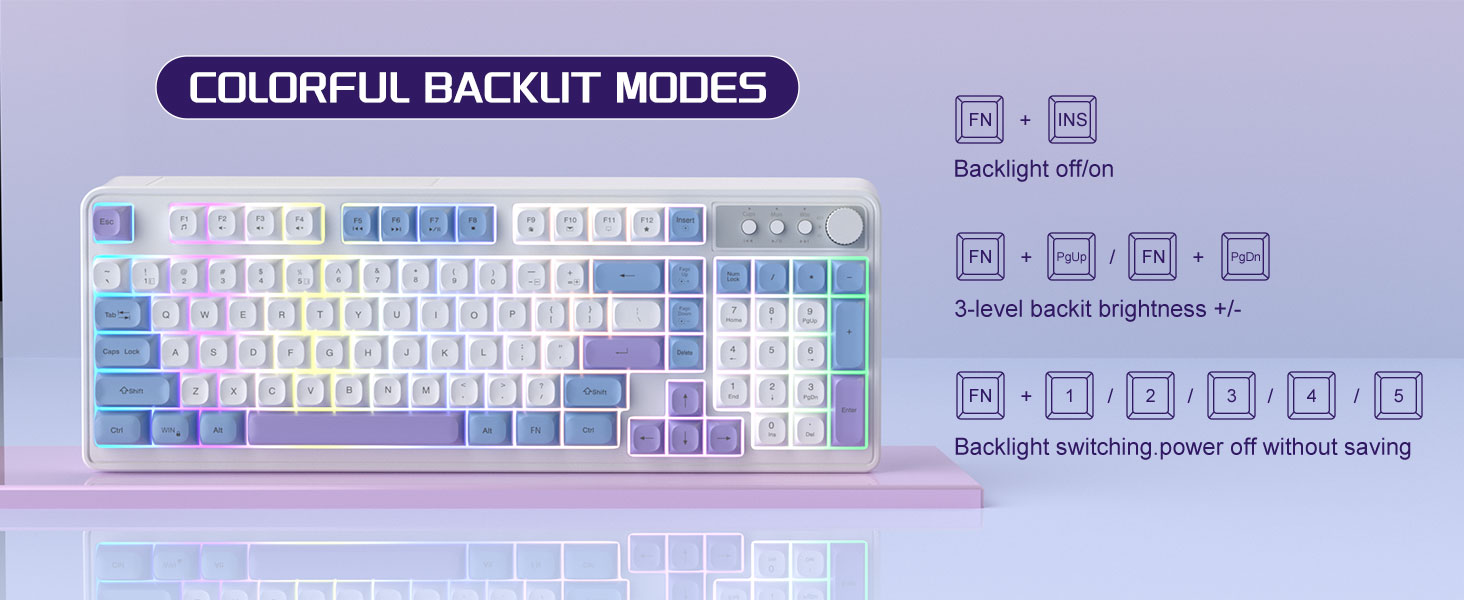
Image: The MageGee V560 keyboard displaying various colorful backlit modes, with instructions for controlling them.

Image: A visual representation of the 16 multimedia shortcuts available on the MageGee V560 keyboard, activated via the FN key.
Mouse Functions
- DPI Adjustment: The mouse supports 6 levels of DPI adjustment (600-3200 DPI). Press the DPI button (usually located below the scroll wheel) to cycle through the sensitivity settings. Internal indicator lights will show the current DPI level.
- Breathing Backlight: The mouse features 7 dazzling color breathing backlights. This lighting is automatic and indicates mouse activity.

Image: The MageGee V560 mouse highlighting its DPI settings (1000, 1200, 1600 DPI) and showing the USB-C charging port.
Charging and Battery Life
- Both the keyboard and mouse are rechargeable. Use the provided USB-C charging cable to charge them.
- Keyboard Standby Time: Up to 365 days.
- Mouse Standby Time: Up to 270 days.
- Auto-Sleep Function: The devices automatically enter sleep mode after a period of inactivity to conserve battery power and extend battery life.

Image: An illustration demonstrating the intelligent auto-sleep feature of the MageGee V560 combo, which conserves battery life.
Compatibility
The MageGee V560 Wireless Gaming Keyboard and Mouse Combo is compatible with the following operating systems:
- Win2000
- Win XP
- Win ME
- Vista
- Win7
- Win8
- Win10
- Android
- Linux
- Mac OS
Troubleshooting
If you encounter issues with your MageGee V560 combo, please refer to the following common solutions:
- Device Not Connecting:
- Ensure the USB receiver is securely plugged into a working USB port.
- Verify that both the keyboard and mouse are powered on.
- Check the battery levels of both devices and charge if necessary.
- Try plugging the USB receiver into a different USB port.
- Lag or Disconnection:
- Ensure the devices are within the 33 ft (10 meter) operating range of the USB receiver.
- Minimize interference from other 2.4GHz wireless devices (e.g., Wi-Fi routers, cordless phones).
- Charge the devices to ensure sufficient power.
- Keys Not Registering / Mouse Not Responding:
- Recharge the keyboard and mouse.
- Ensure the USB receiver is properly connected.
- Restart your computer.
- Backlight Issues:
- Ensure the keyboard is charged.
- Use FN + INS to toggle the backlight.
- Adjust brightness with FN + PgUp/PgDn.
Specifications
| Brand | MageGee |
| Model | V560 |
| Connectivity Technology | 2.4GHz Wireless |
| Special Features | RGB lighting, rechargeable keyboard and mouse, ergonomic design |
| Compatible Devices | Personal Computer (Win2000, Win XP, Win ME, Vista, Win7, Win8, Win10, Android, Linux, Mac OS) |
| Item Weight | 1.87 pounds |
| Package Dimensions | 16.61 x 9.21 x 1.73 inches |
| Manufacturer | MAGEGEE |
Maintenance
- Cleaning: Use a soft, dry cloth to clean the keyboard and mouse. For stubborn dirt, a slightly damp cloth can be used, ensuring no liquid enters the device.
- Storage: Store the devices in a cool, dry place away from direct sunlight and extreme temperatures.
- Battery Care: Avoid fully discharging the batteries frequently. Charge them regularly to maintain battery health.
Warranty and Support
This product comes with a 1-year warranty from the date of purchase.
For any questions or support needs, please contact MageGee customer service via Amazon email. We aim to respond within 12 hours and provide a satisfactory solution.


