
1. Introduction
This manual provides detailed instructions for the installation, operation, and maintenance of your Yottamaster 5 Bay RAID Enclosure (Model FS5RU3-RAID). This external hard drive enclosure is designed to support up to five 2.5-inch or 3.5-inch SATA HDDs/SSDs, offering a total storage capacity of up to 90TB (5 x 18TB). It features multiple RAID modes for flexible data management and protection, a high-speed USB 3.0 interface, and efficient heat dissipation.

A front-angled view of the Yottamaster 5 Bay RAID Enclosure, showcasing its five drive bays and sleek aluminum design.
2. Key Features
- Massive Storage Capacity: Supports up to 90TB (5 x 18TB) for extensive data storage needs.
- Multiple RAID Modes: Offers hardware RAID functionality with support for RAID 0, 1, 3, 5, 10, JBOD, CLONE, and Normal modes for flexible data management and protection.
- Universal Drive Compatibility: Designed for both 2.5-inch SATA HDDs/SSDs and 3.5-inch SATA HDDs.
- High-Speed Data Transfer: Equipped with a USB 3.0 Type-B interface, providing transfer speeds up to 5Gbps.
- Efficient Heat Dissipation: Features an aluminum alloy casing, panel heat dissipation holes, and a built-in 80mm temperature-controlled fan for optimal cooling.
- Intelligent Sleep Mode: Includes a 10-minute intelligent sleep mode for energy efficiency, which can be adjusted or canceled.
- Robust Power Supply: Integrated 150W power supply supports full load operation for all five drives.

An image illustrating the 90TB external storage capacity of the enclosure, suitable for pictures, documents, movies, and games.

A diagram showing the quad heat dissipation features of the enclosure, including aluminum trays, panel heat dissipation holes, an 80x80mm temperature-controlled fan, and an aluminum alloy casing.

A visual representation of the enclosure's 150W built-in power supply, capable of supporting five drives with a full load of 18TB each.
3. Setup
3.1 Package Contents
Before proceeding, ensure all items are present in the package:
- Yottamaster 5 Bay RAID Enclosure
- Power Cable
- USB 3.0 Type-B to Type-A Cable
- Screws for drive installation
- Screwdriver
- User Manual (this document)

An image displaying the Yottamaster 5 Bay RAID Enclosure alongside its included accessories: power cable, USB 3.0 cable, screws, and user manual.
3.2 Hard Drive Installation
The enclosure supports both 2.5-inch SATA HDDs/SSDs and 3.5-inch SATA HDDs. Follow these steps to install your drives:
- Step 1: Gently push the tray handle on the front of the enclosure to release and pop out the tray.
- Step 2: Pull the tray completely out of the enclosure.
- Step 3 (for 3.5" HDD): Place the 3.5-inch HDD into the tray and secure it with the provided screws on the sides.
- Step 3 (for 2.5" HDD/SSD): Place the 2.5-inch HDD/SSD into the tray and secure it with the provided screws on the bottom.
- Step 4: Carefully slide the loaded tray back into the enclosure until it clicks into place.

A four-step visual guide demonstrating the DIY installation process for hard drives.
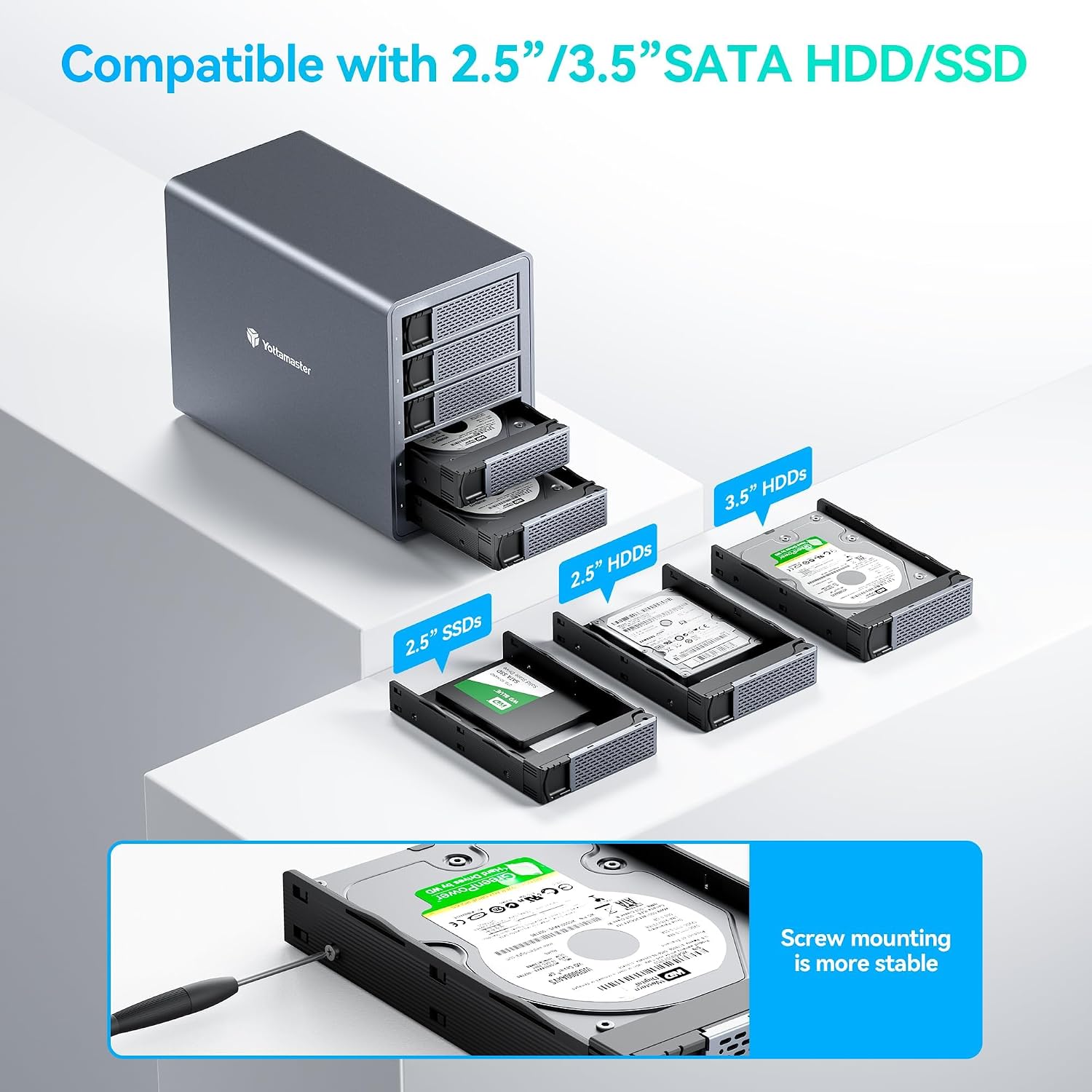
An illustration demonstrating how both 2.5-inch SSDs/HDDs and 3.5-inch HDDs can be installed into the enclosure's removable trays.
3.3 Connecting the Enclosure
After installing the hard drives, connect the enclosure to your computer:
- Connect one end of the provided USB 3.0 cable to the USB 3.0 Type-B port on the rear of the enclosure.
- Connect the other end of the USB 3.0 cable to an available USB 3.0 port on your computer.
- Connect the power cable to the AC power interface on the rear of the enclosure and plug it into a power outlet.
- Flip the power switch on the rear panel to the 'ON' position. The hard drive indicators on the front panel will light up.

A detailed diagram pointing out the features on the front panel (Hard Drive Indicators, Press Design, Airflow Hole, Non-slip Pad) and rear panel (Heat Dissipation Hole + Built-in Fan, AC Power Interface, Power Switch, USB3.0 Type-B Interface, SET Button, RAID Dip Switch).
4. Operating the Enclosure
4.1 RAID Configuration
The Yottamaster FS5RU3-RAID enclosure supports various RAID modes to optimize performance or data redundancy. You can configure RAID using either hardware DIP switches or software management.

A comparison showing two methods to set up RAID: via Yottamaster's RAID Manager software and manually using the array switch (DIP switches) on the rear of the enclosure.
4.1.1 Hardware RAID Setup (Using DIP Switches)
Before configuring RAID, ensure you back up all important data as RAID configuration will erase existing data on the drives.
- Step 1: Power off the enclosure. Locate the RAID DIP switches on the rear panel.
- Step 2: Refer to the table below and the diagram to set the DIP switches to the desired RAID mode.
- Step 3: While holding the 'SET' button on the rear panel, power on the device.
- Step 4: Continue holding the 'SET' button for approximately 15 seconds until the indicator light flashes red and blue alternately. Release the 'SET' button.
- Step 5: Once the RAID configuration is complete, access Disk Management (Windows) or Disk Utility (macOS) to initialize and format your hard drive array.

A step-by-step guide illustrating how to set hardware RAID modes using the DIP switches and the SET button.

A detailed guide on manually setting RAID modes using the DIP switches, including a table of RAID modes and a three-step process for configuration and drive formatting.
RAID Mode Table
| RAID Mode | Min. Disks | Max. Capacity | Data Protection | Fault Tolerance | Security |
|---|---|---|---|---|---|
| RAID 0 | 2 | N x D | NO | 0 disk | Low |
| RAID 1 (Preferred) | only 2 | 1 x D | Yes | 1 disk | High |
| RAID 3 | 3 | (N-1) x D | Yes | 1 disk | Middle |
| RAID 5 (Preferred) | 3 | (N-1) x D | Yes | 1 disk | Middle |
| RAID 10 | 4 | N x D x 50% | Yes | 1 disk | High |
| JBOD | 2 | N x D | NO | 0 disk | Low |
| SPAN | 1 | N x D | NO | 0 disk | Middle |
Note 1: D is the minimum capacity among all hard drives; N is the number of hard drives.
Note 2: Backup your data before setting RAID Mode.

A table detailing various RAID modes supported by the enclosure.
4.1.2 Software RAID Setup
Yottamaster provides RAID Manager software for more convenient configuration and management of your hard drive array. Please visit the official Yottamaster website's firmware download page to obtain the latest version of the RAID Manager software.
Management software Download Path: Yottamaster Firmware Download page
4.2 Data Transfer
The enclosure utilizes a USB 3.0 Type-B interface, supporting data transfer rates of up to 5Gbps. This allows for rapid transfer of large files, making it suitable for demanding workflows such as video editing, large data backups, and more.

An image showing the Yottamaster enclosure connected to a computer setup, illustrating a 5Gbps data transfer rate.

An image showing the Yottamaster enclosure connected to a computer, emphasizing the 5Gbps data transfer capability.
4.3 Intelligent Sleep Mode
The enclosure features a 10-minute intelligent sleep mode to conserve energy. If the device is idle for 10 minutes, it will automatically enter sleep mode. You can adjust or cancel this auto-sleep function if desired.
Canceling Auto-sleep Function
To disable the auto-sleep function, follow these steps:
- Step 1: Download the Sleep Time Setting Firmware from the Yottamaster official website. Ensure you download the correct firmware for a 4/5 Bay Enclosure.
- Step 2: Access the firmware application. Choose "RD Version" and input the required password (refer to firmware instructions for password).
- Step 3: Set the Standby Timer value to "0" to disable auto-sleep.
- Step 4: Confirm the "PASS" message, then restart the enclosure for the changes to take effect.

A four-step visual guide on how to disable the auto-sleep function.
5. Maintenance
To ensure the longevity and optimal performance of your Yottamaster 5 Bay RAID Enclosure, consider the following maintenance tips:
- Cleaning: Regularly clean the exterior of the enclosure with a soft, dry cloth. Avoid using liquid cleaners or aerosols directly on the device.
- Ventilation: Ensure the enclosure's ventilation holes and the built-in fan are free from dust and obstructions. Proper airflow is crucial for effective heat dissipation.
- Firmware Updates: Periodically check the Yottamaster official website for any available firmware updates. Keeping the firmware updated can improve performance and stability.
- Safe Shutdown: Always safely eject the enclosure from your computer before powering it off or disconnecting it to prevent data corruption.
6. Troubleshooting
If you encounter issues with your Yottamaster 5 Bay RAID Enclosure, refer to the following common problems and solutions:
- Enclosure not recognized by computer:
- Ensure the USB cable is securely connected to both the enclosure and the computer.
- Try connecting to a different USB port on your computer.
- Verify the enclosure is powered on.
- Check if the hard drives are properly installed and seated in their bays.
- Test with a different USB cable if available.
- Hard drives not appearing in Disk Management/Disk Utility:
- For new drives, they may need to be initialized and formatted. Refer to your operating system's Disk Management (Windows) or Disk Utility (macOS) for this process.
- If configuring RAID, ensure the RAID setup process was completed correctly, including holding the SET button during power-on.
- Check the hard drive indicators on the front panel; if a drive light is off, the drive may not be detected.
- Slow data transfer speeds:
- Ensure you are connected to a USB 3.0 port on your computer. USB 2.0 ports will result in significantly lower speeds.
- Verify the USB cable is a USB 3.0 compliant cable.
- Performance can be affected by the speed of the installed hard drives and the RAID mode selected.
- Enclosure frequently enters sleep mode:
- The enclosure has a 10-minute intelligent sleep mode. If this is undesirable, follow the instructions in Section 4.3 to cancel the auto-sleep function.
- RAID configuration issues:
- Ensure the DIP switches are set correctly for the desired RAID mode as per the table in Section 4.1.1.
- Confirm that the 'SET' button was held for the required duration during power-on for hardware RAID configuration.
- Remember that RAID configuration will erase all data on the drives. If data was not backed up, it may be lost.
If these steps do not resolve your issue, please contact Yottamaster customer support for further assistance.
7. Specifications
| Specification | Value |
|---|---|
| Model | FS5RU3-RAID |
| Brand | Yottamaster |
| Supported Drives | 5 x 2.5"/3.5" SATA HDD/SSD |
| Max Capacity | 90 TB (5 x 18TB) |
| RAID Modes | RAID 0, 1, 3, 5, 10, JBOD, CLONE, Normal |
| Hardware Interface | USB 3.0 Type-B |
| Data Transfer Rate | Up to 5 Gbps |
| Material | Aluminum Alloy |
| Cooling System | Built-in 80mm temperature-controlled fan, Ventilation holes |
| Power Supply | 150W Built-in Power Supply |
| Compatible Operating Systems | Windows, Linux, macOS |
| Intelligent Sleep Mode | 10 minutes (adjustable/cancellable) |
| Dimensions (Parcel) | 33.7 x 30.7 x 21.7 cm |
| Weight (Parcel) | 4.52 kg |
| Color | Gray / Silver |
8. Warranty and Support
8.1 Return Policy
This product is typically eligible for a 30-day refund/replacement return policy from the date of purchase. Please refer to the retailer's specific return policy at the time of purchase for exact terms and conditions.
8.2 Customer Support
For technical support, warranty claims, or further inquiries, please visit the official Yottamaster website or contact their customer service directly. You can often find FAQs, driver downloads, and contact information on their support pages.
Official Yottamaster Website: www.yottamaster.com


