
JOMAA KB25
JOMAA KB25 Bluetooth Numeric Keypad User Manual
Model: KB25
1. Introduction
Thank you for choosing the JOMAA KB25 Bluetooth Numeric Keypad. This portable, rechargeable 36-key keypad is designed to enhance productivity across various devices, including laptops, tablets, and desktop computers. This manual provides detailed instructions for setup, operation, and maintenance to ensure optimal performance.

2. Package Contents
Please verify that all items are present in your package:
- JOMAA KB25 Bluetooth Numeric Keypad
- USB Charging Cable
- User Manual (this document)
3. Key Features
- Wide Compatibility: Supports Bluetooth connectivity with mobile phones, tablets, laptops, Mac, iMac, PC, and other Bluetooth-enabled desktop computers (Mac/iOS/Windows/Android).
- 36 Multi-function Keys: Includes numeric keys, arrow keys, parentheses, and dedicated shortcuts for calculator and Excel.
- Rechargeable Battery: Built-in lithium-ion battery with Type-C charging. Features a low battery indicator (red light flash).
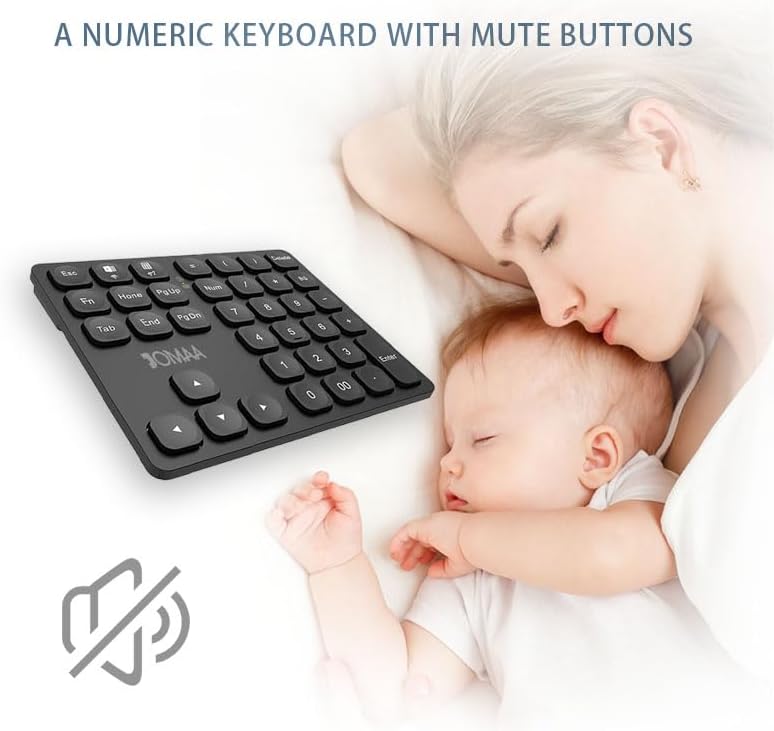
- Soft Key Feel: Utilizes a scissor-shaft design for comfortable and quiet typing, reducing finger fatigue during extended use.
- Dual Bluetooth Channels: Connects to two devices simultaneously, allowing for quick switching between them using FN + Bluetooth 1 or FN + Bluetooth 2.
- Ergonomic Design: Features a sloped profile for a natural typing angle, enhancing comfort and reducing wrist strain.
- Ultra-Silent Operation: Designed for quiet key presses, suitable for various work environments.

4. Setup Guide
4.1. Charging the Keypad
Before initial use, fully charge the keypad. Connect the provided USB Type-C charging cable to the keypad's charging port and the other end to a USB power source (e.g., computer USB port, wall adapter). The keypad will indicate a low battery by flashing a red light.

4.2. Bluetooth Pairing
The keypad supports two Bluetooth channels for connecting to multiple devices.
- Ensure the keypad is charged and powered on using the switch located on the side.
- On your device (laptop, tablet, phone), enable Bluetooth.
- To initiate pairing, press and hold either the FN + Bluetooth 1 key combination or FN + Bluetooth 2 key combination for three to five seconds. The corresponding Bluetooth indicator light on the keypad will begin to flash, indicating it is in pairing mode.
- On your device, search for Bluetooth devices. The keypad should appear as "JOMAA KB25" or a similar name. Select it to connect.
- Once connected, the Bluetooth indicator light on the keypad will stop flashing and remain solid for a few seconds, then turn off.
- Repeat these steps to pair with a second device using the other Bluetooth channel (e.g., if you used Bluetooth 1 for the first device, use Bluetooth 2 for the second).
Note: When connecting to an Apple product for the first time, your device may prompt you to identify the keyboard type. Follow the on-screen instructions. If prompted to press a key next to 'Shift' and your keypad does not have a 'Shift' key, try pressing other keys until the connection is established. Selecting 'ISO international' as the keyboard type has been reported to work.
5. Operating Instructions
5.1. Basic Key Functions
The JOMAA KB25 keypad features a standard numeric layout along with additional function keys:
- Numeric Keys (0-9, ., 00): For standard number input.
- Arithmetic Operators (+, -, *, /): For calculations.
- Enter: Confirms input.
- Delete: Deletes characters.
- Esc: Escape function.
- Tab: Tab function.
- Home, End, Pg Up, Pg Dn: Navigation keys.
- Arrow Keys (Up, Down, Left, Right): For cursor movement.
- FN Key: Used in combination with other keys for special functions.
5.2. Special Functions
- Calculator Shortcut: Press the dedicated calculator key (often labeled with a calculator icon) to open the calculator application on your device.
- Excel Shortcut: Press the dedicated Excel key (often labeled with an Excel icon) to open an Excel spreadsheet.
- Note on '=' Key: The '=' key on this keypad is designed for specific shortcut functions. It cannot be used to directly input the '=' character on some tablet devices.
5.3. Switching Between Connected Devices
If you have paired the keypad with two devices using the dual Bluetooth channels, you can switch between them by pressing:
- FN + Bluetooth 1: Switches to the device paired with Bluetooth Channel 1.
- FN + Bluetooth 2: Switches to the device paired with Bluetooth Channel 2.

6. Maintenance and Care
- Cleaning: Use a soft, dry cloth to clean the keypad. For stubborn dirt, a slightly damp cloth can be used, ensuring no liquid enters the keypad.
- Storage: Store the keypad in a cool, dry place away from direct sunlight and extreme temperatures.
- Avoid Liquids: Do not expose the keypad to water or other liquids.
- Avoid Drops: Protect the keypad from drops and impacts.
7. Troubleshooting
| Problem | Possible Cause | Solution |
|---|---|---|
| Keypad does not turn on. | Battery is depleted. | Charge the keypad using the provided USB Type-C cable. |
| Keypad does not connect via Bluetooth. | Not in pairing mode; device Bluetooth off; already connected to another device. | Ensure keypad is in pairing mode (FN + Bluetooth 1/2 held for 3-5s). Verify device Bluetooth is on. Disconnect from other devices if necessary. |
| Keys are not responding. | Low battery; connection issue. | Charge the keypad. Re-establish Bluetooth connection. |
| The '=' key does not type an '=' character on my tablet. | This is a known limitation for some tablet operating systems. | The '=' key is primarily for shortcut functions. For direct '=' input on tablets, use the on-screen keyboard or your device's main keyboard. |
| Difficulty pairing with Apple devices. | Keyboard identification prompt. | If prompted to press a key next to 'Shift', try pressing various keys until connection is established. Selecting 'ISO international' as keyboard type often resolves this. |
8. Specifications
| Model | KB25 |
| Brand | JOMAA |
| Connectivity Technology | Bluetooth |
| Number of Keys | 36 |
| Key Type | Scissor-shaft |
| Battery Type | Lithium Ion (included) |
| Battery Capacity | 250mA |
| Charging Port | USB Type-C |
| Product Dimensions (L x W x H) | 5.91" x 4.72" x 0.47" (15.01 cm x 11.99 cm x 1.19 cm) |
| Item Weight | 7.4 ounces (209.79 grams) |
| Standby Time | 360 days |
| Wake-up Time | <2 seconds |
| Effective Distance | 10 meters |
| Button Lifespan | >5,000,000 times |
| Supported Systems | Mac/iOS/Windows/Android |

9. Warranty and Support
JOMAA products are designed for reliability and performance. For warranty information or technical support, please refer to the contact details provided with your purchase or visit the official JOMAA website. Please retain your proof of purchase for warranty claims.
Related documentsKB25


Ask a question about this manual
Ask about setup, troubleshooting, compatibility, parts, safety, or missing instructions. Manuals+ will review the question and use this page’s manual context to help answer it.