
1. Introduction
Welcome to the user manual for your new jumper EZpad M10SE 10-inch Tablet. This guide provides essential information to help you set up, operate, and maintain your device, ensuring optimal performance and longevity. Please read this manual thoroughly before using your tablet.
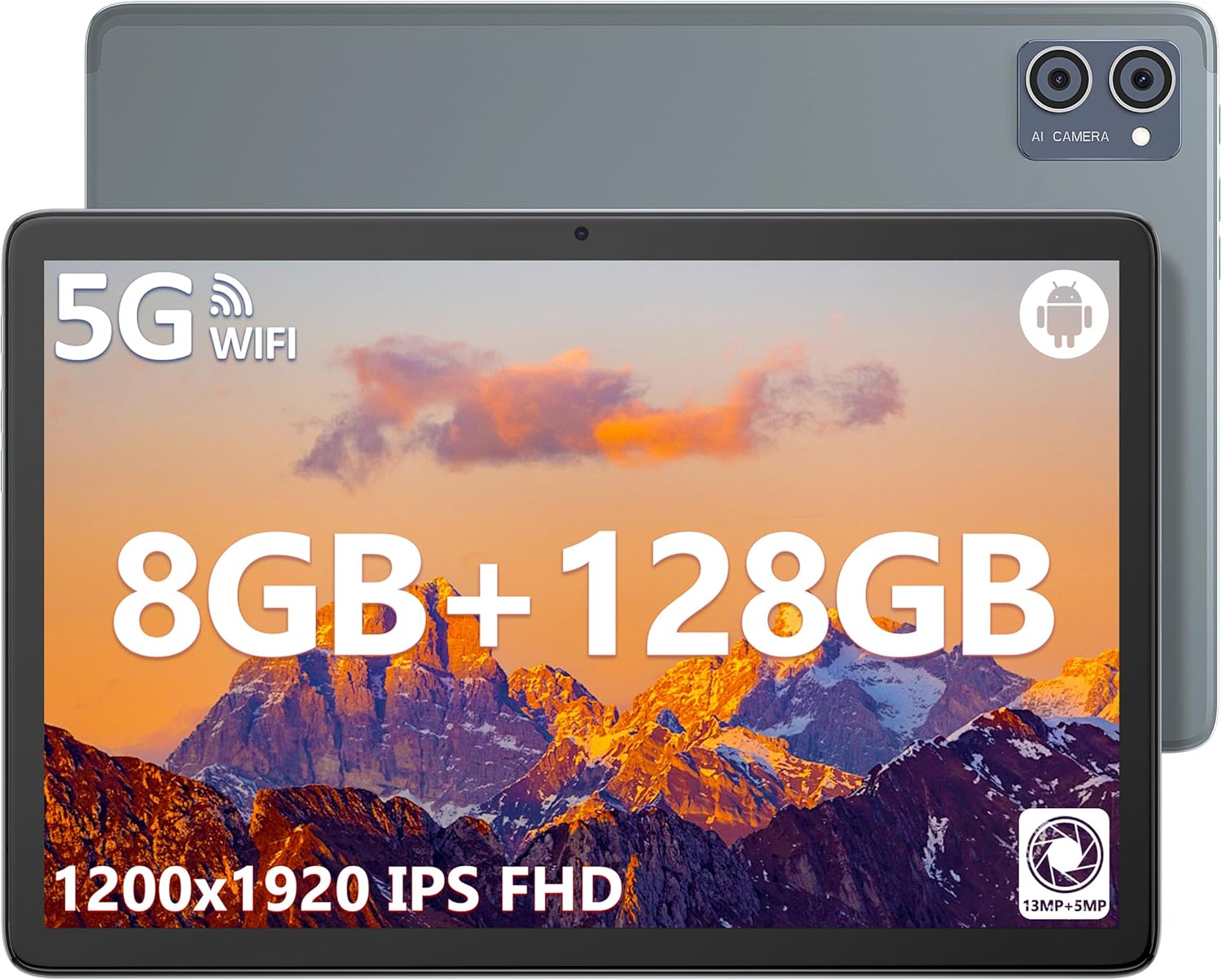
Image 1.1: Front and back view of the jumper EZpad M10SE tablet, highlighting its 8GB RAM, 128GB storage, 5G WiFi, and 1200x1920 IPS Full HD display.
2. What's in the Box
Upon opening your product packaging, please verify that all the following items are included:
- Tablet M10SE
- Charger
- User Manual
3. Product Overview
Familiarize yourself with the physical components and ports of your EZpad M10SE tablet.

Image 3.1: Detailed diagram illustrating the location of the Headphone jack, TF Card slot, Power Button, Volume Button, Type-C port, Speakers, Front Camera, and Rear Camera on the EZpad M10SE tablet.
- Front Camera: Located at the top center when held vertically, used for video calls and selfies.
- Rear Camera: Located on the back, used for high-resolution photos and videos.
- Power Button: Used to turn the tablet on/off or put it to sleep/wake it up.
- Volume Buttons: Adjust the audio output level.
- Type-C Port: For charging the tablet and data transfer.
- Headphone Jack: Standard 3.5mm port for audio output.
- TF Card Slot: For expanding storage with a microSD card (up to 512GB).
- Speakers: Dual stereo speakers for audio output.
4. Setup
4.1 Initial Charging
Before first use, it is recommended to fully charge your tablet. Connect the provided charger to the Type-C port on the tablet and plug it into a power outlet. The tablet features a 6000mAh battery, providing approximately 6-8 hours of internet access on a full charge.

Image 4.1: The tablet screen displaying a charging indicator and the 6000mAh battery capacity, emphasizing the Type-C charging port for fast charging.
4.2 Power On/Off
- To Power On: Press and hold the Power Button until the screen lights up.
- To Power Off: Press and hold the Power Button, then select 'Power off' from the options on the screen.
- To Sleep/Wake: Briefly press the Power Button.
4.3 Initial Setup Wizard
Upon first power-on, the tablet will guide you through an initial setup process. This includes selecting your language, connecting to a Wi-Fi network, setting up your Google account, and configuring basic security settings. Follow the on-screen prompts to complete the setup.
5. Operating Instructions
5.1 Basic Navigation
The EZpad M10SE operates on Android 12, offering an intuitive touch-screen interface. Use gestures such as tapping, swiping, pinching, and spreading to navigate applications and content.

Image 5.1: The tablet screen showcasing the Android 12 operating system, with icons for Wi-Fi, Bluetooth, and Dual Speakers, indicating enhanced user experience and connectivity.
5.2 Connectivity
- Wi-Fi: To connect to a wireless network, go to Settings > Network & internet > Wi-Fi. Select your desired network and enter the password if required. The tablet supports 5G WiFi for faster connections.
- Bluetooth: To pair with Bluetooth devices, go to Settings > Connected devices > Connection preferences > Bluetooth. Turn on Bluetooth and select the device you wish to pair with. The tablet supports Bluetooth 5.0.
- GPS: The tablet includes GPS functionality for location services and navigation applications. Ensure location services are enabled in Settings > Location.
5.3 Camera Usage
The tablet is equipped with a 13MP rear camera and a 5MP front camera. Open the Camera app to capture photos and videos.

Image 5.2: Visual representation of the tablet's 5MP front camera and 13MP rear camera, highlighting its Full HD 1200x1920 resolution display.
5.4 Storage Management
The tablet comes with 128GB of internal storage. You can expand this by inserting a TF (microSD) card into the dedicated slot, supporting up to 512GB additional storage.

Image 5.3: The tablet screen illustrating the 8GB RAM and 128GB internal storage, with an overlay indicating support for 512GB TF card expansion for storing various media files.
5.5 Audio
Enjoy clear audio through the tablet's dual stereo speakers. For private listening, connect headphones to the 3.5mm headphone jack.
6. Maintenance
6.1 Cleaning Your Tablet
- Use a soft, lint-free cloth to clean the screen and body of the tablet.
- Avoid using harsh chemicals, abrasive cleaners, or aerosol sprays.
- Ensure the tablet is powered off and unplugged before cleaning.
6.2 Software Updates
Regularly check for and install system updates to ensure your tablet has the latest features, security patches, and performance improvements. Go to Settings > System > System update to check for available updates.
7. Troubleshooting
If you encounter issues with your tablet, refer to the following common solutions:
| Issue | Possible Solution |
|---|---|
| Tablet does not power on | Ensure the tablet is sufficiently charged. Connect the charger and wait a few minutes before attempting to power on again. |
| Wi-Fi connection issues | Restart your Wi-Fi router and the tablet. Check if other devices can connect to the network. Verify the Wi-Fi password. |
| Slow performance | Close unnecessary background applications. Clear cache for frequently used apps. Consider performing a factory reset if the issue persists (back up your data first). |
| Touchscreen unresponsive | Restart the tablet. Ensure the screen is clean and free of debris. If the issue persists, contact support. |
| Battery drains quickly | Reduce screen brightness. Disable Wi-Fi, Bluetooth, and GPS when not in use. Close background apps. |
8. Specifications
Key technical specifications for the jumper EZpad M10SE tablet:
- Display: 10.1 Inches IPS Full HD (1920x1200 pixels)
- Processor: Octa-Core (2 GHz), MT8183 Chipset
- RAM: 8GB DDR4 SDRAM
- Internal Storage: 128GB EMMC
- Expandable Storage: Up to 512GB via TF Card
- Operating System: Android 12
- Rear Camera: 13 MP
- Front Camera: 5 MP
- Battery: 6000mAh Lithium Polymer (Approx. 6-8 hours internet use)
- Wireless Connectivity: 5G WiFi (802.11bgn), Bluetooth 5.0
- Ports: Type-C, 3.5mm Headphone Jack, TF Card Slot
- Dimensions: 9.5 x 0.33 x 6.38 inches
- Weight: 1.1 pounds
9. Warranty and Support
jumper products come with a one-year warranty. For any product-related inquiries or support, please use the following methods:
- Amazon Order Support: Log in to your Amazon buyer account, find your order, and click "Get Product Support."
- Email Support: Contact service@jumper-customersupport.com.
The jumper support team aims to assist you within 24 hours.

Image 9.1: Visual guide for contacting jumper customer support via Amazon order or direct email, highlighting the one-year warranty.


