
IPASON E2728S-M
IPASON E2728S-M 27-inch WQHD Gaming Monitor User Manual
Model: E2728S-M
1. Introduction
The IPASON E2728S-M is a 27-inch WQHD (2560x1440) gaming monitor designed to provide an immersive visual experience for gamers and creative professionals. With a high refresh rate of 165Hz and a rapid 1ms response time, it ensures smooth and fluid motion, minimizing lag and ghosting in fast-paced scenes. The VA panel offers excellent color reproduction and wide viewing angles, complemented by LED backlighting for uniform illumination and reduced eye strain during extended use.
This monitor supports HDR10 for more vibrant and realistic colors, and its non-glare finish ensures optimal viewing in various lighting conditions by suppressing reflections. It also features versatile adjustment options including tilt, swivel, pivot, and height adjustment, along with VESA compatibility for flexible setup in any environment.

Figure 1.1: IPASON E2728S-M Gaming Monitor Overview
2. Package Contents
Please verify that all the following items are included in your package:
- IPASON E2728S-M Monitor
- Power Adapter (DC12V/5A)
- DisplayPort Cable
- Screws for stand assembly
- User Manual (this document)
3. Setup
3.1 Assembling the Stand
To assemble the monitor stand:
- Carefully place the monitor face down on a soft, clean surface (e.g., the foam packaging or a soft cloth) to prevent screen damage.
- Attach the stand pillar to the monitor body.
- Attach the stand base to the pillar. Secure it with the provided screw.
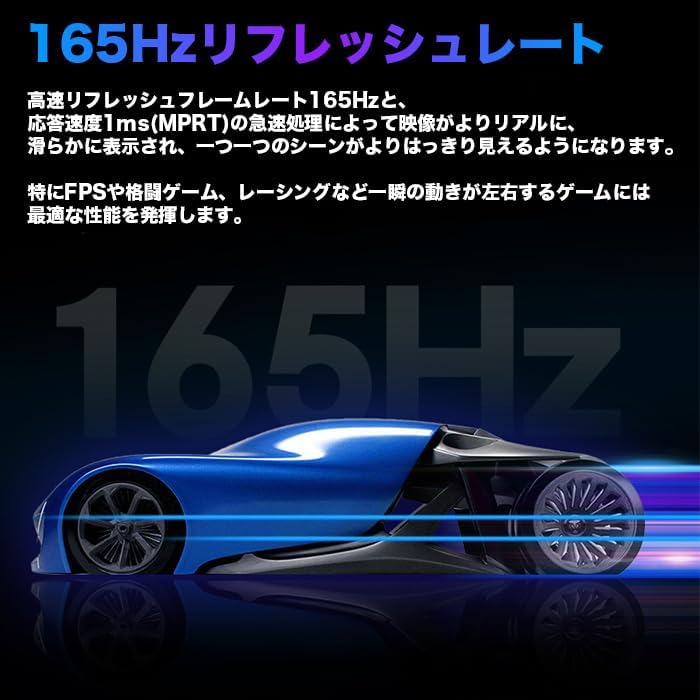
Figure 3.1: Stand Assembly Diagram
3.2 Mounting Options (VESA)
The monitor supports VESA standard 100mm x 100mm mounting, allowing you to attach it to compatible wall mounts or monitor arms. Ensure you use appropriate VESA screws for secure installation.

Figure 3.2: VESA Mounting Compatibility
3.3 Connecting the Monitor
The IPASON E2728S-M monitor provides multiple input options:
- 2 x HDMI 2.0 ports
- 2 x DisplayPort 1.4 ports
- 1 x Headphone Jack
Connect your PC, gaming console, or other devices to the monitor using the appropriate cables. For optimal performance, especially for 165Hz refresh rate and WQHD resolution, it is recommended to use the DisplayPort connection.

Figure 3.3: Monitor Input and Output Ports
4. Operation
4.1 Power On/Off
Press the power button located on the monitor to turn it on or off. The power indicator light will show the monitor's status.
4.2 OSD Menu Navigation
The On-Screen Display (OSD) menu allows you to adjust various monitor settings. Use the buttons on the back or bottom of the monitor to navigate the menu. The OSD menu supports English and other languages.
4.3 Display Adjustments
This monitor offers comprehensive ergonomic adjustments for comfortable viewing:
- Tilt: Adjust the screen's vertical angle (up/down).
- Swivel: Rotate the screen horizontally (left/right).
- Pivot: Rotate the screen 90 degrees for portrait mode.
- Height Adjustment: Raise or lower the screen to your preferred height.

Figure 4.1: Tilt, Swivel, Pivot, and Height Adjustment
4.4 Key Features
- WQHD Resolution (2560x1440): Experience sharp and detailed visuals, offering 1.8 times more information than Full HD.
- 165Hz Refresh Rate: Enjoy incredibly smooth motion, crucial for fast-paced gaming and video playback.
- 1ms Response Time: Minimize motion blur and ghosting for crisp images, even during rapid action sequences.
- HDR10 Technology: Enhances contrast and color accuracy, providing a more dynamic and lifelike viewing experience.
- Shadow Control Function: Adjusts contrast in dark areas to make objects more visible without overexposing bright areas.
- Non-Glare Panel: Reduces reflections from ambient light, ensuring a clear view in various lighting conditions.
- Narrow Bezel Frame: Features an ultra-slim bezel (approx. 2mm) for a more expansive display area, ideal for multi-monitor setups.

Figure 4.2: WQHD vs. Full HD Resolution

Figure 4.3: High Refresh Rate for Smooth Visuals
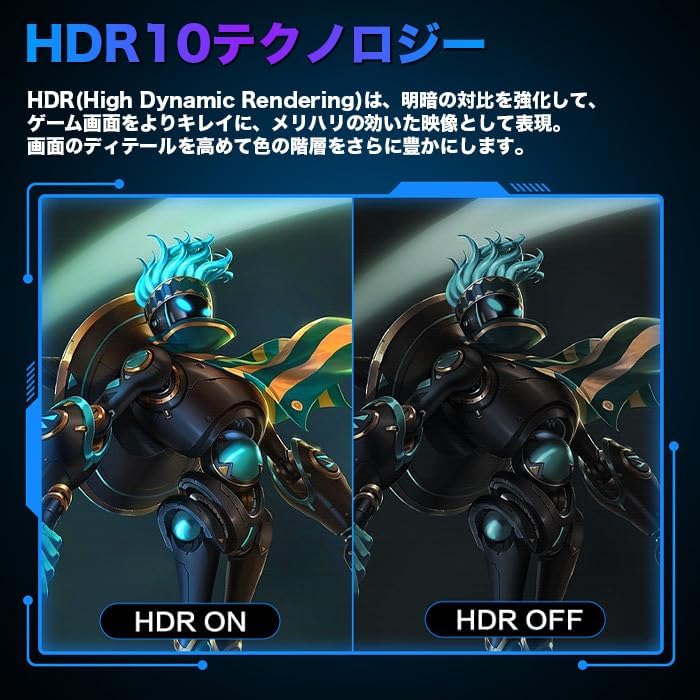
Figure 4.4: HDR10 On vs. Off Comparison
Figure 4.5: Shadow Control in Action
Figure 4.6: Narrow Bezel Design
5. Maintenance
To ensure the longevity and optimal performance of your monitor, follow these maintenance guidelines:
- Cleaning the Screen: Gently wipe the screen with a soft, lint-free cloth. For stubborn smudges, use a monitor-specific cleaning solution applied to the cloth, not directly to the screen.
- Cleaning the Casing: Use a soft, dry cloth to wipe the monitor casing. Avoid using abrasive cleaners or solvents.
- Ventilation: Ensure the monitor's ventilation openings are not blocked to prevent overheating.
- Power Off When Not in Use: Turn off the monitor when not in use for extended periods to save energy and prolong its lifespan.
6. Troubleshooting
6.1 No Signal / Display Issues
- Ensure the power cable is securely connected to both the monitor and a power outlet.
- Verify that the video cable (HDMI or DisplayPort) is firmly connected to both the monitor and your device (PC, console).
- Check if the correct input source is selected on the monitor's OSD menu.
- Test with a different video cable or device if possible to rule out cable or source issues.
6.2 Audio Issues
This monitor does not have built-in speakers. Audio output is available via the 3.5mm headphone jack on the back of the monitor. If you experience audio issues:
- Ensure your audio device (headphones, external speakers) is correctly plugged into the headphone jack.
- Check the volume settings in the monitor's OSD menu and on your connected device.
- Some users have reported potential white noise or static from the headphone jack, especially when connected directly to certain consoles like PS5. If this occurs, consider using an HDMI audio extractor or routing audio through an AV receiver.
6.3 OSD Language Setting
Upon initial setup, the OSD menu might be in a foreign language (e.g., Chinese). To change the language:
- Navigate through the OSD menu using the physical buttons on the monitor. Look for an icon that typically represents 'settings' or 'language' (often a gear or globe icon).
- Select the language option and choose 'English'.
7. Specifications
| Feature | Specification |
|---|---|
| Brand | IPASON |
| Model Number | E2728S-M |
| Screen Size | 27 inches |
| Resolution | WQHD (2560 x 1440 pixels) |
| Aspect Ratio | 16:9 |
| Panel Type | VA Panel (with LED Backlight) |
| Refresh Rate | 165Hz (via DisplayPort) |
| Response Time | 1ms |
| HDR Support | HDR10 |
| Viewing Angle | 178° (Vertical) / 178° (Horizontal) |
| Contrast Ratio | 4000:1 |
| Color Gamut | 99% sRGB |
| Number of Colors | 16.9 Million |
| Input Terminals | 2 x HDMI 2.0, 2 x DisplayPort 1.4, 1 x Headphone Jack |
| Power Input | DC12V/5A |
| VESA Compatibility | 100mm x 100mm |
| Adjustments | Tilt, Swivel, Pivot, Height Adjustment |
| Product Dimensions (W x H x D) | 61.3 x 44.1 x 21.2 cm |
| Product Weight | 5.4 kg |
Figure 7.1: Detailed Monitor Specifications
8. Warranty and Support
This IPASON monitor comes with a 3-year domestic official manufacturer's warranty in Japan. Please retain your proof of purchase for warranty claims.
For technical support, troubleshooting assistance, or warranty inquiries, please contact IPASON customer service through their official channels or refer to the contact information provided with your purchase.
You can also visit the official IPASON store on Amazon for more information and support: IPASON Store
Related documentsE2728S-M

Ask a question about this manual
Ask about setup, troubleshooting, compatibility, parts, safety, or missing instructions. Manuals+ will review the question and use this page’s manual context to help answer it.