
1. What's in the Box
Verify that all components are present in your package:
- DG60L Transmitter
- AS70P Receiver
- Type C Charging Cable
- AUX 3.5mm Audio Cable & AUX 3.5mm Female to 2.5mm Male Adapter
- USB A Female to USB C Male Adapter

Image: Avantree ProLink set components including the DG60L transmitter, AS70P receiver, and various cables.
2. Product Overview
The Avantree ProLink set consists of a DG60L USB transmitter and an AS70P portable receiver, designed to provide low-latency, high-fidelity wireless audio. The system supports Bluetooth 5.4 LE Audio and aptX Lite for optimal performance in gaming, calls, and music streaming.
DG60L Transmitter
The DG60L transmitter plugs into your audio source (PC, PS5, Mac) via USB. It features a mode switch for 'Gaming' and 'Music' to optimize audio performance based on your activity.

Image: Close-up of the DG60L transmitter showing the mode switch.
AS70P Receiver
The AS70P receiver connects to your wired headphones via a 3.5mm AUX jack. It is portable, features a built-in rechargeable battery, and includes a multi-functional button for playback control and a mode switch for 'Balance' and 'Bass' sound profiles.

Image: Close-up of the AS70P receiver highlighting its multi-functional button.
3. Setup Instructions
The Avantree ProLink is designed for plug-and-play operation, requiring no drivers or complex pairing. For a detailed interactive guide, scan the QR code provided on the product packaging or refer to the video below.
Initial Setup Steps:
- Connect the DG60L Transmitter: Plug the DG60L USB transmitter into an available USB-A port on your PC, PS5, or Mac. If your device only has USB-C, use the provided USB-A Female to USB-C Male Adapter.
- Power On the AS70P Receiver: Slide the power switch on the AS70P receiver to the ON position. The LED indicator will turn solid white.
- Connect Headphones: Plug your wired headphones (with a 3.5mm AUX jack) into the AS70P receiver. If your headphones have a 2.5mm jack, use the provided 3.5mm Female to 2.5mm Male Adapter.
- Select Audio Output (for PC/PS5): On your computer or PS5, select "DG60L" as your audio output device. For clear microphone input, also select "DG60L" as your input device.

Image: Diagram showing the Avantree ProLink transmitter connected to various devices like PC, laptop, and PS5, and the receiver connected to headphones.
Interactive Setup Guide Video:
Video: An interactive user guide demonstrating the setup process for the Avantree ProLink LE Audio Set.
4. Operating Instructions
Using as a Set (Transmitter & Receiver)
- Once both the DG60L transmitter and AS70P receiver are connected and powered on, they should automatically link. The LED indicators on both devices will turn solid.
- DG60L Mode Switch: Use the switch on the DG60L to select between 'Gaming' mode (solid blue LED) for ultra-low latency or 'Music' mode (solid white LED) for high-fidelity audio.
- AS70P Sound Modes: Press the 'MODE' button on the AS70P receiver to switch between 'Balance' and 'Bass' sound profiles.
- Headset Microphone Support: The AS70P supports 3.5mm headsets with built-in or boom microphones (TRRS). Ensure 'DG60L' is selected as the input device on your computer for clear voice communication.
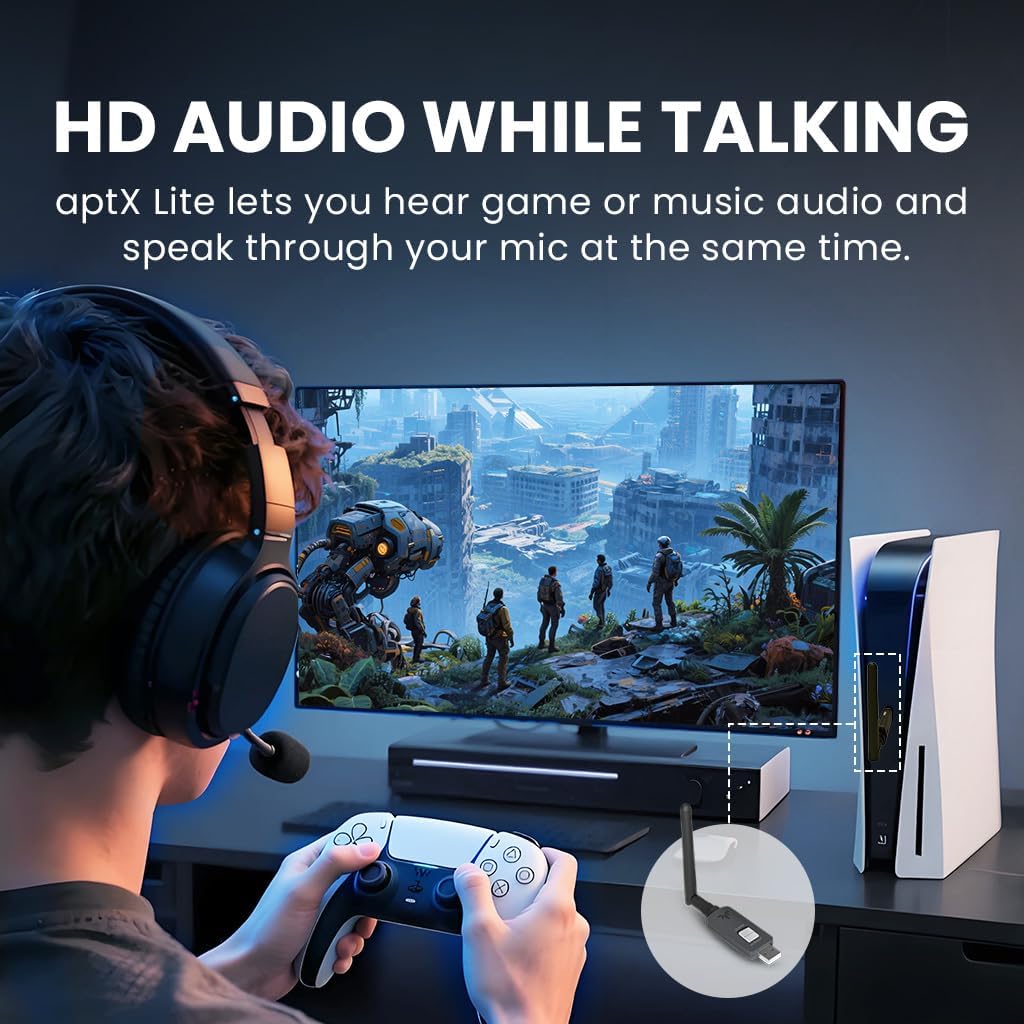
Image: User experiencing HD audio while talking during gaming with the Avantree ProLink.

Image: The AS70P receiver connected to wired headphones with a boom microphone, demonstrating compatibility.
Using AS70P Receiver with a Phone (Standalone)
The AS70P receiver can also be used independently with your smartphone or tablet:
- Ensure the DG60L transmitter is disconnected or powered off.
- Turn on Bluetooth on your phone/tablet.
- Power on the AS70P receiver. It will enter pairing mode (LED flashes).
- Select "Avantree AS70P" from your device's Bluetooth list to connect. The LED will turn solid white upon successful connection.
Reconnect Tips:
- The AS70P will auto-connect to the last paired device after turning on.
- If not reconnecting, manually select "AS70P" from your Bluetooth list.
Dual Link Functionality:
When the AS70P is connected to your phone and the DG60L is plugged in, the system supports Dual Link. This allows you to receive calls on your phone without missing audio from your primary source (e.g., game audio). Press the play/pause button on the AS70P to answer calls; hold to reject.
5. Maintenance
To ensure the longevity and optimal performance of your Avantree ProLink set, follow these guidelines:
- Keep the devices clean and free from dust. Use a soft, dry cloth for cleaning.
- Avoid exposing the devices to extreme temperatures, humidity, or direct sunlight.
- Handle the devices with care to prevent physical damage.
- Always follow battery handling precautions for the AS70P receiver. Do not attempt to replace the battery yourself.
- This device may interfere with other wireless devices if not used properly. Maintain a reasonable distance from other electronics.
6. Troubleshooting
If you encounter issues with your Avantree ProLink, refer to the following common solutions:
No Sound:
- Confirm both the DG60L transmitter and AS70P receiver are connected (LEDs solid).
- Check the audio output/input device selection on your computer or console (ensure "DG60L" is selected).
- Verify that your headphones are properly plugged into the AS70P receiver.
- Adjust the volume levels on both your source device and the AS70P receiver.
Connection Issues:
- Restart both the DG60L and AS70P if there is no auto-connection.
- If still not working, reset both devices and re-pair them. Refer to the interactive setup guide for detailed reset procedures.
- Ensure the devices are within the effective Bluetooth range.
7. Specifications
| Feature | Detail |
|---|---|
| Model Number | BTHS-AS70-P |
| Product Dimensions | 6.65 x 4.45 x 0.91 inches |
| Item Weight | 3.84 ounces |
| Batteries | 1 CR5 battery required (included) |
| Special Features | Latest LE Audio, High-res Sound & Zero Delay, Headset Mic Supported (TRRS) |
| Connectivity Technology | Bluetooth |
| Power Source | Transmitter: USB-powered; Receiver: Built-in rechargeable battery |
| Color | Black |
| Manufacturer | Avantree |
8. Warranty & Support
Avantree products typically come with a standard manufacturer's warranty. For specific warranty details, registration, or to access further support resources, please visit the official Avantree website or scan the QR code provided in the interactive setup guide video.
For additional assistance, troubleshooting, or to contact customer support, please refer to the Avantree support portal.
