
iRobot Q052020
iRobot Roomba Vacuum 2 Essential Robot Instruction Manual
Brand: iRobot
Model: Q052020
Introduction
The iRobot Roomba Vacuum 2 Essential Robot with AutoEmpty Dock is designed to provide effortless and efficient floor cleaning. This advanced robotic vacuum features powerful suction and intelligent navigation to keep your home tidy with minimal effort.
Key Features
- 2x Cleaning Power: Delivers enhanced suction for a deeper clean compared to the Roomba Essential robot.
- AutoEmpty Dock: Automatically empties the robot's dustbin into an enclosed bag that holds up to 60 days of dirt and debris.
- 3-Stage Cleaning System: Utilizes a powerful vacuum, Multi-Surface Bristle Brush, and Edge-Sweeping Brush for comprehensive cleaning.
- Intelligent Navigation: Methodically cleans in neat rows, navigating around furniture and avoiding stairs with advanced sensors.
- iRobot Home App Control: Simplifies operation with features like remote start, scheduling, and clean map reports.
- Automatic Recharging: Returns to its charging station when the battery is low and resumes cleaning once recharged.
Setup Guide
Unboxing and Placement
Carefully remove all components from the packaging. Place the AutoEmpty Dock on a level surface against a wall, ensuring there is clear space around it for the robot to maneuver. Plug the dock into a power outlet.

Figure 1: iRobot Roomba Vac 2 Essential Robot and AutoEmpty Dock with iRobot Home App.
Connecting to the iRobot Home App
Download the iRobot Home App from your device's app store. Follow the in-app instructions to connect your Roomba Vac 2 Essential Robot to your home Wi-Fi network. Note that the robot requires a 2.4 GHz network for setup and operation. After setup, keep your robot on 2.4GHz for operation; your phone can return to 5GHz.
Operating Instructions
Starting a Cleaning Cycle
You can initiate a cleaning cycle in two ways:
- Manual Start: Press the 'CLEAN' button located on the top of the robot.
- App Control: Use the iRobot Home App to start, pause, or stop cleaning from anywhere.
Cleaning System Overview
The Roomba Vac 2 Essential utilizes a powerful 3-Stage Cleaning System. This system includes a Multi-Surface Bristle Brush to agitate and lift dirt, an Edge-Sweeping Brush to clean corners and wall edges, and strong suction to pull in debris.

Figure 2: Underside of Roomba Vac 2 Essential showing V-Shaped Brush and Edge-Sweeping Brush.
Navigation and Floor Tracking
The robot methodically cleans your floors in neat rows, ensuring thorough coverage. Its advanced sensors help it navigate around furniture and avoid obstacles. It is also equipped with sensors to prevent it from falling down stairs.
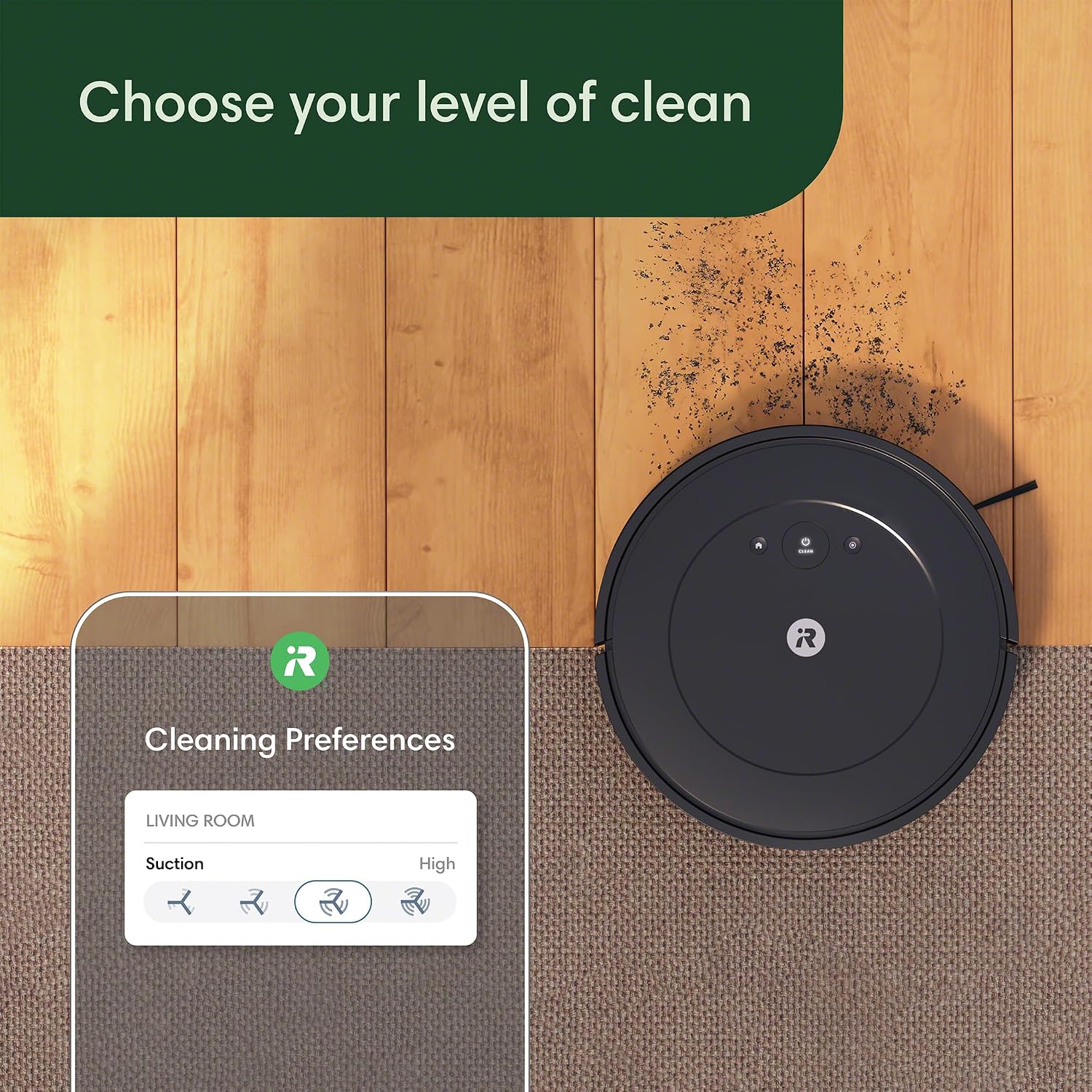
Figure 3: Roomba Vac 2 Essential navigating under furniture.

Figure 4: Roomba Vac 2 Essential avoiding stairs.
Adjusting Suction Levels
The iRobot Home App allows you to choose from four levels of suction power to customize your cleaning experience. Select a quieter cleaning mode or a more powerful vacuum setting based on your needs.

Figure 5: iRobot Home App interface for selecting suction levels.
Spot Cleaning
For areas requiring extra attention, utilize the spot cleaning feature. The robot will spin in place, cleaning a concentrated area for up to 2 minutes.
Automatic Recharging and Resuming
The robot can clean for up to 120 minutes on a single charge. When its battery is low, it automatically returns to the AutoEmpty Dock to recharge. Once sufficiently charged, it will resume the cleaning task from where it left off.

Figure 6: Roomba Vac 2 Essential automatically returning to its charging station.
Maintenance
AutoEmpty Dock Maintenance
The AutoEmpty Dock holds up to 60 days of dirt and debris, significantly reducing the frequency of manual emptying. Replace the bag in the dock when indicated by the app or when visibly full.
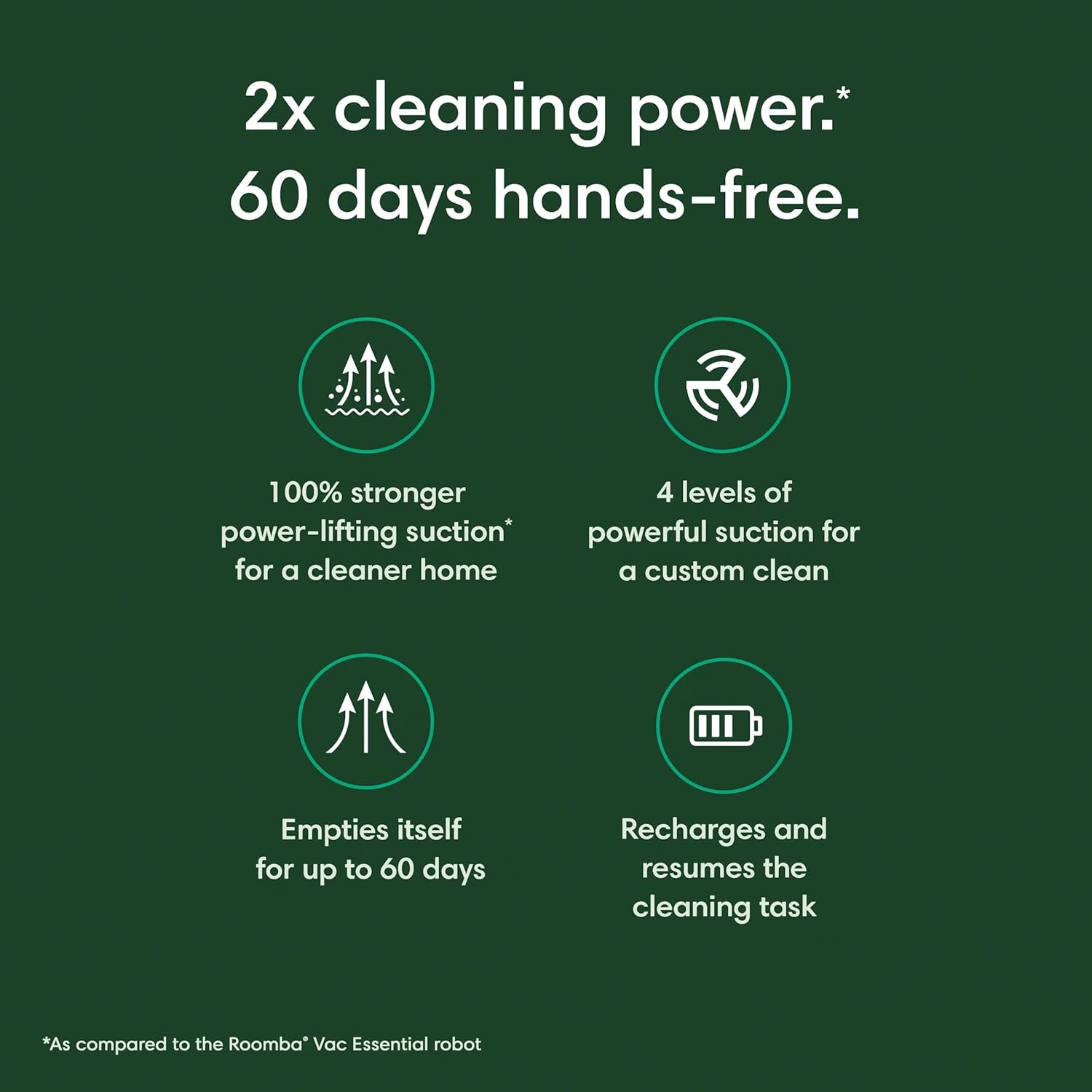
Figure 7: AutoEmpty Dock with internal bag for debris collection.
Cleaning the Dustbin and Filter
Although the robot self-empties, it is recommended to periodically remove and clean the robot's internal dustbin and filter. Tap out loose debris from the filter and rinse the dustbin with water as needed. Allow all components to air dry completely before reinserting.
Brush and Sensor Cleaning
Regularly inspect and clean the Multi-Surface Bristle Brush and the Edge-Sweeping Brush. Remove any tangled hair or debris. Wipe down the robot's sensors, especially the cliff sensors located on the underside, with a clean, dry cloth to ensure optimal navigation.
Troubleshooting
Common Issues and Solutions
- Robot Not Connecting to Wi-Fi: Ensure your home network is 2.4 GHz. Restart your router and the robot. Follow the app's troubleshooting steps for re-connection.
- Robot Getting Stuck Frequently: Clear small obstacles, loose cables, or thick rugs from the cleaning path. Ensure the charging dock is placed in an open area.
- Poor Cleaning Performance: Empty the robot's dustbin and clean the filter. Check the main brushes and side brush for tangled hair or debris. Increase the suction power setting in the iRobot Home App.
- Robot Not Returning to Dock: Ensure the dock is plugged in and has a clear path. Clean the charging contacts on both the robot and the dock.
Specifications
| Brand | iRobot |
| Model Name | iRobot® Roomba® Essential Vac 2 robot + AutoEmpty Dock (Q0520) |
| Special Feature | Edge Cleaning, Eco Mode, Anti-Fall, Scheduling, Low Noise, Self-Emptying |
| Color | Black |
| Product Dimensions | 3.15"L x 13"W x 13"H |
| Included Components | Docking Station |
| Filter Type | Cartridge |
| Battery Life | 120 minutes |
| Power Source | Battery Powered |
| Are Batteries Included | Yes |
| Control Method | App |
| Compatible Devices | Amazon Echo |
| Form Factor | Robotic |
| UPC | 885155043948 |
| Item Weight | 6.17 pounds |
| Manufacturer | iRobot |
| Item model number | Q052020 |
| Batteries required | Yes |
Warranty and Support
For detailed warranty information, product registration, and customer support, please visit the official iRobot website. You can also find FAQs and additional troubleshooting resources there.
iRobot does not certify the quality or authenticity of products purchased from non-authorized resellers on Amazon, and will only cover warranty claims, provide service or offer replacements for products purchased from authorized sellers.
Related documentsQ052020


Ask a question about this manual
Ask about setup, troubleshooting, compatibility, parts, safety, or missing instructions. Manuals+ will review the question and use this page’s manual context to help answer it.