
Anweller APP Rose
Anweller Fingerprint Padlock User Manual
Model: APP Rose
Thank you for choosing Anweller. Please read this manual carefully before use.
1. Introduction
The Anweller Fingerprint Padlock is an advanced smart locking solution designed for convenience and security. It features fingerprint recognition, Bluetooth connectivity, and app control, making it ideal for various applications such as doors, garages, school lockers, and more. This padlock eliminates the need for traditional keys or cumbersome password combinations, offering quick and secure access.
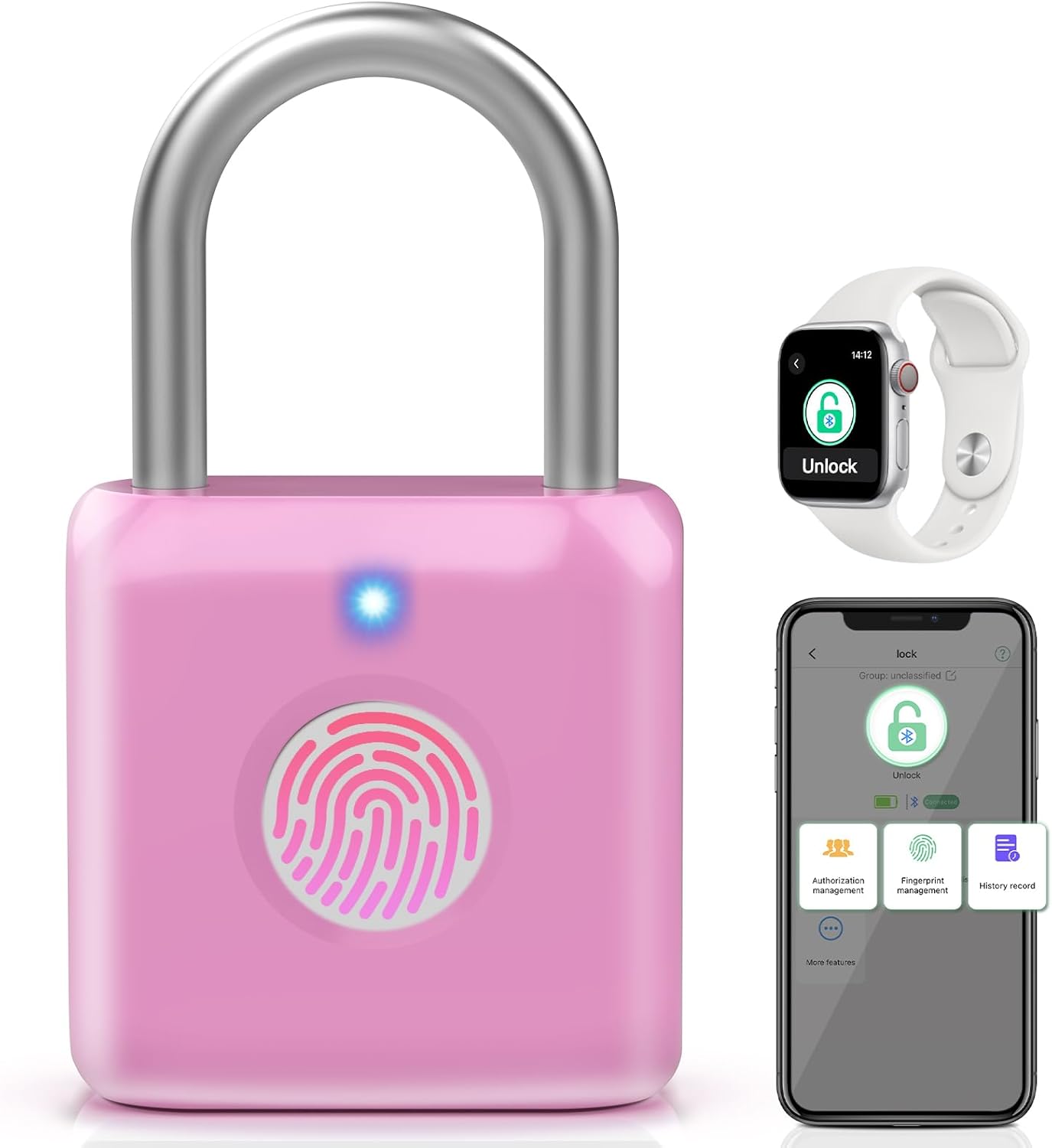
Figure 1.1: Anweller Fingerprint Padlock with App and Smartwatch Integration.
2. Safety Information
- Do not attempt to disassemble or modify the padlock. This may damage the device and void the warranty.
- Keep the padlock away from extreme temperatures, direct sunlight, and corrosive liquids.
- Ensure the charging port is dry before connecting the USB cable.
- This padlock is designed for temporary outdoor use and is weather-resistant, but avoid prolonged exposure to heavy rain or submersion in water.
- Do not use unauthorized chargers or cables.
3. Package Contents
Please check the package contents upon opening:
- Anweller Fingerprint Padlock (APP Rose)
- USB Charging Cable
- User Manual
4. Product Overview
Familiarize yourself with the main components of your Anweller Fingerprint Padlock:
- Shackle: Made of stainless steel for durability.
- Fingerprint Sensor: For biometric unlocking.
- LED Indicator: Displays status (e.g., charging, unlocked, low battery).
- USB Charging Port: For recharging the internal battery.
- Zinc Alloy Casing: Robust and resistant to tampering.

Figure 4.1: Durable Construction of the Anweller Padlock.

Figure 4.2: Compact Design and Dimensions.
5. Setup
5.1 Initial Charging
Before first use, fully charge the padlock. Connect the provided USB cable to the padlock's charging port and a USB power source (e.g., computer, wall adapter). The LED indicator will show charging status. A full charge provides up to 6 months of standby time.

Figure 5.1: Charging the Padlock.
5.2 App Download and Installation
To utilize the full features of your Anweller padlock, download the official mobile application. Search for "Anweller Smart Lock" or similar in your device's app store (iOS/Android) and install it.
5.3 Bluetooth Pairing
- Ensure Bluetooth is enabled on your smartphone.
- Open the Anweller Smart Lock app.
- Follow the in-app instructions to search for and pair with your padlock. The padlock's LED indicator may flash during pairing.
- Once paired, the app will confirm the connection.
5.4 Fingerprint Registration
The padlock can store up to 15 sets of fingerprints. The first registered fingerprint will be the administrator. It is recommended to register multiple fingerprints for convenience and backup.
- In the app, navigate to "Fingerprint Management" or a similar section.
- Select "Add Fingerprint".
- Place your finger on the padlock's sensor, lifting and repositioning it as prompted by the app. This process captures different angles of your fingerprint for accurate recognition.
- Repeat the process until the app confirms successful registration.
- For optimal performance, ensure your finger is clean and dry during registration.

Figure 5.2: Advanced Fingerprint Sensor Technology.
6. Operating Instructions
6.1 Unlocking with Fingerprint
To unlock the padlock using your registered fingerprint:
- Place a registered finger firmly on the fingerprint sensor.
- The LED indicator will flash green, and the padlock will unlock within 0.2 seconds if the fingerprint is recognized.
- If the fingerprint is not recognized, the LED indicator will flash red. Try again or use another registered finger.
6.2 Unlocking with the App
To unlock the padlock via the mobile app:
- Ensure your smartphone's Bluetooth is on and you are within range of the padlock.
- Open the Anweller Smart Lock app.
- Select your padlock from the device list.
- Tap the "Unlock" button within the app. The padlock will unlock.

Figure 6.1: Multiple Unlocking Methods.
6.3 User Management via App
The app allows you to manage authorized users and their access permissions:
- Add Users: Grant access to family members or friends by inviting them through the app. They can then unlock the padlock using their own devices.
- Remove Users: Revoke access for any authorized user at any time.
- Set Permissions: Configure specific unlock times or temporary access for users.
6.4 Unlock History
The app maintains a record of all unlock activities, including the time and method of unlocking. This feature allows you to monitor access to your padlock.

Figure 6.2: App Multifunctionality.
7. Maintenance
7.1 Battery and Charging
The Anweller padlock is equipped with a 110 mAh rechargeable lithium battery. When the battery is low, the LED indicator will signal a low battery warning. The padlock will remain locked even if the battery is completely depleted. Simply connect it to a USB power source to restore power and unlock it.
Figure 7.1: Battery Status and Charging.
7.2 Cleaning and Storage
- Wipe the padlock with a soft, dry cloth. Do not use abrasive cleaners or solvents.
- Keep the fingerprint sensor clean to ensure accurate recognition.
- Store the padlock in a cool, dry place when not in use for extended periods.
8. Troubleshooting
| Problem | Possible Cause | Solution |
|---|---|---|
| Padlock does not unlock with fingerprint. | Finger not registered, finger is dirty/wet, sensor is dirty, low battery. | Ensure finger is clean and dry. Re-register fingerprint if needed. Clean the sensor. Charge the padlock. |
| Cannot connect to app via Bluetooth. | Bluetooth off, padlock out of range, app issue, low battery. | Ensure Bluetooth is on. Move closer to the padlock. Restart the app. Charge the padlock. |
| Padlock is unresponsive. | Battery completely drained. | Connect to a USB power source immediately to charge and reactivate. |
| LED indicator not working. | Battery issue, internal fault. | Charge the padlock. If issue persists, contact customer support. |
9. Specifications
| Feature | Detail |
|---|---|
| Manufacturer | Anweller |
| Product Dimensions (L x W x H) | 3.3 x 1.5 x 5.5 cm |
| Weight | 80 grams |
| Battery | 1 Lithium-ion (included) |
| Color | Rose |
| Material | Stainless Steel, Zinc Alloy |
| Special Features | App Unlock & Control, Fingerprint Unlock |
| Lock Type | Biometric |
| Recommended Uses | Gym, School, Office, Door, Gate, Fence, Garage, Warehouse, Cabinet, Shed, Suitcase, Handbag, Luggage, Bicycle |
| Controller Type | iOS (and implied Android for app functionality) |
10. Warranty and Support
Anweller is committed to providing high-quality products and excellent customer service. For any issues or inquiries, please refer to the following:
- Warranty: Anweller offers a lifetime warranty service for its products.
- Replacement: Lifetime free replacement is available.
- Refund: Full refund if not satisfied.
- Customer Service: 24/7 online customer service is available.
- For specific support, please visit the official Anweller website or contact their customer service team through the contact information provided on the product packaging or purchase platform.

Figure 10.1: Anweller Customer Service Commitment.
Related documentsAPP Rose


Ask a question about this manual
Ask about setup, troubleshooting, compatibility, parts, safety, or missing instructions. Manuals+ will review the question and use this page’s manual context to help answer it.