
1. Introduction
Thank you for choosing the YOUSUOMASTER X82 Wired Gaming Keyboard. This manual provides detailed instructions for the proper setup, operation, and maintenance of your new keyboard. Please read this manual thoroughly before use to ensure optimal performance and longevity of your device.

Image 1.1: YOUSUOMASTER X82 Wired Gaming Keyboard. A white 60% mechanical keyboard with RGB backlighting and a silver volume knob on the top right, connected via a white USB-C cable.
2. Package Contents
Ensure all items are present in the package:
- YOUSUOMASTER X82 Wired Gaming Keyboard
- USB-C Cable
- 2-in-1 Keycap/Switch Puller
- User Manual (this document)
3. Setup
3.1 Connecting the Keyboard
- Locate the USB-C port on the back of the keyboard.
- Connect the provided USB-C cable to the keyboard's USB-C port.
- Connect the other end of the USB-C cable to an available USB port on your computer (PC, Laptop, Smart TV).
- The keyboard will be automatically recognized by your operating system (Windows, Linux, Mac) and ready for use.

Image 3.1: Illustration of connecting the detachable USB-C cable to the keyboard and a computer.
3.2 Adjusting Keyboard Height
The keyboard features two-stage adjustable tilt legs to customize your typing angle for ergonomic comfort.
- Flip out the small feet for the first height adjustment.
- Flip out the larger feet (which include the smaller feet) for the second, higher adjustment.

Image 3.2: Close-up view of the keyboard's underside showing the two-stage adjustable tilt legs and the USB-C port.
4. Operating Instructions
4.1 60% Layout and Function Keys
The X82 features a compact 60% layout with 66 keys. Many standard functions are accessed using the Fn key in combination with other keys.
- Arrow Keys: Dedicated arrow keys are present.
- Page Up/Down, Delete: These keys are integrated into the layout.
- Full-size Keyboard Functions: Access additional functions typically found on a full-size keyboard by pressing the Fn key simultaneously with the corresponding key. Refer to the keycaps for secondary functions.
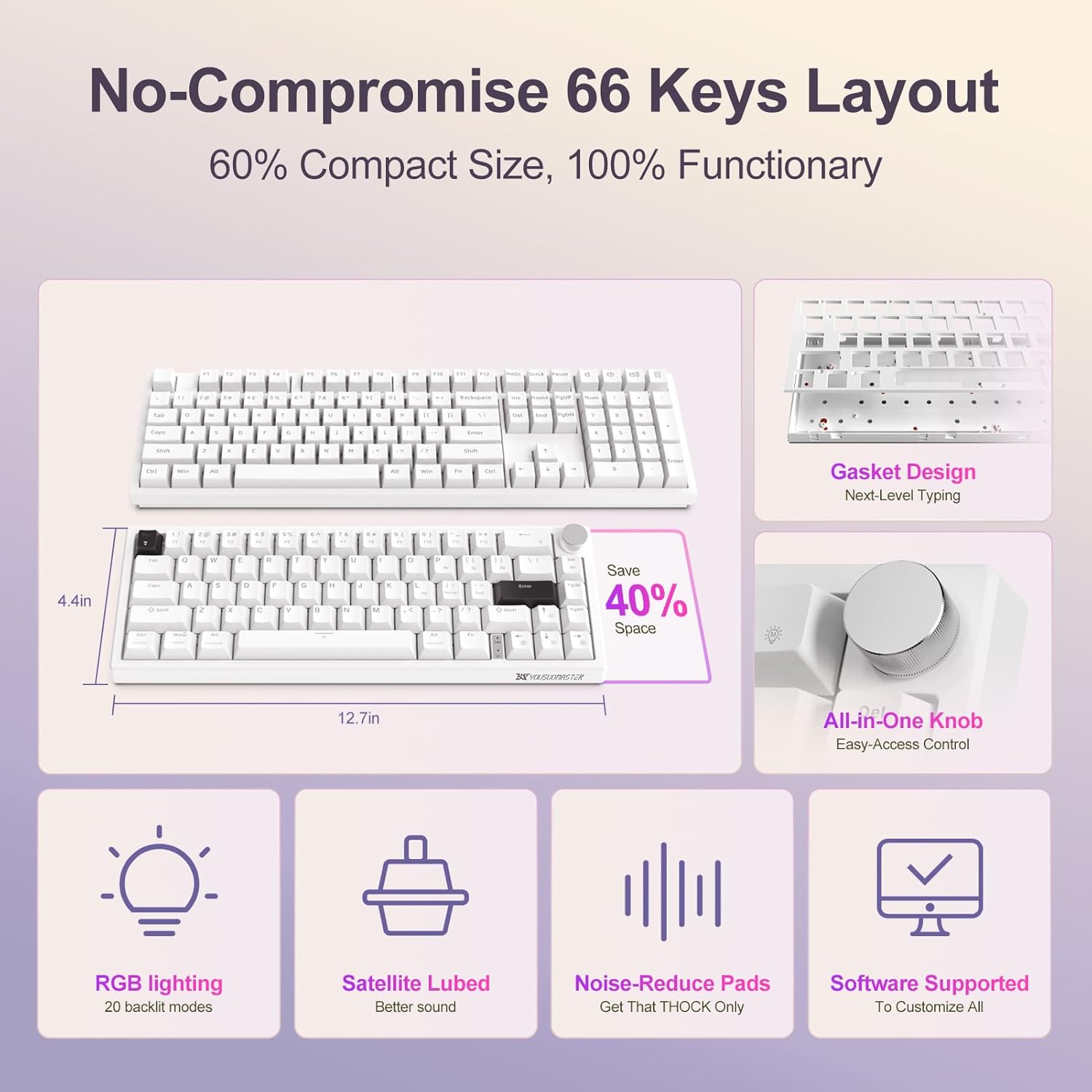
Image 4.1: Overview of the 60% compact layout, highlighting the 66 keys and space-saving design compared to a full-size keyboard.
4.2 Volume Knob Operation
The integrated metal volume knob provides convenient audio control.
- Volume Up: Rotate the knob clockwise.
- Volume Down: Rotate the knob counter-clockwise.
- Mute/Unmute: Press the knob down.
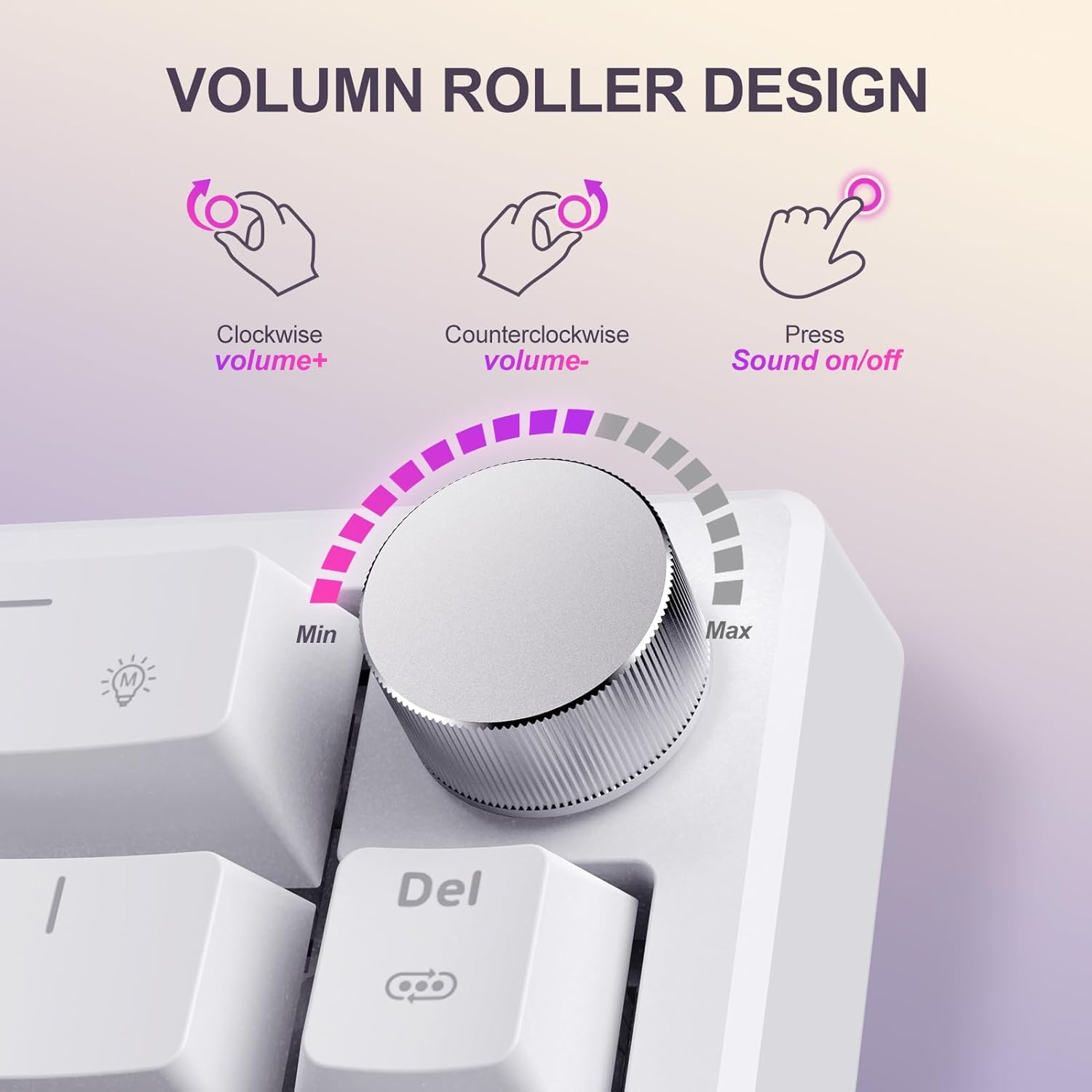
Image 4.2: Diagram illustrating the clockwise rotation for volume up, counter-clockwise for volume down, and pressing the knob for sound on/off.
4.3 RGB Backlight Control
The X82 keyboard features dynamic RGB backlighting with over 20 built-in modes. Characters are translucent for clear visibility in low light.
- Change Lighting Mode: Press Fn + Backspace to cycle through general lighting modes.
- Change Colors: Press Fn + Del to switch between available colors in certain modes.
- Adjust Brightness: Use Fn + Up Arrow to increase brightness and Fn + Down Arrow to decrease brightness.
- Adjust Pattern Speed: Use Fn + Left Arrow to decrease speed and Fn + Right Arrow to increase speed for dynamic modes.
4.4 Software Customization
The keyboard supports dedicated software for advanced customization of RGB modes and colors.
- Download the official software from the YOUSUOMASTER website.
- Install the software on your computer.
- Use the software interface to customize lighting effects, key assignments, and other settings.
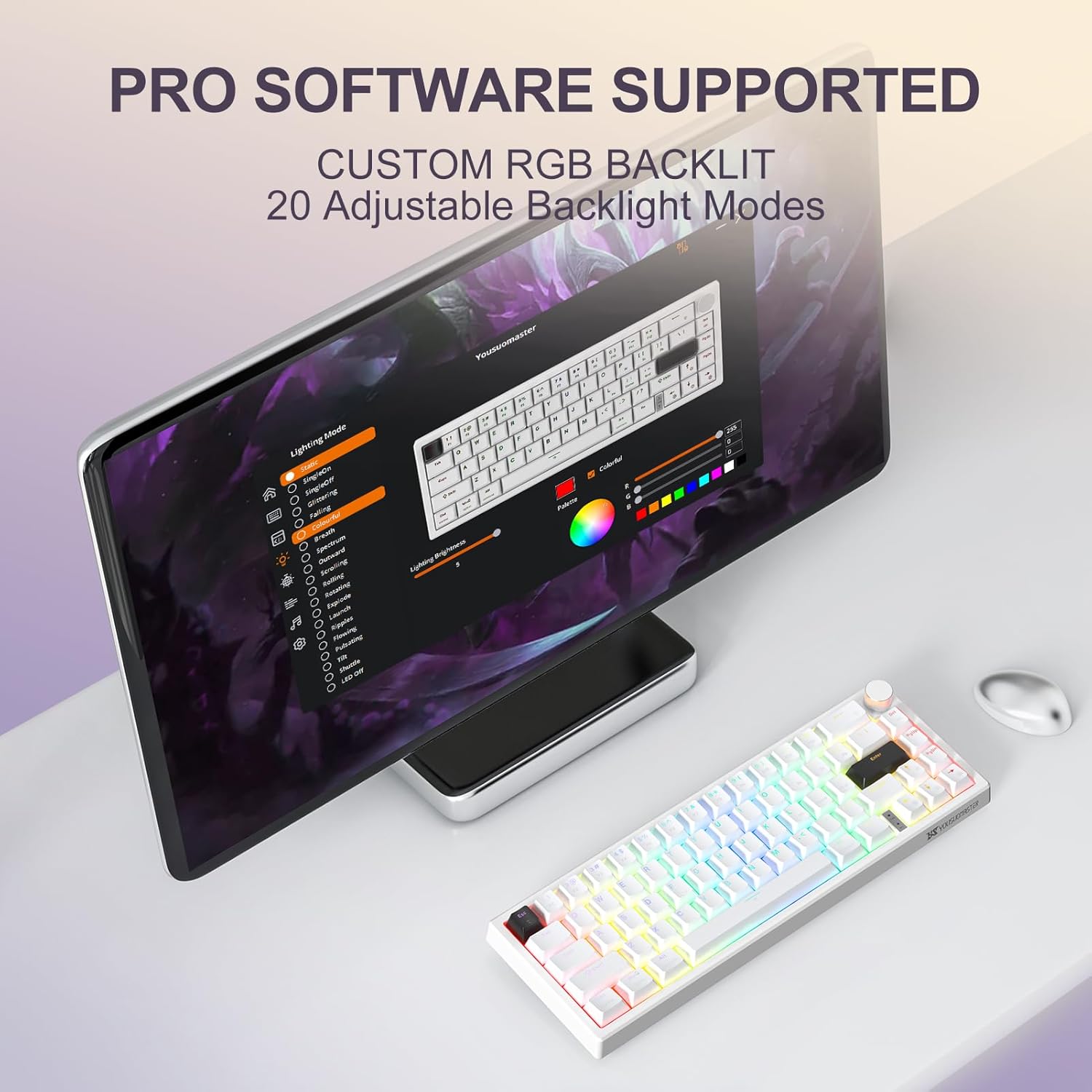
Image 4.3: The YOUSUOMASTER X82 keyboard displayed next to a monitor showing the customization software interface for RGB backlighting.
4.5 Anti-Ghosting
The YOUSUOMASTER X82 features full anti-ghosting, meaning all 66 keys can be triggered simultaneously without conflict. This ensures accurate and responsive input during gaming and typing.
4.6 Disabling the Windows Key
To prevent accidental interruptions during gaming, the Windows key can be disabled by pressing Fn + Win.
5. Maintenance
5.1 Hot-Swappable Switches
The X82 keyboard features a hot-swappable PCB, allowing you to replace 3-pin or 5-pin mechanical switches without soldering. This enables customization and easy replacement of faulty switches.
- Remove Keycap: Use the keycap puller tool to gently remove the desired keycap by hooking it onto the keycap and pulling upwards.
- Remove Switch: Use the switch puller tool (the other end of the 2-in-1 tool) to grip the top and bottom clips of the switch. Gently pull the switch straight up to remove it from the PCB.
- Install New Switch: Align the pins of the new 3-pin or 5-pin switch with the holes on the PCB. Press the switch firmly until it clicks into place. Ensure the pins are not bent.
- Reinstall Keycap: Place the keycap onto the new switch and press down until it is securely seated.
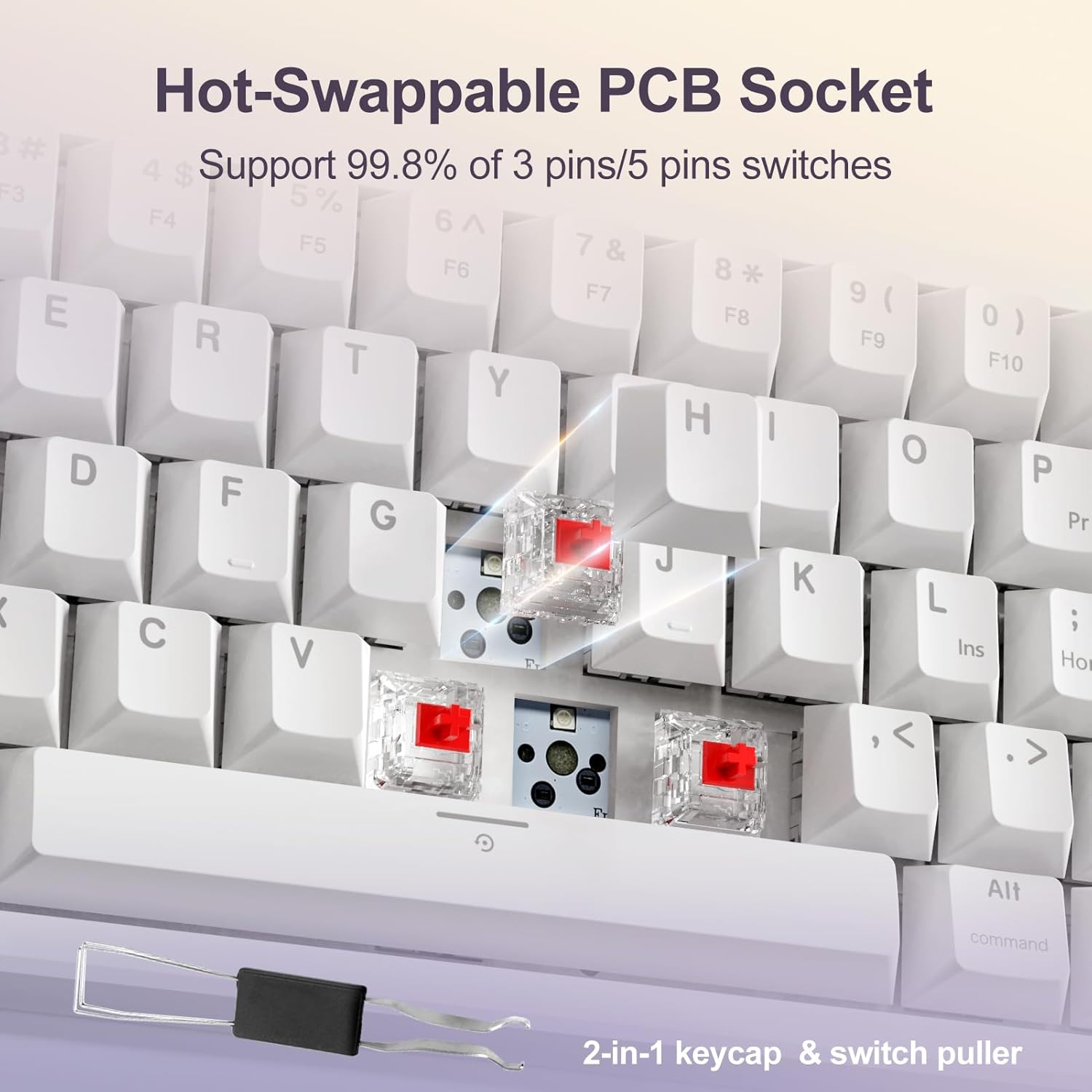
Image 5.1: Close-up of the keyboard showing a switch being removed from the hot-swappable PCB socket using the included 2-in-1 keycap and switch puller.
5.2 Cleaning Instructions
Regular cleaning helps maintain the keyboard's appearance and functionality.
- General Cleaning: Use a soft, dry cloth to wipe down the keyboard surface.
- Dust Removal: Use compressed air to remove dust and debris from between keycaps.
- Deep Cleaning: For thorough cleaning, remove keycaps using the provided puller and clean the switches and plate with a soft brush or damp cloth (ensure no liquid enters the PCB). Allow all components to dry completely before reassembling.
- Avoid: Do not use harsh chemicals or abrasive materials, as these can damage the keyboard's finish or components.
6. Troubleshooting
If you encounter issues with your YOUSUOMASTER X82 keyboard, please refer to the following common solutions:
- Keyboard Not Responding:
- Ensure the USB-C cable is securely connected to both the keyboard and the computer.
- Try connecting the keyboard to a different USB port on your computer.
- Test the keyboard on another computer to rule out a system-specific issue.
- Restart your computer.
- Keys Not Registering:
- Check if the specific switch is properly seated. If not, remove and reinsert it using the switch puller.
- If a switch is faulty, replace it with a new one (refer to Section 5.1).
- Ensure no debris is lodged under the keycap or switch.
- RGB Backlight Not Working/Incorrect:
- Ensure the brightness is not set to the lowest level (Fn + Up Arrow).
- Cycle through different lighting modes (Fn + Backspace) and colors (Fn + Del).
- If using the software, ensure it is running correctly and settings are applied.
- Reinstall the keyboard software if issues persist.
- Volume Knob Not Functioning:
- Ensure the keyboard is properly connected.
- Check your computer's audio settings to ensure the correct output device is selected.
If these steps do not resolve the issue, please contact customer support.
7. Specifications
| Feature | Detail |
|---|---|
| Model | X82 |
| Layout | 60% (66 Keys) |
| Switch Type | Linear Red Switch (Hot-Swappable 3-pin/5-pin) |
| Connectivity | Wired USB-C |
| Backlighting | RGB (20+ modes, customizable via software) |
| Special Features | Gasket Mount, Volume Knob, Full Anti-Ghosting, Software Support |
| Compatible Devices | Laptop, PC, Smart TV |
| Operating Systems | Windows, Linux, Mac |
| Product Dimensions | 12.64"L x 4.37"W x 1.65"H (32.1 cm x 11.1 cm x 4.2 cm) |
| Item Weight | 1.1 pounds (0.5 kg) |
8. Warranty Information
For detailed warranty information regarding your YOUSUOMASTER X82 Wired Gaming Keyboard, please refer to the warranty card included with your product or visit the official YOUSUOMASTER website. Warranty terms and conditions may vary by region and retailer.
9. Customer Support
If you have any questions, require technical assistance, or encounter any problems not covered in this manual, please do not hesitate to contact YOUSUOMASTER customer support.
- Online Support: Visit the official YOUSUOMASTER website for FAQs, software downloads, and support contact forms.
- Email Support: Refer to your product packaging or the official website for the customer service email address.
Your satisfaction is our motivation, and we are committed to providing continuous product upgrades and support.