
1. Introduction
Thank you for choosing the Mobifice Wireless Keyboard and Mouse Combo K101B. This ultra-thin, compact, and silent set offers a comfortable and efficient typing experience with its retro-inspired design. Designed for broad compatibility, it seamlessly integrates with various devices and operating systems, enhancing your productivity and workspace aesthetics.
This manual provides essential information on how to set up, operate, and maintain your new wireless keyboard and mouse combo. Please read it thoroughly before use to ensure optimal performance and longevity of your product.
2. Package Contents
Before you begin, please ensure all items are present in the package:
- Wireless Keyboard
- Wireless Mouse
- 2-in-1 USB Nano Receiver (stored in the keyboard's battery compartment)
- USB-C Adapter
- Silicone Keyboard Cover
- Keyboard Cleaning Brush
- User Manual
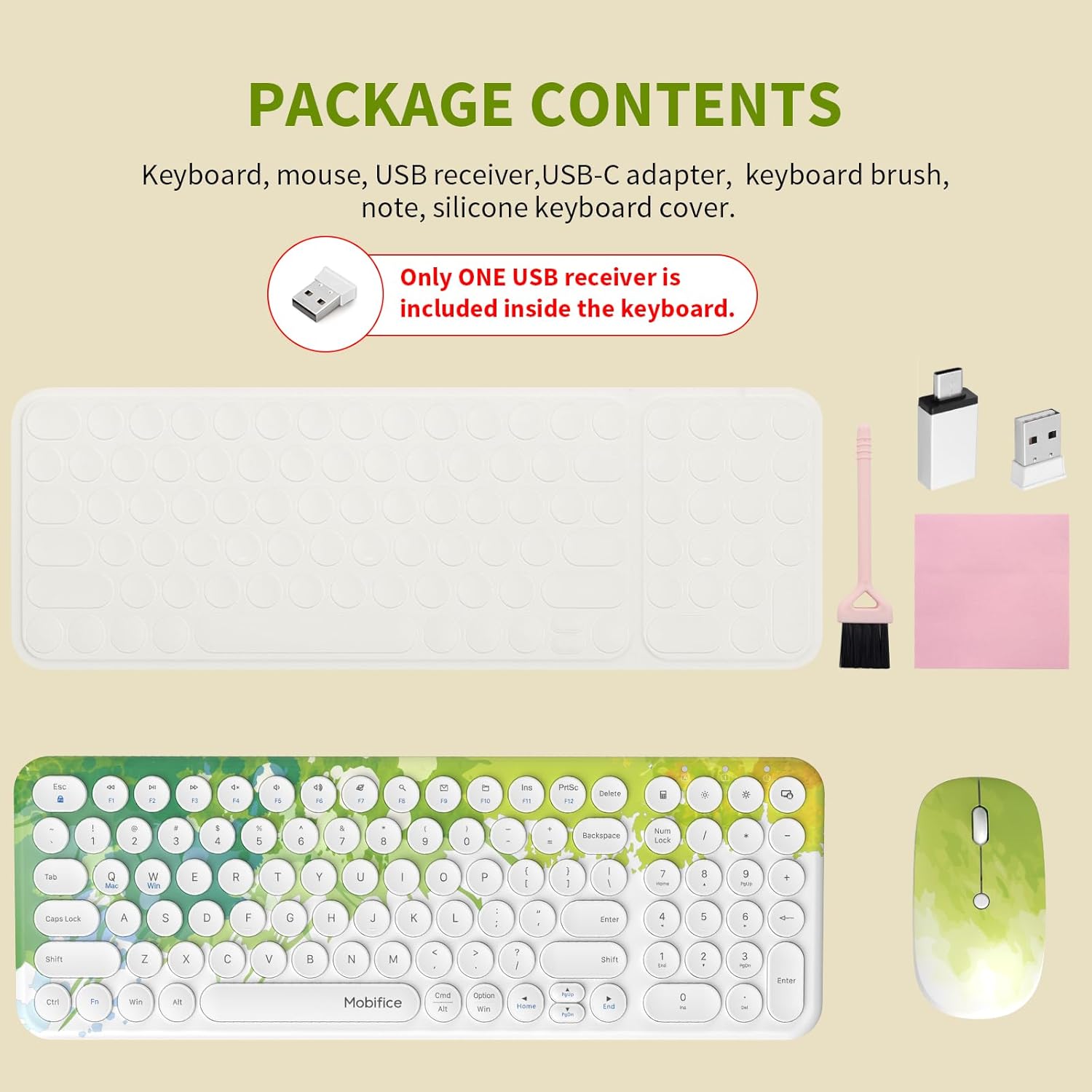
Image: All items included in the Mobifice K101B package.
3. Setup Instructions
3.1 Battery Installation
The keyboard and mouse require batteries for operation. Please note that batteries are typically not included and must be purchased separately.
- For the Keyboard: Locate the battery compartment on the underside of the keyboard. Insert 1 AAA battery, ensuring correct polarity (+/-).
- For the Mouse: Locate the battery compartment on the underside of the mouse. Insert 1 AA battery, ensuring correct polarity (+/-).

Image: Battery installation guide for the keyboard and mouse.
3.2 Connecting the Receiver
The Mobifice K101B uses a single 2-in-1 nano USB receiver for both the keyboard and mouse. This receiver is conveniently stored in the battery compartment of the keyboard.
- Open the battery compartment of the keyboard and carefully remove the nano USB receiver.
- Plug the USB receiver into an available USB port on your computer, laptop, or tablet. If your device only has USB-C ports, use the included USB-C adapter.
- Turn on the keyboard and mouse using their respective power switches. The devices should automatically connect to your computer. No additional software or drivers are required.

Image: Wireless connection setup with the USB receiver.
Video: Demonstrates the setup process for the Mobifice Compact-Sized Keyboard Mouse Combo, including battery installation and USB receiver connection.
4. Operating Instructions
4.1 Keyboard Features
- Retro Round Keycaps: Enjoy a comfortable and visually appealing typing experience with vintage typewriter-inspired keys.
- Quiet Typing: The low-profile, scissor-switch design significantly reduces typing noise, making it ideal for quiet environments.
- Multimedia Hotkeys: Utilize the 12 FN hotkeys for quick access to various multimedia functions (e.g., volume control, play/pause, email).
- Durable Design: Made of durable ABS plastic with UV-coated letters for scratch resistance, ensuring long-lasting use.

Image: Multimedia shortcuts on the keyboard.
4.2 Mouse Features
- Adjustable DPI: The high-precision mouse offers 3 different DPI levels (800, 1200, 1600) to suit your preference for cursor speed and accuracy.
- Silent Buttons: The mouse features silent button design, reducing clicking noise by approximately 95% compared to standard mice.

Image: DPI adjustable mouse settings.
4.3 Compatibility
The Mobifice K101B combo offers wide compatibility:
- Works perfectly with PCs, Laptops, Smart TVs, desktop computers, and tablets.
- Compatible with Mac OS and Windows operating systems.
- Includes a USB-C adapter for devices with Type-C ports.

Image: Compatibility with Mac OS and Windows systems.
Video: Demonstrates the Mobifice 2.4G USB Wireless Keyboard and Mouse in a compact size, highlighting its features and ease of use.
5. Maintenance
- Cleaning: Use the provided keyboard cleaning brush to remove dust and debris from between the keys. The silicone keyboard cover can be removed and washed for thorough cleaning.
- Silicone Cover: Use the included soft silicone cover to protect your keyboard from dust, spills, and scratches, especially in busy environments.
- Storage: When not in use, store the USB nano receiver in the keyboard's battery compartment to prevent loss.
- Battery Care: Remove batteries if the devices will not be used for an extended period to prevent leakage.

Image: The quiet design of the keyboard and mouse, ideal for undisturbed environments.
6. Troubleshooting
- No Connection: Ensure batteries are correctly installed and charged. Verify the USB receiver is securely plugged into a working USB port. Try plugging the receiver into a different USB port.
- Lagging/Intermittent Connection: Ensure the keyboard and mouse are within the 10-meter (33 feet) operating range of the receiver. Avoid placing the receiver near strong electromagnetic interference sources (e.g., other wireless devices, large metal objects).
- Keys Not Responding: Check if the keyboard is turned on. If using the silicone cover, ensure it is properly aligned and not obstructing key presses.
- Mouse Not Moving: Check if the mouse is turned on. Ensure the optical sensor on the bottom of the mouse is clean and unobstructed. Try using the mouse on a different surface.
- Auto-Sleep Mode: If devices enter sleep mode, simply click any key or move the mouse to wake them up. This is a power-saving feature.
7. Specifications
| Feature | Detail |
|---|---|
| Product Dimensions | 14.35 x 4.35 x 1.36 inches |
| Item Weight | 15.8 ounces |
| Batteries Required | 1 AA battery (for mouse), 1 AAA battery (for keyboard) |
| Connectivity Technology | 2.4G USB Wireless Technology |
| Special Feature | Round Key, Ultra-Thin, Silent, Ergonomic Slope Design, UV-Coated Keys |
| Compatible Devices | Mac OS, Windows, PC, Desktop Computer, Laptop, Tablet |
| Manufacturer | Mobifice Direct |
8. Warranty and Support
For warranty information or technical support, please refer to the contact details provided on the product packaging or visit the official Mobifice website. Keep your purchase receipt as proof of purchase for any warranty claims.