
1. Introduction
This manual provides detailed instructions for setting up, operating, and maintaining your BoyKeep 2K Wi-Fi Indoor Camera. Designed for indoor surveillance, this camera offers high-resolution video, two-way audio, motion detection, and versatile storage options, making it ideal for monitoring pets, babies, or general home security.

Figure 1: BoyKeep 2K Wi-Fi Indoor Camera (White model).
2. Package Contents
- BoyKeep 2K Wi-Fi Indoor Camera (Model K30)
- Power Adapter
- USB Power Cable
- Mounting Accessories
- User Manual (this document)
3. Setup Guide
3.1 Initial Power-Up
- Unpack the camera and all accessories.
- Connect the USB power cable to the camera's power port and the power adapter.
- Plug the power adapter into a standard electrical outlet. The camera will power on and initiate its self-test.
- Wait for the camera's indicator light to flash, indicating it is ready for connection.
3.2 App Installation and Account Creation
- Download the "BoyKeep" app from your smartphone's app store (available for Android and iOS).
- Open the app and follow the on-screen instructions to create a new account or log in if you already have one.
3.3 Connecting to Wi-Fi
- In the BoyKeep app, tap the "+" icon to add a new device.
- Select your camera model from the list.
- Follow the app's instructions to connect the camera to your Wi-Fi network. The camera supports both 2.4 GHz and 5 GHz Wi-Fi bands.
- Ensure your smartphone is connected to the same Wi-Fi network you intend to connect the camera to.
- Scan the QR code displayed on your phone screen with the camera lens when prompted. Hold the phone approximately 15-20 cm (6-8 inches) from the camera.
- Once connected, the camera's indicator light will turn solid, and you will hear a confirmation sound.

Figure 2: Illustrates the camera's 355° horizontal pan and 95° vertical tilt capabilities, along with key features like motion tracking, two-way audio, 2K video, and night vision.
4. Operating Instructions
4.1 Live View and Pan/Tilt Control
- Open the BoyKeep app and select your camera from the device list to access the live view.
- Use the directional controls within the app to pan the camera horizontally (355°) and tilt it vertically (95°) to adjust the viewing angle.

Figure 3: The camera offers a wide 360-degree coverage, allowing comprehensive monitoring of your space.
4.2 Two-Way Audio
- From the live view, tap the microphone icon to speak through the camera's speaker.
- Tap the speaker icon to listen to audio from the camera's surroundings.

Figure 4: The camera supports two-way audio, enabling communication with individuals near the camera.
4.3 Motion Detection and Alerts
- Enable motion detection in the app settings to receive real-time alerts on your smartphone when motion is detected.
- Adjust sensitivity levels and set specific monitoring zones to minimize false alarms.
- The camera can automatically track detected motion and record video clips.
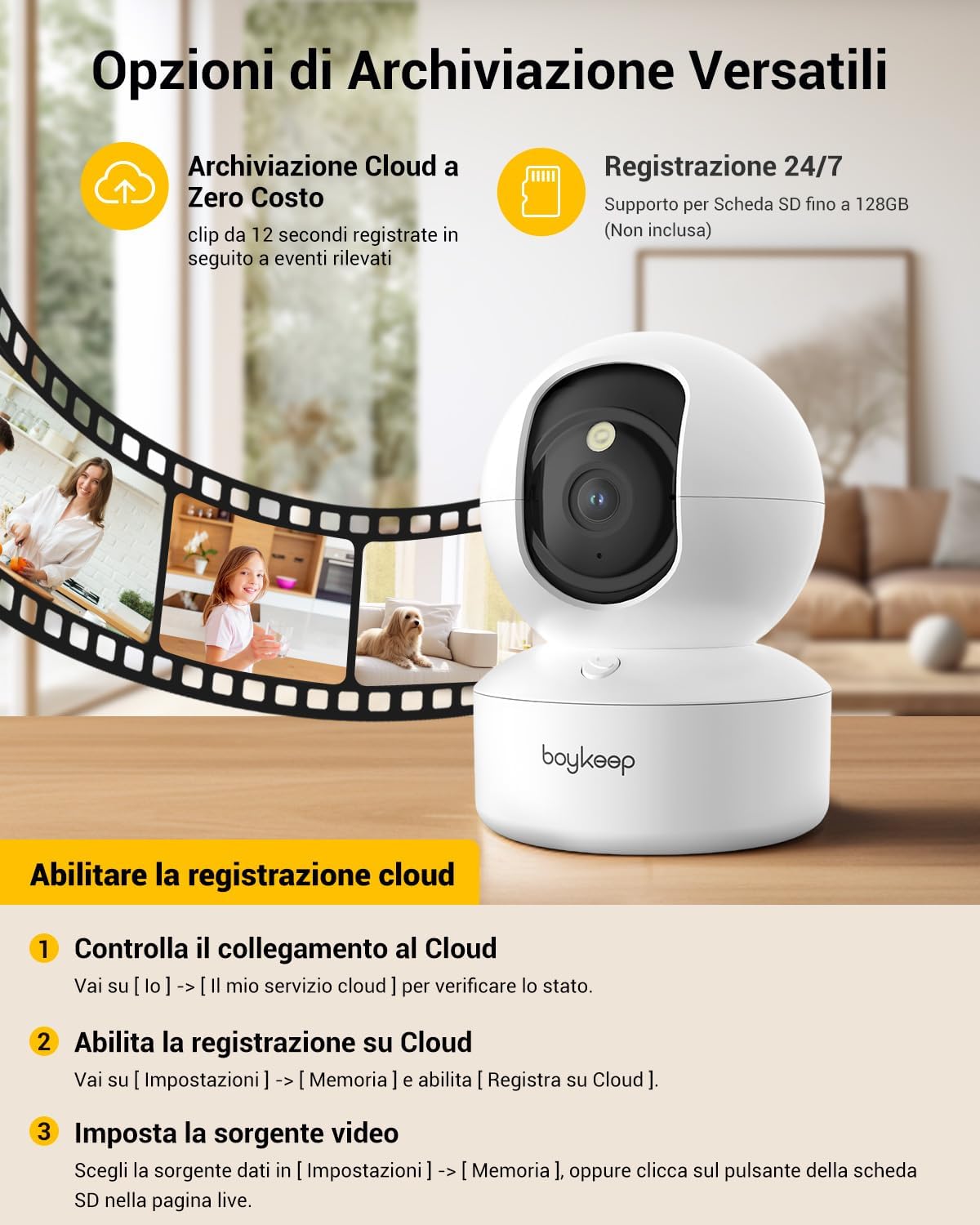
Figure 5: The camera features intelligent AI detection and tracking for people and pets, capturing key moments.
4.4 Night Vision
- The camera automatically switches to night vision mode in low-light conditions using its infrared LEDs.
- This provides clear black-and-white video footage up to 10 meters in complete darkness.

Figure 6: The camera provides clear 24-hour crystal-clear vision, including effective night vision.
4.5 Recording and Storage Options
- Cloud Storage: The camera offers free cloud storage for 12-second event clips over the last 24 hours (requires activation in the app). This provides a secure backup.
- Micro SD Card Storage: Insert a Micro SD card (up to 128 GB, not included) into the camera's slot for continuous recording or event-triggered recording.

Figure 7: Overview of versatile storage options, including free cloud storage for 12-second event clips and 24/7 recording support via Micro SD card (up to 128GB, not included).
4.6 Enabling Cloud Recording (App Instructions)
- Open the BoyKeep app and select your camera.
- Go to [I] → [My Cloud Service] to check the status.
- Navigate to [Settings] → [Memory] and enable [Record to Cloud].
- Choose your video source from [Settings] → [Memory], or click the SD card button on the live page.
Video 1: Demonstrates the process of enabling cloud recording within the BoyKeep app settings.
Video 2: Shows the BoyKeep indoor camera in action, highlighting its features and functionality.
5. Maintenance
- Cleaning: Gently wipe the camera lens and body with a soft, dry cloth. Do not use liquid cleaners or abrasive materials.
- Software Updates: Regularly check the BoyKeep app for firmware updates to ensure optimal performance and security.
- Placement: Ensure the camera is placed on a stable surface or securely mounted to prevent accidental falls. Avoid placing it in direct sunlight or near heat sources.
6. Troubleshooting
| Issue | Possible Cause / Solution |
|---|---|
| Camera offline | Check Wi-Fi connection, ensure camera is powered on, restart camera and router. |
| Cannot connect to Wi-Fi | Ensure correct Wi-Fi password, camera is within router range, and you are connecting to a supported 2.4GHz or 5GHz network. Try resetting the camera. |
| Poor video quality | Check network speed, ensure lens is clean, adjust camera placement for better lighting. |
| Motion alerts not received | Verify motion detection is enabled in app settings, check notification settings on your phone, ensure app is running in the background. |
| Two-way audio not working | Check microphone and speaker settings in the app, ensure volume is up on your phone and camera. |
7. Specifications
| Feature | Detail |
|---|---|
| Model Number | K30 |
| Resolution | 2K (1296p) |
| Pan Angle | 355° |
| Tilt Angle | 95° |
| Connectivity | Wi-Fi (2.4GHz & 5GHz) |
| Night Vision Range | Up to 10 meters |
| Storage Options | Cloud Storage, Micro SD Card (up to 128GB) |
| Power Source | Wired Electric (5V, 3W) |
| Dimensions (LxWxH) | 8.38 x 8.38 x 16.26 cm |
| Weight | 310 g |
| Usage | Indoor |
8. Warranty and Support
BoyKeep provides a 24-month warranty for this product. For any issues, questions, or suggestions, please contact BoyKeep customer support. They aim to provide 100% satisfactory solutions within 3 working days.
You can typically find support contact information within the BoyKeep app or on the official BoyKeep website.


