
JKBMS JKBMS-4.3LCD
JKBMS 4.3 Inch LCD Touch Screen Monitor User Manual
Model: JKBMS-4.3LCD
1. Introduction
This manual provides detailed instructions for the installation, operation, and maintenance of the JKBMS 4.3 Inch LCD Touch Screen Monitor. This accessory is designed to work with JK BMS LiFePO4 and Li-ion Battery Protection Boards, offering real-time monitoring of battery parameters.
Important Note: This screen is not suitable for JK Inverter BMS V19 version and is not compatible with JKBD4A17S4P models.
2. Product Overview
The JKBMS 4.3 Inch LCD Touch Screen Monitor provides a clear interface for monitoring your battery management system. It features a high-resolution display and an active switch for control.

Figure 2.1: JKBMS 4.3 Inch LCD Touch Screen Monitor
This image shows the front view of the JKBMS 4.3 Inch LCD Touch Screen Monitor, displaying battery cell voltages and status indicators.
Key Features:
- Active Switch Monitoring: Enables real-time control and enhances system efficiency.
- High-Resolution Display: A 65K true color LCD screen provides clear, detailed battery status and voltage levels.
- Easy Integration: Designed for seamless connection with compatible JK BMS systems.
- Robust Construction: Built for durability and reliable performance in various environments.
3. Specifications
| Parameter | Value |
|---|---|
| Display Category | TFT |
| Screen Size | 4.3 inch |
| Display Content | Battery pack voltage, Current, SOC, Individual cell voltage, Temperature, etc. |
| Device Dimensions (L x W x H) | 140 x 98 x 28.8 mm (5.51 x 3.86 x 1.13 inches) |
| Screen Resolution | 480 x 272 |
| Cable Length (Protection Board End) | 0.5 meters |
| Cable Length (Display Screen End) | 2.5 meters |
| Power Supply | External 12V power adapter |
| Display Color | 65K True Color |
| Backlight Type/Brightness | LED / 300 nit/m² |
| Viewing Angle (L/R/U/D) | 70°/70°/50°/70° |
| Operating Temperature | -20°C to +70°C |
| Storage Temperature | -30°C to +85°C |
| Power Supply Voltage | Min 10V, Max 24V |
| SD Card Interface | SD/SDHC |
| Item Weight | 6.9 ounces |

Figure 3.1: Dimensions of the JKBMS 4.3 Inch LCD Monitor
This image illustrates the physical dimensions of the JKBMS 4.3 Inch LCD Monitor, showing measurements for length, width, and depth.
4. Setup and Installation
Follow these steps to properly install your JKBMS 4.3 Inch LCD Touch Screen Monitor.
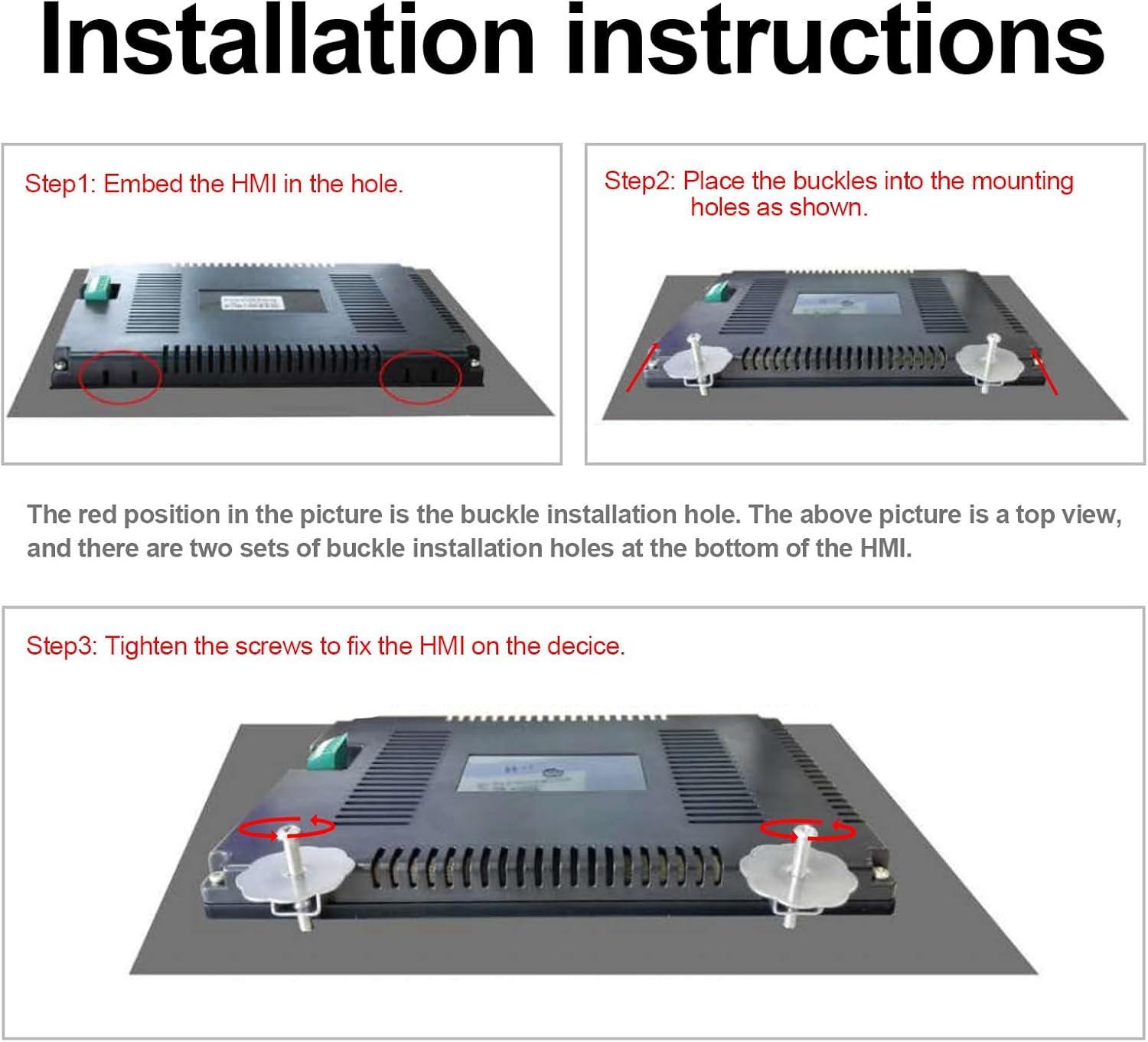
Figure 4.1: Installation Steps for the JKBMS 4.3 Inch LCD Monitor
This image provides a visual guide for installing the JKBMS 4.3 Inch LCD Monitor, detailing the process of embedding, securing with buckles, and tightening screws.
- Step 1: Embed the HMI. Carefully embed the Human-Machine Interface (HMI) unit into the designated mounting hole.
- Step 2: Place the Buckles. Insert the provided buckles into the mounting holes as illustrated in the diagram. The red highlighted positions in the image indicate the buckle installation holes. Note that there are two sets of buckle installation holes at the bottom of the HMI.
- Step 3: Tighten the Screws. Securely tighten the screws to fix the HMI onto the device.
Ensure all connections are firm and secure before powering on the system.
5. Operating Instructions
The JKBMS 4.3 Inch LCD Touch Screen Monitor features a simple touch interface for control and monitoring.
LCD Screen Touch Button Functions:
- BMS Power-On: When the BMS is in an off state, a single press on the left side of the LCD screen touch button will power on the BMS.
- Backlight Control (Automatic): If the BMS is powered on, and the display does not detect current output from the BMS for 10 seconds, the LCD backlight will automatically turn off to conserve power.
- Backlight Control (Manual On): If the BMS is powered on but the display content is not visible (backlight off), a single press on the left side of the LCD screen touch button will turn on the backlight.
- Backlight Control (Manual Off): If the monitor is displaying content while the BMS is powered on, a single press on the left touch button of the LCD screen will turn off the backlight.
- BMS Power-Off: When the BMS is on, a long press (for 2 seconds) on the left touch button of the LCD will turn off the BMS.
The LCD interface is configured by default on most JK BMS models, except for the JKBD4A17S4P.
6. Maintenance
To ensure the longevity and optimal performance of your JKBMS 4.3 Inch LCD Touch Screen Monitor, follow these maintenance guidelines:
- Cleaning: Use a soft, dry cloth to clean the screen and casing. Avoid abrasive cleaners or solvents that could damage the display or finish.
- Environmental Conditions: Operate and store the device within the specified temperature and humidity ranges to prevent damage.
- Cable Inspection: Periodically check all cables for signs of wear, damage, or loose connections.
- Firmware Updates: Refer to the JKBMS official website or support channels for information on available firmware updates for improved functionality or bug fixes.
7. Troubleshooting
If you encounter issues with your JKBMS 4.3 Inch LCD Touch Screen Monitor, refer to the following common problems and solutions:
- Display Not Turning On:
- Ensure the BMS is powered on.
- Check the power supply connection to the monitor (external 12V adapter).
- Single press the left touch button on the LCD screen to manually turn on the backlight.
- Verify that the monitor is compatible with your specific JK BMS model (not suitable for V19 Inverter BMS or JKBD4A17S4P).
- Incorrect Readings:
- Ensure all connections between the monitor and the BMS are secure.
- Restart the BMS and the monitor.
- If issues persist, contact JKBMS support.
- Touch Screen Unresponsive:
- Ensure the screen is clean and free of debris.
- Restart the BMS and the monitor.
- If the problem continues, contact JKBMS support.
8. Support and Warranty
For technical assistance or warranty inquiries, please refer to the following resources:
- After-Sales Service: Search for "JK BMS" on Android & iOS app stores for support applications.
- Product Support: JKBMS offers 1-year product support and 24/7 professional service.
- Contact: For further assistance, please visit the official JKBMS website or contact their customer service directly.
This product is covered by a standard return policy with a duration of 2026 days for refund/replacement, as per purchase terms.
Related documentsJKBMS-4.3LCD

Ask a question about this manual
Ask about setup, troubleshooting, compatibility, parts, safety, or missing instructions. Manuals+ will review the question and use this page’s manual context to help answer it.