1. Introduction
This manual provides detailed instructions for the setup, operation, and maintenance of your Logitech G515 Lightspeed TKL Low Profile Wireless Gaming Keyboard. Designed for performance and comfort, this tenkeyless keyboard features tri-mode connectivity, low-profile mechanical switches, and customizable LIGHTSYNC RGB lighting.

Figure 1: Logitech G515 Lightspeed TKL Low Profile Wireless Gaming Keyboard
2. What's in the Box
- Logitech G515 Lightspeed TKL Keyboard
- USB-A to USB-C Charging and Data Cable
- USB Wireless Receiver (G515 TKL)
- USB Extender

Figure 2: Package Contents
3. Setup
3.1. Connectivity Options
The Logitech G515 TKL offers tri-mode connectivity for versatile use:
- LIGHTSPEED Wireless: For ultra-fast 1 ms report rate and 2:1 pairing with compatible Logitech G mice.
- Bluetooth: For broad compatibility with various devices.
- Wired Data Mode: For a direct, reliable connection and simultaneous charging.

Figure 3: Tri-Mode Connectivity Hotkeys
3.2. Initial Connection
- Locate the USB Wireless Receiver (G515 TKL) in the product packaging. It may be stored in a compartment on the underside of the keyboard.
- Plug the USB Wireless Receiver into an available USB-A port on your computer. For optimal signal, use the provided USB extender to position the receiver closer to the keyboard.
- Turn on the keyboard using the power switch, typically located on the side or back. The keyboard should automatically connect via LIGHTSPEED.
- To connect via Bluetooth, press the Bluetooth hotkey on the keyboard and follow your device's pairing instructions.
- For wired connection, plug the USB-A to USB-C cable into the keyboard's USB-C port and the USB-A end into your computer.
3.3. Charging
Connect the USB-A to USB-C cable to the keyboard and your computer or a USB power adapter to charge. The battery indicator LED will show charging status. The keyboard offers up to 36 hours of battery life, which may vary based on usage and lighting settings.
3.4. Adjusting Keyboard Height
The keyboard features adjustable feet on the underside, allowing you to set the typing angle to 4 or 8 degrees for ergonomic comfort.
4. Operation
4.1. Key Features
- Low-Profile GL Mechanical Switches: Factory-lubed for smoother feel, fast actuation, and a precise typing experience. Available in linear (Red) for smooth, uninterrupted keystrokes.
- Double-Shot PBT Keycaps: Offer durability and an anti-oil design with a premium feel.
- Sound Dampening: Constructed with sound dampening and a foam layer to absorb sound for quieter operation.
- Ultra-Thin Design: At 22 mm height, the tenkeyless design provides a sleek aesthetic and ergonomic comfort.

Figure 4: Ultra-Thin Design
4.2. LIGHTSYNC RGB Customization
Customize your keyboard's lighting with LIGHTSYNC RGB, offering access to approximately 16.8 million colors. Create themes and synchronize lighting with other Logitech G gear using the Logitech G HUB software.
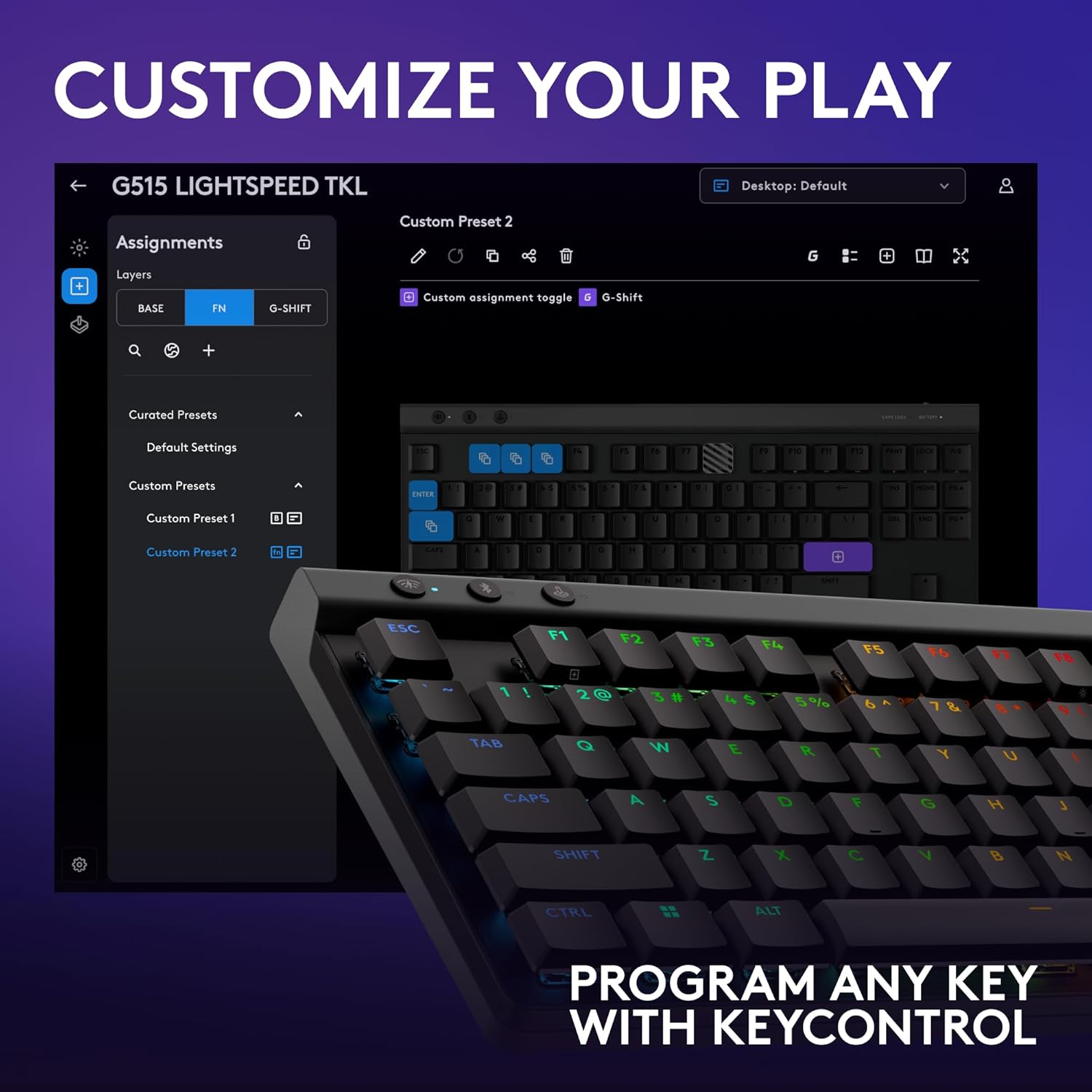
Figure 5: Logitech G HUB Customization Interface
4.3. KEYCONTROL Technology
Unlock full keyboard customization with KEYCONTROL technology. Map any key to perform specific actions, macros, or functions, transforming your keyboard into a personalized control center.
4.4. Game Mode
Activate Game Mode using the dedicated hotkey to disable keys that might interrupt gameplay, such as the Windows key.

Figure 6: Gaming with the G515 TKL Keyboard
4.5. Hotkeys and Indicators
The keyboard features dedicated hotkeys for LIGHTSPEED wireless, Bluetooth connectivity, and Game Mode, along with LED indicators for battery status and Caps Lock.

Figure 7: Keyboard Layout and Features
5. Maintenance
To ensure the longevity and optimal performance of your Logitech G515 TKL keyboard, follow these maintenance guidelines:
- Cleaning: Use a soft, lint-free cloth slightly dampened with water to clean the keyboard surface. Avoid harsh chemicals or abrasive materials.
- Keycaps: The double-shot PBT keycaps are designed to be anti-oil. For deeper cleaning, keycaps can be carefully removed and cleaned with mild soap and water, ensuring they are completely dry before reattaching.
- Storage: Store the keyboard in a dry, cool environment away from direct sunlight and extreme temperatures.
6. Troubleshooting
- Connectivity Issues: Ensure the keyboard is charged and powered on. For LIGHTSPEED, verify the USB receiver is securely plugged in and within range. For Bluetooth, ensure your device's Bluetooth is enabled and the keyboard is in pairing mode.
- Key Not Responding: Check for debris under the keycap. If using wireless, try a wired connection to rule out wireless interference.
- RGB Lighting Problems: Ensure Logitech G HUB software is installed and updated. Check lighting settings within the software.
- Battery Not Charging: Verify the USB-C cable is properly connected to both the keyboard and a power source. Try a different USB port or cable.
7. Specifications
| Feature | Detail |
|---|---|
| Brand | Logitech G |
| Model Number | 920-012536 |
| Connectivity | LIGHTSPEED Wireless, Bluetooth, USB-C Wired |
| Switches | Low-profile GL Mechanical (Linear Red) |
| Keycaps | Double-Shot PBT |
| Lighting | LIGHTSYNC RGB (~16.8 M colors) |
| Battery Life | Up to 36 hours (varies with use) |
| Height | 22 mm (ultra-slim) |
| Weight | 2.57 pounds |
| Compatible Devices | Laptop, PC |
8. Official Product Video
Watch the official product video for an overview of the Logitech G515 Lightspeed TKL keyboard's features and design.
Video 1: Logitech G515 Product Overview
9. Warranty and Support
For warranty information, technical support, and software downloads (Logitech G HUB), please visit the official Logitech G support website: