
Introduction
Thank you for choosing the Vention TGESB USB-C Docking Station. This manual provides essential information for the proper setup, operation, and maintenance of your device. Please read it thoroughly before use to ensure optimal performance and longevity.
Product Overview
The Vention TGESB is a versatile 5-in-1 USB-C docking station designed to expand the connectivity of your USB-C enabled devices. It features multiple ports for data transfer, video output, and power delivery.

Figure 1: Vention TGESB USB-C Docking Station with port labels.
Key Features:
- USB-C Power Delivery (PD) 100W: Supports fast charging for compatible laptops and devices.
- USB 3.0 Ports (x3): Provides high-speed data transfer up to 5Gbps.
- HDMI Port: Supports video output up to 4K resolution at 30Hz.
- Durable Aluminum Shell: Ensures heat dissipation and product longevity.
- Compact Design: Easy to carry and use on the go.
Package Contents
- Vention TGESB USB-C Docking Station (x1)
- User Manual (x1)
Setup Instructions
- Connect to Host Device: Plug the USB-C connector of the Vention TGESB docking station into an available USB-C port on your laptop, tablet, or smartphone. Ensure your device's USB-C port supports video output (DisplayPort Alternate Mode) and power delivery for full functionality.
- Connect Peripherals:
- USB Devices: Connect USB flash drives, external hard drives, keyboards, mice, or other USB peripherals to the USB 3.0 ports.
- HDMI Display: Connect an HDMI cable from the docking station's HDMI port to your monitor or TV.
- Power Adapter (Optional): If your host device requires charging, connect your original USB-C power adapter to the PD (Power Delivery) port on the docking station. This will pass power through to your host device.
- Driver Installation: The Vention TGESB is typically plug-and-play and does not require additional drivers for most operating systems (Windows, macOS, Linux, Android). If you encounter issues, ensure your operating system is up to date.
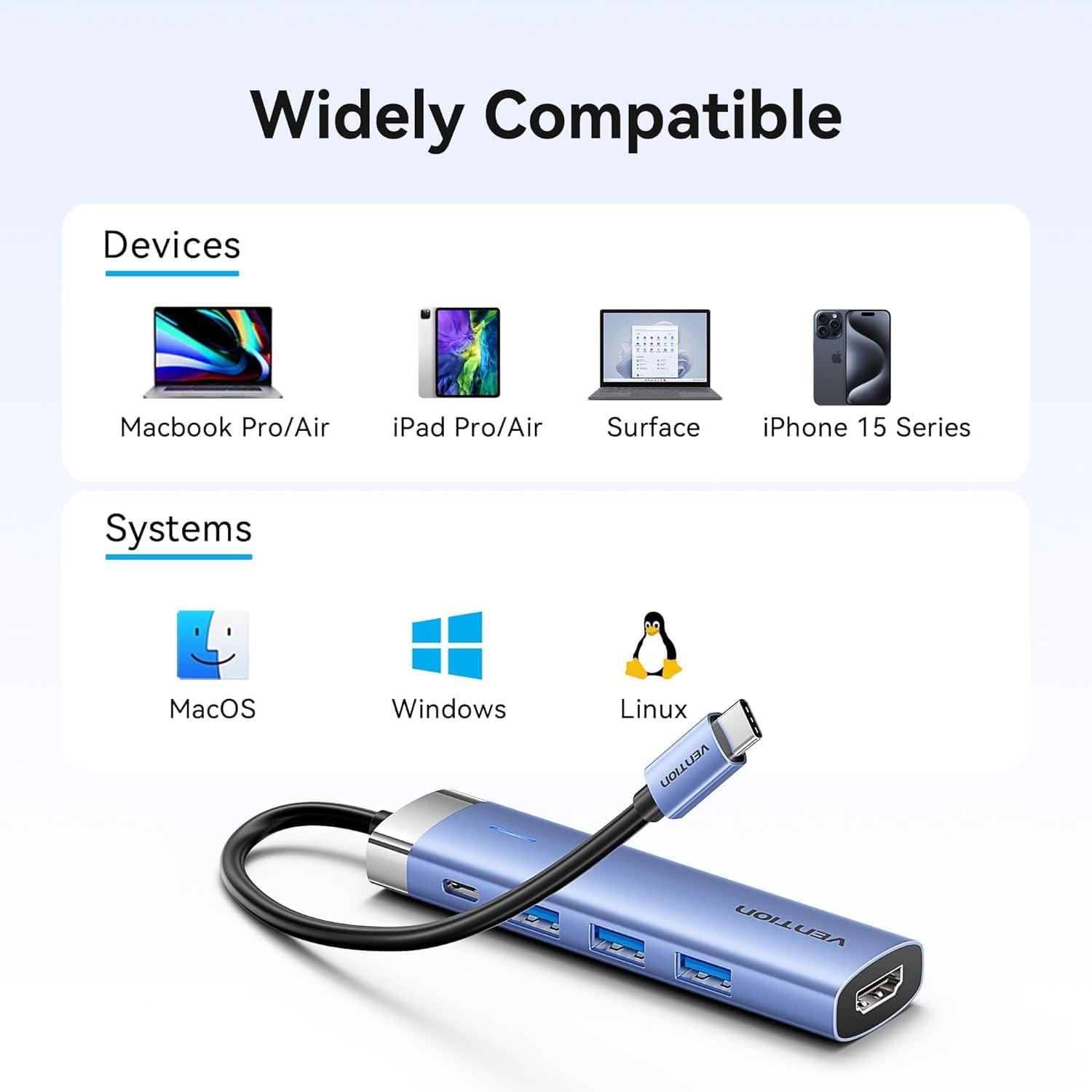
Figure 2: Device and operating system compatibility.
Operating Instructions
Using USB 3.0 Ports:
Connect your USB devices to any of the three USB 3.0 ports. These ports support data transfer speeds up to 5Gbps, allowing for quick file transfers. For optimal performance, ensure your connected USB devices also support USB 3.0.
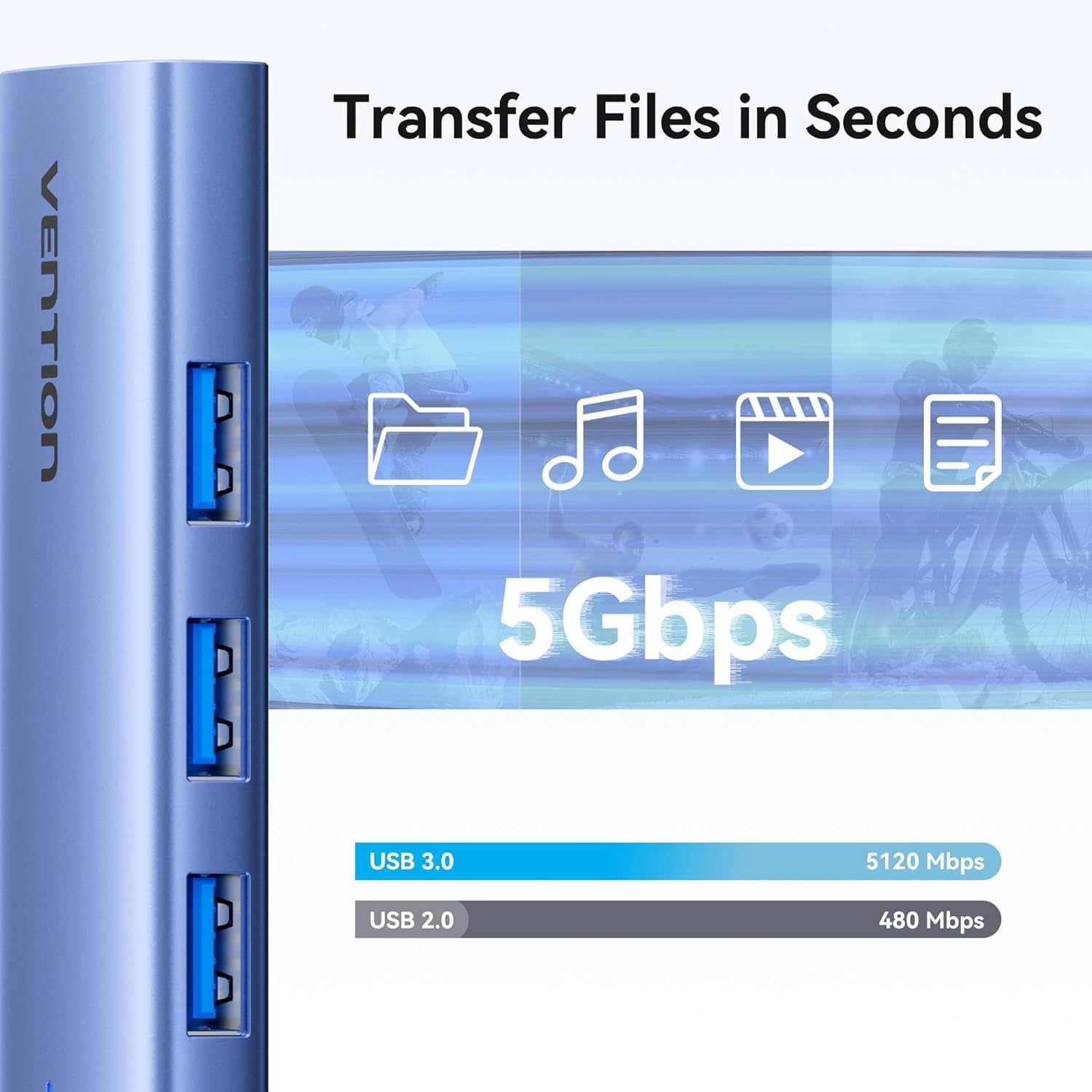
Figure 3: High-speed data transfer via USB 3.0 ports.
Using HDMI Output:
The HDMI port supports resolutions up to 4K at 30Hz. After connecting your monitor, your operating system should automatically detect the external display. You can configure display settings (mirror mode, extend mode) through your device's display settings.

Figure 4: Multiple display modes (Mirror and Extend).
Using Power Delivery (PD) Port:
Connect your laptop's original USB-C power adapter to the PD port on the docking station. This port supports up to 100W power delivery, allowing you to charge your host device while using the docking station's other features.

Figure 5: Power Delivery 100W fast charging.
Maintenance
- Cleaning: Use a soft, dry cloth to clean the surface of the docking station. Avoid using liquid cleaners or solvents.
- Storage: Store the device in a cool, dry place away from direct sunlight and extreme temperatures.
- Handling: Avoid dropping or subjecting the device to strong impacts. Do not attempt to disassemble the docking station.
Troubleshooting
| Problem | Possible Cause | Solution |
|---|---|---|
| No display output via HDMI. |
|
|
| USB devices are not recognized. |
|
|
| Host device is not charging. |
|
|
Specifications
| Feature | Detail |
|---|---|
| Model | TGESB |
| Brand | VENTION |
| Input | USB-C |
| Output Ports |
|
| Dimensions (L x W x H) | 6.5 x 3.54 x 0.79 inches (16.5 x 9 x 2 cm) |
| Weight | 2.46 ounces (0.07 kg) |
| Shell Material | Aluminum Alloy |
| Compatibility | Devices with full-featured USB-C port (supporting DisplayPort Alt Mode and Power Delivery). Compatible with Windows, macOS, Linux, Android. |
Warranty and Support
Vention products come with a standard manufacturer's warranty. For detailed warranty information, technical support, or customer service, please visit the official Vention website or contact your local distributor. Please retain your proof of purchase for warranty claims.
Official Vention Website: Vention Store on Amazon (Link provided for reference, actual official website may vary)


