
1. Introduction
This manual provides detailed instructions for the installation, operation, and maintenance of your Rraycom QW5 Solar Security Camera system. Please read this manual thoroughly before using the product to ensure proper setup and functionality. Keep this manual for future reference.

Image: Four Rraycom QW5 solar security cameras, each with its own solar panel, ready for outdoor installation.
2. Product Overview
2.1 What's in the Box
- Rraycom QW5 Security Camera (4 units)
- Solar Panel (4 units)
- Mounting Brackets and Screws
- USB Charging Cable
- User Manual
2.2 Key Features
- Superior Video Quality: 2K (2304x1296) resolution with a 3MP lens for clear footage.
- Dual Night Vision: Infrared and color night vision for visibility in low-light conditions.
- Smart Motion Detection: AI-powered human and animal tracking, real-time alerts, and adjustable detection zones.
- Two-Way Audio: Built-in microphone and speaker for communication.
- Remote PTZ Control: Pan, Tilt, and Zoom functionality via mobile app for comprehensive coverage.
- Weatherproof Design: IP65-rated housing for protection against rain and dust.
- Solar Powered: Integrated solar panel and 11000mAh battery for extended operation.
- Enhanced Security: Siren and strobe light for deterrence.
- Flexible Storage: Supports cloud recording and local SD card storage (up to 256GB).
- Smart Home Integration: Compatible with Amazon Alexa for voice control.
3. Setup
3.1 Physical Installation
Before mounting, ensure the camera's battery is fully charged using the provided USB cable. Select a mounting location that provides optimal sunlight exposure for the solar panel and a clear view of the area you wish to monitor. The camera is designed for both indoor and outdoor use.
- Choose Location: Identify a spot with good Wi-Fi signal and direct sunlight for the solar panel.
- Mount Bracket: Use the included screws and mounting bracket to securely attach the camera to a wall, ceiling, or pole.
- Adjust Solar Panel: Position the solar panel to maximize sunlight exposure throughout the day. Connect the solar panel cable to the camera.

Image: A Rraycom QW5 camera mounted outdoors, connected to its solar panel, symbolizing continuous power.
3.2 App Installation and Device Pairing
The Rraycom QW5 camera operates via a dedicated mobile application. Ensure your smartphone is connected to a 2.4GHz Wi-Fi network during the pairing process.
- Download App: Search for the Rraycom app in your device's app store (iOS or Android) and install it.
- Create Account: Open the app and follow the prompts to create a new user account.
- Add Device: Tap the '+' icon or 'Add Device' option in the app. Select your camera model.
- Power On Camera: Ensure the camera is powered on. The camera will enter pairing mode, indicated by a flashing LED light.
- Connect to Wi-Fi: Follow the in-app instructions to connect the camera to your home's 2.4GHz Wi-Fi network. This typically involves scanning a QR code displayed on your phone with the camera lens.
- Complete Setup: Once connected, name your camera and complete the setup process.
4. Operating Instructions
4.1 Live View and PTZ Control
Access the live video feed from your camera through the mobile app. You can remotely control the camera's pan, tilt, and zoom functions to adjust the viewing angle.
- Access Live View: Open the app and select the desired camera from your device list.
- Pan/Tilt: Use the directional controls on the live view screen to rotate the camera horizontally (pan up to 355°) and vertically (tilt up to 90°).
- Digital Zoom: Pinch to zoom on the live view to digitally magnify specific areas.

Image: Visual representation of the camera's 355-degree pan and 90-degree tilt capabilities, covering a large outdoor space.
4.2 Two-Way Audio
The camera features a built-in microphone and speaker, allowing for two-way communication.
- Activate Talk: In the live view, tap the microphone icon to speak through the camera's speaker.
- Listen: The camera's microphone will capture audio from its surroundings.

Image: A user communicating with a delivery person at their door using the camera's two-way audio feature.
4.3 Motion Detection and Alerts
The Rraycom QW5 uses AI to detect human and animal motion, sending instant alerts to your phone.
- Enable Detection: In the app settings, enable motion detection and select the desired sensitivity level.
- Detection Zones: Customize specific areas within the camera's view for motion detection to reduce false alerts.
- Alerts: Receive push notifications on your smartphone when motion is detected.
- Siren & Spotlight: Configure the camera to activate its siren and spotlight upon detection for deterrence.

Image: The camera's AI motion detection system identifying a person, with options for siren, message alerts, and spotlight activation.
4.4 Night Vision Modes
The camera offers both infrared (black and white) and color night vision options.
- Infrared Night Vision: Provides clear black and white video in complete darkness.
- Color Night Vision: Utilizes the built-in spotlight to illuminate the area, providing full-color video at night. This can be set to activate automatically upon motion detection.

Image: Comparison of 2K color night vision (spotlight on) and standard infrared night vision (spotlight off) at night.
4.5 Storage Options
Recorded footage can be stored either in the cloud or locally on a microSD card.
- Cloud Storage: Offers secure, remote storage with various subscription plans. A complimentary 1-day loop storage may be available.
- Local SD Card Storage: Supports microSD cards up to 256GB (not included) for local recording.

Image: Visual representation of the two available storage methods: cloud storage and local microSD card storage.
4.6 Smart Home Integration
The Rraycom QW5 camera can be integrated with Amazon Alexa for convenient voice control.
- Connect to Alexa: Follow the instructions in the Rraycom app or Alexa app to link your camera.
- Voice Commands: Use voice commands to view live feeds on compatible Alexa-enabled devices (e.g., "Alexa, show me the front door camera").
4.7 Scheduling and Sharing
The app allows you to schedule camera operation times and share live views with others.
- Schedule Working Time: Set specific times for the camera to be active or inactive, optimizing battery life and privacy.

Image: The mobile app interface demonstrating how to schedule the camera's working hours.
- Share Live View: Grant access to your camera's live feed to family members or trusted individuals through the app.

Image: The ability to share the camera's live view with multiple users across different locations.
5. Maintenance
5.1 Cleaning
- Camera Lens: Gently wipe the camera lens with a soft, clean cloth to remove dust or smudges. Avoid abrasive materials.
- Solar Panel: Periodically clean the surface of the solar panel to ensure maximum sunlight absorption and charging efficiency.
- Housing: Wipe the camera housing with a damp cloth as needed.
5.2 Battery and Solar Panel Management
The camera's 11000mAh battery is designed for long-lasting performance, supplemented by the solar panel.
- Optimal Solar Charging: Ensure the solar panel is positioned to receive at least 3-4 hours of direct sunlight daily.
- Battery Level Monitoring: Monitor the battery level through the mobile app. If the battery level is consistently low, consider repositioning the solar panel or providing a manual charge via USB.
- Extreme Temperatures: While IP65 rated, extreme temperatures (below -4°F or above 140°F) can affect battery performance.
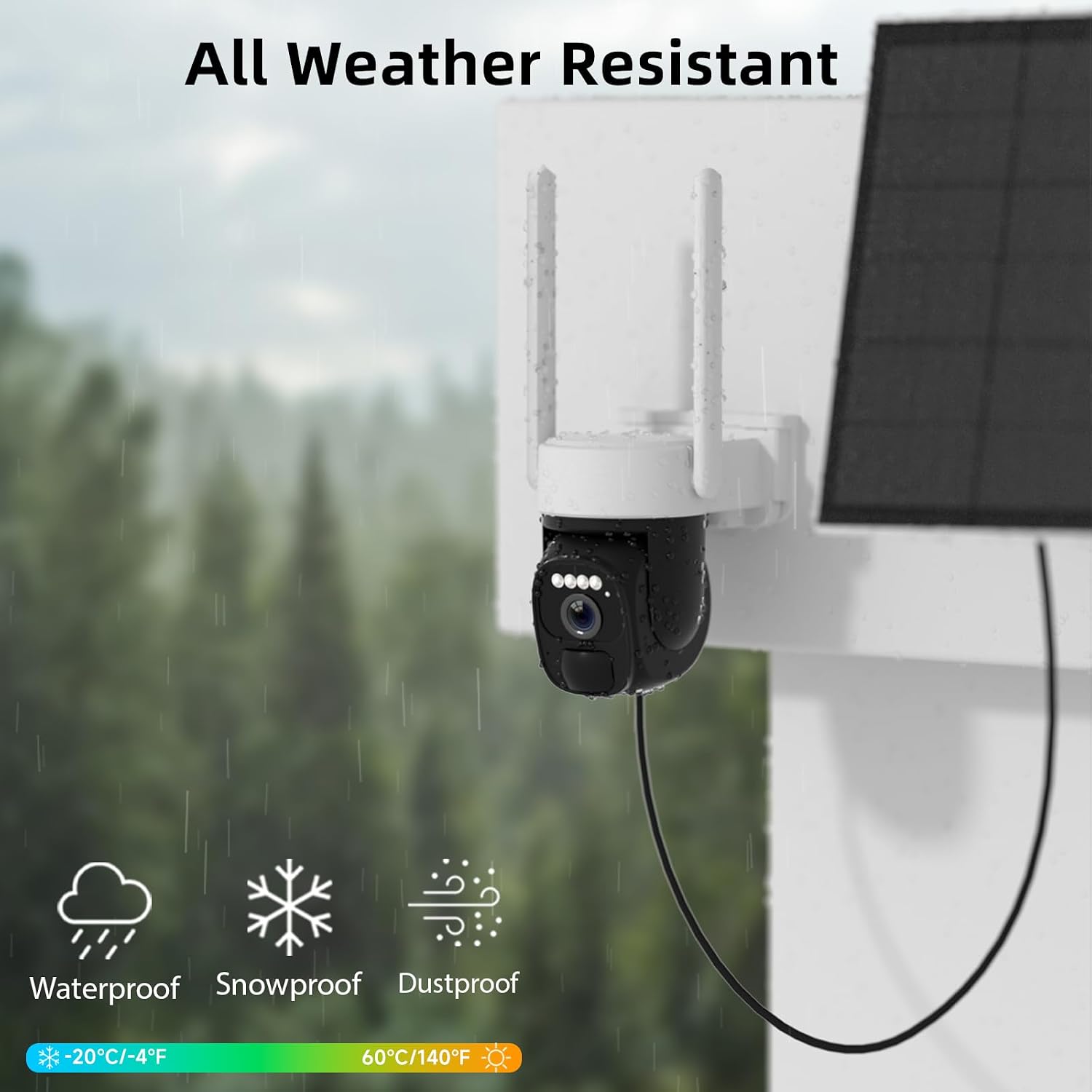
Image: The camera and solar panel demonstrating their IP65 weather-resistant design in rainy weather.
5.3 Firmware Updates
Periodically check the app for available firmware updates. Updates often include performance improvements, new features, and security enhancements. Follow the in-app instructions to perform updates.
6. Troubleshooting
- Camera Offline:
Solution: Check Wi-Fi connection, ensure camera is powered on, and verify signal strength. Restart the camera and router if necessary. - Poor Video Quality:
Solution: Ensure the lens is clean. Check Wi-Fi signal strength; a weak signal can affect streaming quality. - Motion Detection Not Working:
Solution: Verify motion detection is enabled in the app. Adjust sensitivity settings and detection zones. Ensure there are no obstructions in the camera's view. - Battery Draining Quickly:
Solution: Ensure the solar panel receives adequate direct sunlight. Reduce motion detection sensitivity or frequency of live view access. Check for excessive motion events in high-traffic areas. - Cannot Connect to App:
Solution: Confirm your phone is connected to a 2.4GHz Wi-Fi network. Reset the camera and attempt pairing again. - Two-Way Audio Issues:
Solution: Check volume settings on your phone and in the app. Ensure there are no obstructions blocking the camera's microphone or speaker.
7. Specifications
| Feature | Detail |
|---|---|
| Model Name | QW5 |
| Video Capture Resolution | 2K (2304x1296) |
| Connectivity Technology | Wireless (Wi-Fi) |
| Power Source | Solar Powered, 11000mAh Battery |
| Indoor/Outdoor Usage | Indoor, Outdoor |
| Weather Resistance | IP65 |
| Night Vision | Infrared, Color Night Vision |
| Special Features | 2-Way Audio, AI Motion Detection, Spotlight, Siren, 355° Pan & 90° Tilt |
| Storage Options | Cloud Storage, Micro SD Card (up to 256GB) |
| Compatible Devices | iOS, Android, Amazon Alexa |
| Dimensions (L x W x H) | 9.98 x 2 x 2.69 inches |
8. Warranty Information
Rraycom products typically come with a limited warranty. Please refer to the product packaging or the official Rraycom website for specific warranty terms and conditions applicable to your region and purchase date. Keep your proof of purchase for warranty claims.
9. Customer Support
For technical assistance, troubleshooting, or any product-related inquiries, please contact Rraycom customer support.
- Email: aftersale@rraycom.com

Image: Rraycom customer service contact information, including an email address for support.


