
1. Introduction
Thank you for choosing the SUUNY HK8 Pro Max Ultra GEN 2 Smartwatch. This device is designed to enhance your daily life with advanced features including health monitoring, communication tools, and smart functionalities. This manual provides essential information for setting up, operating, and maintaining your smartwatch to ensure optimal performance.
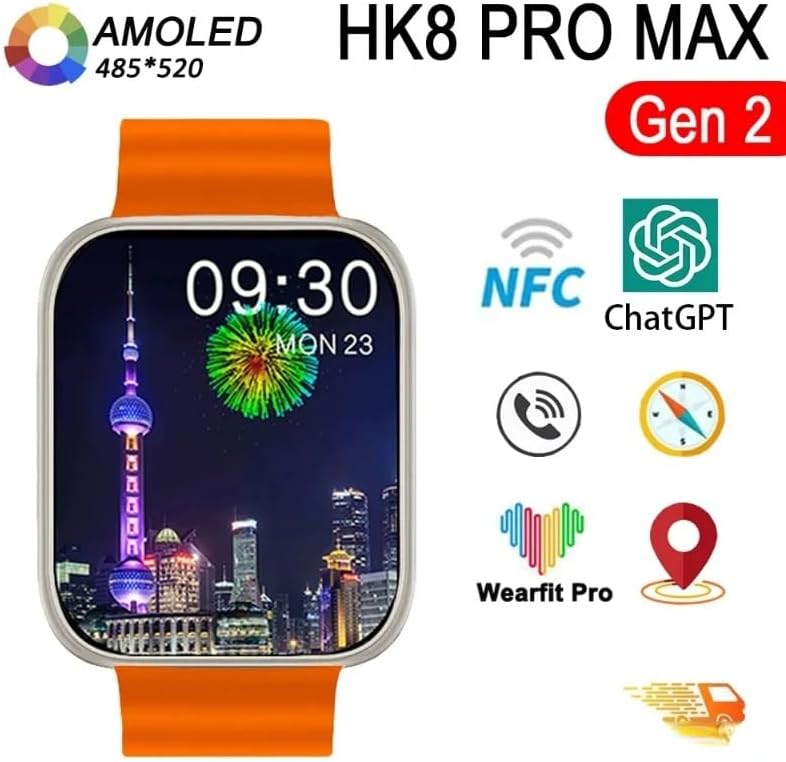
Image 1.1: The HK8 Pro Max Ultra GEN 2 Smartwatch highlighting key features like AMOLED display, NFC, ChatGPT, and Wearfit Pro app compatibility.
2. Package Contents
Please check the box for the following items:
- 1 x Smartwatch
- 1 x Charging Cable (Magnetic Wireless)
- 1 x User Manual
- 1 x Original Box
3. Setup
3.1 Charging the Smartwatch
Before first use, fully charge your smartwatch. Connect the magnetic wireless charging cable to a USB power adapter (not included) and attach the magnetic end to the charging points on the back of the watch. The watch display will indicate charging status.
3.2 Installing the Wearfit Pro App
The HK8 Pro Max Ultra GEN 2 Smartwatch requires the Wearfit Pro application for full functionality. Download the app from your smartphone's app store (Google Play Store for Android, Apple App Store for iOS).
- Compatibility: Android 5.0 and above, iOS 10.0 and above.
3.3 Pairing with Your Smartphone
- Ensure your smartwatch is charged and powered on.
- Enable Bluetooth on your smartphone.
- Open the Wearfit Pro app on your smartphone.
- Follow the in-app instructions to search for and connect to your smartwatch. The watch will typically appear as "HK8 Pro Max" in the Bluetooth device list.
- Confirm the pairing request on both your smartphone and smartwatch.
Once paired, the app will synchronize data with your watch, and you can customize settings and access advanced features.
4. Operating Instructions
4.1 Basic Navigation
- Touchscreen: Swipe left, right, up, or down to navigate through menus and notifications. Tap to select items.
- Side Button/Crown: Press to return to the home screen or access the app menu. Rotate the crown to scroll through lists or adjust settings.
- Wrist Active Wake-up: Raise your wrist to automatically wake up the screen. This can be enabled/disabled in settings.
4.2 Customizing Watch Faces
To change the watch face, long-press on the current watch face on the home screen. Swipe left or right to browse available watch faces and tap to select your preferred one. Additional watch faces may be available through the Wearfit Pro app.
4.3 Always-On Display (AOD)
The smartwatch supports an Always-On Display mode. Note that this feature typically supports only one watch face as the off-screen display. Refer to the watch settings for configuration.
4.4 NFC Access Control
The watch includes a built-in NFC chip for access control. To use this feature:
- Register the watch's NFC ID with your access control system (e.g., building entry, office door).
- Once registered, you can use your smartwatch as an NFC access card by presenting it to the reader.
Note: There is no specific NFC software icon on the watch itself; it functions as a passive access card.
4.5 ChatGPT Integration
The smartwatch offers ChatGPT integration. This functionality may require a payment or subscription within the Wearfit Pro app, depending on your region and service provider.
4.6 Core Functions
- Bluetooth Calls: Make and receive calls directly from your watch when connected to your phone.
- Message Notifications: Receive alerts for calls, SMS, and app notifications.
- Voice Assistant: Access your phone's voice assistant through the watch.
- Music Control: Control music playback on your smartphone.
- Weather: View current weather conditions.
- Alarm, Stopwatch, Timer, Calculator: Standard utility functions.
- Find Phone: Locate your paired smartphone.
- Brightness Adjustment: Adjust screen brightness in the watch settings.
- Do Not Disturb Mode: Silence notifications during specific times.
4.7 Health and Fitness Monitoring
- Heart Rate Monitoring: Continuous or on-demand heart rate tracking.
- Blood Pressure Monitoring: Provides estimated blood pressure readings.
- Sleep Monitoring: Tracks sleep patterns and quality.
- Activity Recording: Counts steps, distance, and calories burned.
- Breathing Training: Guided breathing exercises for relaxation.
- Respiratory Rate: Monitors breathing frequency.
- Sports Modes: Various modes for tracking different physical activities.
5. Features Overview
The HK8 Pro Max Ultra GEN 2 Smartwatch is equipped with advanced hardware and software to deliver a comprehensive user experience.
- Display: 2.12-inch AMOLED screen with 485 x 520 dpi resolution, offering vibrant colors and sharp details.
- Processor: New Siche SF32LB551 dual-core high-performance processor with integrated 2D graphics engine and artificial intelligence neural network accelerator.
- Memory: 1.4MB running memory for smooth operation.
- Screen Refresh Rate: High brush screen with 240MHz + 48MHz refresh rate for fluid interactions.
- Battery: 380mAh capacity for extended use.
- Connectivity: Low-power Bluetooth 5.2 for stable and efficient connection.
- Water Resistance: Life waterproof rating. Suitable for hand washing and rainy days. Caution: Not suitable for swimming, bathing, or immersion in water. Avoid contact with corrosive liquids like hand sanitizer or soap, as they can damage internal components.
- Supported Languages: English, Simplified Chinese, Traditional Chinese, Russian, German, Italian, French, Polish, Portuguese, Spanish, Korean, Japanese, Thai, Arabic, Indonesian, Vietnamese, Turkish, Ukrainian, Farsi, Hebrew.

Image 5.1: Details of the SF32LB551 chip and its performance advantages.
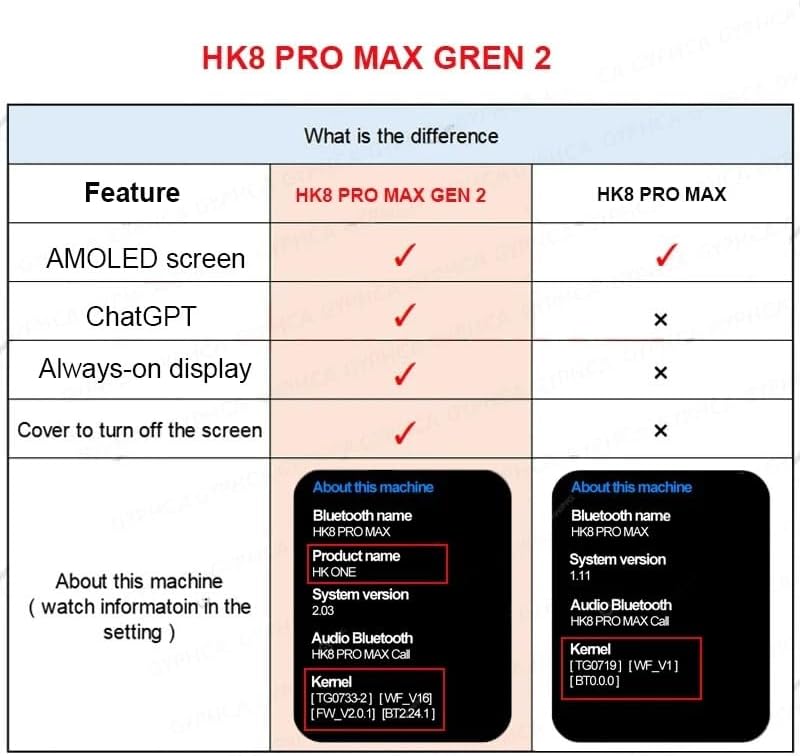
Image 5.2: Feature comparison highlighting improvements in the HK8 Pro Max Gen 2 model.
6. Specifications
| Feature | Detail |
|---|---|
| Brand | SUUNY |
| Model Number | HK8 Pro Max |
| Screen Size | 2.12 Inches (5.4 cm) |
| Screen Resolution | 485 x 520 dpi AMOLED |
| Watch Dimensions | 49 x 44 x 14.4 mm |
| Battery Capacity | 380 mAh Lithium-ion |
| Bluetooth Version | Bluetooth 5.2 (Low Power) |
| Chipset | SF32LB551 (Dual-core CPU, 2D Graphics, AI Neural Network Accelerator) |
| Running Memory | 1.4 MB |
| Screen Brushing Rate | 240 MHz + 48 MHz |
| Operating Frequency | 240 + 48 MHz |
| Waterproof Level | Life Waterproof |
| Charging Type | Magnetic Wireless Charging |
| Menu Styles | 4 types |
| Supported OS | Android 5.0+ and iOS 10.0+ |
| Companion App | Wearfit Pro |
| Special Features | ChatGPT Integration, NFC Access, Always-On Display, Health Monitoring |
| GPS | No GPS |
7. Maintenance
- Cleaning: Wipe the watch screen and body with a soft, dry, lint-free cloth. For stubborn smudges, slightly dampen the cloth with water. Avoid using harsh chemicals or abrasive materials.
- Water Exposure: The watch is life waterproof, meaning it can withstand splashes, rain, and hand washing. Do not wear the watch while swimming, bathing, or showering. Do not immerse the watch in water. Avoid contact with corrosive liquids such as hand sanitizer, soap, or detergents, as these can penetrate the watch and cause damage to internal components.
- Charging: Use only the provided magnetic wireless charging cable. Ensure the charging contacts are clean and dry before charging.
- Storage: Store the watch in a cool, dry place away from direct sunlight and extreme temperatures when not in use for extended periods.
8. Troubleshooting
- Watch not turning on: Ensure the watch is fully charged. Connect it to the charger for at least 30 minutes.
- Cannot pair with phone:
- Ensure Bluetooth is enabled on your phone.
- Make sure the watch is within range of your phone.
- Restart both your phone and the smartwatch.
- Check if the Wearfit Pro app is updated to the latest version.
- Inaccurate health data: Ensure the watch is worn snugly on your wrist, not too tight or too loose. Clean the sensor on the back of the watch.
- Notifications not received:
- Check notification permissions for the Wearfit Pro app on your phone.
- Ensure the watch is connected via Bluetooth.
- Verify that 'Do Not Disturb' mode is not active on the watch.
- Screen unresponsive: Try restarting the watch by pressing and holding the side button/crown until it powers off, then power it back on.
9. Warranty and Support
Information regarding specific warranty terms and customer support contact details is not available in this manual. Please refer to the product packaging or the retailer's website for warranty information and support contacts.