
1. Introduction
Thank you for choosing the SUUNY DT102 Smartwatch. This manual provides essential information for the safe and efficient use of your device. Please read it thoroughly before using the smartwatch and keep it for future reference.
The DT102 Smartwatch features a 1.9-inch HD display, NFC access control, wireless charging, GPS movement tracking, comprehensive health monitoring, and call management capabilities.
2. Safety Information
- Do not attempt to disassemble or modify the device.
- Keep the device away from extreme temperatures and direct sunlight.
- Avoid exposing the device to strong impacts or drops.
- Consult a medical professional before starting any new exercise regimen or if you have pre-existing health conditions. The health monitoring features are for reference only and not for medical diagnosis.
- Ensure the charging cable is properly connected to prevent damage.
3. Package Contents
Upon opening the package, please verify that all items are present and in good condition.
- SUUNY DT102 Smartwatch
- Silicone Strap (pre-installed or separate)
- Additional Strap (e.g., Milanese loop, if included)
- Wireless Charging Cable
- User Manual (this document)

Image 1: SUUNY DT102 Smartwatch with included straps. The watch features a pink silicone strap and an additional rose gold Milanese loop strap is shown next to it. The watch display shows a clock face with distance, calorie, and steps trackers, along with a 100% battery indicator and heart rate of 98.
4. Setup
4.1 Charging the Smartwatch
Before first use, fully charge your smartwatch.
- Connect the wireless charging cable to a USB power adapter (not included).
- Place the back of the smartwatch onto the charging pad. The watch will magnetically align and begin charging.
- The charging indicator will appear on the screen. Allow approximately 2-3 hours for a full charge.
4.2 Power On/Off
- Power On: Press and hold the side button for a few seconds until the SUUNY logo appears.
- Power Off: Press and hold the side button, then select "Power Off" on the screen, or navigate to the settings menu and choose "Power Off".
4.3 App Download and Pairing
To unlock the full functionality of your smartwatch, download the Wearpro app on your smartphone.
- Scan the QR code provided in the watch's packaging or search for "Wearpro" in the Apple App Store (for iOS 10.0 and above) or Google Play Store (for Android 4.4 and above).
- Install and open the Wearpro app.
- Ensure Bluetooth is enabled on your smartphone.
- In the Wearpro app, navigate to "Device" or "Add Device" and search for your DT102 Smartwatch.
- Select "DT102" from the list of available devices to pair. Confirm the pairing request on both your phone and smartwatch.
Once paired, the watch will synchronize data with your phone, and you can customize settings through the app.
5. Operating Instructions
5.1 Basic Navigation
- Touch Screen: Swipe left, right, up, or down to navigate through menus and screens. Tap to select an item.
- Side Button: Press to return to the home screen or wake the device. Long press for power options.
5.2 Customizing Watch Faces
The DT102 Smartwatch supports over 500 watch faces. You can change them directly on the watch or through the Wearpro app.
- On Watch: From the home screen, long-press the display. Swipe left or right to browse available watch faces and tap to select.
- Via App: Open the Wearpro app, go to "Dial Market" or "Watch Faces" to explore and download more options.
5.3 Call Functions
Once paired, you can manage calls directly from your smartwatch.
- Answering Calls: When a call comes in, tap the green icon on the watch screen to answer.
- Making Calls: Access the "Dial" or "Contacts" function on your watch to initiate a call.
- Call Reminder: The watch will vibrate and display incoming call notifications.
5.4 Message Notifications
Receive notifications from your smartphone directly on your smartwatch.
- Ensure message notifications are enabled in the Wearpro app settings.
- Swipe down from the top of the watch face to view recent notifications.
5.5 Health Monitoring
The DT102 Smartwatch offers various health tracking features.
- Heart Rate Monitoring: Access the heart rate function on the watch to measure your current heart rate. Continuous monitoring can be enabled via the app.
- Pedometer & Calorie Tracking: The watch automatically tracks your steps and estimated calorie consumption throughout the day.
- Sleep Tracking: Wear the watch to bed to monitor your sleep patterns. View detailed reports in the Wearpro app.
- Blood Monitor: The watch includes a blood monitor function. For accurate readings, ensure the watch is snug on your wrist.
- Women's Menstrual Cycle Reminder: Set up your cycle information in the Wearpro app to receive reminders and track your menstrual and ovulation periods.

Image 2: Women's menstrual cycle reminder feature. A woman is shown with a smartwatch, and a smartphone screen displays a calendar interface for tracking menstrual periods and ovulation.
5.6 Fitness Tracking (GPS Movement Track)
Utilize the GPS movement tracking feature for outdoor activities.
- Open the Wearpro app and enable the running function.
- The app will record your GPS movement track, accurately logging your steps and distance.
- Calorie consumption data will be pushed to the watch and stored for review.

Image 3: GPS movement track feature. Two smartphone screens display detailed outdoor running data, including distance, calories, pace, and cadence. A smartwatch screen shows a map of an outdoor running route.
5.7 NFC Access Control
The DT102 Smartwatch supports NFC access control for quick entry.
- The watch supports simulation of unencrypted door cards on the market with a frequency of 13.56MHz.
- To use, raise your wrist near a compatible NFC door lock to quickly open doors at home or the office.
- Refer to the Wearpro app for detailed setup instructions for NFC access.
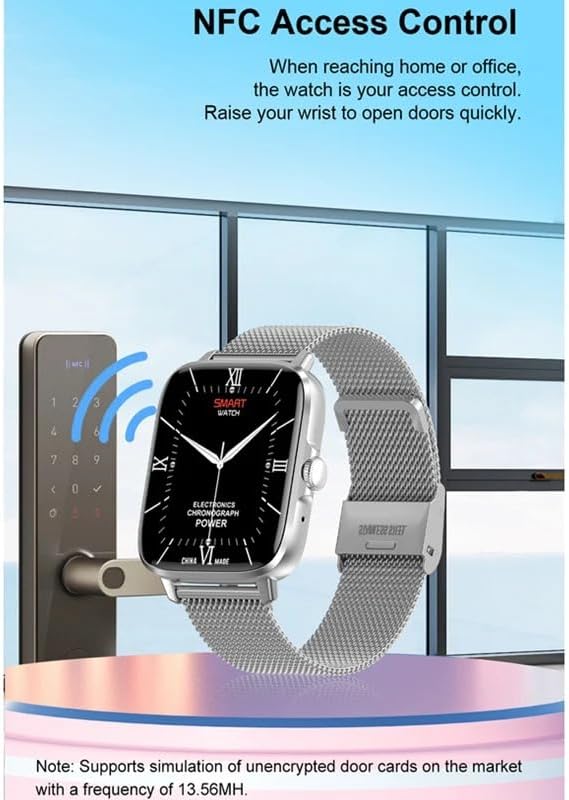
Image 4: NFC Access Control feature. A smartwatch with a metallic strap is shown near a digital door lock, indicating its use for quick access. The watch face displays a classic analog clock design.
5.8 Bedside Lamp Mode (Gravity Sensor)
The gravity sensor allows the watch to automatically switch between vertical and horizontal display modes, making it convenient for use as a bedside clock while charging.
- When charging, the display will remain on, showing the time and battery status.
- The display orientation adjusts automatically based on how the watch is placed.

Image 5: Bedside lamp mode with gravity sensor. The image shows the smartwatch displaying the time (10:08 and 10:02) in both horizontal and vertical orientations, highlighting its automatic display adjustment feature while charging.
5.9 Menu Styles
The DT102 Smartwatch offers 11 different menu styles, allowing you to customize the interface to your preference.
- Navigate to the "Settings" menu on your watch.
- Select "Menu Style" or "UI Style" to browse and choose from the available options.

Image 6: 11 menu styles feature. The image displays several different smartwatch screens, each showcasing a unique menu layout with various icon arrangements, demonstrating the customization options available.
5.10 Other Functions
- Chronograph: Use the stopwatch function for timing activities.
- Alarm: Set alarms directly on the watch or through the app.
- Remote Control: Control your phone's camera or music playback.
- Countdown: A timer function for various needs.
- Lighting: Adjust screen brightness.
- Gesture Control: Use wrist gestures for certain actions (e.g., wake screen).
- Language Settings: The device supports multiple languages including English, French, German, Spanish, Italian, Japanese, Korean, Chinese, and more. Adjust in settings.
6. Maintenance
6.1 Cleaning Your Smartwatch
- Wipe the watch screen and body with a soft, lint-free cloth.
- For stubborn stains, slightly dampen the cloth with water. Avoid using harsh chemicals or abrasive materials.
- Clean the charging contacts regularly to ensure proper charging.
6.2 Water Resistance (IP68)
The DT102 Smartwatch is rated IP68 waterproof, meaning it is resistant to dust and can withstand immersion in water up to 1.5 meters for up to 30 minutes.
- It is suitable for daily use, such as hand washing, rain, and shallow swimming.
- Avoid: Hot water, saunas, diving, or high-pressure water activities, as these can compromise the water seal.
- If the watch gets wet, dry it thoroughly before charging or using the buttons.
6.3 Battery Care
- To prolong battery life, avoid fully discharging the battery frequently.
- Charge the watch regularly, even if not in use for extended periods.
- Use only the provided wireless charging cable.
7. Troubleshooting
If you encounter issues with your SUUNY DT102 Smartwatch, refer to the following common solutions.
7.1 Watch Not Turning On
- Ensure the watch is fully charged. Connect it to the charger for at least 30 minutes.
- Press and hold the side button for 10-15 seconds to perform a forced restart.
7.2 Unable to Pair with Phone
- Make sure Bluetooth is enabled on your phone and the watch.
- Ensure the Wearpro app is installed and running.
- Restart both your phone and the smartwatch.
- If previously paired, try unpairing the device from your phone's Bluetooth settings and then re-pairing through the Wearpro app.
- Check if your phone's operating system meets the compatibility requirements (Android 4.4+ / iOS 10.0+).
7.3 Inaccurate Health Data
- Ensure the watch is worn snugly on your wrist, about one finger's width above the wrist bone.
- Clean the sensor on the back of the watch.
- Movement during measurement can affect accuracy. Remain still for heart rate or blood oxygen readings.
- Remember that health monitoring features are for reference and not medical-grade.
7.4 Notifications Not Appearing
- Verify that the watch is successfully paired with your phone.
- Check notification settings within the Wearpro app and your phone's system settings to ensure permissions are granted.
- Ensure the watch is not in "Do Not Disturb" mode.
8. Specifications
| Feature | Detail |
|---|---|
| Model Number | DT102 |
| Brand | SUUNY |
| Display Size | 1.9 inches |
| Display Resolution | 240 x 283 pixels |
| CPU Chip | RTL8762DK |
| Bluetooth Version | BT5.0 |
| Battery Capacity | 260 mAh |
| Water Resistance | IP68 |
| Compatibility | Android 4.4 or above, iOS 10.0 or above |
| Companion App | Wearpro |
| NFC Frequency | 13.56MHz (for unencrypted door cards) |
| GTIN / UPC | 749420979205 |
9. Warranty and Support
SUUNY products are designed for reliability and performance. For information regarding warranty coverage, please refer to the warranty card included with your purchase or contact your retailer.
For technical support or further assistance, please contact SUUNY customer service through the contact information provided on the official SUUNY website or your purchase platform.
- Spare parts availability: Information unavailable.
- Software updates guaranteed until: Information unavailable.