
1. Introduction
Welcome to the SUUNY H12 Smartwatch user manual. This guide provides detailed instructions on how to set up, operate, and maintain your new smartwatch. The SUUNY H12 is a feature-rich device designed to enhance your daily life with advanced health monitoring, communication, and smart functionalities.
2. What's in the Box
Upon opening your SUUNY H12 Smartwatch package, you should find the following items:
- SUUNY H12 Smartwatch (1 unit)
- Wireless Magnetic Charging Cable (1 unit)
- User Manual (1 unit)
- Original Box (1 unit)
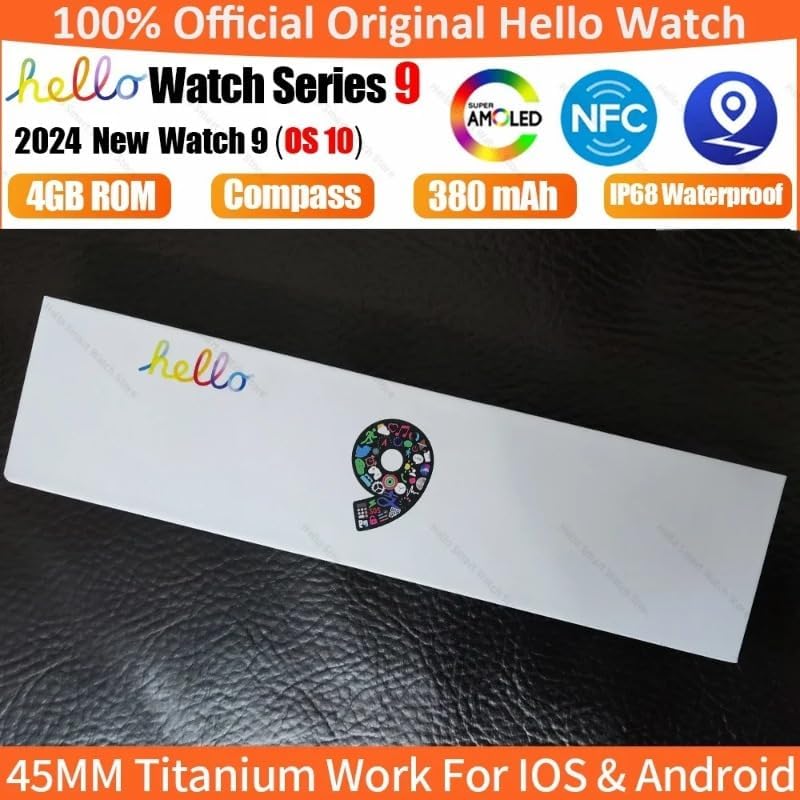
Image: The SUUNY H12 Smartwatch packaging box, indicating official product and key features like AMOLED, NFC, 4GB ROM, Compass, 380mAh battery, and IP68 Waterproof rating.
3. Product Overview
The SUUNY H12 Smartwatch features a 2.0-inch Full HD AMOLED display, a titanium alloy casing, and a comfortable silicone band. It is equipped with a powerful CPU and 4GB of internal storage for music and other data. Key functionalities include Bluetooth calling, comprehensive health monitoring, multiple sports modes, and NFC access control.
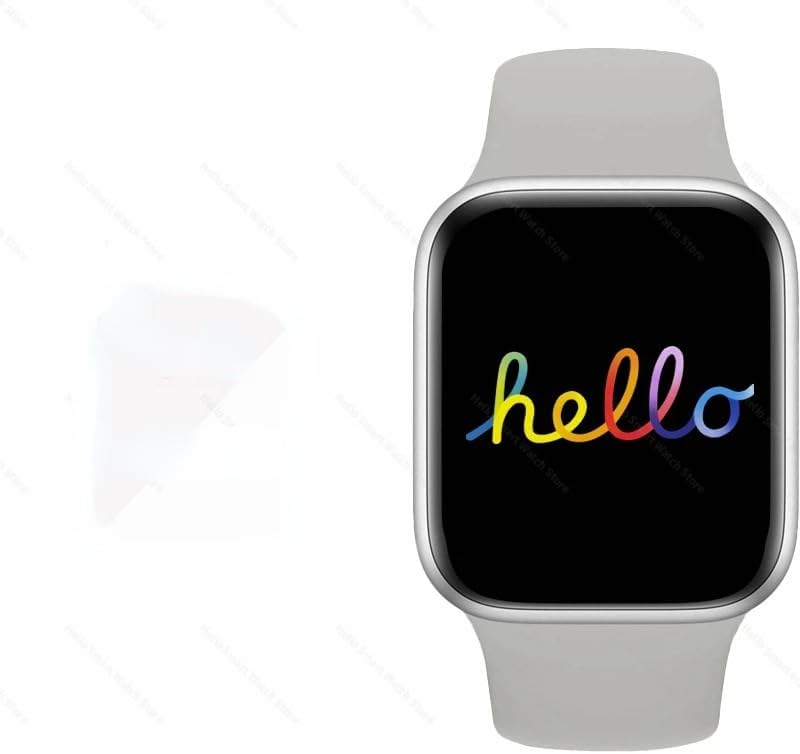
Image: The SUUNY H12 Smartwatch displaying a colorful 'hello' message on its screen, showcasing the vibrant AMOLED display.
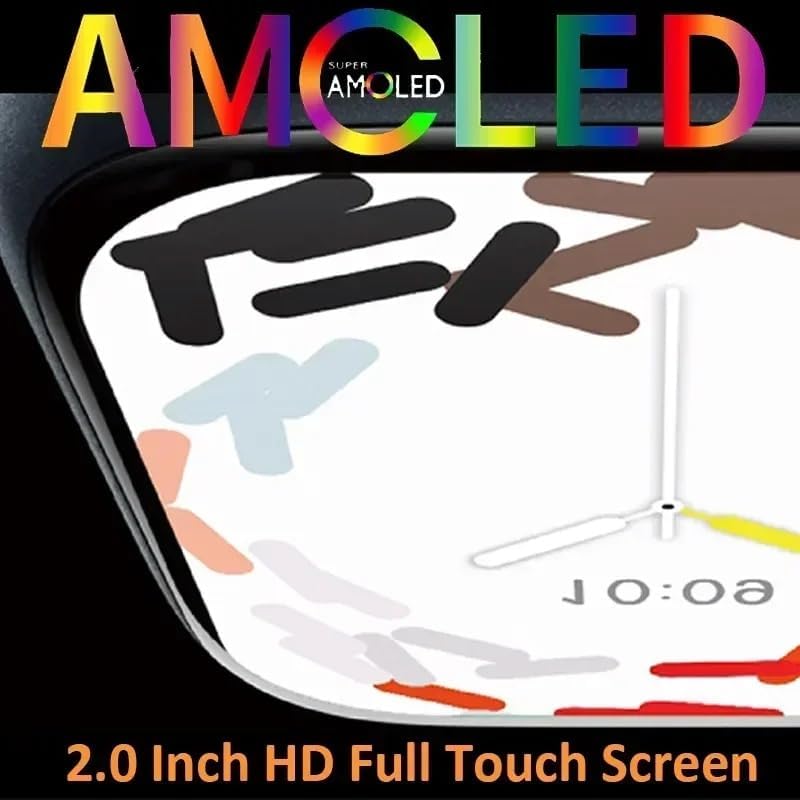
Image: A close-up view of the SUUNY H12 Smartwatch screen, highlighting the 'Super AMOLED' display technology and its 2.0-inch HD full touch capabilities.
4. Setup
4.1 Initial Charging
Before first use, fully charge your SUUNY H12 Smartwatch. Connect the wireless magnetic charging cable to a USB power adapter (not included) and place the watch on the charging pad. The watch will indicate charging status on its screen.
4.2 App Installation and Pairing
- Download the QifitPro app from your smartphone's app store (compatible with Android 5.0+ and iOS 8.0+).
- Open the QifitPro app and follow the on-screen instructions to create an account or log in.
- Enable Bluetooth on your smartphone.
- In the QifitPro app, search for your SUUNY H12 Smartwatch and select it to pair. Confirm the pairing request on both your phone and watch.
- Once paired, the watch will synchronize data with your phone, including time, date, and notifications.
5. Operating Instructions
5.1 Basic Navigation
- Touchscreen: Swipe up, down, left, or right to navigate through menus and screens. Tap to select items.
- Smart Button: Press the side button to return to the home screen or access the app menu. Customize its functions via settings.
- Raise to Wake: Lift your wrist to automatically turn on the screen.
- Cover to Turn Off Screen: Place your palm over the screen to turn it off.
5.2 Communication
- Bluetooth Calls: Once paired with your phone, you can make and receive calls directly from your watch. The watch supports up to 500 contacts synchronized from your phone.
- Message Notifications: Receive notifications for messages, emails, and app alerts. A red dot indicates unread messages.
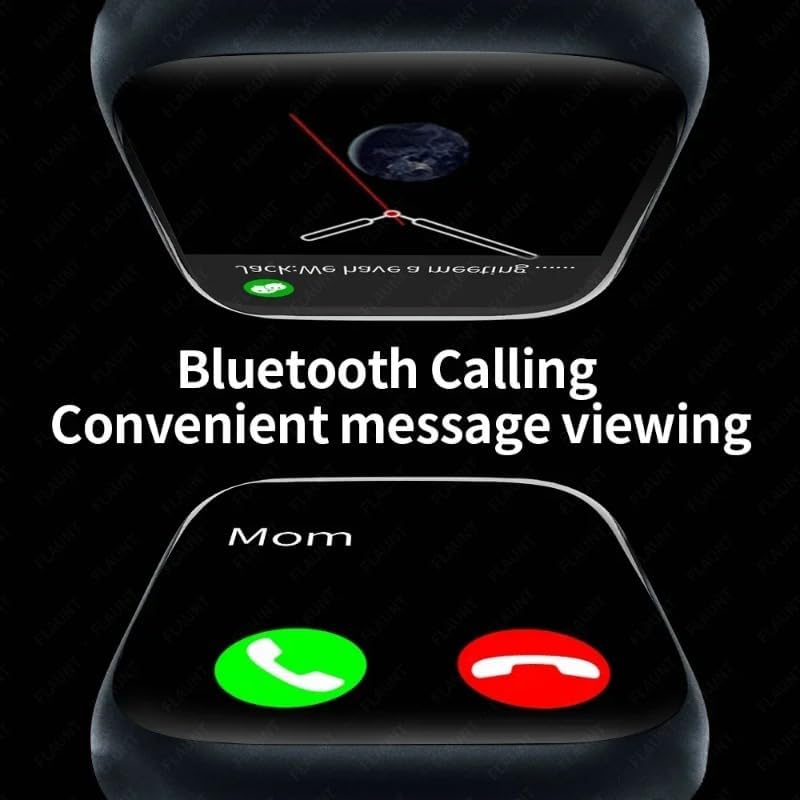
Image: The SUUNY H12 Smartwatch displaying an incoming call and a message notification, illustrating its Bluetooth calling and convenient message viewing features.
5.3 Health Monitoring
- Heart Rate Monitoring: The watch supports 24-hour timed heart rate monitoring. View your heart rate data in the app.
- Blood Pressure Monitoring: Monitor your blood pressure levels.
- Sleep Monitoring: The watch automatically records and analyzes your sleep status from 9:00 PM to 9:00 AM the next day.
- Sedentary Reminder: Get alerts when you've been inactive for too long.
- Drink Water Reminder: Receive reminders to stay hydrated.
5.4 Sports Modes
The SUUNY H12 offers 173 sport modes to track various activities, including walking, running, cycling, and more. It records exercise metrics such as steps, calories burned, and distance.

Image: The SUUNY H12 Smartwatch interface showing different sport modes and exercise tracking data, emphasizing its 173 sport modes for efficient workouts.
5.5 Media and Storage
With 4GB of ROM, you can store music, photos, and even electronic novels directly on your watch. Connect Bluetooth earphones to enjoy music playback without your phone.

Image: A graphic illustrating the 4GB memory of the SUUNY H12 Smartwatch, highlighting its support for storing music, photos, and sound recordings.
5.6 NFC Access Control
The watch includes an NFC chip for access control. To use it, record the watch's NFC ID with your building's access control system. Note: This feature does not support NFC payments.
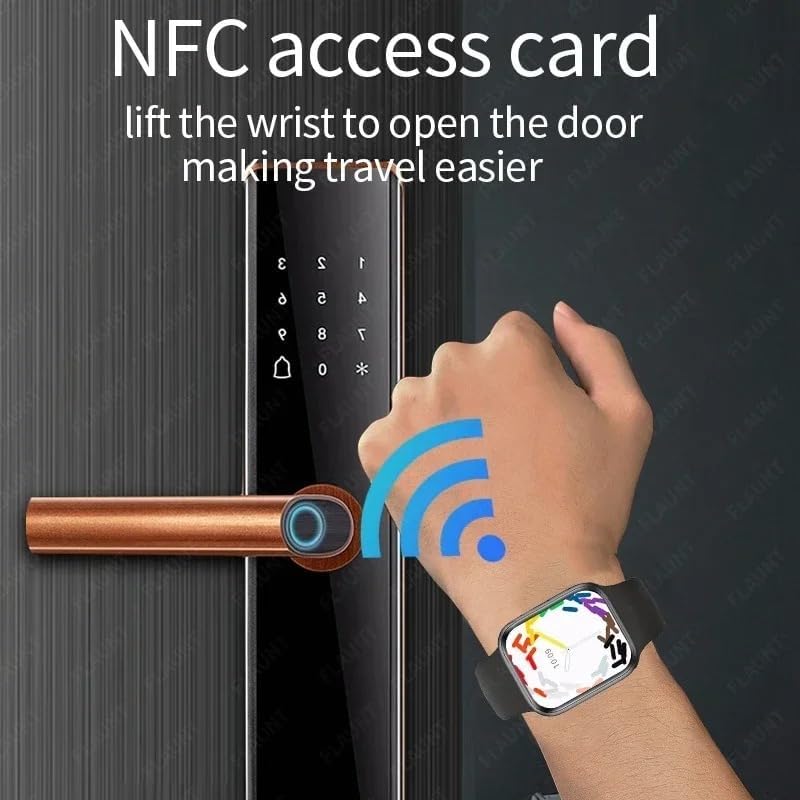
Image: A hand wearing the SUUNY H12 Smartwatch interacting with a door lock, demonstrating the NFC access card function to open doors.
5.7 GPS Positioning
The SUUNY H12 Smartwatch does not have a built-in GPS chip. For position tracking, you must connect the watch to the Qifit mobile application, which then pushes location data to the watch.
5.8 Other Features
- Compass: Real compass function.
- Always-on Display: Keep the time visible at all times.
- Custom Watch Faces: Personalize your watch face.
- Voice Assistant: Access your phone's voice assistant.
- Weather Forecast: Get real-time weather updates.
- Calculator, Timer, Alarm Clock: Essential utility tools.
- Bed Lamp: A convenient low-light mode.
- Adjustments: Customize vibration, brightness, and volume settings.
6. Maintenance
6.1 Cleaning
Regularly clean your smartwatch and band with a soft, dry cloth. Avoid using harsh chemicals or abrasive materials that could damage the device.
6.2 Water Resistance
The SUUNY H12 Smartwatch is IP68 waterproof, meaning it is resistant to dust and can withstand immersion in water up to 1.5 meters for 30 minutes. It is suitable for daily use, such as hand washing or light rain. However, it is not recommended for swimming, diving, or exposure to hot water/steam.

Image: The SUUNY H12 Smartwatch being splashed with water, illustrating its IP68 waterproof capability.
7. Troubleshooting
7.1 Watch Not Turning On
Ensure the watch is fully charged. Connect it to the charging cable and a power source for at least 30 minutes.
7.2 Unable to Pair with Phone
- Make sure Bluetooth is enabled on your phone and the watch.
- Ensure the QifitPro app is installed and running.
- Restart both your phone and the smartwatch.
- Check if the watch is already paired with another device. Disconnect if necessary.
7.3 Inaccurate GPS Data
Remember that the SUUNY H12 does not have a built-in GPS. Ensure your smartwatch is properly connected to the Qifit app on your smartphone, and that your phone's GPS is active and has a clear signal.
7.4 NFC Access Not Working
Verify that the watch's NFC ID has been correctly registered with your access control system. Confirm that you are using the NFC feature for access control, not for payment, as the watch does not support NFC payments.
7.5 Short Battery Life
- Reduce screen brightness.
- Disable unnecessary notifications.
- Limit continuous heart rate monitoring.
- Turn off the Always-on Display if not needed.
8. Specifications
| Model Name | H12 |
| Screen | 2.0 Inch Full HD AMOLED, 90Hz Refresh Rate |
| CPU | JL7012 |
| Storage | RAM 256KB + ROM 4GB |
| Shell Material | Titanium Alloy |
| Band | Standard Silicone (suitable for 44/45/49mm bands) |
| Charger | Wireless Magnetic Charging |
| Compatibility | Android 5.0+, iOS 8.0+ |
| Battery | 380mAh Lithium-ion Polymer |
| Bluetooth Version | 5.2 |
| App | QifitPro |
| Water Resistance | IP68 |
| Supported Languages | English, Greek, French, German, Italian, Spanish, Dutch, Portuguese, Russian, Turkish, Japanese, Arabic |
9. Warranty and Support
For warranty information and technical support, please refer to the documentation provided with your purchase or contact the seller directly. Keep your proof of purchase for any warranty claims.