
1. Introduction
Thank you for choosing the Towond Smart Projector. This portable projector is designed to provide a versatile home cinema experience with its built-in Android TV 11.0 operating system, dual-band Wi-Fi, and Bluetooth connectivity. Enjoy native 1080p resolution, access to over 8,000 apps including Netflix and Prime Video, and flexible projection sizes for both indoor and outdoor use.

Figure 1.1: Towond Smart Projector highlighting key features like Android TV 11.0, Wi-Fi, Bluetooth 5.2, and 1080P Full HD resolution.
2. Safety Information
Please read all safety instructions carefully before using the projector. Keep this manual for future reference.
- Do not block ventilation openings. Ensure adequate airflow around the projector to prevent overheating.
- Do not look directly into the projector lens when the lamp is on. The bright light can cause eye damage.
- Keep the projector away from water or other liquids. Do not operate in wet environments.
- Use only the power cord and adapter supplied with the projector.
- Do not attempt to repair the projector yourself. Refer all servicing to qualified personnel.
- Place the projector on a stable, level surface to prevent it from falling.
3. What's in the Box
Verify that all items are present in the packaging:
- Towond Smart Projector
- HDMI Cable
- Remote Control
- Power Cord
- User Manual (this document)
4. Product Overview
Familiarize yourself with the projector's components and ports.

Figure 4.1: Multiple Device Connection Ports. The projector features HDMI, USB, 3.5mm audio, AV, and TF Card ports for connecting various external devices.
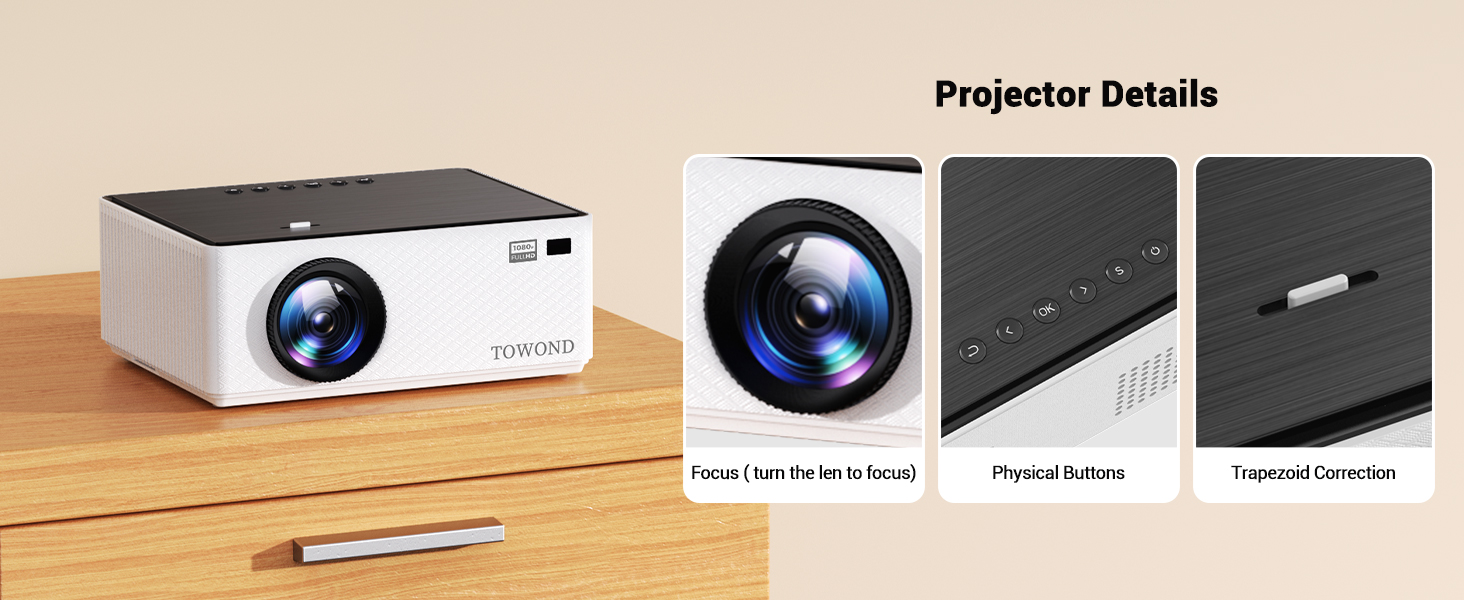
Figure 4.2: Projector Details. This image highlights the focus adjustment ring, physical control buttons on top, and the trapezoid correction slider.
5. Setup
5.1 Placement
Position the projector on a stable surface. The optimal projection distance ranges from 3.12 feet to 11.8 feet, allowing for a screen size between 30 to 150 inches. Adjust the distance to achieve your desired screen size.

Figure 5.1: Projection Distance and Screen Size. The projector supports a 30-150 inch projection size from 3.12ft to 11.8ft distance, with 50-100% zoom and trapezoid correction.
5.2 Power Connection
Connect the supplied power cord to the projector's power input and then plug it into a wall outlet. The projector will power on automatically or can be turned on using the power button on the unit or remote control.
5.3 Focus and Keystone Correction
After powering on, adjust the focus ring on the projector lens until the image appears sharp and clear. If the image appears distorted (trapezoidal), use the manual trapezoid correction slider to square the image. The projector also features a 50-100% zoom function to adjust the image size without moving the projector.
6. Operating Instructions
6.1 Android TV 11.0 and App Usage
The projector runs on Android TV 11.0, providing access to over 8,000 apps from the App Store, including popular streaming services like Netflix, Prime Video, YouTube, Disney+, and HBO Max. Navigate the interface using the remote control.

Figure 6.1: Android TV 11.0 Interface. Access thousands of apps directly from the projector's home screen.
Remote Control Mouse Mode
For certain applications like Netflix, you may need to switch the remote control to mouse mode for easier navigation. Refer to the diagram below for instructions.

Figure 6.2: Remote Control Mouse Mode. Instructions for switching the remote to mouse mode for improved app navigation.
6.2 Wi-Fi Connection and Screen Mirroring
The projector supports 2.4G/5G dual-band Wi-Fi for stable internet connectivity and seamless screen mirroring from your smartphone (iOS/Android) or computer (Macbook/Windows).
- Navigate to the Wi-Fi settings on the projector's home screen.
- Select your desired Wi-Fi network and enter the password.
- For screen mirroring, select the 'Screen Mirroring' option from the projector's menu.
- On your mobile device or computer, enable screen mirroring/casting and select the projector from the list of available devices.

Figure 6.3: Dual-Band Wi-Fi and Screen Mirroring. Easily mirror content from your iOS, Android, Mac, or Windows devices.
6.3 Bluetooth 5.2 Connectivity
The projector features Bluetooth 5.2, allowing you to connect external audio devices such as headphones and speakers for an enhanced sound experience. Note: Bluetooth does not support connecting with smartphones; it only supports connecting with audio devices.
- Go to the Bluetooth settings on the projector.
- Ensure your Bluetooth audio device is in pairing mode.
- Select your device from the list of available devices to connect.

Figure 6.4: Upgraded Bluetooth 5.2. Connect to external speakers or headphones for superior audio.
6.4 Connecting External Devices
The projector offers multiple ports for connecting various devices:
- HDMI Port: Connect TV sticks, laptops, game consoles (PS4, etc.), and other HDMI-enabled devices.
- USB Port: Play media directly from USB flash drives.
- 3.5mm Audio Port: Connect wired headphones or external speakers.
- AV Port: Connect older devices using an AV cable.
- TF Card Slot: Insert a TF (Micro SD) card to access media files.
7. Maintenance
Proper maintenance ensures the longevity and optimal performance of your projector.
- Lens Cleaning: Use a soft, lint-free cloth specifically designed for optical lenses to gently wipe the projector lens. Do not use abrasive cleaners or cloths.
- Dust Removal: Regularly clean the projector's exterior with a soft, dry cloth. Use a can of compressed air to clear dust from ventilation openings, ensuring not to block the air exhaust port.
- Storage: When not in use for extended periods, store the projector in a cool, dry place, away from direct sunlight and extreme temperatures.
- Lamp Life: The projector lamp has a life expectancy of up to 20,000 hours. No user maintenance is required for the lamp itself.

Figure 7.1: 20,000 Hours Long Life Lamp. The projector is designed for extended use with a durable lamp.
8. Troubleshooting
If you encounter issues with your projector, refer to the following common problems and solutions:
| Problem | Possible Cause | Solution |
|---|---|---|
| No image or blurry image | Incorrect focus, keystone distortion, incorrect input source. | Adjust the focus ring. Use the keystone correction slider. Verify the correct input source (HDMI, USB, etc.) is selected. |
| No sound or low sound | Volume too low, external audio device not connected properly, Bluetooth issue. | Increase projector volume. Ensure external speakers/headphones are connected correctly. Re-pair Bluetooth audio devices. Note: Bluetooth does not support connecting with smartphones. |
| Wi-Fi connection issues | Incorrect password, weak signal, router issues. | Double-check Wi-Fi password. Move projector closer to the router. Restart your router and the projector. |
| Screen mirroring not working | Device compatibility, network issues, incorrect settings. | Ensure your device supports screen mirroring. Verify both projector and device are on the same Wi-Fi network. Restart both devices. |
| Remote control unresponsive | Low batteries, obstruction, out of range. | Replace batteries. Ensure no obstructions between remote and projector. Operate within effective range. |
9. Specifications
Detailed technical specifications for the Towond Smart Projector.
| Feature | Specification |
|---|---|
| Brand | TOWOND |
| Model Number | Smart Projector |
| Operating System | Android TV 11.0 |
| Display Resolution | Native 1920 x 1080 (1080P) |
| Brightness | 230 ANSI Lumens / 7200 Lumens |
| Contrast Ratio | 5000:1 |
| Projection Size | 30-150 inches |
| Projection Distance | 3.12 ft to 11.8 ft |
| Connectivity | 2.4G+5G Wi-Fi, Bluetooth 5.2, HDMI, USB, 3.5mm Audio, AV Port, Micro SD |
| Built-in Speaker | 5.4W |
| Lamp Life | Up to 20,000 hours |
| Dimensions | 8.46 x 6.69 x 3.34 inches |
| Item Weight | 3.63 pounds |
10. Warranty and Support
TOWOND is committed to providing high-quality products and excellent customer service. If you encounter any problems with your projector, please do not hesitate to contact our professional after-sales team.
- Customer Service: For any inquiries or issues, please contact the seller directly through your purchase platform.
- Response Time: Our after-sales team aims to provide a satisfactory answer within 12 hours of your inquiry.
We focus on your shopping experience and are dedicated to resolving any concerns you may have.