
1. Introduction
The PlimPad Kids10 is a 10.1-inch Wi-Fi tablet designed for children, featuring Android 15. It comes equipped with Google Kids Space and YouTube Kids, offering a safe and engaging environment for learning and entertainment. The tablet is housed in a lightweight, durable EVA case to protect against drops and impacts.
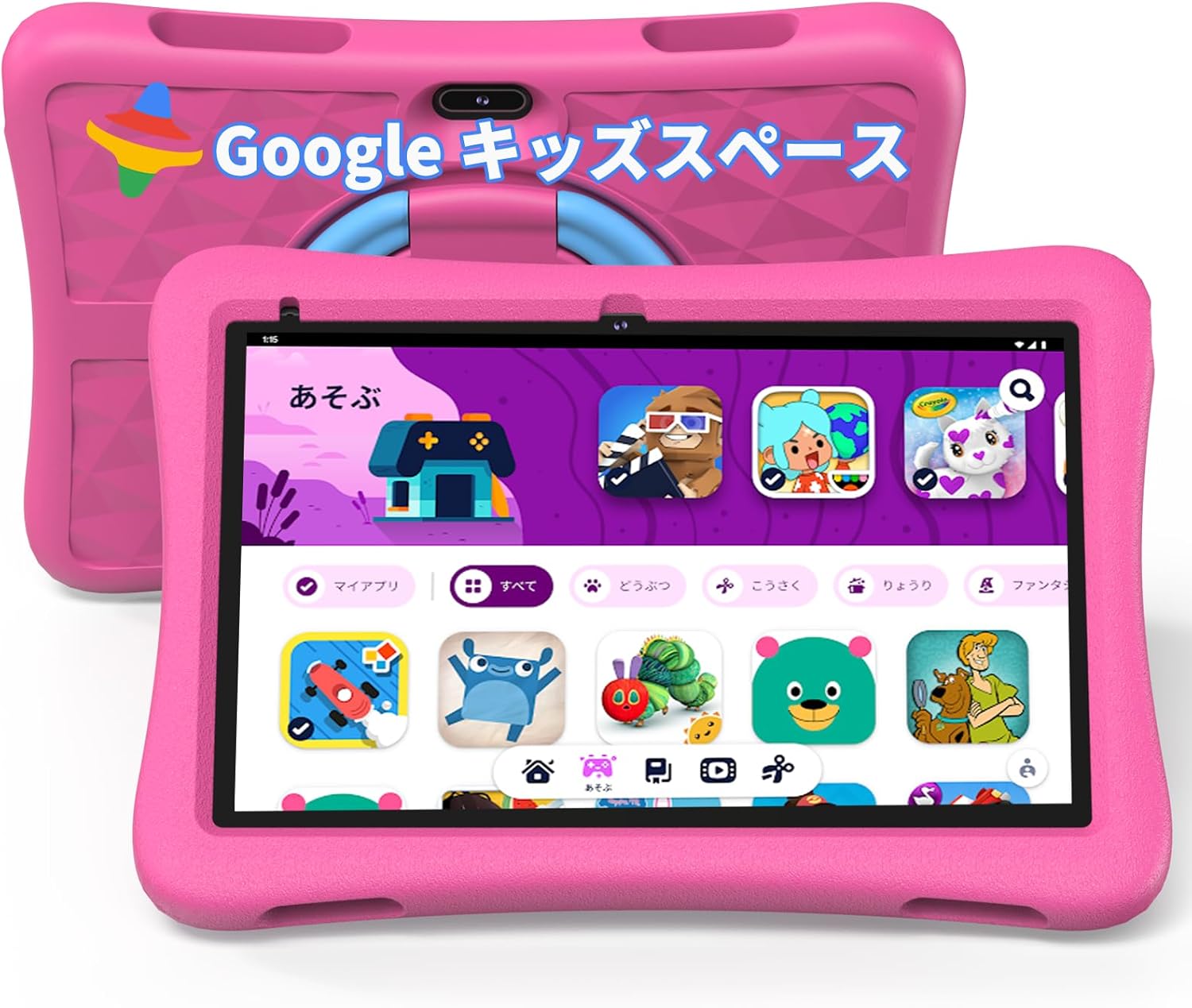
Image: The PlimPad Kids10 tablet in its protective pink EVA case, showcasing its child-friendly design.
2. Setup
- Initial Charge: Before first use, fully charge the tablet using the provided 1.8m USB-C charging cable and adapter.
- Power On: Press and hold the power button until the PlimPad logo appears.
- Language & Wi-Fi: Follow the on-screen prompts to select your preferred language and connect to a Wi-Fi network.
- Google Account Setup: Sign in with an existing Google account or create a new one. This is necessary to access Google Kids Space and the Google Play Store.
- Google Kids Space Activation: During setup, you will be prompted to set up Google Kids Space. Follow the instructions to create a child profile and link it to your Google Family Link account.
3. Key Features
3.1 Google Kids Space
Google Kids Space is a dedicated mode on the PlimPad Kids10 tablet designed for children under 13. It provides access to a library of teacher-approved apps, games, books, and videos that foster curiosity and creativity. Parents can manage content and settings via Google Family Link.

Image: An overview of the Google Kids Space interface, showing categories for creating, watching, reading, and playing.
3.2 YouTube Kids
YouTube Kids is a child-friendly version of YouTube, pre-installed on the PlimPad Kids10. It offers a curated selection of videos suitable for children, with parental controls to manage viewing time and content preferences.

Image: The YouTube Kids application displayed on the tablet screen, showing various video content.
3.3 Parental Controls (Google Family Link)
Manage your child's digital experience using the Google Family Link app on your smartphone. This allows you to:
- Set daily screen time limits in 15-minute increments.
- Block or allow specific apps.
- Set weekly schedules for device usage.
- Track your child's device location using the built-in GPS functionality.

Image: A smartphone displaying the Google Family Link app, illustrating options for setting daily limits and managing app usage.
3.4 Durable Design
The PlimPad Kids10 comes with a lightweight and durable EVA protective case. This case is designed to absorb shocks and prevent damage from accidental drops, making the tablet suitable for active children. The case also features a 360-degree rotating handle that doubles as a stand, allowing for versatile viewing angles in both portrait and landscape modes.
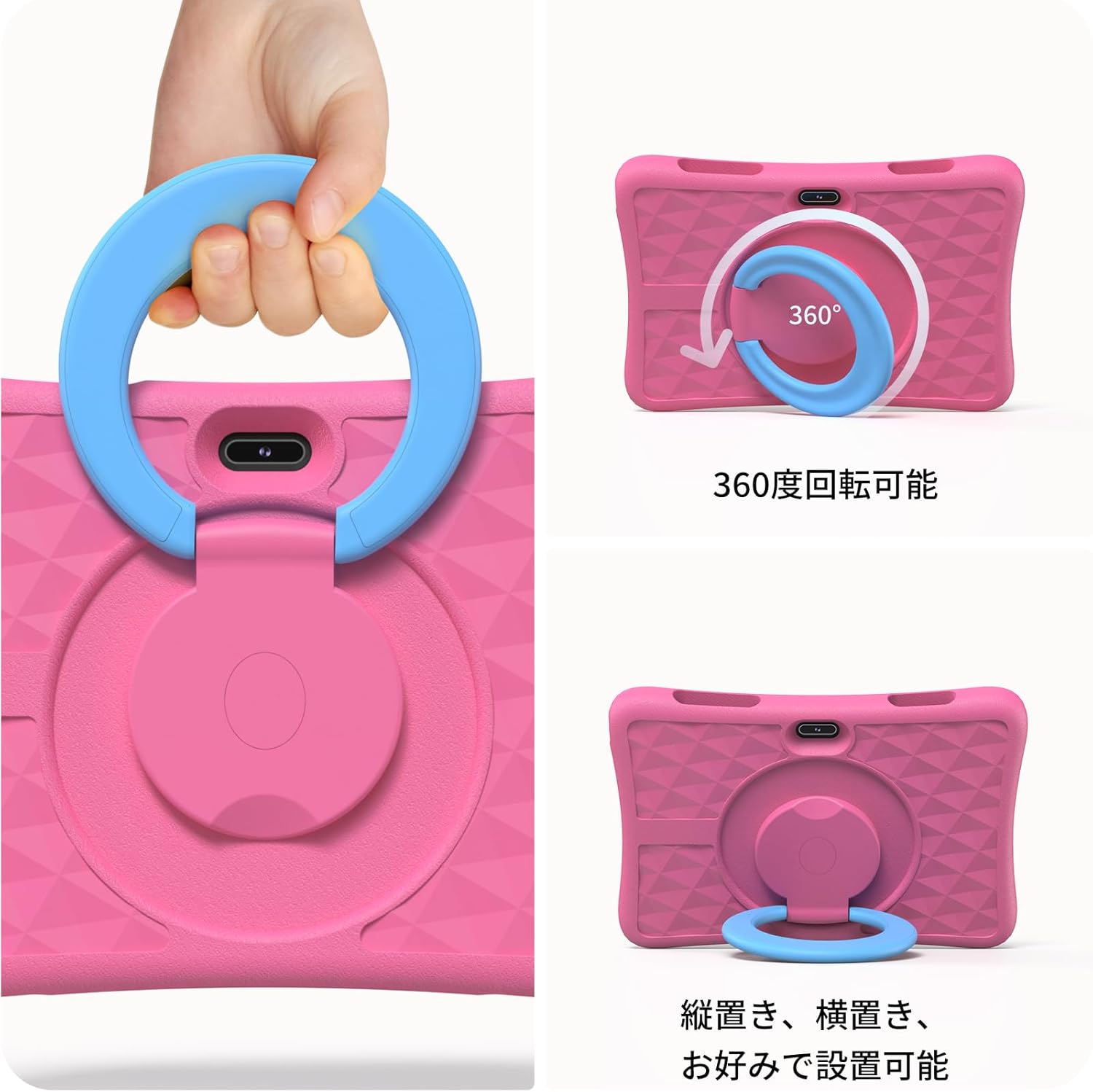
Image: The PlimPad Kids10 tablet demonstrating its 360-degree rotating handle, which also functions as a versatile stand.

Image: A visual comparison highlighting the benefits of EVA material (lighter, stain-resistant, shock-absorbing) over silicone for tablet protection.
4. Operating Instructions
4.1 Basic Navigation
- Touch Screen: Navigate by tapping, swiping, and pinching on the screen.
- Home Screen: Access apps and widgets from the home screen.
- Notifications: Swipe down from the top of the screen to view notifications and quick settings.
- Back Button: Use the on-screen back button to return to the previous screen.
4.2 App Usage
- Launching Apps: Tap an app icon to open it.
- Switching Apps: Use the recent apps button (usually a square icon) to switch between open applications.
- Downloading Apps: New apps can be downloaded from the Google Play Store, subject to parental approval via Family Link.
4.3 Charging
Connect the USB-C cable to the tablet's charging port and the adapter to a power outlet. The battery indicator will show charging status. The tablet has a 6000mAh battery, providing approximately 12 hours of average use.
5. Maintenance
- Cleaning: Use a soft, lint-free cloth to clean the screen and exterior. Avoid harsh chemicals.
- Software Updates: Regularly check for and install system updates to ensure optimal performance and security. Go to Settings > System > System update.
- Storage Management: Periodically clear unnecessary files and apps to free up storage space. The tablet supports up to 512GB microSD card expansion.
6. Troubleshooting
- Tablet Not Turning On: Ensure the tablet is fully charged. If it still doesn't turn on, try holding the power button for 10-15 seconds for a forced restart.
- Apps Freezing/Crashing: Close and reopen the app. If the issue persists, clear the app's cache (Settings > Apps > [App Name] > Storage > Clear cache).
- Wi-Fi Connectivity Issues: Restart the tablet and your Wi-Fi router. Ensure the tablet is within range of the Wi-Fi signal.
- Slow Performance: Close unused apps, clear cache, and ensure sufficient storage space. Consider a factory reset as a last resort (backup data first).
7. Specifications
| Feature | Specification |
|---|---|
| Brand | Plimpton |
| Model Name | PlimPad Kids10 |
| Operating System | Android 15 |
| Screen Size | 10.1 Inches |
| Display Resolution | 1280x800 Pixels (HD IPS) |
| Processor | Allwinner A133Pro, 1.8 GHz |
| RAM | 9 GB |
| Internal Storage | 64 GB |
| Expandable Storage | Up to 512 GB (MicroSD) |
| Battery Capacity | 6000 mAh (approx. 12 hours average use) |
| Connectivity | Wi-Fi (802.11n), Bluetooth |
| Cameras | Front, Rear (8 MP) |
| Headphone Jack | 3.5mm |
| Dimensions (LxWxH) | 27 x 3 x 20 cm |
8. Warranty and Support
The PlimPad Kids10 tablet comes with a 2-year extended warranty. For any product inquiries, technical assistance, or warranty claims, please contact Plimpton customer support. Refer to the contact information provided in the product packaging or visit the official Plimpton website for support details.
9. Product Videos
PlimPad Kids Tablet Features Overview
Video: A comprehensive overview of the PlimPad Kids10 tablet's features, including its design, interface, and key functionalities.
PlimPad Kids Tablet Parental Control Demo
Video: A demonstration of the parental control features available through the Google Family Link app, showing how to manage screen time and app access.
PlimPad Kids Tablet Educational Apps and Features
Video: This video highlights the educational applications and content available within Google Kids Space, promoting learning and development.
PlimPad Kids Tablet Quick Features Overview
Video: A concise overview of the PlimPad Kids10 tablet's main features, including its protective case, Kids Space, and parental controls.