
gearelec GX4
gearelec GX4 Helmet Bluetooth Headset User Manual
Model: GX4 | Brand: gearelec
1. Introduction
Thank you for choosing the gearelec GX4 Helmet Bluetooth Headset. This device is designed to enhance your riding experience with advanced communication and audio features. It supports multi-rider intercom, HiFi stereo sound, and effective noise reduction, all within a durable, waterproof design. Please read this manual carefully before use to ensure proper operation and maximize your enjoyment.

Image 1.1: The gearelec GX4 Helmet Bluetooth Headset, showcasing its red graffiti panel and control buttons.
2. What's in the Box
Please check the package contents to ensure all items are present:
- gearelec GX4 Helmet Bluetooth Headset
- Mounting Bracket (Clip and Adhesive)
- Speakers and Microphone Kit
- USB Charging Cable
- User Manual
- CD (Typically refers to documentation or software, though less common with modern devices)
3. Key Features
- Expressive HiFi Sound & Noise Reduction: Equipped with an upgraded 40MM speaker and advanced audio decoding technology for realistic music. Features active and passive physical noise reduction, plus CVC&DSP algorithm noise reduction, reducing environmental noise by 98% for clear audio up to 120 KM/H.
- 2-4 Riders Intercom System & Top V5.2 BT Chip: Supports 2-4 person ultra-long-distance full-duplex intercom pairing within 5 seconds (2 people up to 1000M, 4 people up to 1500M). Utilizes a V5.2 Qualcomm Bluetooth chip for superior link distance, stability, and transmission speed. Compatible with third-party brand headsets (e.g., Sena, Cardo, Lexin).

Image 3.1: Visual representation of the GX4's communication capabilities, including multi-rider intercom distances and music sharing.
- Cool Graffiti Panel & Music Sharing: Features a unique street graffiti style mirror panel for personalized aesthetics. Supports music sharing, allowing you to enjoy the same song with friends.
- Safe and Convenient Riding: Simplified one-button pairing for 2-person & 4-person intercom. Includes shortcut buttons for automatic call answering and last number redialing. Easily wake up mobile phone voice assistants (Siri/Google Assistant) for hands-free control.

Image 3.2: Overview of safety and convenience features, such as voice assistant integration and call management.
- Worry-Free Power & IP65-Proof: Equipped with a 1000mAh battery, supporting use while charging. Fully charges in 1.5 hours. Provides 40 hours of music listening, 36 hours of group intercom, and up to 400 hours of standby. IP65 protection level ensures operation in rainy and snowy conditions.
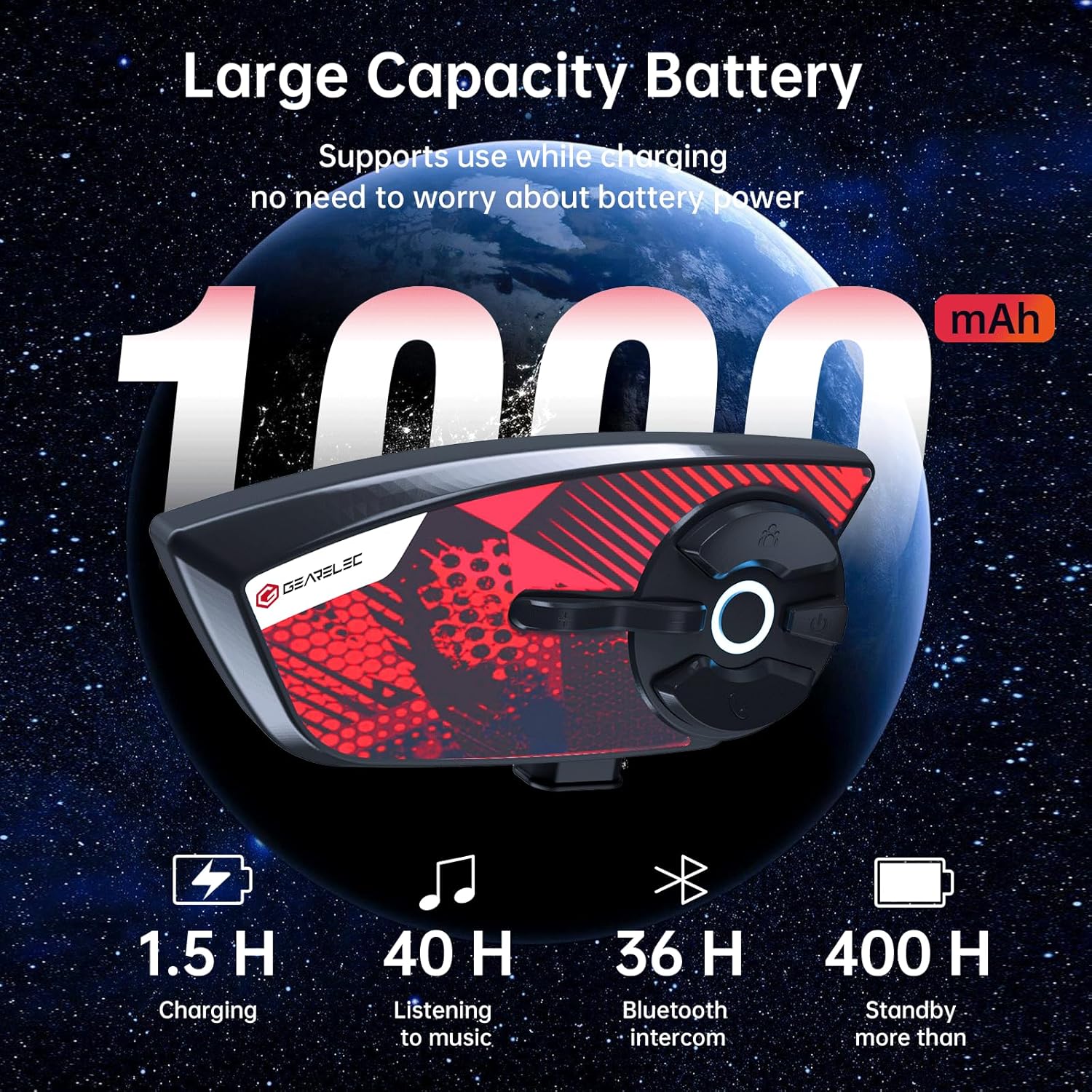
Image 3.3: Details on the GX4's battery life and charging time.

Image 3.4: Illustration of the GX4's IP65 waterproof rating, indicating its resilience in various weather conditions.
4. Setup Guide
4.1 Charging the Device
Before first use, fully charge the GX4 headset. Connect the provided USB charging cable to the charging port on the headset and to a USB power source (e.g., computer, wall adapter). The charging indicator light will show charging status and turn off when fully charged. A full charge takes approximately 1.5 hours.
4.2 Mounting the Headset
The GX4 can be mounted to most helmets using either the clip-on bracket or the adhesive bracket.
- Choose Mounting Location: Select a flat surface on the left side of your helmet where the headset will not obstruct your vision or movement.
- Install Bracket:
- Clip-on Bracket: Slide the bracket between the helmet shell and the inner padding. Ensure it is securely fastened.
- Adhesive Bracket: Clean the chosen area on the helmet surface thoroughly. Peel off the protective film from the adhesive pad on the bracket and firmly press it onto the helmet for at least 30 seconds. Allow 24 hours for the adhesive to cure before use.
- Attach Headset: Slide the GX4 headset onto the installed bracket until it clicks securely into place.
4.3 Installing Speakers and Microphone
- Speaker Placement: Attach the speakers to the inside of your helmet, aligning them with your ears. Use the provided adhesive pads if necessary. Ensure they are positioned for optimal sound.
- Microphone Placement: Position the microphone in front of your mouth, ensuring it is close enough for clear voice pickup but does not obstruct your vision or comfort.
- Connect Cables: Plug the speaker and microphone cables into the corresponding ports on the GX4 headset.
5. Operating Instructions
5.1 Power On/Off
- Power On: Press and hold the Power button for approximately 3 seconds until the indicator light turns on and you hear a voice prompt.
- Power Off: Press and hold the Power button for approximately 3 seconds until the indicator light turns off and you hear a voice prompt.
5.2 Bluetooth Pairing with Mobile Phone
- With the GX4 powered off, press and hold the Power button for approximately 5-7 seconds until the indicator light flashes red and blue alternately, indicating pairing mode.
- On your mobile phone, go to Bluetooth settings and search for new devices.
- Select "GX4" from the list of available devices.
- Once paired, the indicator light will flash blue slowly, and you will hear a confirmation tone.
5.3 Intercom Pairing (2-4 Riders)
The GX4 supports full-duplex intercom for up to 4 riders.
- Ensure all GX4 units are powered on and not connected to other devices.
- On the first two units (A and B), press and hold the Intercom button (usually the group icon) for 5 seconds until the indicator lights flash rapidly.
- The units will automatically pair within 5 seconds. Once paired, the indicator lights will flash blue slowly, and you can begin intercom communication.
- To add a third unit (C), pair unit C with either A or B using the same method.
- To add a fourth unit (D), pair unit D with the remaining unpaired unit (A, B, or C).
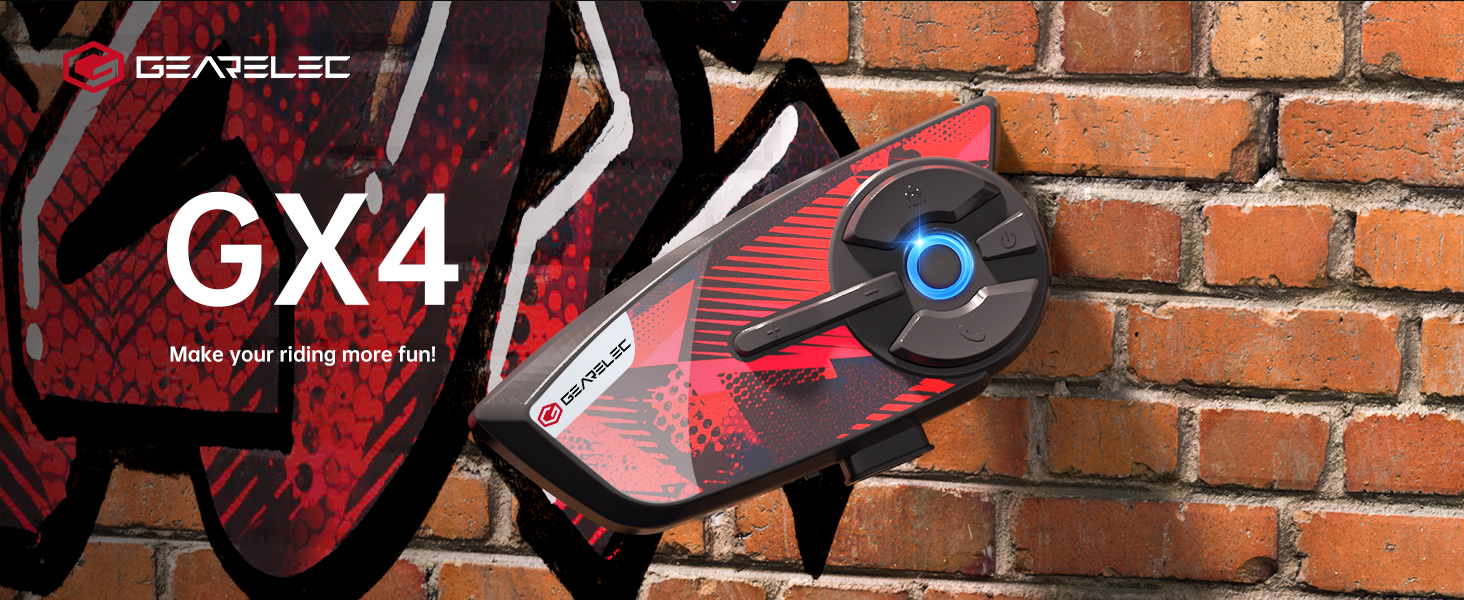
Image 5.1: Diagram illustrating the multi-rider intercom setup and range capabilities.
5.4 Music Playback
- Play/Pause: Press the Multi-function button (center button) once.
- Next Track: Press the Volume Up (+) button.
- Previous Track: Press the Volume Down (-) button.
- Volume Adjustment: Rotate the control dial or press and hold Volume Up (+) or Volume Down (-) buttons.

Image 5.2: Visual highlighting the 40MM large speakers and HiFi stereo sound quality.
5.5 Call Handling
- Answer Call: Press the Phone button once.
- End Call: Press the Phone button once during a call.
- Reject Call: Press and hold the Phone button for 2 seconds.
- Redial Last Number: Double-press the Phone button.
- Automatic Call Answering: The headset supports automatic answering of incoming calls after a few rings. This feature can usually be toggled in the device settings or through specific button combinations (refer to quick start guide for details).
5.6 Voice Assistant
To activate your mobile phone's voice assistant (Siri, Google Assistant), press the Voice Assistant button (usually the circular button with a light ring) once. You can then issue commands through the headset's microphone.
6. Maintenance
- Cleaning: Use a soft, damp cloth to clean the headset. Do not use harsh chemicals or abrasive cleaners. Ensure the charging port cover is securely closed before cleaning.
- Storage: Store the headset in a cool, dry place away from direct sunlight and extreme temperatures. If storing for an extended period, charge the battery to about 50% every few months to prolong its lifespan.
- Battery Care: Avoid fully discharging the battery frequently. Charge the device regularly, even if not in use, to maintain battery health.
- Water Resistance: The GX4 is IP65 rated, meaning it is protected against dust and low-pressure water jets. While it can withstand rain and snow, avoid submerging it in water. Ensure all port covers are sealed before exposure to moisture.
7. Troubleshooting
| Problem | Possible Cause | Solution |
|---|---|---|
| Device does not power on | Low battery | Charge the device fully. |
| No sound from speakers | Volume too low; Speakers not connected; Speakers faulty | Increase volume; Check speaker connection; Contact support if faulty. |
| Cannot pair with phone/intercom | Device not in pairing mode; Bluetooth off on phone; Interference | Ensure device is in pairing mode (flashing red/blue); Turn on phone Bluetooth; Move away from other Bluetooth devices. |
| Intercom connection unstable | Out of range; Obstacles; Interference | Reduce distance between units; Move to an open area; Avoid strong electromagnetic fields. |
| Microphone not picking up voice | Microphone not connected; Incorrect position; Microphone faulty | Check microphone connection; Adjust microphone position closer to mouth; Contact support if faulty. |
8. Specifications
| Feature | Specification |
|---|---|
| Model Name | GX4 |
| Brand | gearelec |
| Connectivity Technology | Wireless (Bluetooth) |
| Bluetooth Version | 5.2 |
| Bluetooth Range | Up to 100 meters (1E+2 Meters) |
| Intercom Range (2 riders) | Up to 1000M |
| Intercom Range (4 riders) | Up to 1500M |
| Battery Capacity | 1000mAh |
| Charging Time | 1.5 Hours |
| Music Listening Time | Up to 40 Hours (at high volume) |
| Group Intercom Time | Up to 36 Hours |
| Standby Time | Up to 400 Hours |
| Noise Control | Active Noise Cancellation (CVC&DSP algorithm) |
| Water Resistance Level | IP65 |
| Speaker Size | 40MM |
| Frequency Range | 20 Hz - 20,000 Hz |
| Impedance | 40 Ohm |
| Control Type | Media Control, Touch |
| Item Weight | 12.6 ounces |
| Material | Plastic |
| Compatible Devices | Some Third-Party Bluetooth Headsets (e.g., Sena, Cardo, Lexin) |
9. Warranty and Support
GEARELEC is committed to customer satisfaction. If you encounter any issues with your product, have questions about its use, or wish to provide feedback, please do not hesitate to contact our customer service team. We aim to respond to all inquiries within 6 hours.
For support, please refer to the contact information provided with your product packaging or visit the official GEARELEC website.
Related documentsGX4

Ask a question about this manual
Ask about setup, troubleshooting, compatibility, parts, safety, or missing instructions. Manuals+ will review the question and use this page’s manual context to help answer it.