
1. Introduction
The HP Z2 G9 Workstation is a high-performance desktop PC designed for technical and creative professionals. This manual provides essential information for setting up, operating, maintaining, and troubleshooting your workstation to ensure optimal performance and longevity.
2. What's in the Box
Verify that all components are present in the packaging:
- HP Z2 Tower G9 Workstation
- HP Wired Desktop 320K Keyboard
- HP Wired 320M Mouse
- Power Cord
- Documentation (this manual, warranty information)
3. Setup Guide
Follow these steps to set up your HP Z2 G9 Workstation:
- Unpack the Workstation: Carefully remove the workstation and all accessories from the packaging.
- Connect Peripherals:
- Connect the HP Wired Desktop 320K Keyboard to an available USB port.
- Connect the HP Wired 320M Mouse to an available USB port.
- Connect your monitor(s) to the appropriate video output ports (e.g., DisplayPort, HDMI) on the workstation.
- Connect to Power: Plug the power cord into the workstation's power input and then into a grounded electrical outlet.
- Power On: Press the power button located on the front of the workstation.
- Initial Windows Setup: Follow the on-screen instructions to complete the Windows 11 Pro setup, including language, region, network connection, and user account creation.

Figure 3.1: Front view of the HP Z2 G9 Workstation, showing the power button, USB ports, and optical drive bay.
4. Operating Instructions
This section covers basic operation of your workstation.
4.1 Powering On and Off
- To Power On: Press the power button on the front panel.
- To Shut Down: Click the Start button in Windows, then select Power > Shut down.
- To Restart: Click the Start button in Windows, then select Power > Restart.
4.2 Connecting External Devices
The HP Z2 G9 Workstation offers various ports for connecting external devices. Refer to the image below for port identification.
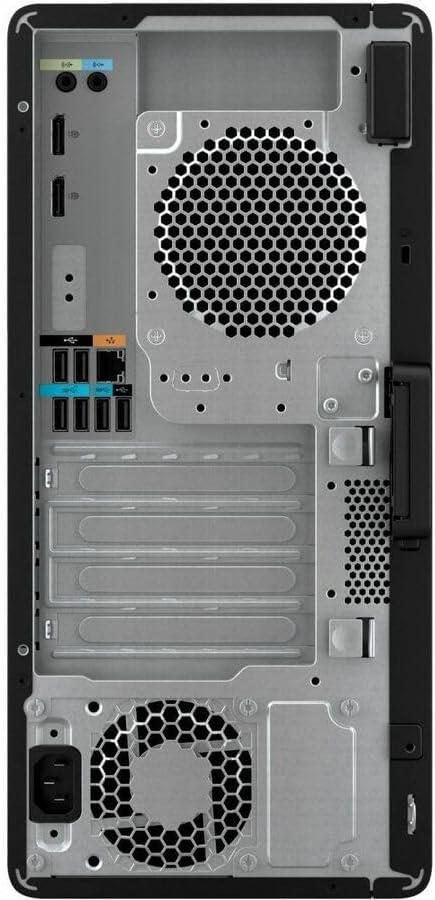
Figure 4.1: Rear view of the HP Z2 G9 Workstation, illustrating the various input/output ports including USB, DisplayPort, Ethernet, and audio jacks.
4.3 Using Windows 11 Pro
Your workstation comes pre-installed with Windows 11 Pro, offering advanced features for productivity and security. Familiarize yourself with the operating system's interface and functionalities for optimal use.
5. Maintenance
Regular maintenance helps ensure the longevity and performance of your workstation.
- Keep Vents Clear: Ensure that the air vents on the workstation are not obstructed to allow for proper airflow and cooling.
- Software Updates: Regularly check for and install operating system and driver updates to maintain security and performance.
- Data Backup: Periodically back up important data to an external drive or cloud storage to prevent data loss.
- Cleanliness: Use a soft, dry cloth to clean the exterior of the workstation. Avoid using liquid cleaners directly on the components.
6. Troubleshooting
This section addresses common issues you might encounter.
6.1 No Power
- Verify the power cord is securely connected to both the workstation and the electrical outlet.
- Ensure the electrical outlet is functional by testing it with another device.
6.2 No Display
- Check that the monitor is powered on and the video cable is securely connected to both the workstation and the monitor.
- Ensure the correct input source is selected on your monitor.
6.3 Slow Performance
- Close unnecessary applications running in the background.
- Check for and install any pending Windows updates or driver updates.
- Ensure sufficient free space on the primary drive.
For more advanced troubleshooting or issues not covered here, please refer to the official HP support website or contact HP customer service.
7. Specifications
Detailed technical specifications for the HP Z2 G9 Workstation (Model A1NX3UT#ABA):
| Model Number | A1NX3UT#ABA |
| Processor | Intel Core i7-14700 (14th Gen, Hexadeca-core) |
| RAM | 32 GB DDR5 SDRAM |
| Storage | 1 TB SSD (Solid State Drive) |
| Graphics | Intel UHD Graphics 770 (Integrated) |
| Operating System | Windows 11 Pro |
| Hardware Platform | PC |
| RAID Levels | 0, 1 |
| Item Weight | 15.87 pounds |
| Package Dimensions | 20.2 x 19.5 x 11.55 inches |
8. Warranty and Support
Your HP Z2 G9 Workstation comes with a standard manufacturer's warranty. For detailed warranty terms and conditions, please refer to the documentation included with your product or visit the official HP support website.
For technical assistance, driver downloads, or further support, please visit the HP Support Website.
Optional protection plans may be available for extended coverage. Please check with your retailer or HP for more information.


