
1. Introduction and Overview
The AOPEN 32S1U PRO is a versatile 31.5-inch 4K UHD Touch Rollable Smart Device designed to provide an outstanding visual and interactive experience. With its built-in wheels, integrated Android system, and touch capabilities, it functions as a large tablet, smart monitor, TV, conferencing display, and even a drawing tablet. Its portability and comprehensive features make it suitable for both work and home environments.

Image: The AOPEN 32S1U PRO Rollable Smart Device in its upright position, showcasing its large display and sleek design.
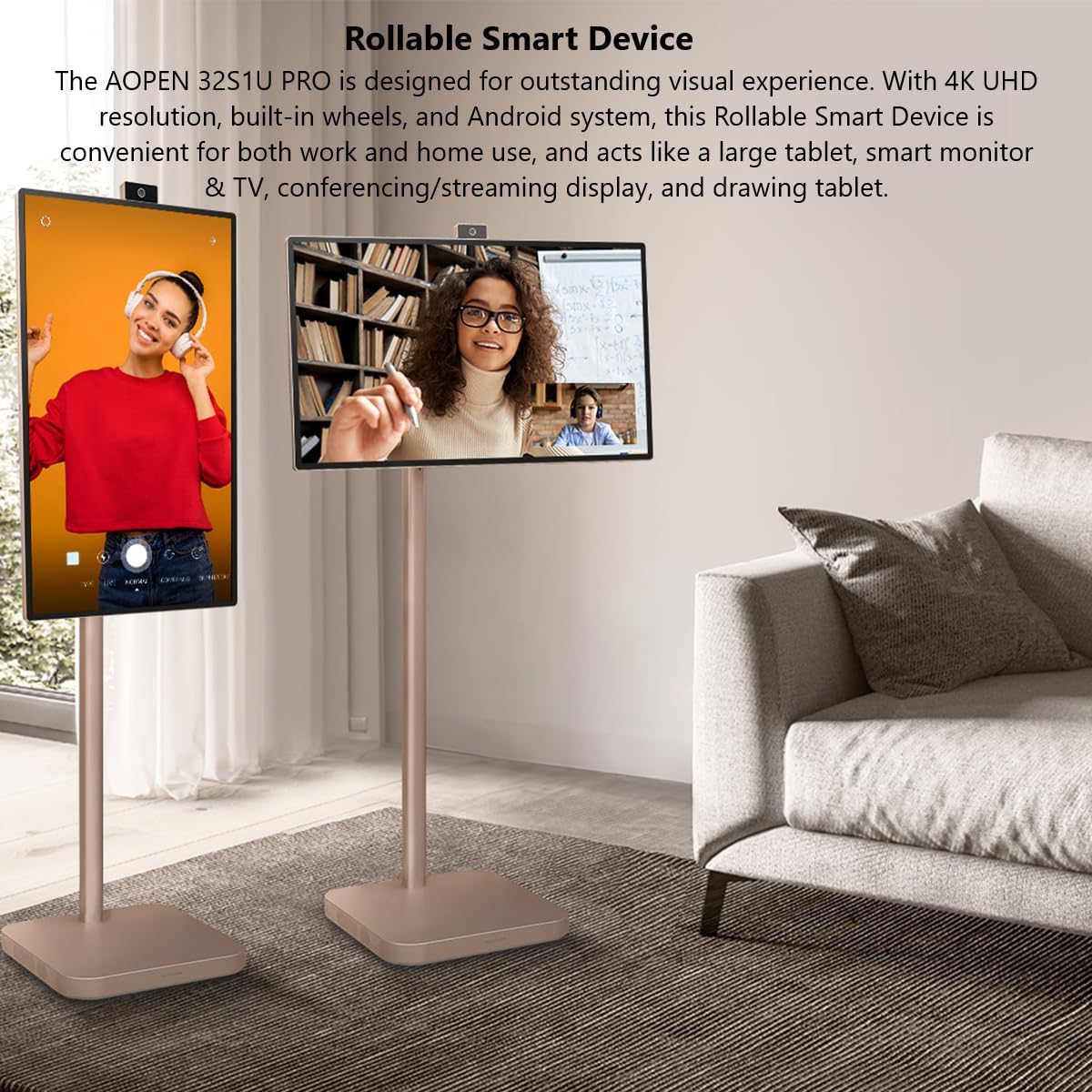
Image: Two AOPEN 32S1U PRO devices, one in landscape orientation and another in portrait, demonstrating its versatile display modes in a living room setting.
2. Package Contents
Before beginning assembly, please ensure all components are present:
- AOPEN 32S1U PRO Display
- Stand Assembly
- Power Cord
- 8M Magnetic Camera
- Mini HDMI Cable
- USB Type-C Cable
3. Setup
3.1 Assembly
- Carefully unpack all components from the box.
- Attach the display panel to the stand assembly following the instructions provided in the quick start guide (not included in this manual). Ensure all screws are securely fastened.
- Connect the power cord to the device and a power outlet.
3.2 First Power On and Initial Setup
- Press the power button located on the device to turn it on.
- Follow the on-screen prompts to complete the initial Android system setup, including language selection, time zone, and Google account login.
3.3 Network Connection
To access online features and the Google Play Store, connect the device to a Wi-Fi network:
- Navigate to the 'Settings' menu on the device.
- Select 'Network & Internet' or 'Wi-Fi'.
- Choose your desired Wi-Fi network from the list and enter the password if prompted.
- The device will connect to the internet.
4. Operating Instructions
4.1 Basic Controls
The device features physical buttons for power and volume, typically located on the side or bottom of the display. The primary interaction is through the 10-point touchscreen.
4.2 Touchscreen Navigation
Navigate the Android interface by tapping, swiping, and pinching on the screen, similar to a large tablet. The 10-point touch technology allows for precise control and multi-finger gestures.
4.3 Adjusting the Display
The AOPEN 32S1U PRO offers flexible adjustments for optimal viewing:
- Pivot: Rotate the screen up to 90 degrees for vertical (portrait) or horizontal (landscape) orientation.
- Height Adjustment: Adjust the screen height by 7.87 inches (200mm) to find your most comfortable viewing position.
- Tilt: Tilt the screen from -18° to 18° to reduce glare and improve viewing angles.
- Swivel: Swivel the display +/-30° to share content with others in the room.
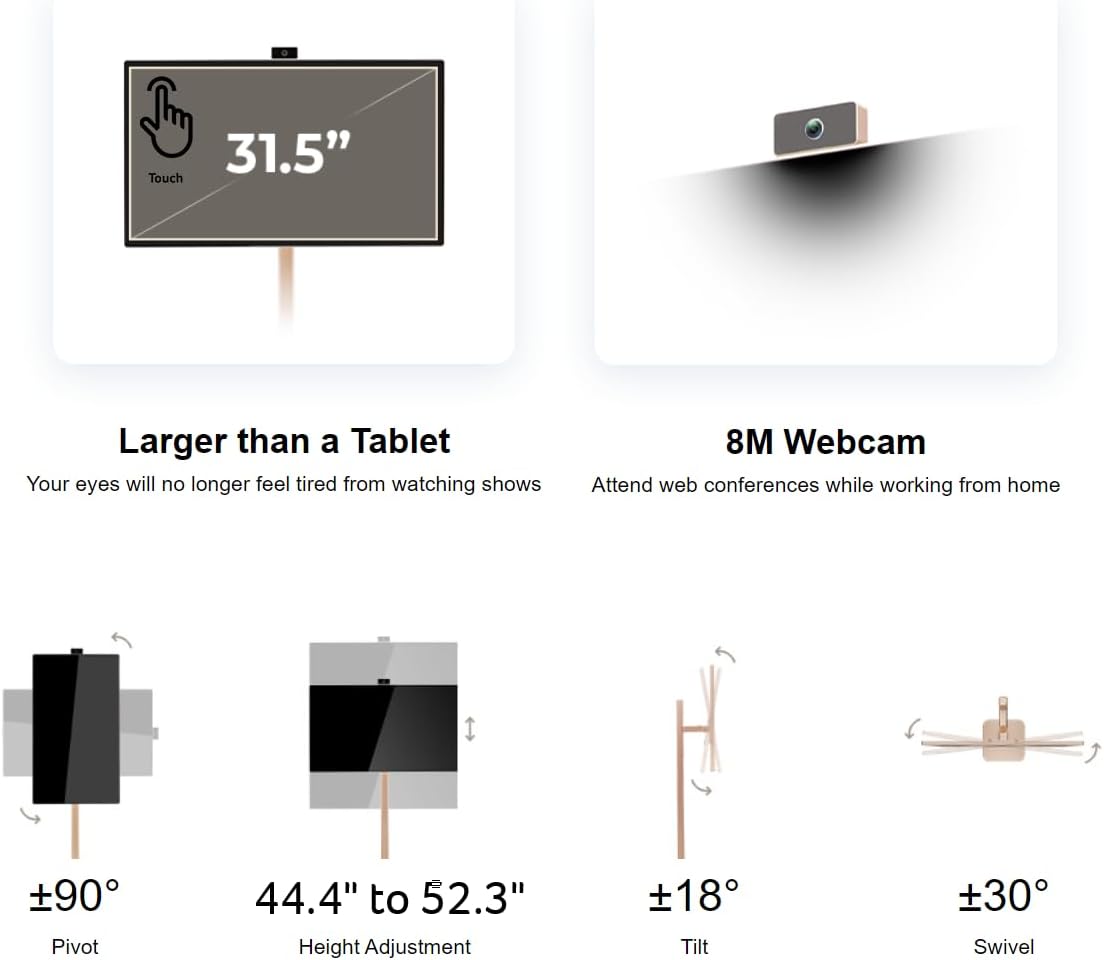
Image: Diagrams illustrating the pivot (±90°), height adjustment (44.4" to 52.3"), tilt (±18°), and swivel (±30°) capabilities of the AOPEN 32S1U PRO.
4.4 Using the 8M Magnetic Camera
The included 8M Magnetic Wireless Camera can be attached to various points on the perimeter of the display. It can also be removed completely if not needed. This camera, along with the 4-array microphone and 2 x 10W speakers, enhances video calls and interactive experiences.
4.5 Wireless Projection
The device supports wireless content mirroring from both mobile devices (Android/iOS) and PCs (Mac/Windows).

Image: A diagram showing mobile projection from iPhone, Android phone, and tablet, and PC projection from Macbook, laptop, and desktop PC to the AOPEN 32S1U PRO.
4.6 Battery Management
The AOPEN 32S1U PRO features a built-in lithium-ion battery providing up to 4 hours of usage. To charge, connect the power cord to the device and a power outlet. A light on the base indicates battery status.
4.7 Connecting External Devices
The device includes the following ports:
- 1 x USB 3.1 (Type-C) port (Gen 1 up to 5 Gbps): Supports data transfer, 10W power delivery, and DisplayPort over USB-C.
- 1 x Mini HDMI port: For connecting external video sources.
Mini HDMI and USB Type-C cables are included in the package.
4.8 Google Play Store and Applications
With full access to the Google Play Store, you can download and install a wide range of applications, including streaming services like Netflix and YouTube, productivity tools, and games. The device operates like a large Android tablet.
4.9 MPP 2.0 Pen Support
The AOPEN 32S1U PRO is compatible with MPP 2.0 pens (not included), allowing for precise drawing, note-taking, and interactive use, transforming it into a large graphics tablet.
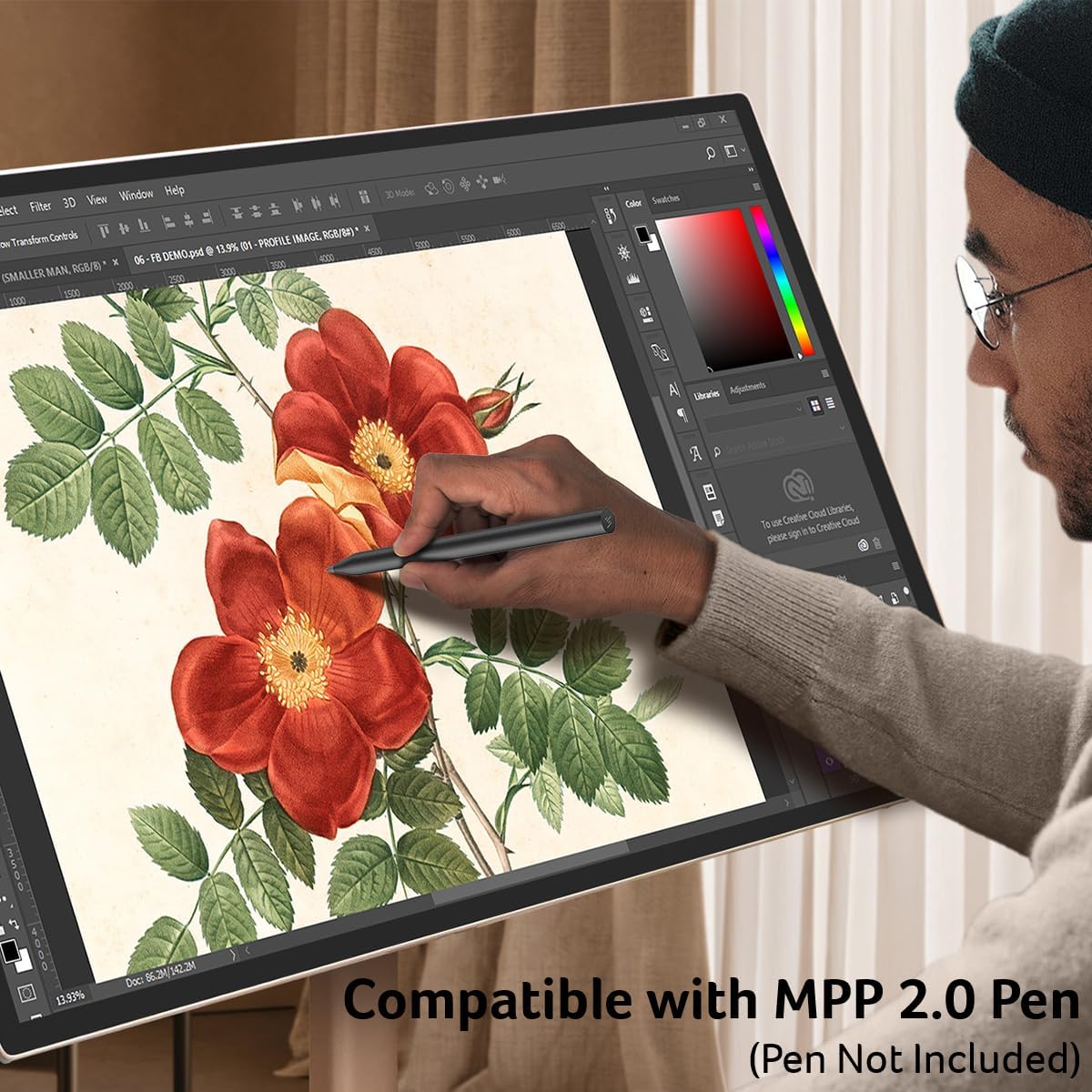
Image: A person using an MPP 2.0 compatible pen on the AOPEN 32S1U PRO display for digital art, highlighting its drawing tablet capabilities.
4.10 Mobility and Usage Scenarios
Thanks to its built-in wheels, the device can be easily moved between rooms. Its versatile design supports various usage scenarios:
- Entertainment: Watch movies, stream videos, or play games from anywhere in your home.
- Productivity: Use it for video conferencing, presentations, or as a large interactive display for work.
- Creative: Utilize its touch and pen support for digital art and design.
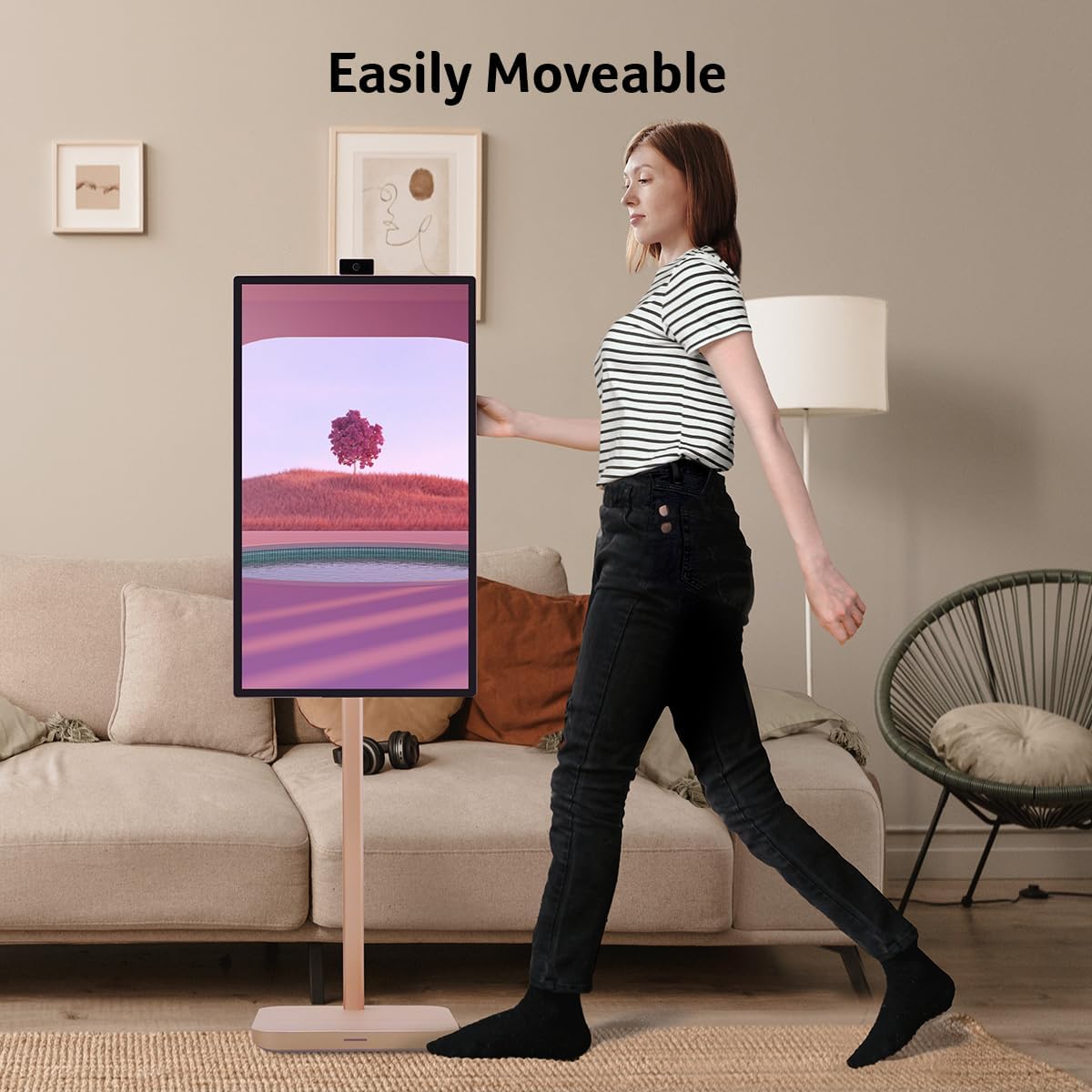
Image: A person easily pushing the AOPEN 32S1U PRO device across a room, demonstrating its portability with built-in wheels.

Image: A collage of images showing the AOPEN 32S1U PRO being used in various settings: during yoga, in bed, in a meeting, for studying, and while cooking, highlighting its adaptability.
5. Care and Maintenance
- Cleaning the Screen: Use a soft, lint-free cloth slightly dampened with water or a screen-cleaning solution. Avoid harsh chemicals or abrasive materials.
- Cleaning the Stand and Base: Wipe with a dry or slightly damp cloth.
- Storage: Store the device in a cool, dry place away from direct sunlight and extreme temperatures.
- Battery Care: For optimal battery life, avoid fully discharging the battery frequently. Charge the device regularly.
6. Troubleshooting Guide
| Problem | Possible Cause | Solution |
|---|---|---|
| Device does not power on. | No power, low battery, power button issue. | Ensure power cord is securely connected and outlet is active. Charge the device for at least 30 minutes. Try holding the power button for 10-15 seconds. |
| Touchscreen unresponsive. | Software glitch, screen dirty, temporary issue. | Restart the device. Clean the screen with a soft, lint-free cloth. If persistent, perform a factory reset (data will be lost). |
| Cannot connect to Wi-Fi. | Incorrect password, router issue, out of range. | Double-check Wi-Fi password. Restart your router. Move the device closer to the Wi-Fi router. |
| Poor video call quality. | Weak internet connection, camera/mic obstruction. | Ensure stable internet connection. Check if the camera or microphone is obstructed. Adjust camera position. |
| Battery drains quickly. | High screen brightness, many apps running, aging battery. | Reduce screen brightness. Close unused applications. Limit background data usage. |
7. Technical Specifications
| Feature | Specification |
|---|---|
| Model Number | UM.JS1AA.001 |
| Screen Size | 31.5 Inches |
| Resolution | 4K UHD (3840 x 2160) |
| Touch Technology | 10-point Touch |
| Operating System | Android System (Google Play Store Support) |
| Processor | 8 Processors |
| Camera | 8M Magnetic Wireless Camera |
| Audio | 4-Array Microphone, 2 x 10W Speakers |
| Wireless Connectivity | Wi-Fi 6, Bluetooth |
| Battery | Built-in Lithium-Ion (Up to 4 hours usage) |
| Color | Champagne |
| Dimensions (LxWxH) | 15.2 x 28.8 x 48.3 inches |
| Item Weight | 30.5 pounds |
| Ports | 1 x USB 3.1 Type-C (Gen 1, 10W PD, DP Alt Mode), 1 x Mini HDMI |
| Refresh Rate | 60Hz |
| Color Gamut | DCI-P3 95% |
| HDR Support | HDR 10 |
8. Warranty Information and Support
This product is manufactured by Acer under the AOPEN brand. For specific warranty terms and conditions, please refer to the warranty card included with your purchase or visit the official AOPEN support website. Keep your proof of purchase for warranty claims.
For technical support, troubleshooting assistance beyond this manual, or service inquiries, please contact AOPEN customer support through their official channels.

