
1. Introduction to Your YOTO Mini
The YOTO Mini (YM002) is a portable, screen-free audio player designed for children. It allows playback of stories, music, podcasts, and radio content using physical audio cards. The device features Bluetooth connectivity, USB-C charging, an OK-to-Wake clock, and up to 14 hours of playtime, making it ideal for on-the-go listening.
This manual provides essential information for the safe and effective use of your YOTO Mini, including setup, operation, maintenance, and troubleshooting.
2. Setup and First Use
2.1 Unboxing and Initial Charge
Upon unboxing your YOTO Mini, ensure all components are present:
- YOTO Mini (YM002) device
- 1m USB-A to USB-C Charging Cable
- Welcome Card (also a free Make Your Own card)
Before first use, fully charge your YOTO Mini using the provided USB-C cable and a compatible USB power adapter (not included). The charging port is located on the device. A full charge provides up to 14 hours of playback.
2.2 Powering On and App Connection
To power on the YOTO Mini, press and hold the power button. The pixel display will illuminate. For full functionality, including content management and parental controls, download the free YOTO app on your smartphone or tablet.
Follow the in-app instructions to connect your YOTO Mini to your home Wi-Fi network. This connection is essential for downloading new content, accessing YOTO Radio, and enabling features like the OK-to-Wake clock.

Image 1: Overview of the YOTO Mini's key features, including kid-friendly controls, audio card slot, pixel display, and Bluetooth speaker.
2.3 Using Make Your Own Cards
The included Welcome Card also functions as a 'Make Your Own' card. These cards allow you to link your own audio content (MP3s, podcasts, etc.) via the YOTO app. Insert the card into the YOTO Mini, then use the app to assign audio files to it. Once assigned, the content will play whenever the card is inserted.
3. Operating Instructions
3.1 Playing Audio Cards
To play content, simply insert an audio card into the slot on the top of the YOTO Mini. The device will automatically begin playing the associated audio. To stop playback, remove the card.

Image 2: A child demonstrates inserting an audio card into the YOTO Mini to initiate playback.
3.2 Volume and Track Control
The YOTO Mini features two orange dials on the top surface:
- Left Dial: Controls the volume. Turn clockwise to increase, counter-clockwise to decrease.
- Right Dial: Controls track selection. Turn clockwise to skip to the next track, counter-clockwise to go to the previous track.
3.3 Bluetooth Speaker Functionality
The YOTO Mini can function as a Bluetooth speaker. To activate Bluetooth pairing mode, refer to the YOTO app or the device's settings. Once paired with a smartphone or tablet, you can stream audio directly to the YOTO Mini.
3.4 Headphone Use
For private listening, connect standard 3.5mm headphones to the audio jack located on the side of the YOTO Mini. When headphones are connected, the internal speaker will mute automatically.

Image 3: A child enjoys audio content privately using headphones connected to a YOTO Mini.
3.5 Pixel Display and OK-to-Wake Clock
The YOTO Mini features a pixel display that shows simple images, time, or other visual cues related to the audio content. Through the YOTO app, you can configure the 'OK-to-Wake' clock feature, which uses the display to indicate when it's an appropriate time for a child to get up.
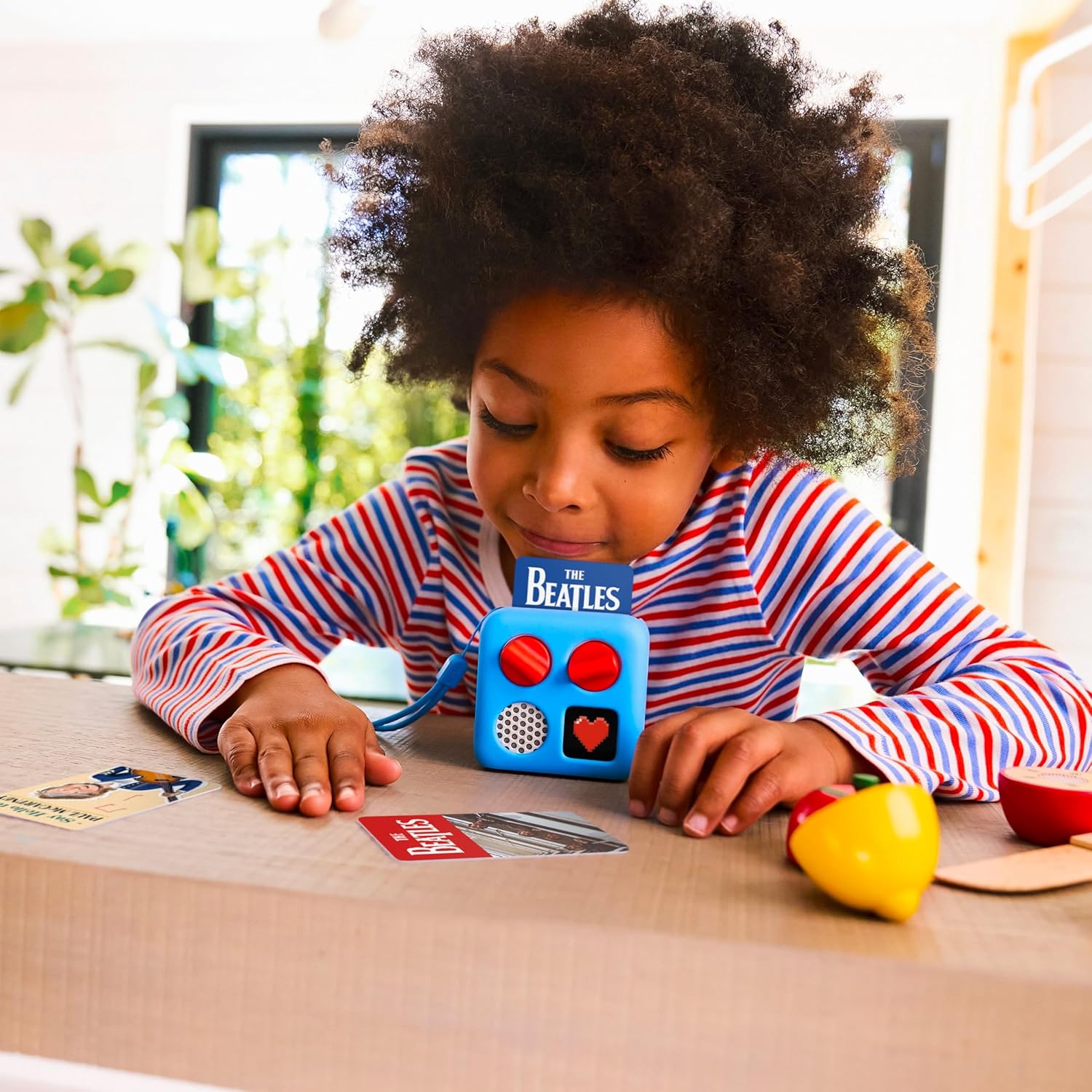
Image 4: A child interacts with a YOTO Mini, inserting an audio card for playback.
4. Maintenance
4.1 Cleaning
To clean your YOTO Mini, use a soft, dry, lint-free cloth. Do not use abrasive cleaners, solvents, or aerosol sprays, as these can damage the device. Avoid getting moisture into any openings.
4.2 Battery Care
The YOTO Mini contains a rechargeable battery. For optimal battery life, avoid fully discharging the device frequently. Charge the device regularly, especially if it will be stored for an extended period. Do not expose the device to extreme temperatures.
5. Troubleshooting
5.1 Device Not Powering On
- Ensure the device is fully charged. Connect it to a power source using the USB-C cable and allow it to charge for at least 30 minutes before attempting to power on again.
- Try a different USB-C cable and power adapter to rule out faulty accessories.
5.2 Audio Not Playing
- Check that an audio card is correctly inserted into the slot.
- Ensure the volume is not set to minimum using the left dial.
- If using headphones, ensure they are fully plugged in and functional.
- For 'Make Your Own' cards, verify that audio content has been successfully linked via the YOTO app.
5.3 Connectivity Issues (Wi-Fi/Bluetooth)
- Ensure your YOTO Mini is within range of your Wi-Fi router or Bluetooth device.
- Restart your YOTO Mini and your router/Bluetooth device.
- Check your Wi-Fi password in the YOTO app settings.
- For Bluetooth, ensure the YOTO Mini is in pairing mode and visible to your device.
5.4 Device Unresponsive
If the YOTO Mini becomes unresponsive, perform a soft reset by pressing and holding the power button for approximately 10-15 seconds until the device powers off. Then, press the power button again to restart.
6. Specifications
| Brand | YOTO |
| Model Number | YM002 |
| Colour | Orange |
| Display Type | Digital (Pixel Display) |
| Connectivity Technology | Bluetooth, USB, Wi-Fi |
| Internal Memory | 32GB |
| Power Source | USB (USB-C charging) |
| Battery Life | Up to 14 hours playback |
| Item Dimensions (W x H) | 9.8W x 10.5H centimetres |
| Item Weight | 0.28 Grams |
| Included Components | Yoto Mini (YM002), 1m USB-A to USB-C Charging Cable, Welcome Card |
| Special Features | Audio jack for headphones, OK-to-Wake clock, Portable speaker function |
7. Warranty Information
YOTO products are typically covered by a limited warranty. For specific details regarding the warranty period and terms for your YOTO Mini (YM002), please refer to the warranty card included with your purchase or visit the official YOTO website. Keep your proof of purchase for warranty claims.
8. Support
For further assistance, technical support, or to explore additional content and accessories, please visit the official YOTO website:
You can also find frequently asked questions (FAQs) and contact customer service through their website.


