
MageGee SKY81-Pink
MageGee SKY81 75% Mechanical Gaming Keyboard User Manual
Model: SKY81-Pink | Brand: MageGee
1. Introduction
Thank you for choosing the MageGee SKY81 75% Mechanical Gaming Keyboard. This manual provides detailed instructions for setting up, operating, maintaining, and troubleshooting your new keyboard. Designed for both gamers and office users, the SKY81 features a gasket-mounted structure, 5-layer sound dampening, hot-swappable switches, vibrant RGB backlighting, and a multifunctional knob for enhanced user experience.
For more information and support, please visit the official MageGee Store.
2. Package Contents
- MageGee SKY81 Mechanical Gaming Keyboard
- Detachable Type-C USB Cable
- Keycap Puller
- Switch Puller
- User Manual (this document)

3. Setup Guide
3.1 Connecting the Keyboard
- Locate the detachable Type-C USB cable included in the package.
- Connect the USB-C end of the cable to the port on the left side of the MageGee SKY81 keyboard.
- Connect the standard USB-A end of the cable to an available USB port on your computer (Laptop or PC).
- The keyboard is plug-and-play and should be automatically recognized by your operating system (Windows or Mac).
3.2 Adjusting Keyboard Angle
The SKY81 keyboard features 2-stage adjustable foot pads on the underside, allowing you to set your preferred typing angle for ergonomic comfort.

4. Operating Instructions
4.1 System Compatibility
The MageGee SKY81 keyboard supports both Windows and Mac operating systems. To switch between systems, press FN + Home.
4.2 RGB Backlighting Control
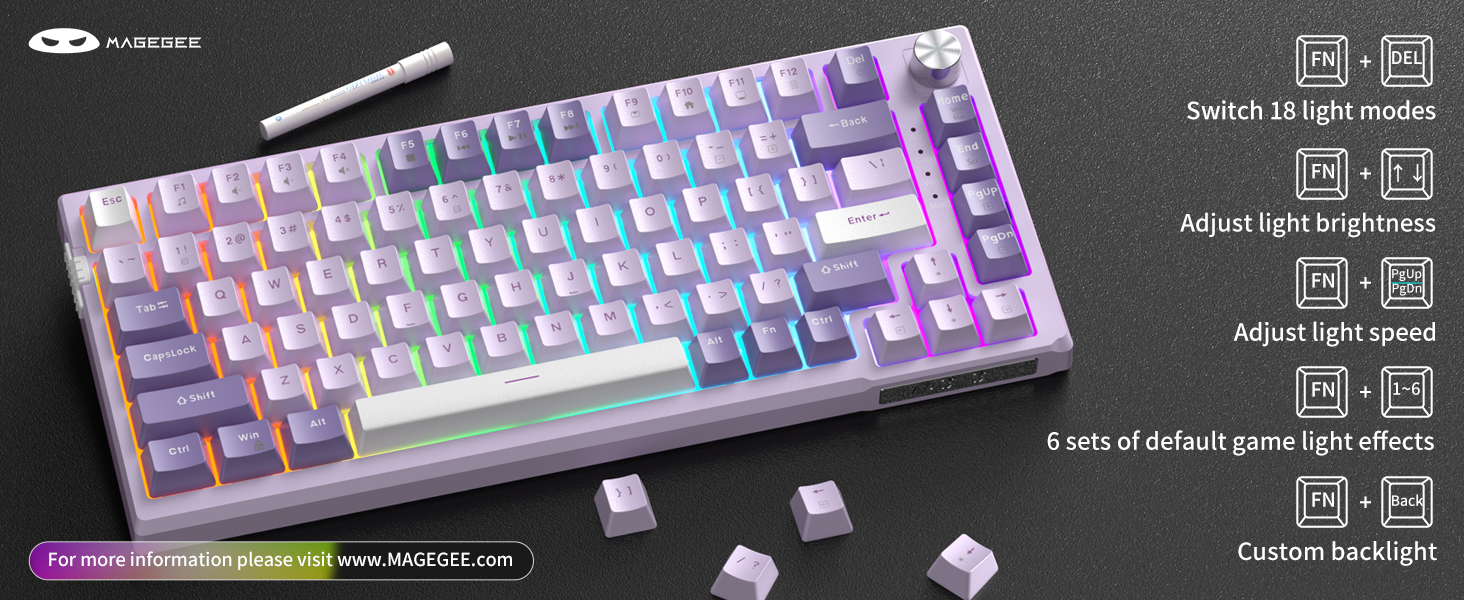
The keyboard features stunning RGB backlighting with multiple modes and customization options.
- Turn On/Off Backlight: Use the dedicated switch on the left side of the keyboard.
- Switch Light Modes: Press FN + DEL to cycle through 18 built-in backlight modes.
- Adjust Light Brightness: Press FN + ↑ (Up Arrow) to increase brightness, FN + ↓ (Down Arrow) to decrease brightness.
- Adjust Light Speed: Press FN + ← (Left Arrow) to decrease speed, FN + → (Right Arrow) to increase speed.
- Default Gaming Backlight Effects: Press FN + 1 through FN + 6 for 6 sets of pre-defined gaming backlight effects.
- Custom Backlight: Press FN + Back to record customized light effects.
4.3 Multifunctional Knob and Indicator Lights
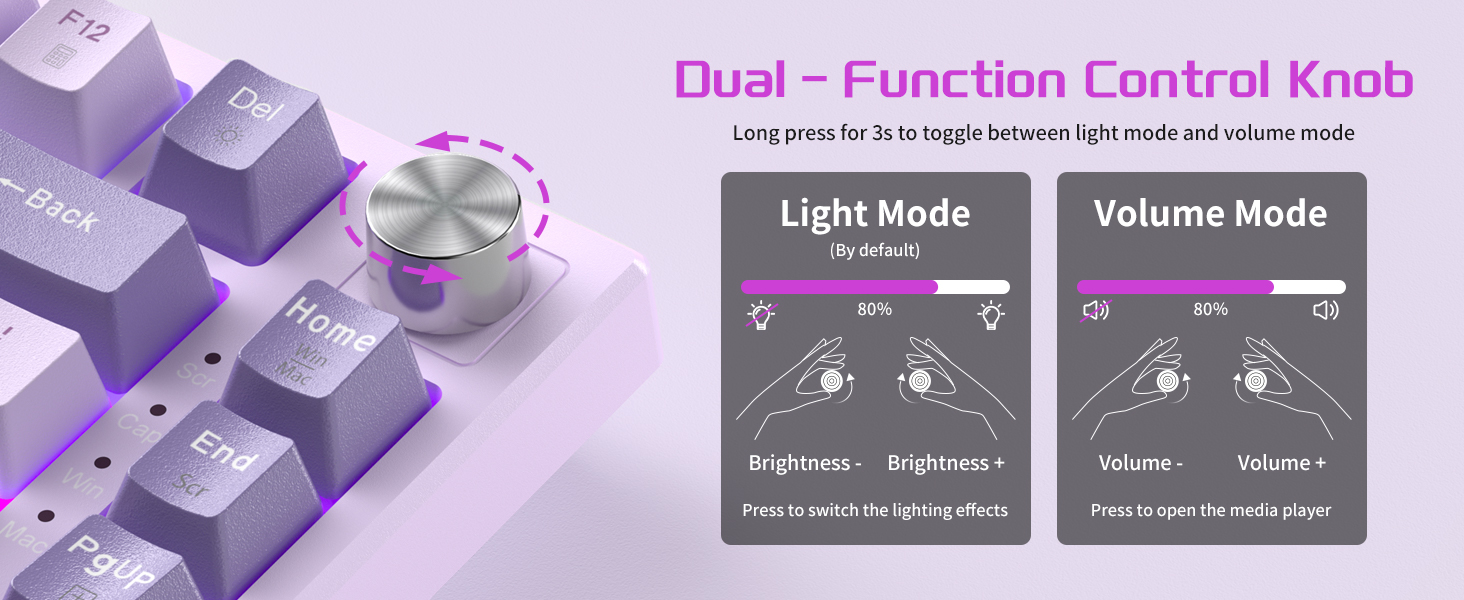
The metal knob on the keyboard provides quick control over lighting and volume settings.
- Default Mode (Light Control):
- Rotate the knob to adjust backlight brightness.
- Press the knob to switch between different lighting effects.
- Volume Mode:
- Hold the knob for 3 seconds to switch to volume mode.
- Rotate the knob to adjust the system volume.
- Press the knob to turn on/off the media player.
The 4 indicator lights on the right side of the keyboard clearly display its real-time status.

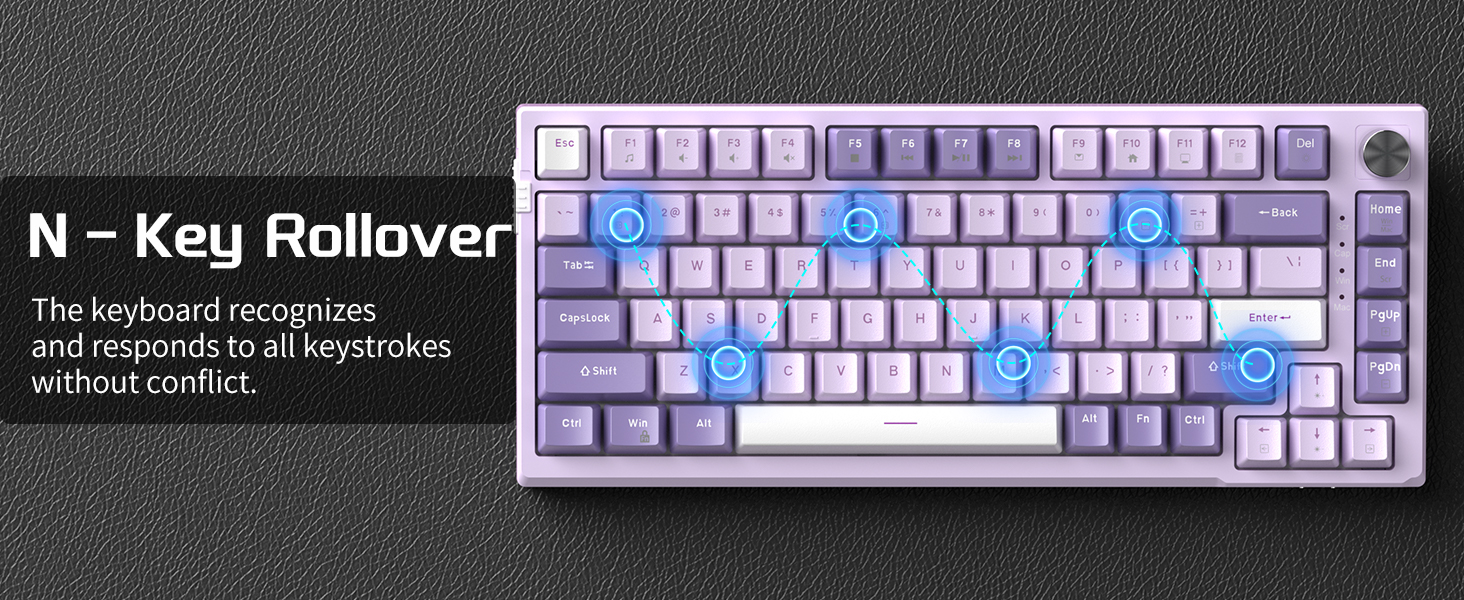
4.4 N-Key Rollover (NKRO)
The SKY81 features 100% anti-ghosting with N-Key Rollover, ensuring that every keystroke is detected correctly, even when multiple keys are pressed simultaneously. This is crucial for fast-paced gaming and accurate typing.

5. Maintenance
5.1 General Cleaning
To maintain your keyboard's performance and appearance:
- Use a soft, lint-free cloth to wipe down the keycaps and chassis.
- For deeper cleaning, use compressed air to remove dust and debris from between the keycaps.
- Avoid using harsh chemicals or abrasive materials, as these can damage the keyboard's finish.
5.2 Hot-Swappable Switches
The MageGee SKY81 features hot-swappable sockets, allowing you to easily replace individual switches without soldering. This keyboard is compatible with 3-pin or 5-pin mechanical switches.
- Using the included switch puller, gently grip the switch and pull it straight up to remove it.
- Align the pins of the new switch with the holes on the PCB.
- Gently press the new switch down until it clicks into place. Ensure the pins are not bent.

6. Troubleshooting
- Keyboard Not Responding:
- Ensure the USB cable is securely connected to both the keyboard and the computer.
- Try connecting the keyboard to a different USB port on your computer.
- Test the keyboard on another computer to rule out system-specific issues.
- Backlight Not Working:
- Check the backlight on/off switch on the left side of the keyboard.
- Ensure the brightness is not set to the lowest level using FN + ↑ (Up Arrow).
- Keys Not Registering / Double Typing:
- This could indicate a faulty switch. Utilize the hot-swappable feature to replace the problematic switch.
- Ensure the switch is fully seated in its socket.
- Knob Functionality Issues:
- Ensure you are in the correct mode (Light or Volume). Hold the knob for 3 seconds to toggle modes.
7. Specifications
| Feature | Description |
|---|---|
| Model | SKY81-Pink |
| Layout | 75% (83 Keys) |
| Structure | Gasket-Mounted |
| Sound Dampening | 5-Layer (IXPE foam, PORON foam, diaphragm, EVA soundproofing foam, silicone absorbing pad) |
| Switches | Violet Switch (Pre-lubed, Linear, 42gf operating force, 70 million keystrokes lifespan) |
| Hot-Swappable | Yes (Compatible with 3-pin or 5-pin switches) |
| Backlighting | RGB (18 built-in modes, 6 gaming effects, customizable) |
| Connectivity | Wired (Detachable Type-C USB Cable) |
| N-Key Rollover (NKRO) | 100% Anti-Ghosting |
| Compatible Devices | Laptop, PC |
| Operating Systems | Windows, Mac |
| Material | Metal |
| Item Weight | 2.29 pounds |
| Package Dimensions | 13.86 x 7.36 x 2.05 inches |


8. Official Product Videos
No official product videos from the seller are available at this time.
9. Warranty and Support
MageGee products are designed for durability and performance. For any warranty claims, technical support, or inquiries, please contact MageGee customer service through the official MageGee Store on Amazon or refer to the contact information provided in your product packaging.
Please retain your proof of purchase for warranty purposes.
Related documentsSKY81-Pink

Ask a question about this manual
Ask about setup, troubleshooting, compatibility, parts, safety, or missing instructions. Manuals+ will review the question and use this page’s manual context to help answer it.