
1. Introduction
This manual provides instructions for the Varmilo Koi 73 JIS Keyboard with Sakura Switches (Model: VMMA73A039SAKURA). This keyboard features a unique design inspired by traditional Chinese Koi fish and water elements, combined with a modern aesthetic. It is a compact 65% size keyboard with a Japanese Industrial Standard (JIS) layout, designed for both functionality and portability. The keyboard is equipped with Cherry-style stabilizers for a stable typing experience.
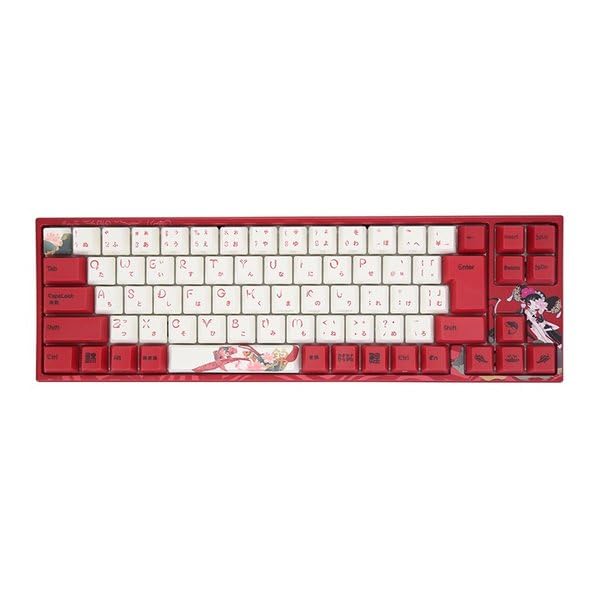
Image: Varmilo Koi 73 JIS Keyboard overview.
2. Key Features
- Unique Koi Design: Features vibrant koi fish illustrations and a red aesthetic, developed in collaboration with illustrator Li Huan.
- JIS Layout: 73-key Japanese Industrial Standard layout for specific regional input needs.
- Compact 65% Size: Optimizes desk space while retaining essential function and arrow keys.
- Customizable Switches: Offers a choice of Varmilo mechanical electrostatic capacity switches to suit individual typing preferences.
- Cherry-Style Stabilizers: Ensures consistent and stable key presses, especially for larger keys.
- USB Connectivity: Reliable wired connection for stable performance.
3. Setup Guide
3.1 Package Contents
Before you begin, please ensure all items are present in the package:
- Varmilo Koi 73 JIS Keyboard
- USB Cable
- User Manual (this document)
3.2 Connecting the Keyboard
To connect your Varmilo Koi 73 keyboard to your computer, follow these steps:
- Locate the USB-C port on the back of the keyboard.
- Connect one end of the provided USB cable to the keyboard's USB-C port.
- Connect the other end of the USB cable to an available USB port on your computer.
- The keyboard should be automatically recognized by your operating system.
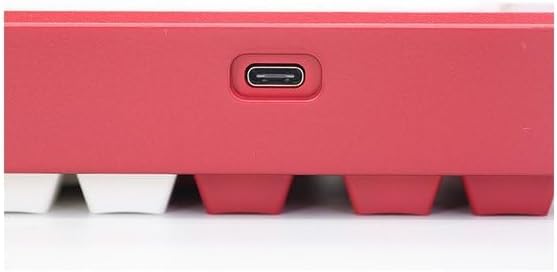
Image: USB-C port for keyboard connection.
3.3 Driver Installation (Optional)
For advanced customization and optimal performance, it is recommended to install the Varmilo driver software. This software allows you to remap keys, adjust performance settings, and customize lighting effects.
Video: This video demonstrates the driver installation process and software usage for Varmilo keyboards. While it features the Muse65 model, the steps for driver installation and basic software navigation are generally applicable to other Varmilo keyboards like the Koi 73.
Please visit the official Varmilo website for the latest driver downloads specific to your keyboard model. Follow the on-screen instructions during installation.
4. Operating Instructions
4.1 Basic Key Functions
The Varmilo Koi 73 keyboard features a standard JIS layout. Most keys function as labeled. For special functions, refer to the combination keys below.
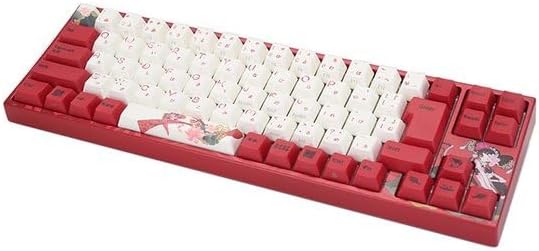
Image: Overview of the Varmilo Koi 73 JIS Keyboard layout.
4.2 Function (Fn) Key Combinations
Since this is a 73-key layout, some functions are accessed via the Fn key. Hold down the Fn key and press the corresponding key to activate its secondary function. Common Fn combinations include:
- Fn + F1-F12: Multimedia controls (e.g., volume, play/pause).
- Fn + Arrow Keys: Page Up/Down, Home/End (specific to model, refer to keycap legends).
- Fn + Win Key: Locks/unlocks the Windows key.

Image: Left side keys, often used with Fn for additional functions.
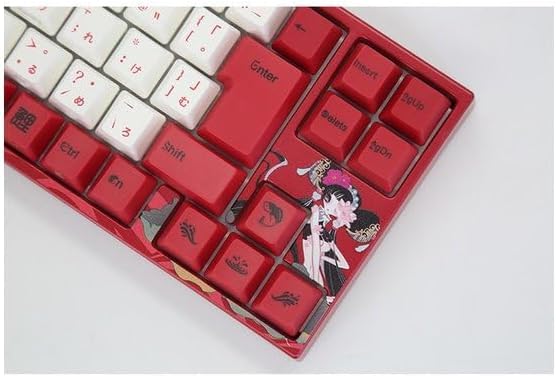
Image: Right side keys, including navigation and utility keys.
4.3 Lighting Effects
The Varmilo Koi 73 keyboard supports various RGB lighting effects. You can cycle through different modes and adjust brightness using specific key combinations. Refer to your keyboard's specific keycap legends or the driver software for detailed lighting controls.
Video: This video showcases various RGB lighting effects on a Varmilo keyboard. While the model shown is Muse65, it provides a general idea of the dynamic lighting capabilities available on Varmilo keyboards, including the Koi 73.
5. Maintenance and Care
Proper maintenance ensures the longevity and optimal performance of your Varmilo Koi 73 keyboard.
- Cleaning Keycaps: Gently remove keycaps using a keycap puller. Clean the keycaps with a soft cloth dampened with mild soap and water. Ensure they are completely dry before reattaching.
- Cleaning the Keyboard Body: Use a soft, dry cloth to wipe down the keyboard body. For stubborn dirt, a slightly damp cloth with a small amount of isopropyl alcohol can be used. Avoid excessive moisture.
- Dust Removal: Use compressed air to remove dust and debris from between the keys.
- Avoid Liquids: Keep liquids away from the keyboard to prevent damage.
- Cable Care: Do not bend or crimp the USB cable excessively.
6. Troubleshooting
If you encounter issues with your Varmilo Koi 73 keyboard, try the following solutions:
- Keyboard Not Responding:
- Ensure the USB cable is securely connected to both the keyboard and the computer.
- Try connecting the keyboard to a different USB port on your computer.
- Restart your computer.
- If using a USB hub, try connecting directly to the computer.
- Keys Not Registering:
- Check for any debris or foreign objects under the keycaps.
- If specific keys are not working, consider reinstalling the keyboard driver.
- Lighting Issues:
- Ensure the keyboard driver is installed and up to date.
- Use the Fn key combinations or driver software to adjust lighting modes and brightness.
- Windows Key Locked:
- Press Fn + Win Key to toggle the Windows key lock.
If the problem persists, please contact Varmilo customer support for further assistance.
7. Specifications
| Brand | Varmilo |
| Model Number | VMMA73A039SAKURA |
| Keyboard Layout | 73-key JIS (Japanese Industrial Standard) |
| Connectivity | USB Wired |
| Switch Type | Mechanical (Linear) |
| Compatible Devices | Laptop |
| Product Dimensions | 34.2 cm (L) x 34.2 cm (W) x 5.1 cm (H) |
| Included Components | USB Cable |
8. Warranty and Support
Varmilo products typically come with a manufacturer's warranty. Please refer to the warranty card included with your product or visit the official Varmilo website for detailed warranty terms and conditions.
For technical support, driver downloads, or further inquiries, please visit the official Varmilo support page or contact their customer service.
Official Varmilo Website: www.varmilo.com
