
Yamnweo GX8
Yamnweo GX8 Professional Sound Board Console User Manual
Model: GX8
Introduction
This manual provides detailed instructions for the setup, operation, maintenance, and troubleshooting of your Yamnweo GX8 Professional Sound Board Console. Please read this manual thoroughly before using the device to ensure proper functionality and to maximize its lifespan.

Figure 1: Front view of the Yamnweo GX8 Professional Sound Board Console.
Key Features
- 8-Channel Professional Mixer: Multi-track mixing with USB audio interface, suitable for live performances, studio recording, podcasting, and DJ setups.
- XLR +48V Phantom Power: Supports condenser microphones, ideal for vocals, instruments, and high-quality audio capture.
- Smart Bluetooth and USB Connection: Seamless audio streaming from mobile devices and direct computer recording/playback (DAW compatible).
- Versatile I/O Options: Includes RCA inputs/outputs, 1/4" TRS jacks, and headphone monitoring for flexible connectivity.
- Durable Design: Robust metal chassis with intuitive controls for reliable use in various professional environments.
- Built-in Reverb Function: Integrated DSP for realistic proximity sound algorithms.
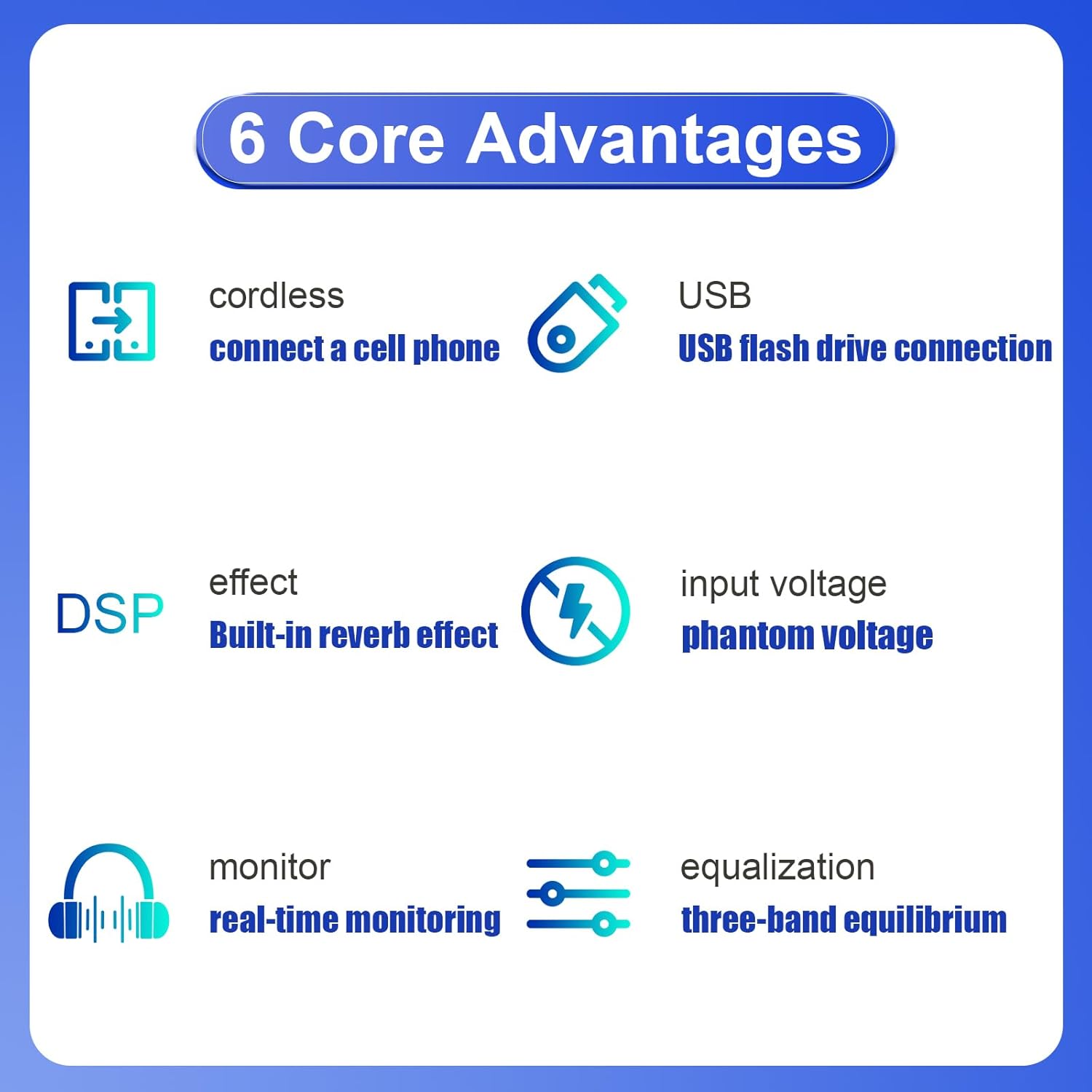
Figure 2: Overview of the GX8's core advantages, including cordless connectivity, USB, DSP effects, phantom power, monitoring, and equalization.
Setup Guide
1. Unpacking and Inspection
Carefully remove the GX8 mixer from its packaging. Inspect the unit for any signs of damage that may have occurred during transit. Ensure all components listed in the packing list are present.
2. Power Connection
The GX8 is USB powered. Connect the provided USB cable to the mixer's USB port and then to a compatible USB power source (e.g., a computer USB port or a USB power adapter). The mixer requires 110 Volts.
3. Initial Connections
Before powering on, connect your audio sources and outputs.
- Microphones: Use XLR cables to connect microphones to the MIC inputs (channels 1-8). For condenser microphones, activate the +48V Phantom Power switch.
- Line-Level Instruments/Devices: Connect instruments or other line-level devices to the LINE inputs using 1/4" TRS jacks.
- Main Output: Connect your main speakers or amplifier to the L MAIN OUT R XLR outputs.
- Headphones: Plug your headphones into the PHONES jack for monitoring.
- USB Connection to Computer: For recording or playback via computer, connect the mixer's USB port to your computer. The device is plug-and-play and compatible with various Digital Audio Workstations (DAW) on Windows and Mac.

Figure 3: Connectivity options for the GX8 mixer, including wired microphones, electronic keyboards, guitars, wireless microphones, power amplifiers, laptops, and trolley speakers.

Figure 4: Detailed view of the GX8's high-quality interfaces, damping faders, and tri-color level lamp.
Operating Instructions
1. Powering On
Once all connections are secure, power on the mixer. The power indicator light will illuminate.
2. Channel Control
- GAIN Knob: Adjusts the input sensitivity for each channel. Set this to achieve a strong signal without clipping (distortion).
- EQ Controls (HF, MF, LF): Adjust the high, mid, and low frequencies for each channel to shape the tone.
- AUX/FX Send: Controls the amount of signal sent from the channel to the auxiliary send or internal effects processor.
- PAN Knob: Adjusts the stereo position of the channel's signal (left to right).
- Channel Fader: Controls the volume level of each individual channel.
- PFL/Mute Button: Pre-Fader Listen (PFL) allows monitoring of a channel's signal before the fader. Mute silences the channel.
3. Master Control
- MAIN L/R Faders: Control the overall output volume of the main stereo mix.
- Headphone Level: Adjusts the volume for headphone monitoring.
- Effect Controls: Adjust parameters for the built-in DSP effects, such as reverb.
4. Bluetooth and USB Playback
- Bluetooth Connection: Activate Bluetooth on the mixer and your mobile device. Pair the devices to stream audio wirelessly.
- USB Playback: Insert a USB flash drive containing MP3 or other supported audio files into the USB port. Use the built-in controls to navigate and play tracks.

Figure 5: The GX8 supports playback over wireless connection, allowing seamless integration with smartphones and tablets.

Figure 6: The GX8 features a USB playback function, supporting multiple music formats directly from a USB flash drive.

Figure 7: Bluetooth connectivity allows for stable sound and playback anytime from your mobile device.
Maintenance
Proper maintenance ensures the longevity and optimal performance of your GX8 mixer.
- Cleaning: Use a soft, dry cloth to wipe down the surface of the mixer. Avoid using abrasive cleaners, solvents, or waxes, as these can damage the finish and internal components.
- Dust Protection: When not in use, cover the mixer to protect it from dust and debris. Dust can accumulate in faders and knobs, affecting their smooth operation.
- Storage: Store the mixer in a cool, dry place away from direct sunlight, extreme temperatures, and high humidity.
- Cable Management: Ensure cables are not kinked or strained. Proper cable management prevents damage to connectors and ports.
- Faders and Knobs: The slide controls are designed for smooth operation and are advertised as not needing attention or lubricating. Avoid applying excessive force.
Troubleshooting
| Problem | Possible Cause | Solution |
|---|---|---|
| No power | Power cable not connected; faulty USB power source. | Ensure USB cable is securely connected to a working USB power source. Try a different USB port or adapter. |
| No sound output | Main faders down; incorrect input/output connections; muted channels. | Check MAIN L/R faders. Verify all cables are correctly connected. Ensure channels are not muted and channel faders are up. |
| Distorted audio | Input GAIN too high; output level too high; faulty cable. | Reduce input GAIN for the affected channel. Lower main output faders. Test with different cables. |
| Bluetooth not connecting | Bluetooth not enabled on mixer or device; device too far. | Ensure Bluetooth is active on both the mixer and your device. Move devices closer. Try re-pairing. |
| USB playback issues | Unsupported file format; corrupted USB drive; drive not properly inserted. | Ensure audio files are in a supported format (e.g., MP3). Reinsert the USB drive. Try a different USB drive. |
| Slight digital noise (when connected to computer) | Ground loop; interference; driver issue. | Ensure proper grounding. Try a different USB port or cable. Adjust noise gate/suppression settings in your DAW or recording software (e.g., OBS). |
Specifications
| Feature | Detail |
|---|---|
| Model Number | GX8 |
| Brand | Yamnweo |
| Number of Channels | 8 |
| Connectivity Technology | USB, Bluetooth |
| Power Source | USB Powered |
| Voltage | 110 Volts |
| Item Weight | 8.63 pounds |
| Product Dimensions | 13.38 x 15.74 x 1.45 inches (33.99 cm D x 39.98 cm W x 3.68 cm H) |
| Phantom Power | +48V |
| Built-in Effects | DSP Reverb |
Warranty and Support
For warranty information and technical support, please refer to the documentation included with your purchase or contact Yamnweo customer service directly.
You can also visit the official Yamnweo store on Amazon for additional product information and support resources: Yamnweo Store.
Ask a question about this manual
Ask about setup, troubleshooting, compatibility, parts, safety, or missing instructions. Manuals+ will review the question and use this page’s manual context to help answer it.