
ODK 801001-UK
ODK Gaming Desk User Manual
Model: 801001-UK
Brand: ODK
1. Introduction
Thank you for choosing the ODK Gaming Desk. This manual provides detailed instructions for the assembly, operation, maintenance, and troubleshooting of your new gaming desk. Please read this manual thoroughly before assembly and use to ensure proper function and safety. This desk is designed to enhance your gaming experience with integrated LED lighting and convenient power outlets.

Figure 1.1: ODK Gaming Desk Overview
2. Product Features
- Built-in LED Lights: Equipped with innovative light strips offering 10 colors and 20 dynamic modes, controlled by a reversible remote for an immersive gaming atmosphere.
- Integrated Power Outlet: Features 2 AC sockets and 2 USB charging ports (5V/2A) with a 200 cm power cord, allowing convenient charging of devices directly from your desk.
- Double Z Frame Design: Provides enhanced stability and a modern aesthetic.
- Split-board Structure: Designed with a technology-forward look, this structure also reserves space for monitor arm installation, with a thickened middle section to support the weight of a monitor arm and screen.
- Convenient Accessories: Includes a sturdy metal headphone hook and a cup holder for organized and clutter-free gaming.
- Compact Size: The 100 cm model is ideal for smaller rooms, maximizing space efficiency.
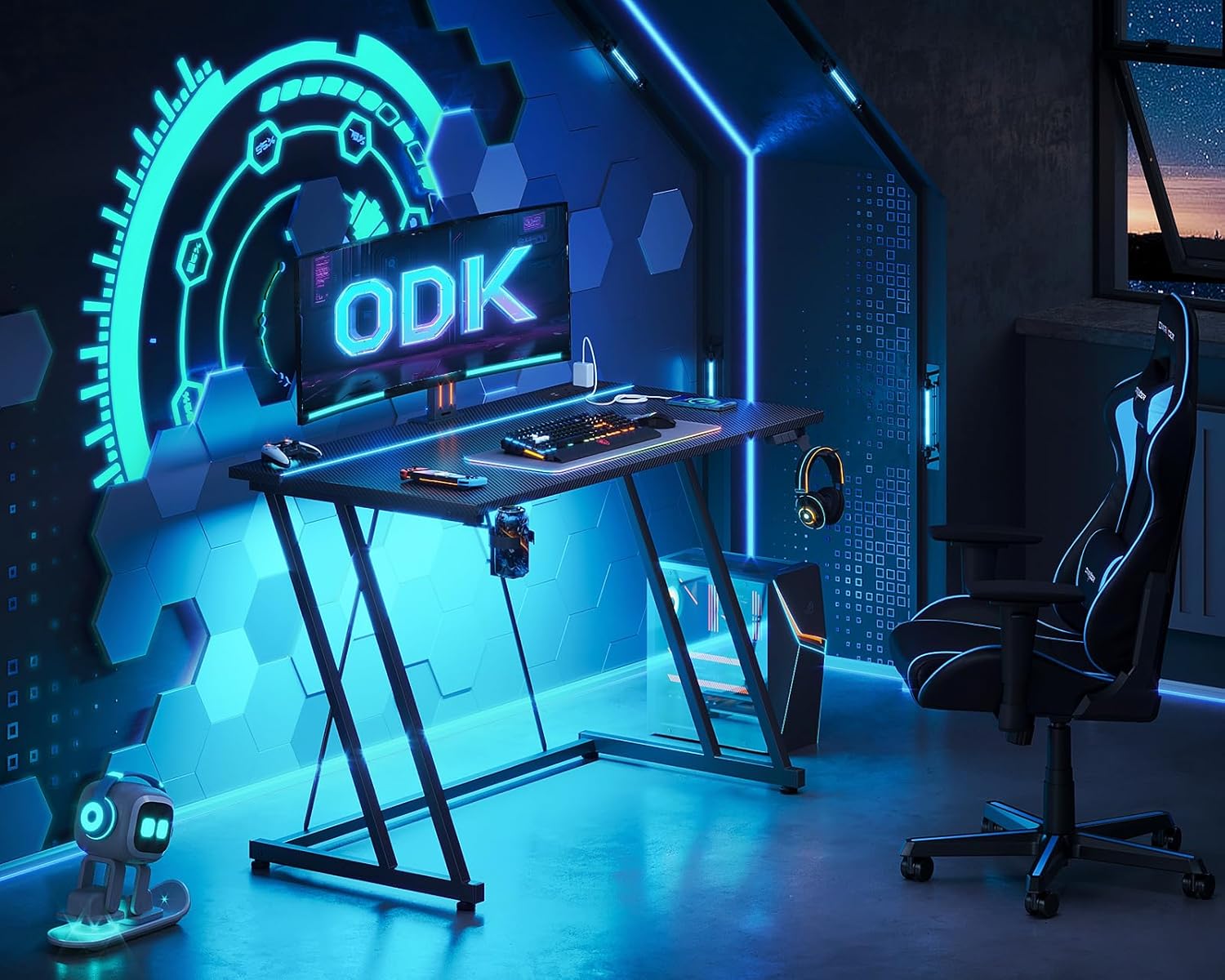
Figure 2.1: Gaming Desk in a typical setup
3. Package Contents
Please verify that all components are present before beginning assembly. If any parts are missing or damaged, please contact customer support.
- Desk Panels (Main tabletop, LED light panel)
- Z-shaped Frame Legs (Left and Right)
- Support Beams and Brackets
- LED Light Strip (pre-installed or separate)
- LED Remote Controller
- Power Outlet Unit with Cable
- Headphone Hook
- Cup Holder
- Assembly Hardware (Screws, bolts, nuts, washers)
- Assembly Tools (Hex key/Allen wrench)
- Instruction Manual
4. Setup and Assembly
The ODK Gaming Desk is designed for easy assembly. Comprehensive instructions and all necessary tools are included in the package. We recommend assembling the desk with two people for optimal ease and safety.
- Unpack Components: Carefully remove all parts from the packaging and lay them out on a clean, soft surface (e.g., a blanket or carpet) to prevent scratches.
- Identify Parts: Refer to the parts list in the included assembly guide to identify each component.
- Assemble Frame: Follow the step-by-step diagrams in the assembly guide to connect the Z-shaped frame legs with the support beams using the provided hardware. Ensure all screws are finger-tightened initially.
- Attach Desk Panels: Secure the desk panels to the assembled frame. Pay attention to the orientation of the split-board structure if applicable.
- Install Accessories: Attach the headphone hook and cup holder to the designated locations on the desk.
- Install Power Outlet: Mount the power outlet unit to the underside of the desk as indicated in the assembly guide.
- Final Tightening: Once all components are in place, systematically tighten all screws with the provided tools. Do not overtighten.
- Cable Management: Utilize any integrated cable management features to route the power cord neatly.
For detailed visual instructions, please refer to the separate assembly manual included in your package.
5. Operating Instructions
5.1. LED Lights Operation
The ODK Gaming Desk features integrated LED lights with a reversible controller for easy customization.

Figure 5.1: LED Lights and Controller
- Power On/Off: Press the ON/OFF button on the controller to turn the LED lights on or off.
- Static Color Button (C): Press the C button to cycle through 10 different static colors.
- Dynamic Mode Button (M): Press the M button to cycle through 20 different dynamic lighting modes (e.g., flashing, fading, pulsing).
- Adjust Speed & Brightness: While in a dynamic mode, use the ON/OFF button (or dedicated speed/brightness buttons if present on your specific controller model) to adjust the speed of the dynamic effect or the brightness of the lights.
- Memory Function: The LED system includes a power-off memory function, which means it will recall your last selected setting when powered on again.
5.2. Power Outlet Usage
The integrated power outlet provides convenient access to power for your devices.

Figure 5.2: Integrated Power Outlet
- AC Sockets: The desk is equipped with 2 standard AC sockets (110-240V/6A). Plug in your gaming console, monitor, or other AC-powered devices.
- USB Charging Ports: Two USB charging ports (5V/2A) are available for charging mobile phones, headphones, or other USB-powered accessories.
- Power Cord: Ensure the 200 cm power cord is securely plugged into a wall outlet.
6. Maintenance
Regular maintenance will help prolong the life and appearance of your ODK Gaming Desk.
- Cleaning: Wipe the desk surface with a soft, damp cloth. For stubborn marks, a mild, non-abrasive cleaner can be used. Avoid harsh chemicals or abrasive materials that could damage the carbon fiber finish.
- Dusting: Regularly dust the LED light strips and power outlet area to prevent accumulation that could affect performance or aesthetics.
- Hardware Check: Periodically check all screws and connections to ensure they remain tight. Retighten if necessary to maintain stability.
- Electrical Safety: Ensure the power cord is not pinched or damaged. Do not overload the power outlets. If any electrical component appears damaged, discontinue use and contact support.
7. Troubleshooting
If you encounter any issues with your ODK Gaming Desk, please refer to the following common solutions:
| Problem | Possible Cause | Solution |
|---|---|---|
| LED lights not turning on. | Power cord not plugged in; controller battery dead; loose connection; LED strip damage. | Ensure power cord is fully plugged into wall and desk. Check controller battery. Verify all LED connections are secure. Contact support if strip is damaged. |
| Power outlets not working. | Desk power cord unplugged; circuit breaker tripped; device not properly plugged in. | Check desk power cord connection. Reset household circuit breaker if tripped. Ensure devices are fully inserted into outlets. |
| Desk feels wobbly. | Loose assembly screws; uneven floor. | Retighten all assembly screws. Adjust any leveling feet if present, or place shims under legs on uneven surfaces. |
| LED controller unresponsive. | Controller battery low/dead; obstruction between controller and receiver. | Replace controller battery. Ensure clear line of sight between controller and LED receiver. |
If the problem persists after attempting these solutions, please contact ODK customer support for further assistance.
8. Specifications
| Attribute | Detail |
|---|---|
| Brand | ODK |
| Model Number | 801001-UK |
| Colour | Black |
| Product Dimensions | 50 x 100 x 75 cm (Depth x Width x Height) |
| Item Weight | 10 kg |
| Material | Metal, Carbon Fibre |
| Special Features | Built-In LED Lights, Power Outlet, Double Z Design, Monitor Arm Ready |
| Power Outlet Input | 110-240V/6A |
| USB Output | 5V/2A |
| Power Cord Length | 200 cm |

Figure 8.1: Product Dimensions
9. Safety Information
Always ensure the desk is stable and secure before use. Be cautious when using the built-in power outlets and LED lights to prevent any electrical hazards.
- Do not exceed the maximum weight capacity of the desk.
- Keep liquids away from electrical components, especially the power outlets and LED light connections.
- Ensure the power cord is not a tripping hazard and is protected from damage.
- Do not attempt to modify or repair the electrical components of the desk. Contact qualified personnel for service.
- Keep small parts and packaging materials away from children to prevent choking hazards.
10. Warranty and Support
ODK is committed to providing high-quality products and customer satisfaction. While specific warranty details are not provided in this manual, we offer responsive customer support.
- Customer Support: If any questions or issues arise during assembly or use, our responsive team is available to assist you within 24 hours.
- Contact Information: Please refer to the contact details provided on the product packaging or the official ODK website for support.
- Returns/Replacements: For information regarding returns or replacements, please consult your purchase platform's policy or contact ODK customer service directly.
Ask a question about this manual
Ask about setup, troubleshooting, compatibility, parts, safety, or missing instructions. Manuals+ will review the question and use this page’s manual context to help answer it.