
XVIM DI88C-C109-XV/001
XVIM 8CH Wired Security Camera System User Manual
Model: DI88C-C109-XV/001
1. Product Overview
The XVIM 8CH Wired Security Camera System provides comprehensive surveillance for your property. Featuring 8 mini cameras, a DVR with a pre-installed 64G SD card, and remote access capabilities, this system is designed for reliable outdoor monitoring with night vision and motion detection.

Figure 1: Complete XVIM 8CH Wired Security Camera System
2. Package Contents
Verify that all items listed below are included in your package:
- 1 x 8-channel DVR (with 64G SD card pre-installed)
- 8 x Security Cameras
- 1 x Instruction Manual
- 8 x 18.3M Dual Type-C Cables
- 1 x 1M Flat Network Cable
- 1 x 12V 2A Power Supply
- 8 x Camera Bracket Screw Kits
- 1 x Wireless Mouse

Figure 2: Package Contents and DVR Ports Overview
3. Setup Guide
Follow these steps to set up your XVIM Wired Security Camera System:
- Connect the Wireless Mouse: Insert the wireless mouse USB receiver into one of the USB ports on the DVR.
- Connect the DVR to Power: Plug the 12V 2A power supply into the DVR's DC 12V input port and then into a power outlet.
- Connect DVR to Router: Use the provided 1M flat network cable to connect the DVR's WAN port to an available LAN port on your internet router. This is essential for remote access features.
- Connect DVR to Monitor: Hook up the DVR to a monitor using either an HDMI or VGA cable. This allows you to view the camera feeds and navigate the system's interface.
- Connect Cameras to DVR: Connect each camera to one of the Type-C ports on the back of the DVR using the 18.3M Dual Type-C cables. Ensure a secure connection for each camera.
- Initial Setup Wizard: Once powered on and connected to a monitor, the DVR will display a startup wizard. Follow the on-screen prompts to configure basic settings such as system time, language, and network test.
Video 1: Step-by-step guide on how to set up your XVIM Mini 8CH Wired Camera System, including connections and initial configuration.
4. Operation
4.1 Remote Access & Camera Sharing
To access your camera system remotely, download the HoMeYe Pro APP on your smartphone (available on iOS and Android). Follow these steps:
- Ensure the DVR is connected to your router via Ethernet.
- Open the HoMeYe Pro APP.
- Scan the QR code displayed on your DVR's monitor (or manually add the device) to link it to your app.
The system supports multi-user online viewing. To share access, click 'Share' within the app and scan the generated QR code with another user's HoMeYe Pro APP.

Figure 3: Easy control with the HoMeYe Pro App
4.2 Smart Motion Detection
The system features smart motion detection. When motion is detected, the HoMeYe Pro app will immediately push an alert message to your phone. You can then tap Playback > Local Record and Local Picture to view the alert video and image.

Figure 4: Human Motion Detection in action
4.3 Local Storage & Remote Playback
The DVR comes with a pre-installed 64G micro SD card, supporting up to 128G. H.264 compression technology optimizes storage, allowing for approximately one week of recording if the cameras trigger no more than 20 alarm recordings per day. You can play back and watch live footage anywhere using the HoMeYe Pro app.

Figure 5: Local Storage and Remote Playback via App
4.4 Night Vision
Each outdoor security camera is equipped with 8 built-in infrared lights, providing clear visibility even in dark environments. The night vision range extends up to 33 feet.
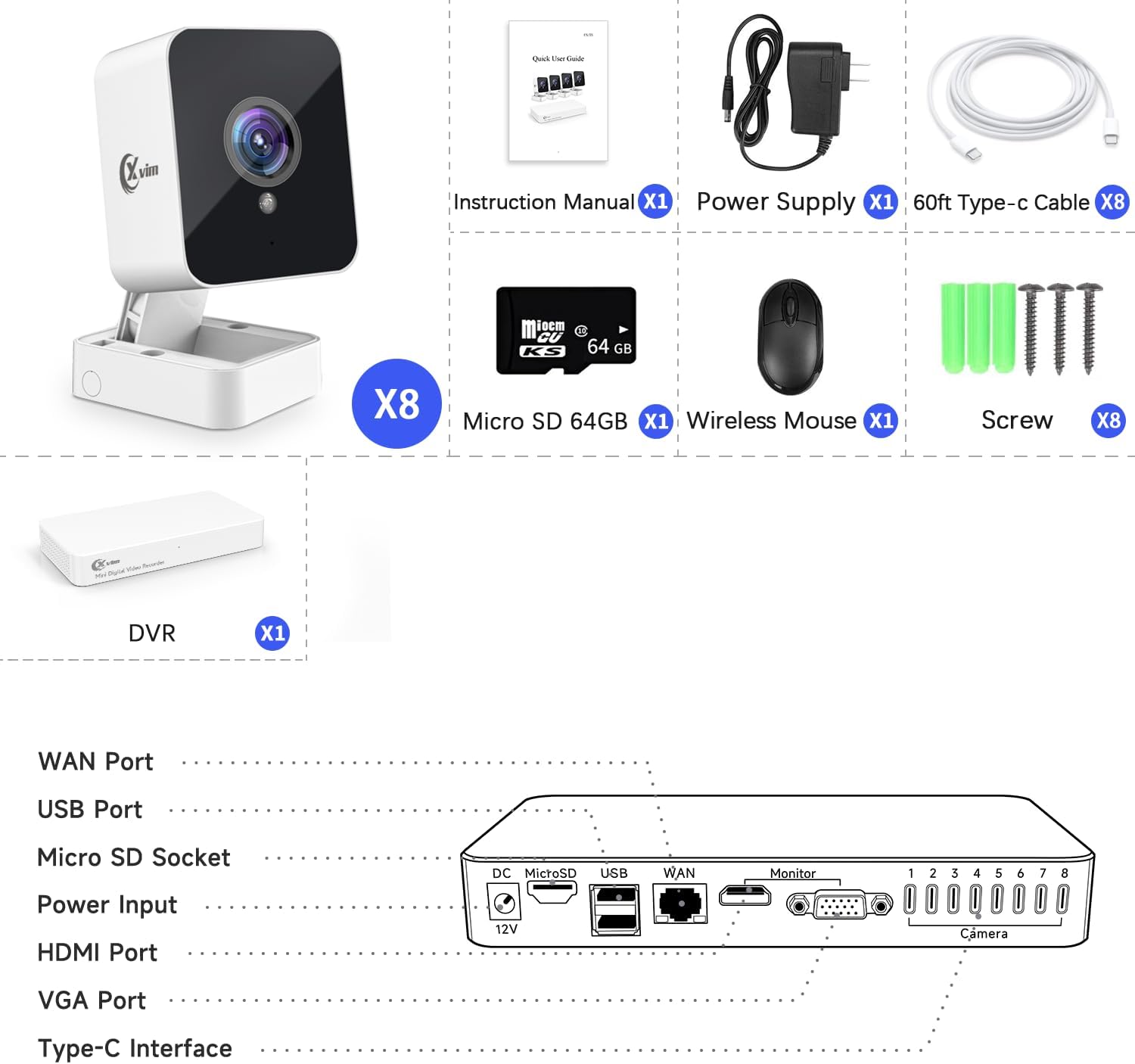
Figure 6: Ultra 1080P Full HD Day and Night Vision
5. Maintenance
To ensure optimal performance and longevity of your XVIM Security Camera System, consider the following maintenance tips:
- Cleaning: Regularly wipe the camera lenses with a soft, damp cloth to remove dust and smudges that may affect image clarity. Do not use harsh chemicals.
- Cable Management: Ensure all cables are securely fastened and protected from environmental damage or tampering.
- Software Updates: Periodically check for firmware updates for your DVR and HoMeYe Pro app to ensure you have the latest features and security enhancements.
- Waterproof Design: The wired security camera system is made of IP66 rated waterproof material, allowing for outdoor installation. While designed to withstand rain, avoid submerging the cameras or DVR in water.

Figure 7: IP66 Waterproof Camera Design
6. Troubleshooting
If you encounter issues with your XVIM Security Camera System, refer to the following common problems and solutions:
- No Image on Monitor:
Solution: Check all cable connections (power, HDMI/VGA, camera cables) to ensure they are secure. Verify the monitor input source is correctly selected. - No Remote Access via App:
Solution: Ensure the DVR is connected to the internet via the Ethernet cable and your router is functioning correctly. Check the network test in the DVR's settings. Verify your phone has a stable internet connection and the HoMeYe Pro app is updated. - Poor Image Quality:
Solution: Clean the camera lens. Ensure the camera is properly focused (if adjustable). Check for obstructions in the camera's field of view. Verify the resolution settings in the DVR. - Motion Detection Not Working:
Solution: Ensure motion detection is enabled in the DVR and app settings. Adjust sensitivity levels. Check the detection zones to ensure they cover the desired areas. - Recording Issues:
Solution: Check the status of the 64G SD card in the DVR settings. Ensure it is not full or corrupted. Reformat the SD card if necessary (this will erase all data).
7. Technical Specifications
| Feature | Specification |
|---|---|
| Brand | XVIM |
| Model Number | DI88C-C109-XV/001 |
| Connectivity Technology | Wired |
| Video Capture Resolution | 1080p |
| Special Features | Night Vision, Smart Playback, Weatherproof |
| Number of Channels | 8 |
| Memory Storage Capacity | 64 GB (expandable up to 128 GB) |
| Color | White |
| Power Source | Corded Electric |
| Item Dimensions (L x W x H) | 11 x 5.7 x 7.3 inches |
| Operating System | [Proprietary Operating System] |
| Recommended Uses | Outdoor |
| Compatible Devices | Cameras |
| Signal Format | Analog |
| Low Light Technology | Night color |
| Night Vision Range | 33 Feet |
| Frame Rate | 15-30 FPS |
| Recording Mode | Video |
| Optical Sensor Technology | CMOS |
| Hardware Interface | USB 2.0 |
| Lens Type | Fixed |
| Video Input | HDMI, VGA |
8. Warranty and Support
For detailed warranty information and further technical support, please refer to the official Installation Manual provided with your product or visit the XVIM official website.
You can also access the digital version of the Installation Manual here: XVIM Installation Manual (PDF)
Related documentsDI88C-C109-XV/001


Ask a question about this manual
Ask about setup, troubleshooting, compatibility, parts, safety, or missing instructions. Manuals+ will review the question and use this page’s manual context to help answer it.